
What this is for. Six short missions take you from the invite email to a dealer who can order from your catalog. Each one ends with something working, and you can stop between them.
Find your way around
Everything you need sits in the bar across the top of your Overview. Dealers is where you invite dealers and see who has applied. Catalog holds your products. Orders is the board where dealer orders arrive, and Invoices is where you bill a dealer. Your account menu, the round button at the right end, opens Settings and Support.
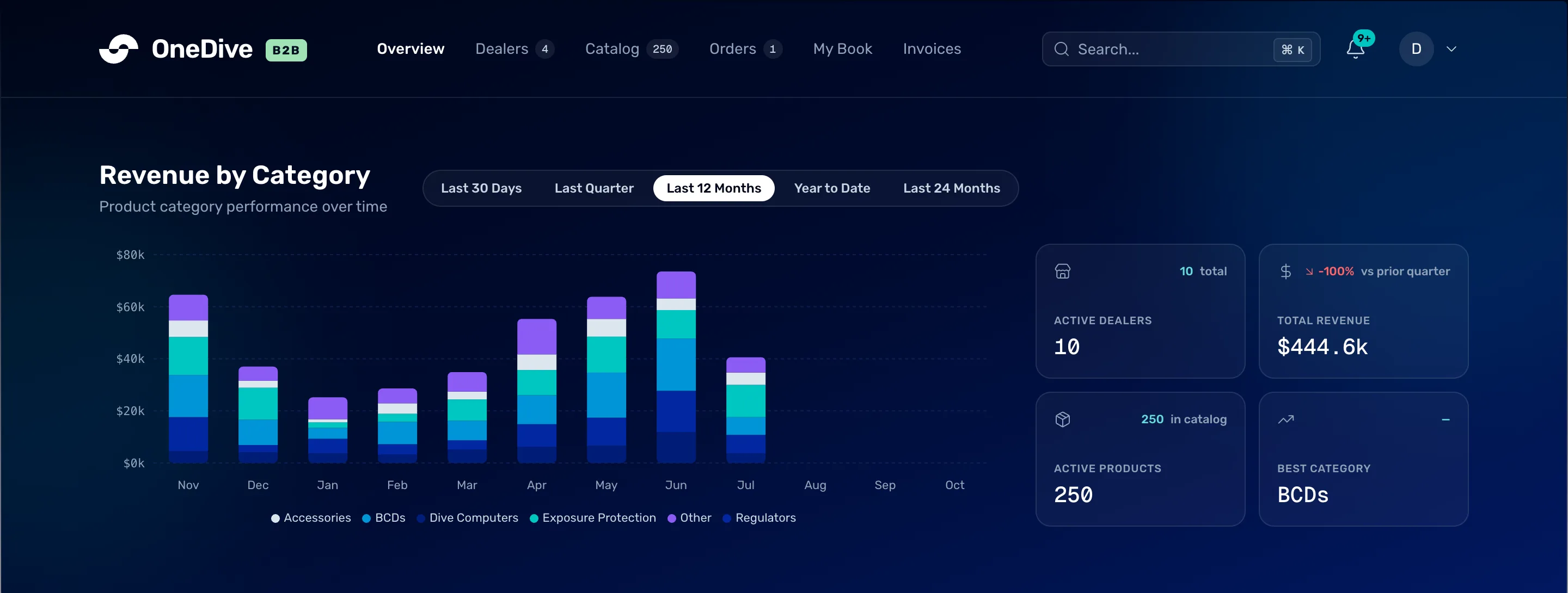
- Dealers. Invite dealers and take applications.
- Catalog. Your products, and where you publish them.
- Orders. The board of dealer orders.
- Invoices. Bill a dealer.
- Your account menu. Settings and Support are in here.
Mission 1: Accept your invite and sign in
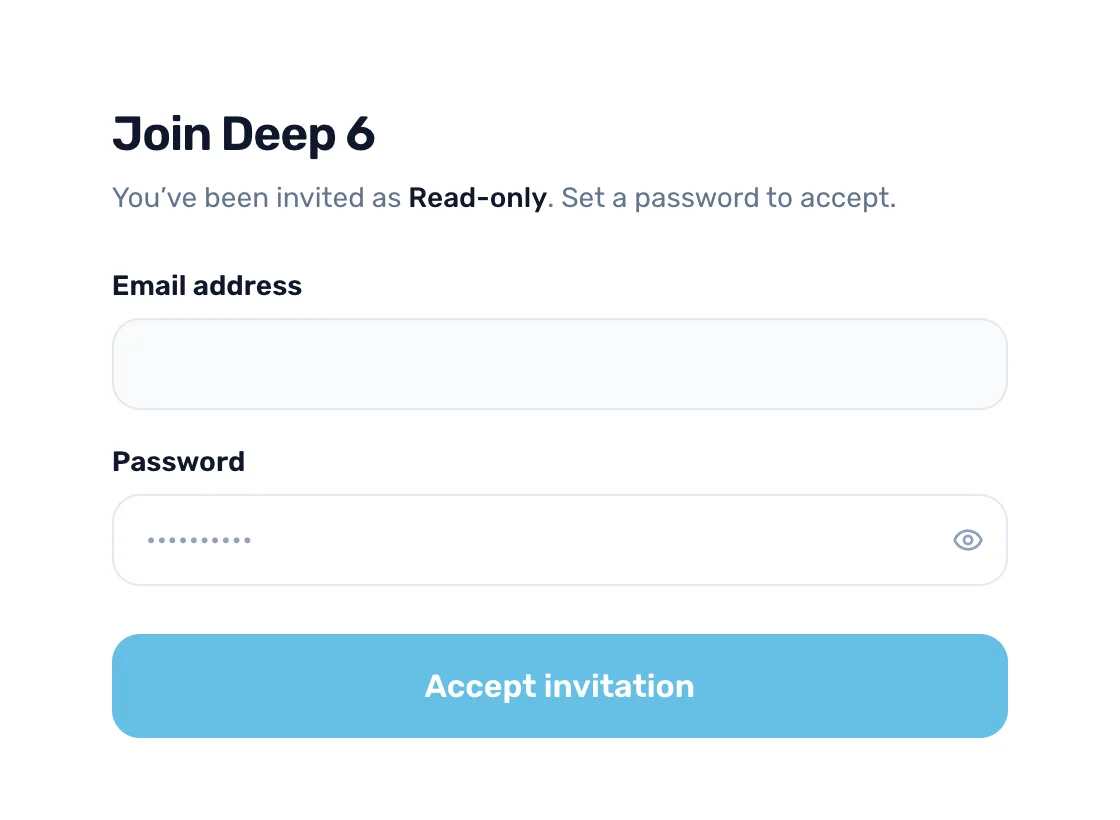
Open the email from OneDive, set a password, and land on your dashboard.
- Press Set your password or Accept invitation in the email
- Check your role, then choose a password
- Sign in next time with Log in
Mission 2: Tell dealers who you are
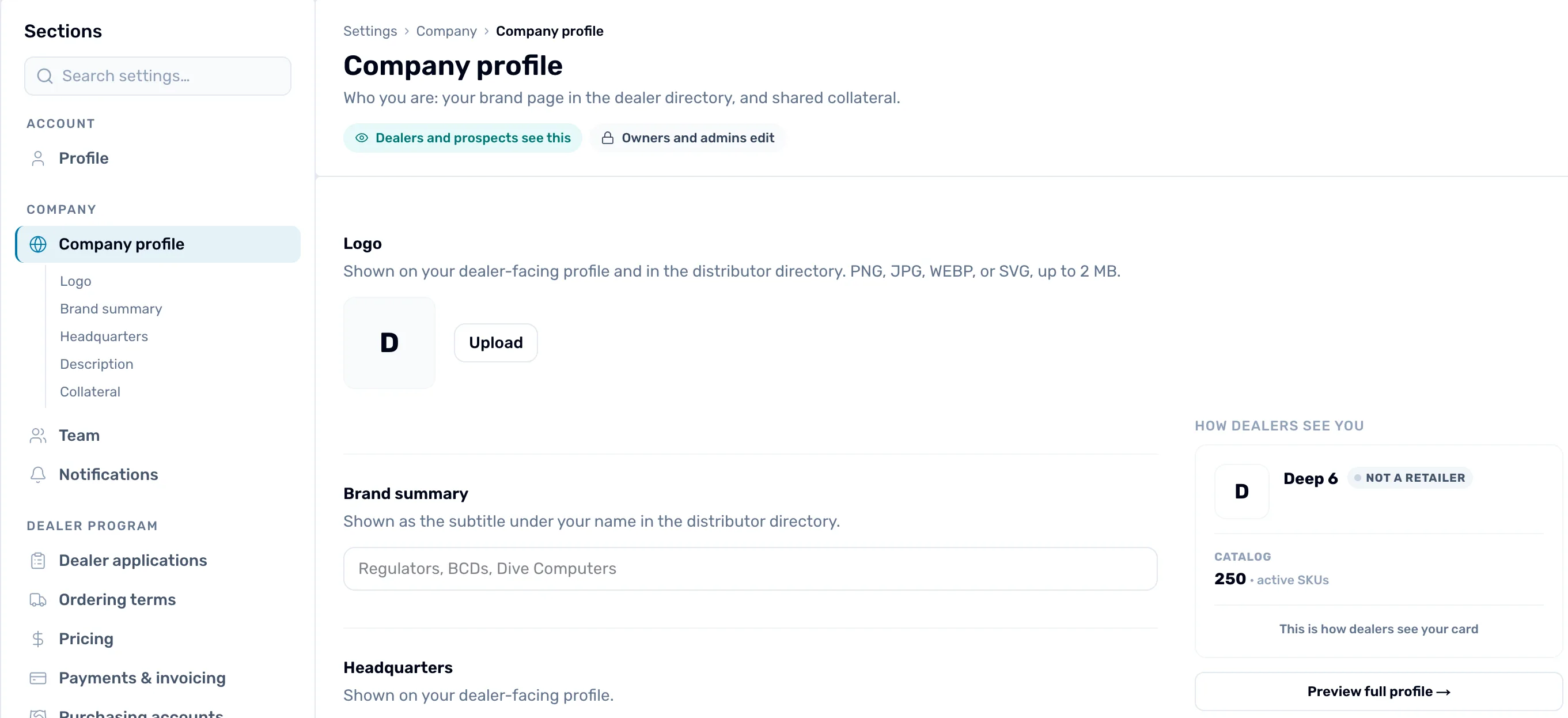
Your company profile is the page dealers find when they look you up.
- Add your logo
- Say who you are: brand summary, headquarters and description
- Share collateral
- See what dealers see
Mission 3: Get your products in
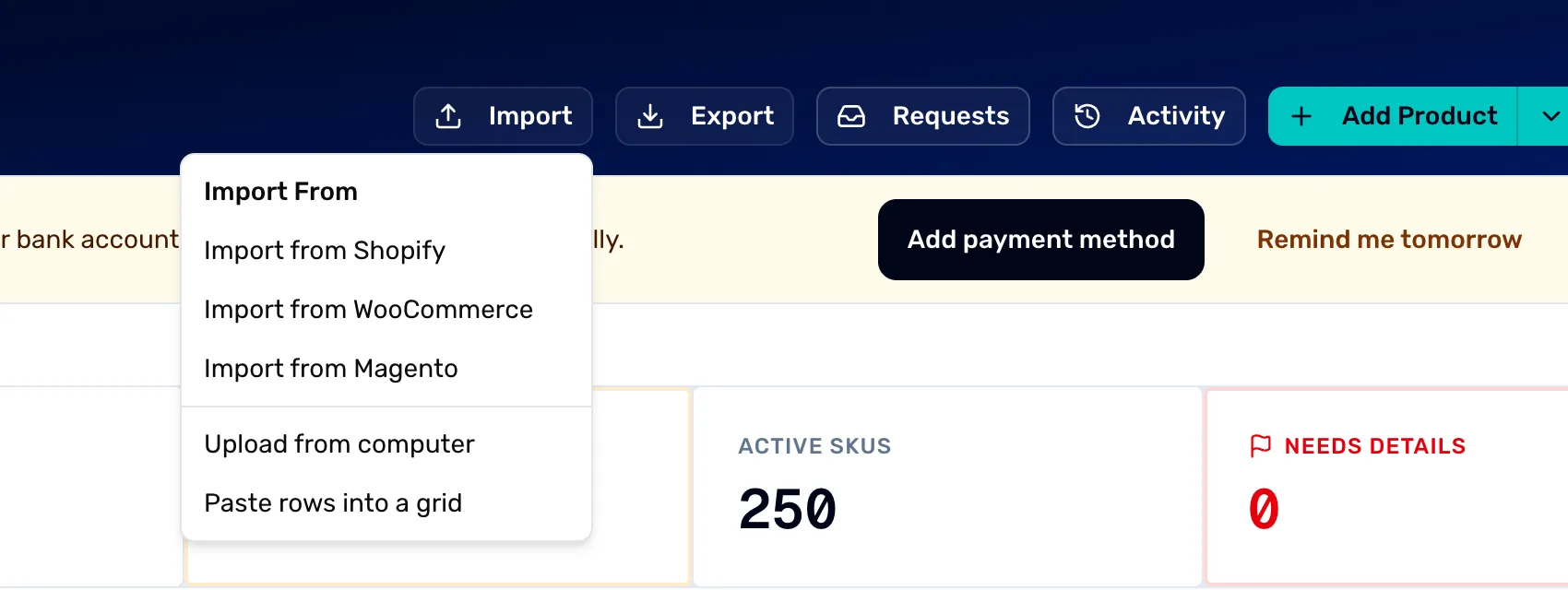
Bring in the price list you already have, so you are not typing products one by one.
- Open the importer from Catalog
- Upload a file or paste rows
- Map your columns
- Check and apply, then your products arrive as drafts
Mission 4: Fill in what's missing, then publish
Dealers only see a product once it is published, and a product needs its basics first.
- Find what needs details with the Needs Details tile
- Fill in the wholesale price, the name and MAP
- Press Publish on the banner

Mission 5: Set your dealer terms
Your terms decide what each dealer pays and what they have to order.
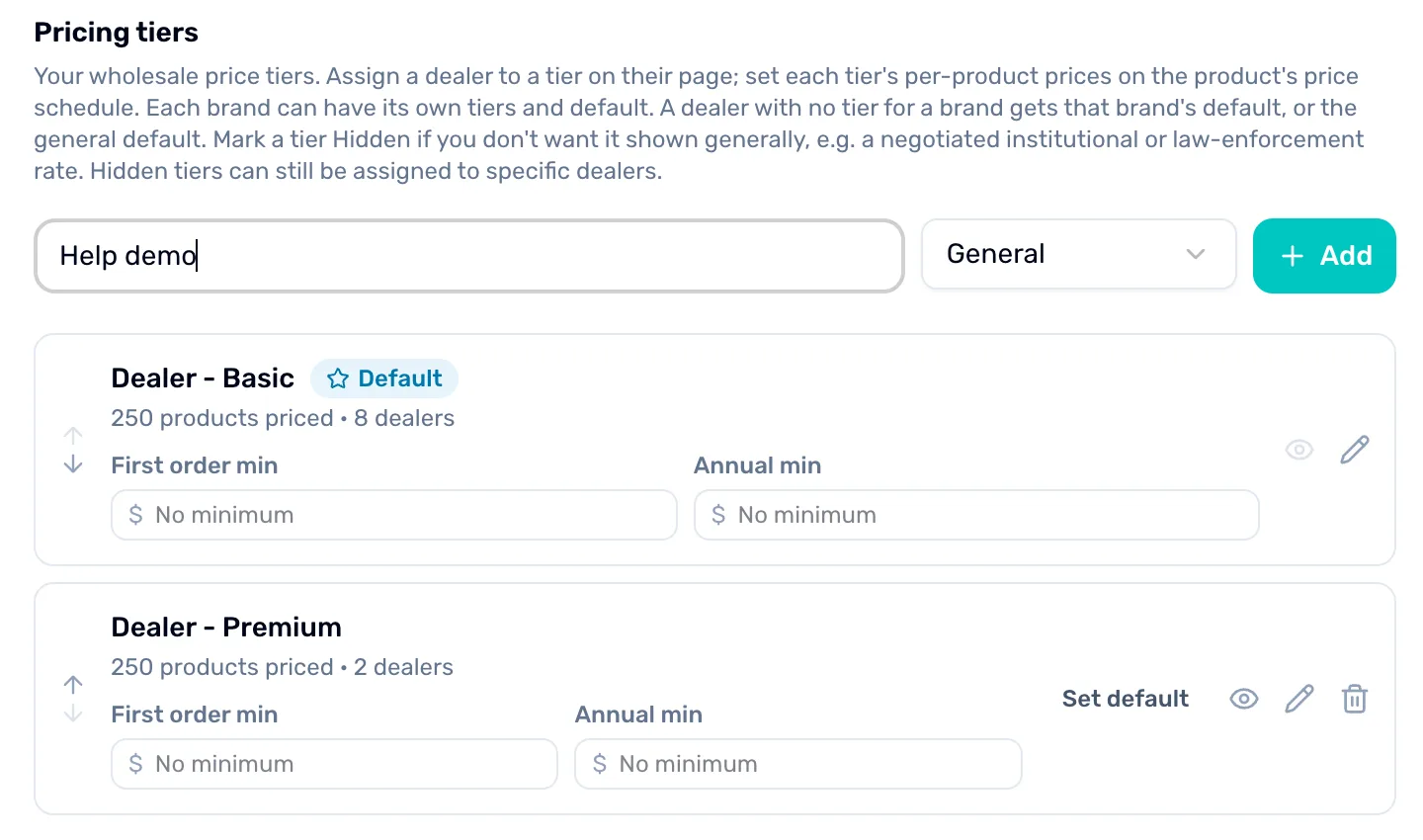
- Make your pricing tiers
- Price each tier
- Reward volume
- Set your ordering terms
Mission 6: Bring in your first dealers
Invite a dealer you already know, or let new dealers find you and apply.
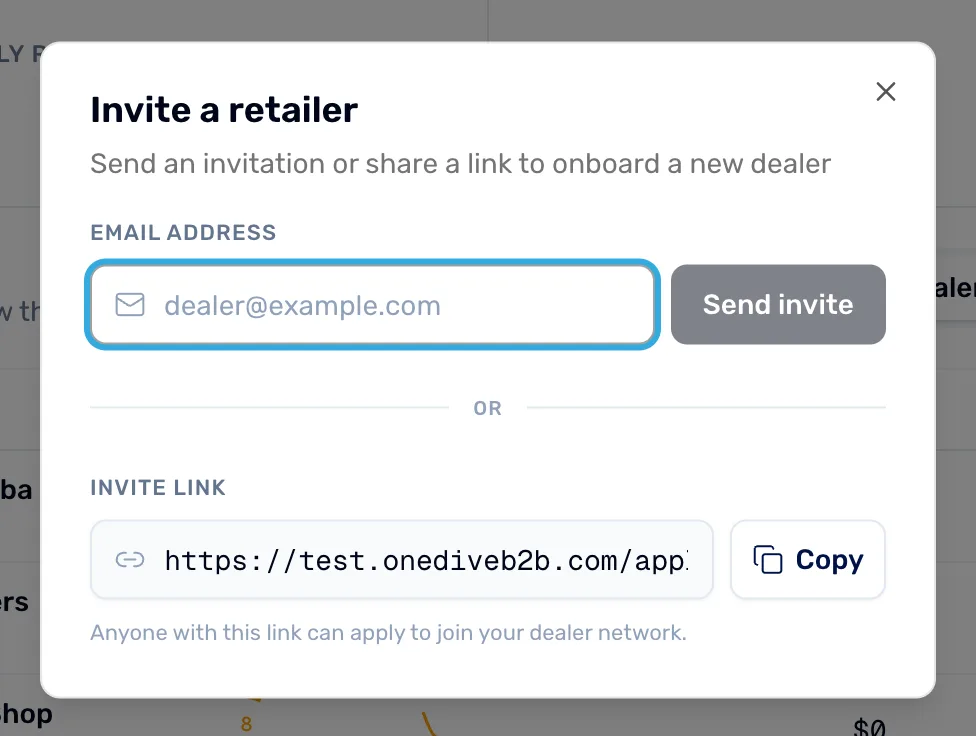
- Press Add Dealer and send an invite, or copy your invite link
- Turn on Accepting applications
- Approve or decline the dealers who apply
When you are done
On Catalog, the green line says "Published · visible to dealers". On Dealers, at least one dealer is Pending or Active. When a dealer orders, the order lands on the Orders board.
- Work the orders board as orders arrive.