
What this is for. Every person on a distributor team gets their own login. Your invite is an email with one button. Press it, choose a password, and you are in. This page covers both ways an account starts, and what to do the next time you sign in.
If OneDive set up your account
When OneDive creates your company's account, the first login gets an email called "Welcome to OneDive, " followed by your company name. Press Set your password in it. The page that opens is titled Set a new password. Type a password in New password, type it again in Confirm new password, then press Set new password. Choosing a password signs you in.
If a teammate invited you
The email's subject reads like "Dana Reef invited you to join Blue Horizon Distribution on OneDive", with your teammate's name and your company. It names your role in bold and has an Accept invitation button. The link is yours alone, so don't forward it. It expires; ask for a new one if it has.
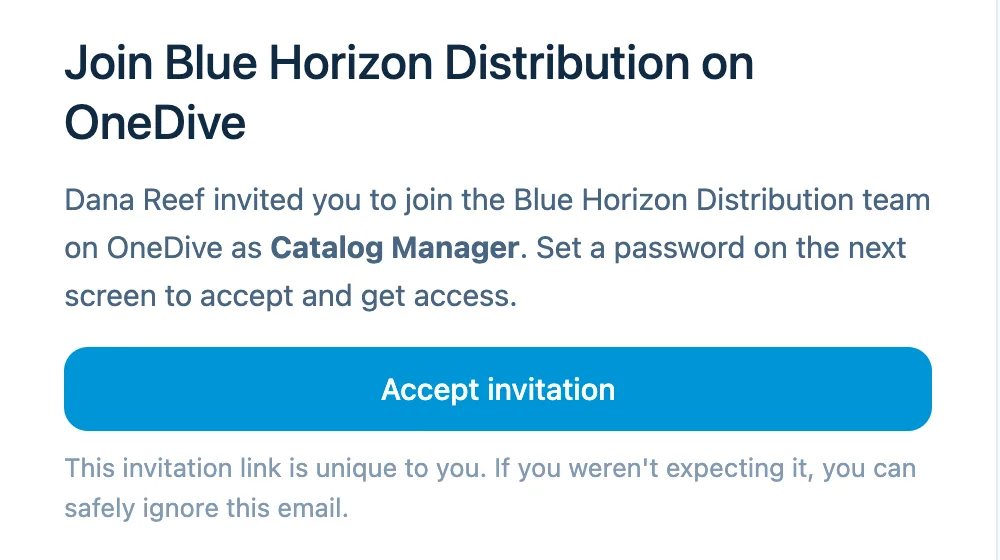
- Your role, in bold. What you can do on the team. The owner or an admin picked it.
- Accept invitation. Opens the page where you set your password.
Set your password and join
The page says Join and your company's name, then "You’ve been invited as" and your role. Your email address is filled in and locked. Type a Password, then press Accept invitation. You land on your Overview.
If the page says you already have an account, use the log in instead link and sign in with your existing password.
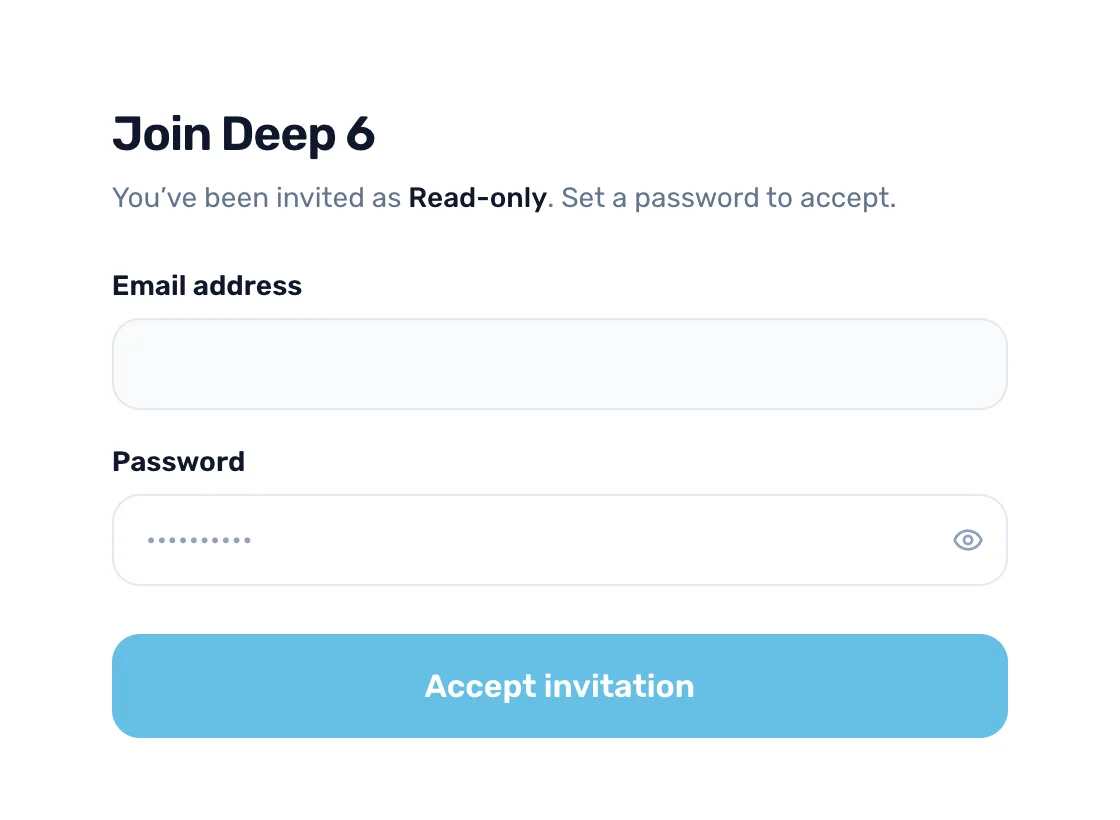
- Your role. Shown as soon as the page opens, so you can check it is the one you expected.
- Password. Choose a password you don't use anywhere else.
- Accept invitation. Joins the team and signs you in.
Sign in next time
Go to Sign in. Type your Email address and Password, then press Log in. If you forgot your password, press Forgot password? and OneDive sends you a reset link. The Google button signs you in with a Google account that uses the same email.
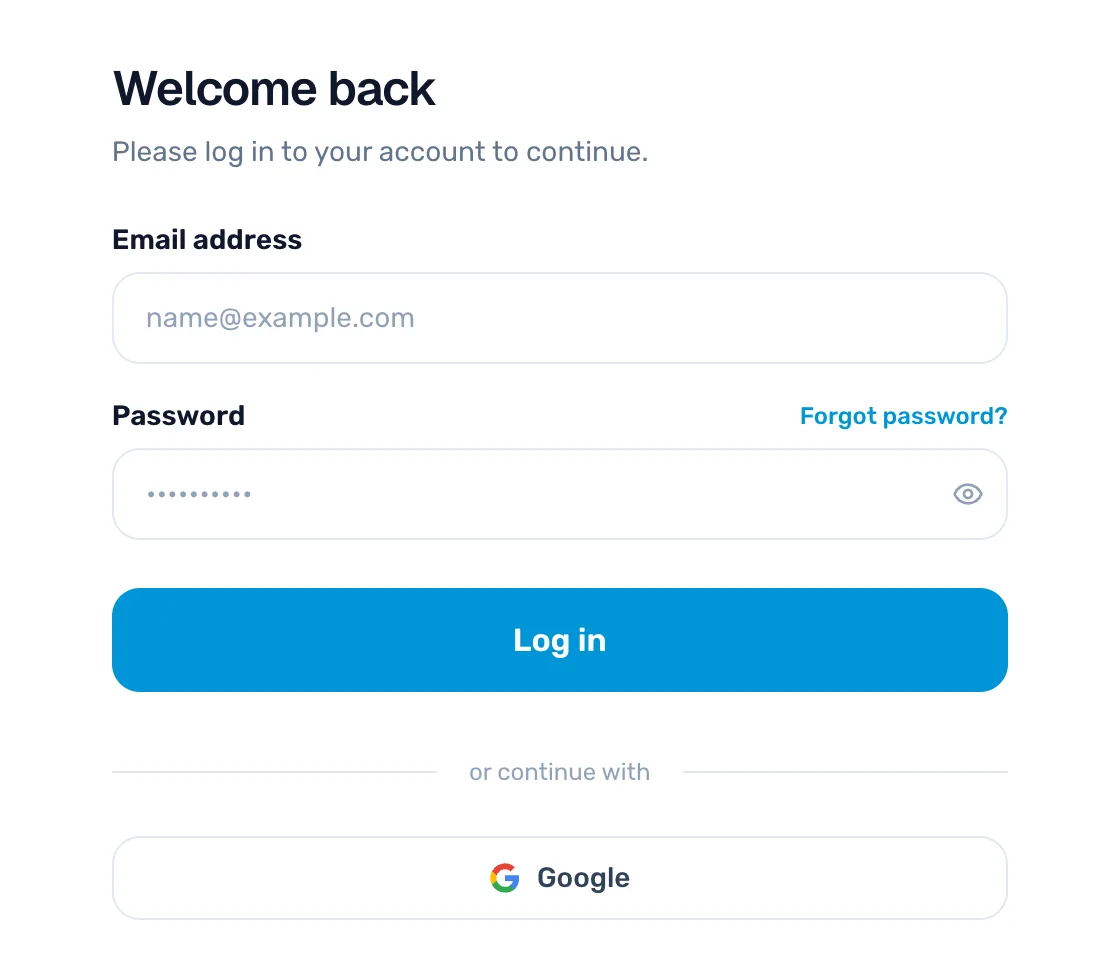
- Email address. The one your invite went to.
- Password. The one you chose when you accepted.
- Log in. Opens your dashboard.
- Forgot password? Sends a reset link to your email.
If the link doesn't work
- Invitation expired, Invitation revoked and Invitation already accepted each mean the owner or an admin should send you a new invite from Settings › Team › Staff directory.
- Wrong account means you are signed in as someone else. Press Sign out & accept to switch.