
What this is for. Before a dealer connects with you, they look you up. Your company profile is the page they find: your logo, a line about what you carry, where you are, and any links or files you want them to have. Ten minutes here makes a good first impression.
Open your company profile
Open Settings › Company profile. The page says "Who you are: your brand page in the dealer directory, and shared collateral." The green chip, Dealers and prospects see this, is a reminder that everything on this page is public to them.
Everyone on your team can open the page. Only owners and admins can change it. If you are someone else, you see "Only owners and admins can edit this. You can view it here."
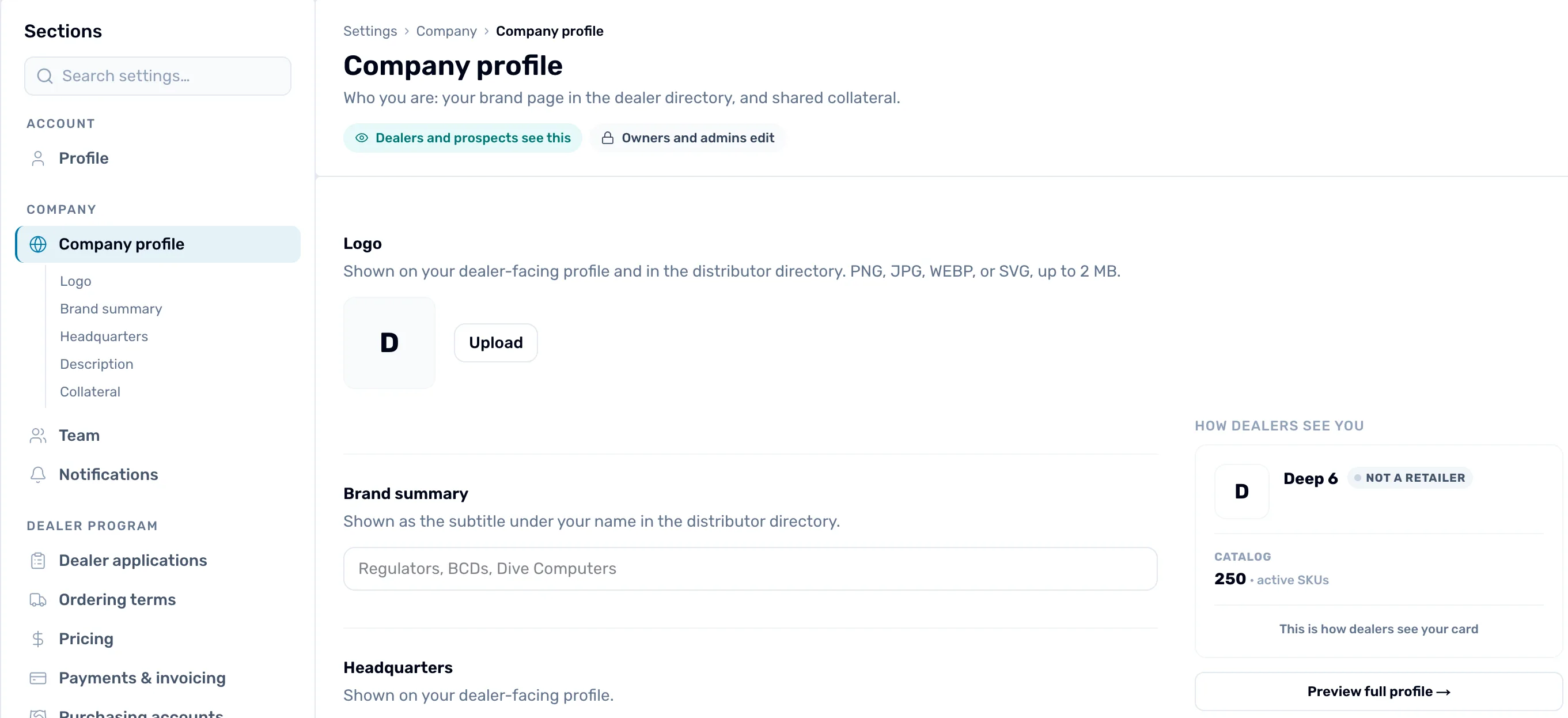
- Company profile. Your place in the left-hand rail. The small links under it jump to each section.
- Dealers and prospects see this. What you type here is public, so write it for a dealer.
- Upload. Adds your logo. It says Replace once you have one.
- How dealers see you. A live card of your listing, so you can check it as you go.
Add your logo
In Logo, press Upload (it says Replace when you already have one) and choose a PNG, JPG, WEBP or SVG file. Keep the file small. The logo saves the moment it uploads, so there is no Save button to press. Remove takes it off again.
Your logo shows on your dealer-facing profile and in the distributor directory. Until you add one, dealers see your company's first letter.
Say who you are
Three fields tell dealers about you. Fill in each one, then press Save once to keep all three.
- Brand summary is the subtitle under your name in the directory. Keep it short, like "Regulators, BCDs, Dive Computers".
- Headquarters shows on your dealer-facing profile.
- Description is the longer story: what you carry, how you serve dealers, and what sets you apart.
Save stays dimmed until you change something.
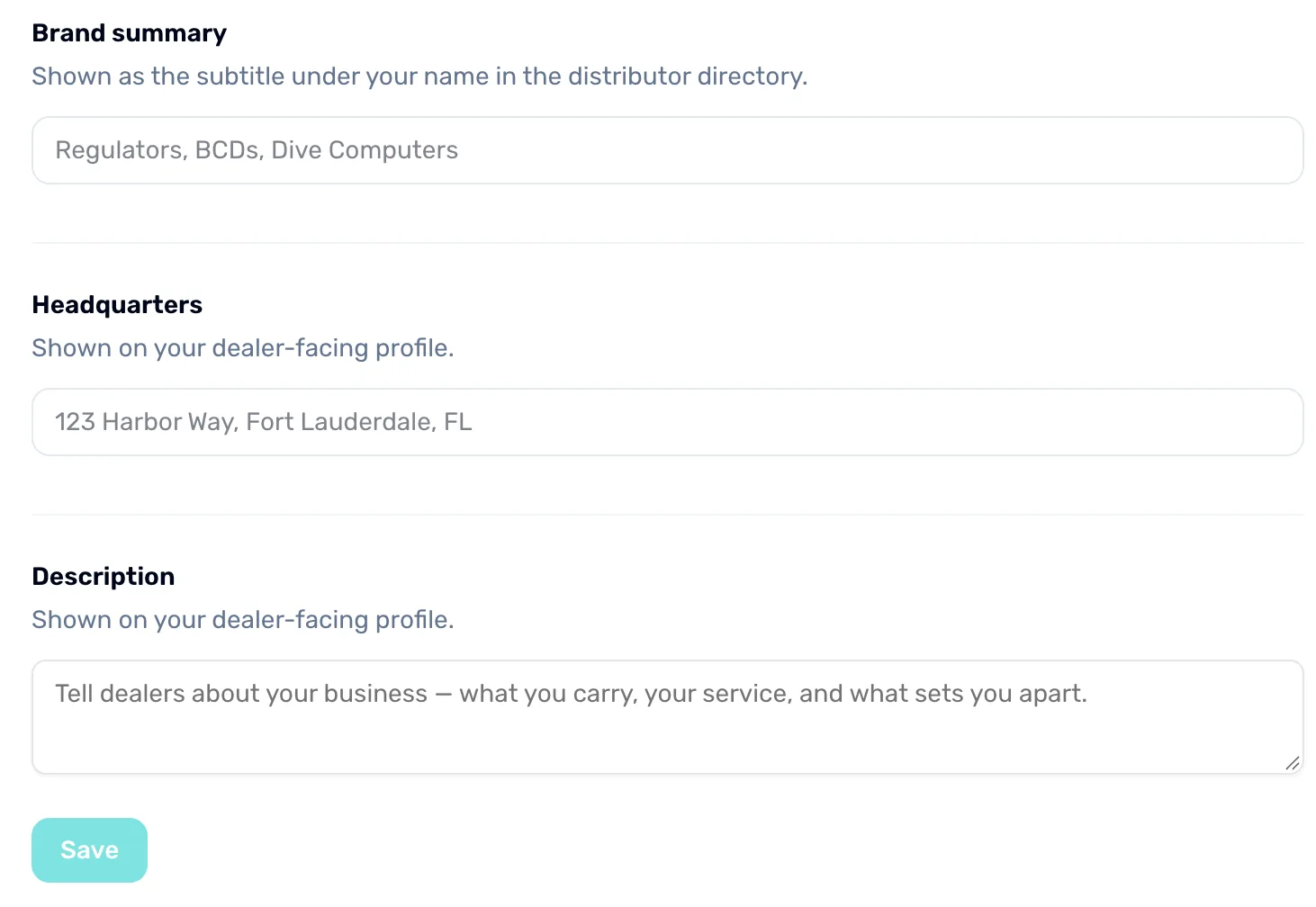
- Brand summary. One line under your name in the directory.
- Headquarters. Where you are based.
- Description. The longer introduction dealers read on your profile.
- Save. Keeps all three fields at once.
Share collateral
Collateral is where you put links, a welcome video and files for dealers. Press Add and the Add collateral window opens.
- Under Type, choose Link, Video (a YouTube or Vimeo address) or File.
- Type a Title. Dealers see it as the name of the item.
- Add the link or the file. A description is optional.
- Under Who can see this, choose Anyone (prospects) or Connected dealers. Pick Connected dealers for things like a price list that only your dealers should see.
- Press Save.
Each item in the list has a Published switch. Turn it off to hide an item without deleting it.
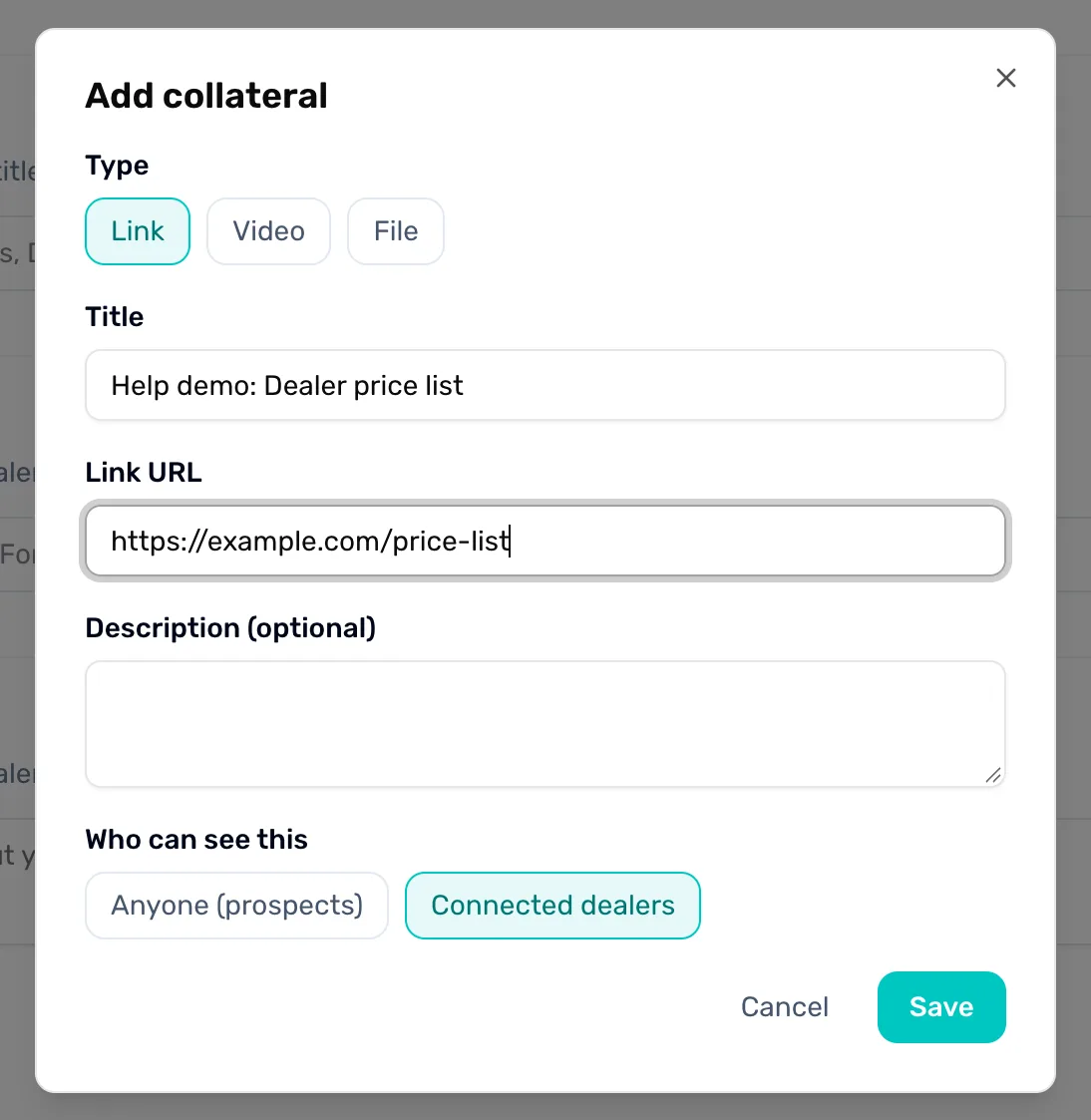
- Type. A link, a video or a file.
- Title. The name dealers see.
- Who can see this. Anyone (prospects), or Connected dealers only.
- Save. Adds the item to your profile.
See what dealers see
Look at How dealers see you, beside your fields. It shows your logo, name and catalog as a dealer's directory card. Press Preview full profile → to open your whole profile in a window, exactly as a dealer who is not yet connected would see it. It includes any changes you have typed but not saved yet, so you can check your wording before you press Save.
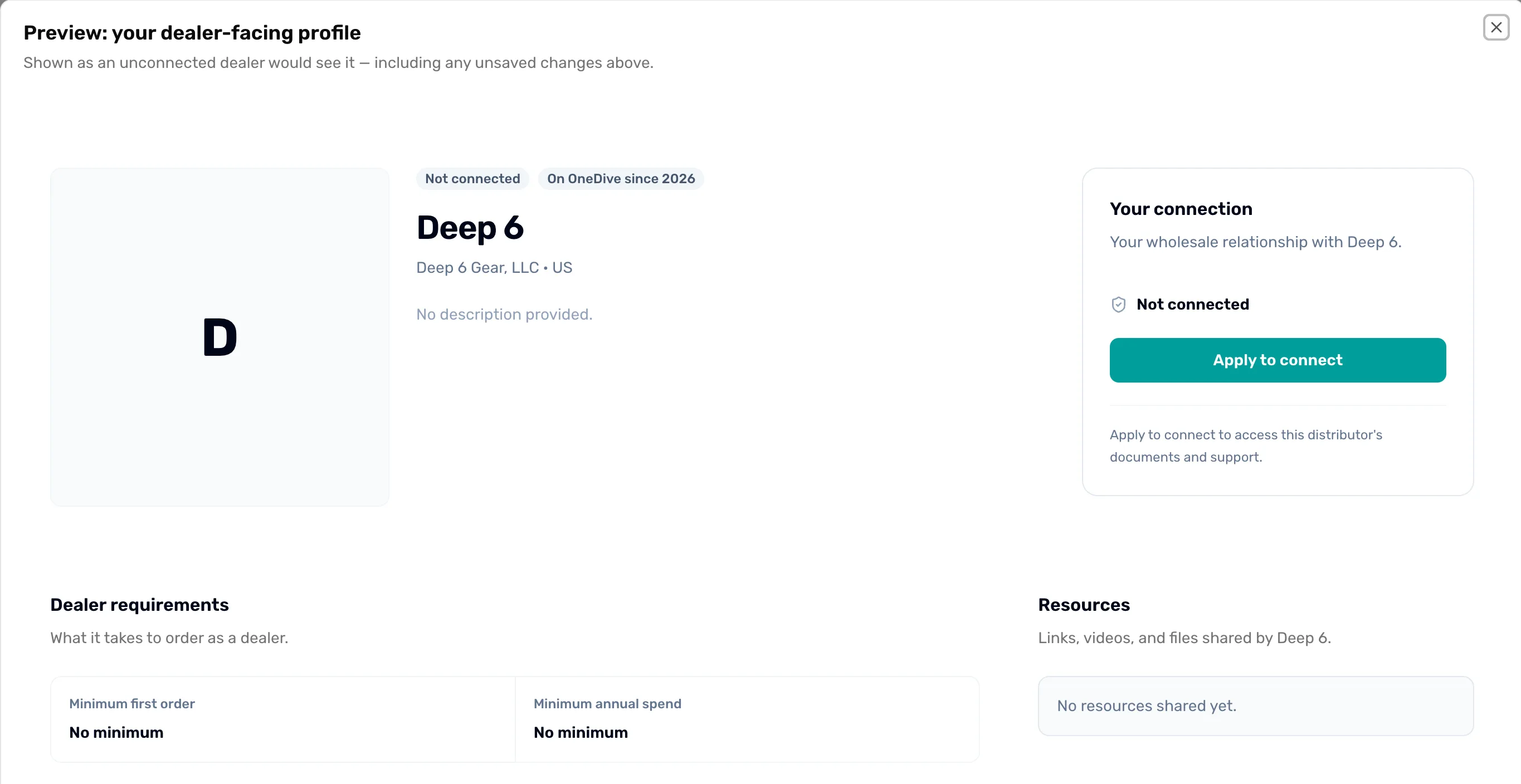
- The whole page. This is what a dealer finds when they open your profile. Close the window to go back to editing.
Next
- Back to the Overview and your list of first steps.
- Once your profile looks right, bring in your first dealers.