
What this is for. A catalog is only useful once dealers can reach it. You can invite a dealer you already know, or let new dealers find you in the OneDive directory and apply. Either way, you decide who gets in.
Invite a dealer
On Dealers, press Add Dealer. A window called "Invite a retailer" opens. Type the dealer's Email address and press Send invite. Or press Copy to take your Invite link and send it yourself, in a text or an email of your own. The window says "Anyone with this link can apply to join your dealer network."
The dealer gets an email that says your company name "invited you to apply on OneDive", with an Apply now button. The same invite card is on your Overview.
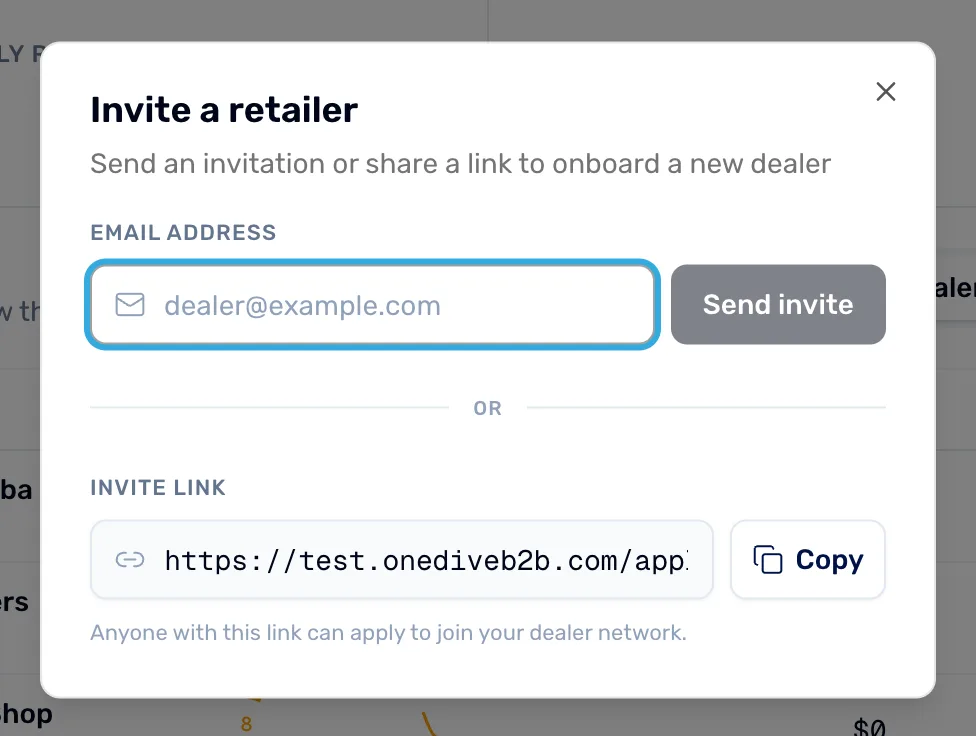
- Email address. Type the dealer's email here.
- Send invite. Emails them an invitation to apply.
- Invite link. Your own link. Anyone who has it can apply.
- Copy. Copies the link so you can send it yourself.
Take applications
Dealers who find you in the OneDive directory can apply on their own. Open Settings › Dealer applications to set that up. Only the owner or an admin can change it.
On that page, Accepting applications turns on the Apply button dealers see on your card in the directory. Press Save after you change it. The Dealer requirements panel lets you tick what you expect of a dealer, such as a storefront or a service technician. These show as badges on your profile. The Application questions panel lets you add your own questions. You can ask for a short answer, a paragraph, a yes or no, one choice, many choices, or a file upload. Press Save questions when you are done.
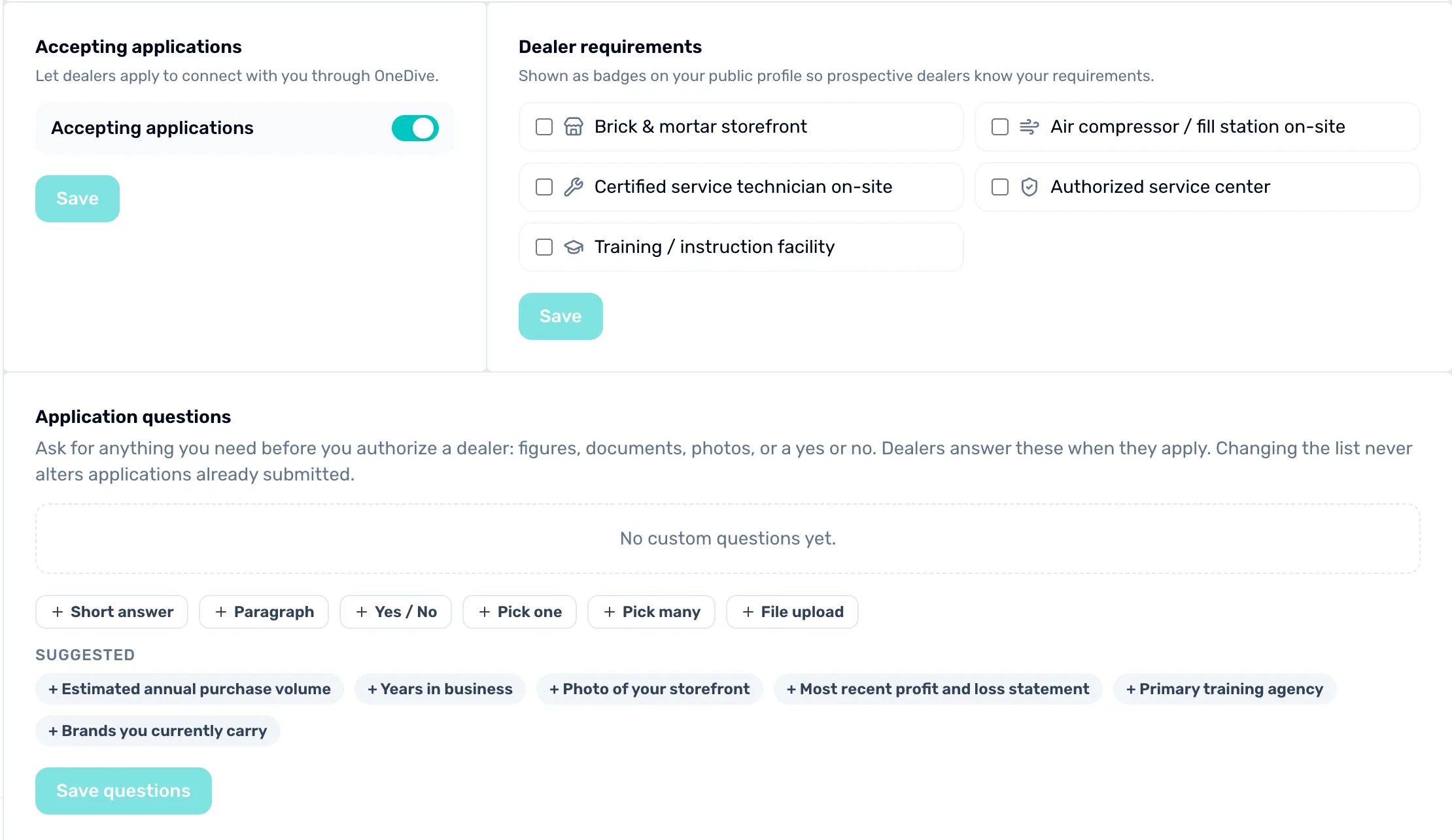
- Accepting applications. Switch it on to show the Apply button in the directory.
- Save. Keeps the switch as you set it.
- Dealer requirements. Tick what you expect. These become badges on your profile.
- Application questions. Add your own questions for dealers to answer when they apply.
When someone applies
The Pending Apps tile on Dealers counts the applications waiting for you. Press it and the list narrows to dealers marked Pending. Open one to read the application, then approve or decline it.
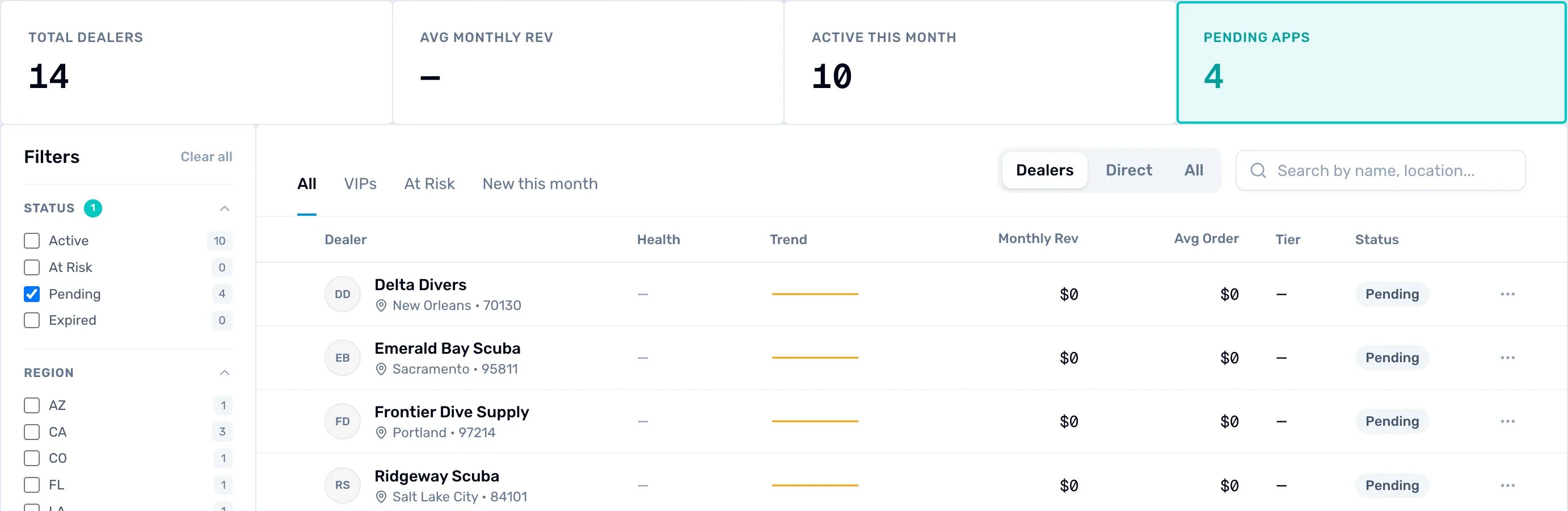
- Pending Apps. How many applications are waiting. Press it to see only those.
- Pending. Marks a dealer who has applied and is not approved yet.
When you are done
Your first dealers are invited, and new ones can find you and apply. Only the owner or an admin can send an invite, approve or decline a dealer, or change the application settings.
- Set your dealer terms so dealers see the right prices.
- Check Dealers for new applications.