
What this is for. Your terms decide what each dealer pays and what they have to order. Set them once and every dealer order follows them. Dealers and prospects see your tiers and minimums, so take a few minutes to get them right before you invite anyone.
Make your pricing tiers
Open Settings › Pricing › Pricing tiers. Type a name in the box that says "New tier name (e.g. Gold)". Pick General for a tier that applies to all your brands, or pick one brand. Then press Add. The button stays grey until you type a name.
One tier is the Default. It is the price a dealer pays when you have not put them on a tier. To make a different tier the default, press Set default on it.
Each tier card has more controls:
- First order min and Annual min set a tier's minimums. Fill them in and press Save minimums. Leave them blank for no minimum.
- The eye button, Hide from dealers, marks a tier Hidden. Use it for a negotiated rate you do not want shown generally. You can still put a hidden tier on a specific dealer. The default tier cannot be hidden.
- The pencil renames a tier, and the bin, Remove, deletes it. The arrows beside the name change the order tiers are listed in.
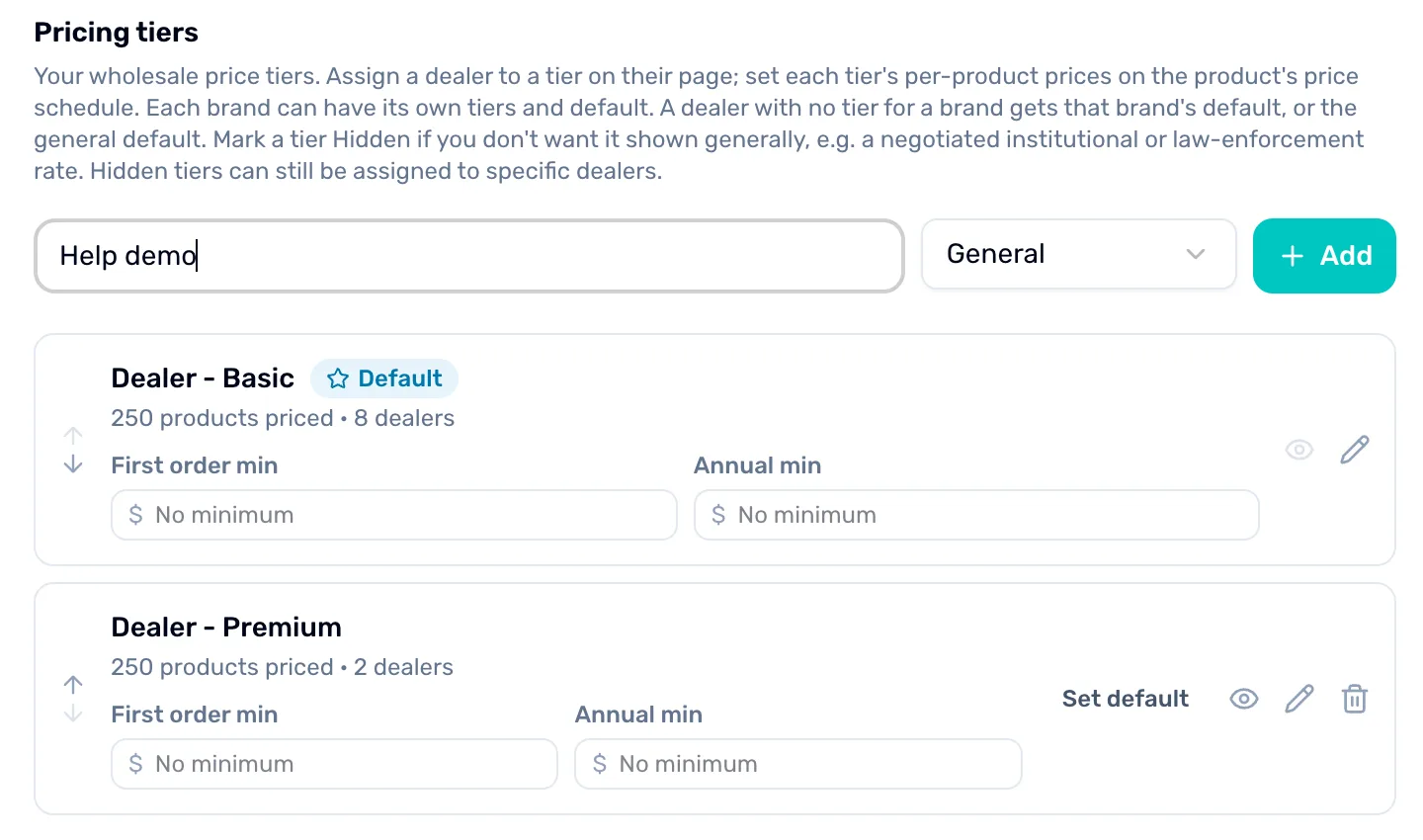
- The name box. The name of the new tier.
- The scope. General, or one of your brands.
- Add. Creates the tier.
- Default. The tier a dealer gets when you have not chosen one.
- The eye. Hides a tier from dealers. You can still assign it.
Price each tier
A tier only matters once your products have a price on it. Open a product in Catalog and look at its Price schedule. It has one price box for each tier, and the default tier is marked "(default)". Fill in the price each tier pays and save the product.
A dealer with no tier for a brand pays that brand's default tier, and then your general default. To put a dealer on a tier, open their page in Dealers.
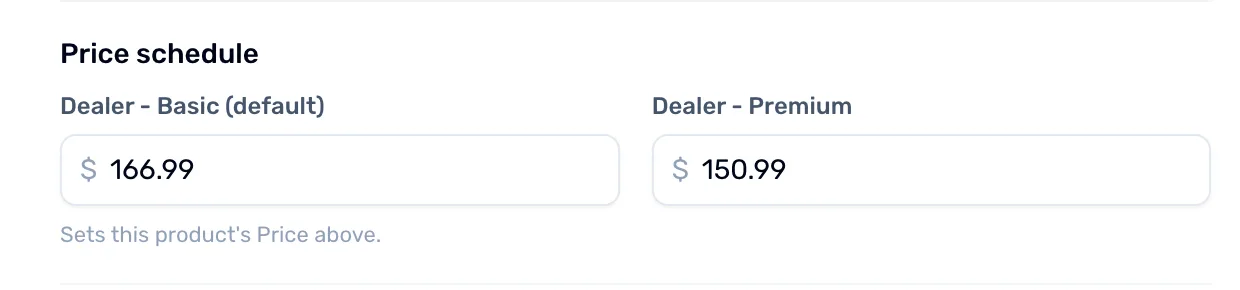
- A tier's price. One box for each tier. Dealers on that tier pay this price.
- (default). Marks the default tier's box.
Reward volume
Open Volume awards, beside your tiers. When a dealer's spend reaches the Threshold, the products that award covers are priced at the Award tier instead of the dealer's own tier. Dealers see their progress toward each threshold in their cart.
The first card, "General", covers every brand you have not given its own. Until you set it, the Award tier says "Not configured".
- Pick the Award tier, one of the tiers you made.
- Type the Threshold, the spend a dealer has to reach.
- Choose what Threshold counts: "Each order" or "Trailing 12 months".
- Press Save. Once an award is saved, a Clear button appears beside Save to remove it.
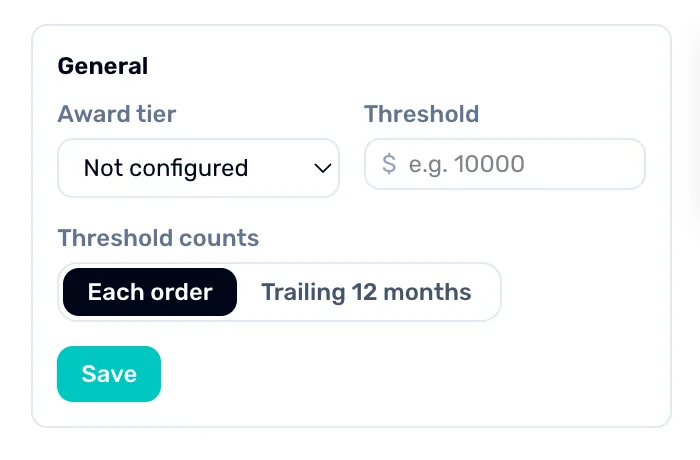
- Award tier. The tier the covered products are priced at once a dealer reaches the threshold.
- Threshold. The spend a dealer has to reach.
- Threshold counts. Whether spend is counted for one order, or across the last twelve months.
Set your ordering terms
Open Settings › Ordering terms. It has three panels, and each one has its own Save.
- Order minimums. Minimum first order and Minimum annual spend. They show on your public profile, so prospective dealers know your terms. Leave a box blank for no minimum.
- In-store pickup. Turn on Offer in-store pickup to let dealers collect orders at your location. Then mark individual products as eligible for pickup in the catalog.
- Fulfillment. Hold shipping when tracked stock is short is off by default. Turn it on if you keep counts in OneDive and want an order held until every tracked product on it has enough on hand.
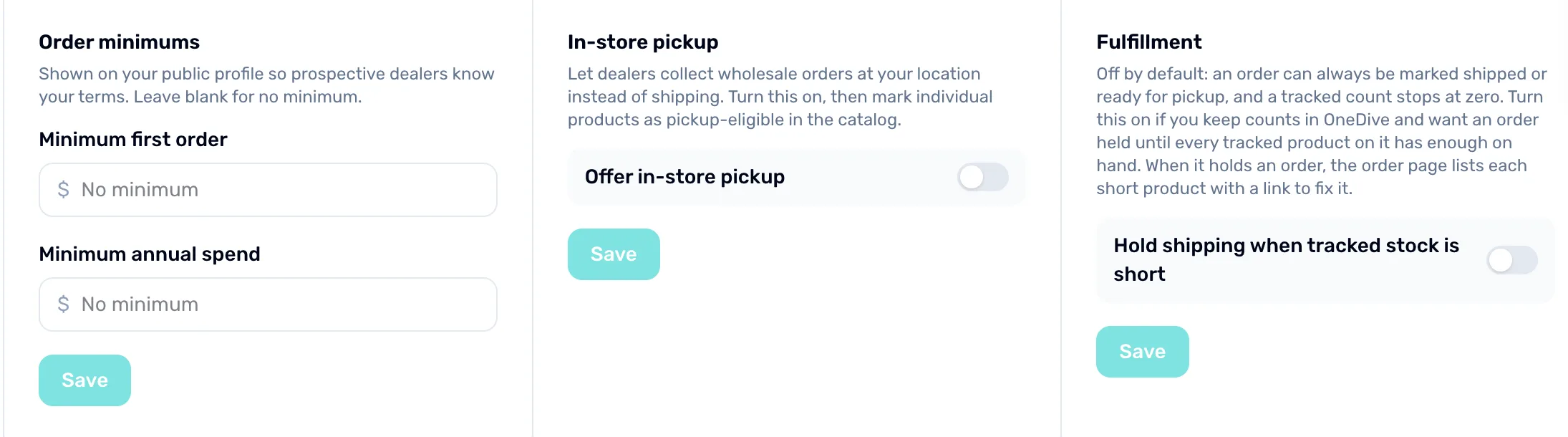
- Order minimums. The least a dealer has to spend on a first order and across a year.
- In-store pickup. Lets dealers collect at your location.
- Fulfillment. Holds shipping while tracked stock is short.
Promo codes live here too
Promo codes are on the same Pricing page. When an order qualifies for both volume pricing and a code, the dealer picks one, and the cheaper one is chosen for them to start.
Next
- Back to the Pricing page to check your tiers.
- Bring in your first dealers, so they order on these terms.