
What this is for. A dealer's tier decides which price they see on every product. Move a dealer to a better tier when they earn it, or put them back to your default when they do not.
Open the dealer
Go to Dealers, then press the dealer's name.
Pick the tier
Near the top right of the dealer's page, beside Create Order and New invoice, is the tier picker. It has no label on screen. It shows the dealer's current tier, or Unassigned if they have none. Press it and pick a tier, or pick Unassigned.
The change saves as soon as you pick. You see "Tier updated" when you choose a tier, and "Tier unassigned" when you choose Unassigned.
If you have made tiers for a single brand, the dealer's page shows one more picker for each of those brands, under the first one. Each one starts at Brand default, which means the dealer follows that brand's default tier. Pick a tier there to give the dealer a different tier for that brand only. Pick Brand default again and you see "Brand tier cleared".
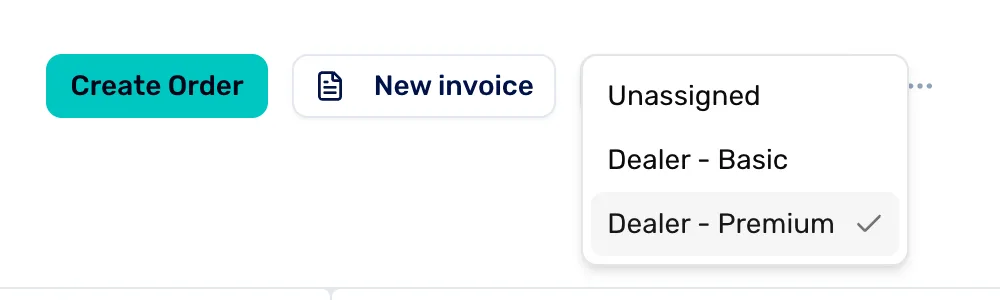
- The tier picker. Shows the dealer's current tier. Press it to open the list.
- A tier. Pick one of your tiers. The tick marks the dealer's current tier.
- Unassigned. Takes the dealer off any tier, so they pay your default.
Check the list
Back on Dealers, the Tier column shows each dealer's tier. A dealer with a tier for any single brand shows "Per brand" instead.
The VIPs tab lists dealers on a tier other than your first one. Tiers are ranked in the order they are listed in Settings › Pricing › Pricing tiers, so keep your default at the top and the tab shows your better tiers.

- Tier. The tier each dealer is on, or "Per brand".
- VIPs. Only the dealers on a tier other than your first.
Next
- Set your dealer terms, to make or change the tiers.
- Approve a dealer who applied, so new dealers can be given a tier.