
What this is for. When a dealer applies, nothing happens until you decide. Approving connects them to your catalog and your prices. Declining keeps them out, and you can note why.
Find who's waiting
On Dealers, press the Pending Apps tile. The list narrows to the dealers waiting on you. You can also tick Pending under Status in the filters on the left. Press Clear all to see everyone again.
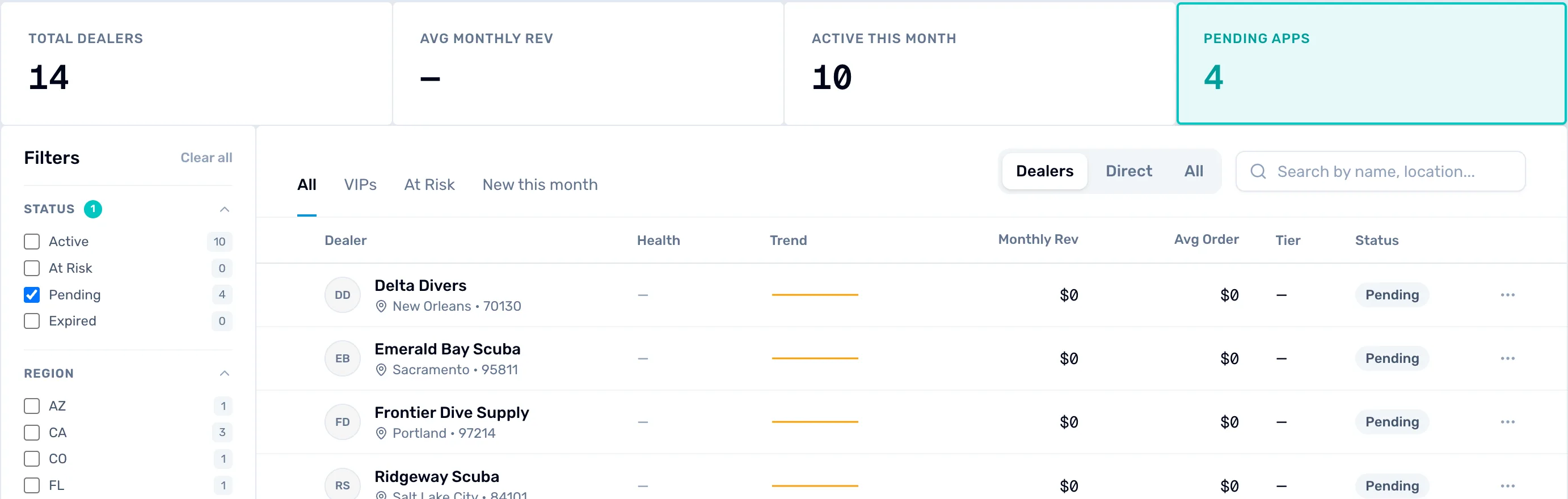
- Pending Apps. How many applications are waiting. Press it to see only those.
- Pending. The same filter, under Status. Tick it to list only dealers who have applied.
Read the application
Press a dealer's name to open them. The Pending application card sits under the dealer's name. Its source line says where they came from: "Applied from the OneDive distributor directory", "Arrived through your shared application link" or "Arrived through your email invitation". If the dealer wrote a few words about their shop, you see them beside the source.
If you set up requirements or your own questions, the Overview tab also shows the dealer's "Requirement attestations" and their "Application answers". They appear only when the dealer filled them in, so a dealer who applied from the directory without any may show neither.

- Pending application. This card shows only while the dealer is waiting for your decision.
- Source. Tells you how they found you.
- Their words. What the dealer wrote about their shop when they applied.
Approve
Press Approve Dealer at the top right of the dealer's page. A message says "Connected with" the dealer's name, and "They're now an authorized dealer." Next, put them on a pricing tier. See Move a dealer to another pricing tier.
If you want to ask them something first, use Message about this application, beside the approve button. It opens a message to the dealer with this application attached. It appears only where messaging is turned on for your account.
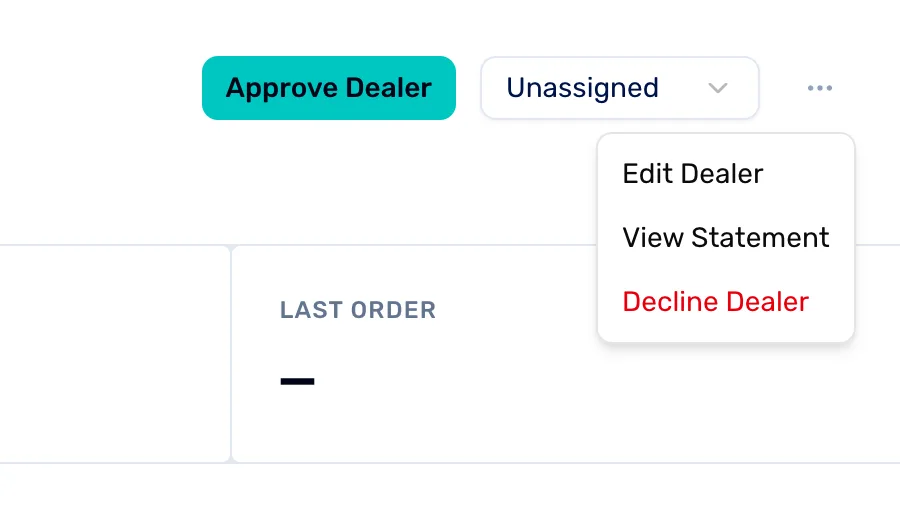
- Approve Dealer. Connects the dealer to you at once.
- Dealer actions (⋯). Opens the menu of other things you can do.
- Decline Dealer. Turns the application down. The next step shows it.
Or decline
On the dealer's page, open the ⋯ menu at the top right, then press Decline Dealer. A window asks "Decline this dealer?" and tells you the dealer won't be connected to you. Add a reason if you like. It is optional, and it is for your own records. Press Decline Dealer in the window to finish, or Cancel to go back.
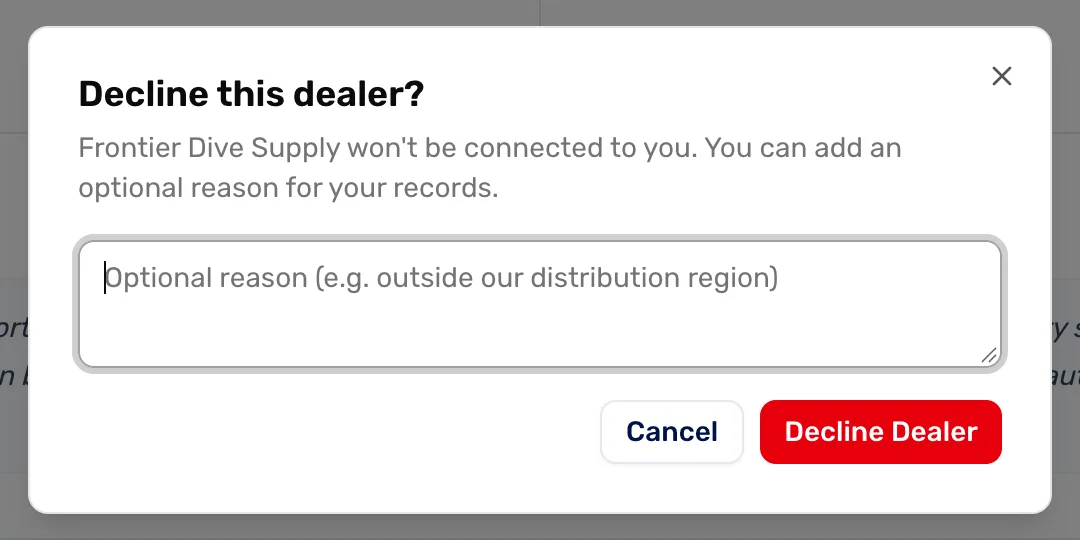
- Optional reason. A note for you. It helps you remember why.
- Decline Dealer. Confirms the decline. Press Cancel instead if you changed your mind.
When you are done
The dealer is approved or declined. An approved dealer is connected to you right away.
- Set their prices: Move a dealer to another pricing tier.
- Check Dealers for more applications.