
What this is for. Everyone on your team signs in with their own account, so you can see who did what. Pick the role that matches the job and the name tells everyone what that person is there to do.
Invite them
Go to Settings › Team and press Add user. The box is called "Invite a staff member". Type their Email, pick a Role, then press Send invite.
The Role list starts on Catalog Manager, so change it if they do something else. Admin is in the list only when you are the owner.
The box then says "Invitation sent to" and their address, and gives you a link with Copy invite link. They also get an email. Send them the link yourself if the email goes missing. They set a password and join; Accept your invite and sign in walks them through it.
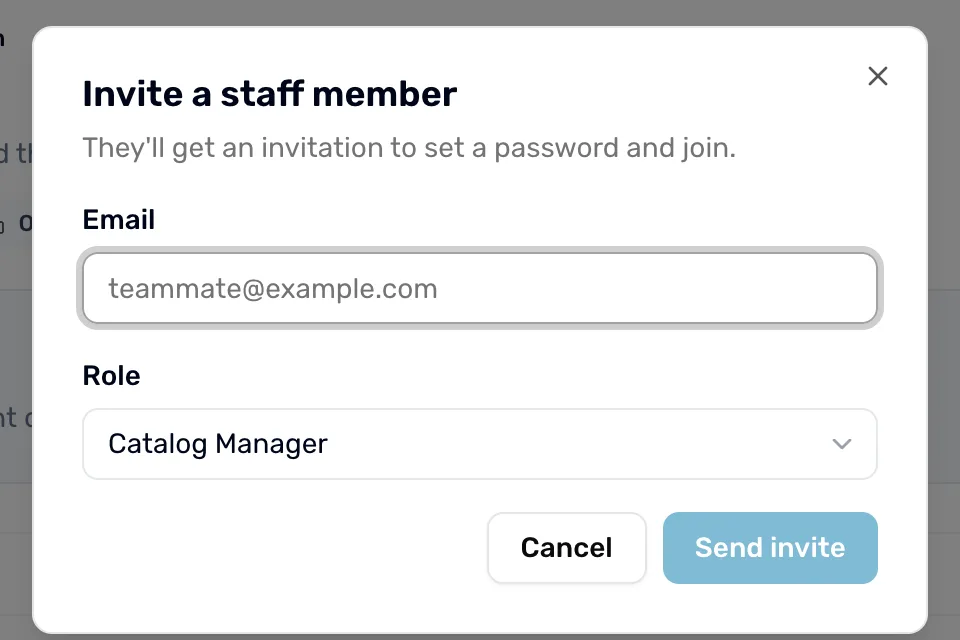
- Email. Their work email. The invite goes here.
- Role. What they do on your team. The next step explains each one.
- Send invite. Sends the email. It stays grey until the email looks right.
Choose the right role
Roles & permissions lists all eight roles on the same page. The words in the first column are the app's own. The second column says what the role can actually change today.
| Role | What the app says | What it can change today |
|---|---|---|
| Admin | Full distributor management, including staff and settings. | Everything, including your team and your settings. Only the owner can give this role. |
| Catalog Manager | Manages products, variants, and catalog imports. | Staff access. |
| Pricing Manager | Manages price lists and pricing. | Staff access. |
| Dealer Relations | Manages dealer relationships and communications. | Staff access. |
| Application Reviewer | Reviews and decisions dealer applications. | Staff access. Approving or declining an application still needs the owner or an Admin. |
| Sales Rep | Signs up dealers and sells the catalog; tools + a personal book of business. | Staff access. Also gets My Book when your account has it. |
| Analytics (Read-only) | Views analytics and reports; no edits. | Look only. |
| Read-only | Read-only access across the portal. | Look only. |
The five staff roles share the same access today, so the name tells your team what the person does. They work the orders given to them and send invoices. Changes to products, prices, dealers and settings need the owner or an Admin. The small label on each card, Admin, Staff or Readonly, shows which access the role gets.
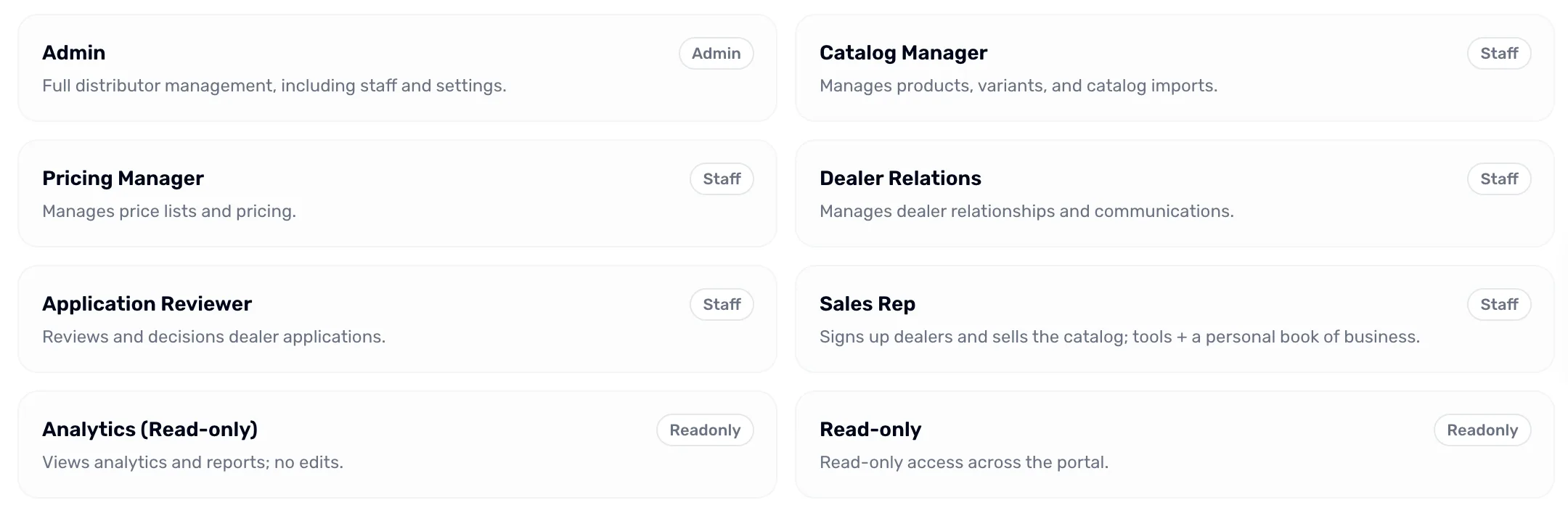
- Admin. The label on this card is Admin: full access, staff and settings included.
- Staff. The label on a staff role such as Catalog Manager. The five staff roles share it.
Change or remove someone later
Back in the Staff directory, point at the person's row and press the three dots, Staff actions. The owner's row has no menu.
- Change role opens a list. Pick the new role, then Save.
- Suspend stops their access for now. A suspended person's menu says Reactivate instead, which gives it back.
- Remove takes them off your team. It asks you to confirm first and can't be undone here.
You can't suspend or remove yourself. The Audit log at the bottom of the page shows who changed what on your team.
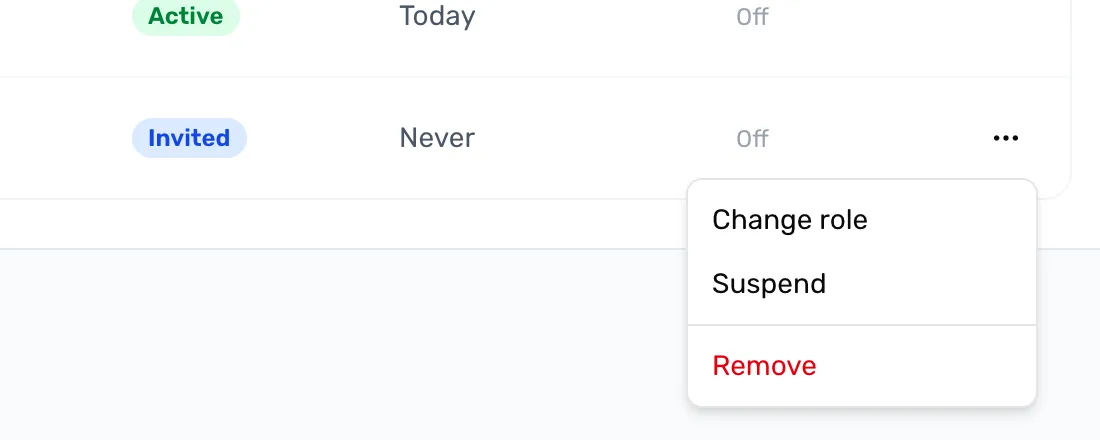
- Change role. Move them to another role.
- Suspend. Pause their access. It turns into Reactivate once they are suspended.
- Remove. Take them off your team.
When you are done
Your teammate shows in the Staff directory, first as Invited and then as Active once they join.
- Help them get in: Accept your invite and sign in.
- Give them work: Work the orders board.