
What this is for. Every order a dealer places lands on one board. Moving a card tells the dealer where their order stands, so a few clicks a day keeps them informed without a phone call.
Read the board
Orders shows five columns: New, On Hold, Processing, Shipped / Ready for pickup and Delivered / Picked up. A new order arrives in New. Each card shows the order number, the dealer, the total, how many items it has and its invoice status.
The My orders switch in the top bar narrows every column to the orders given to you. Press View all orders to open the full list instead.
Cancelled orders are not on the board. Find them under All Orders, on the Cancelled tab.
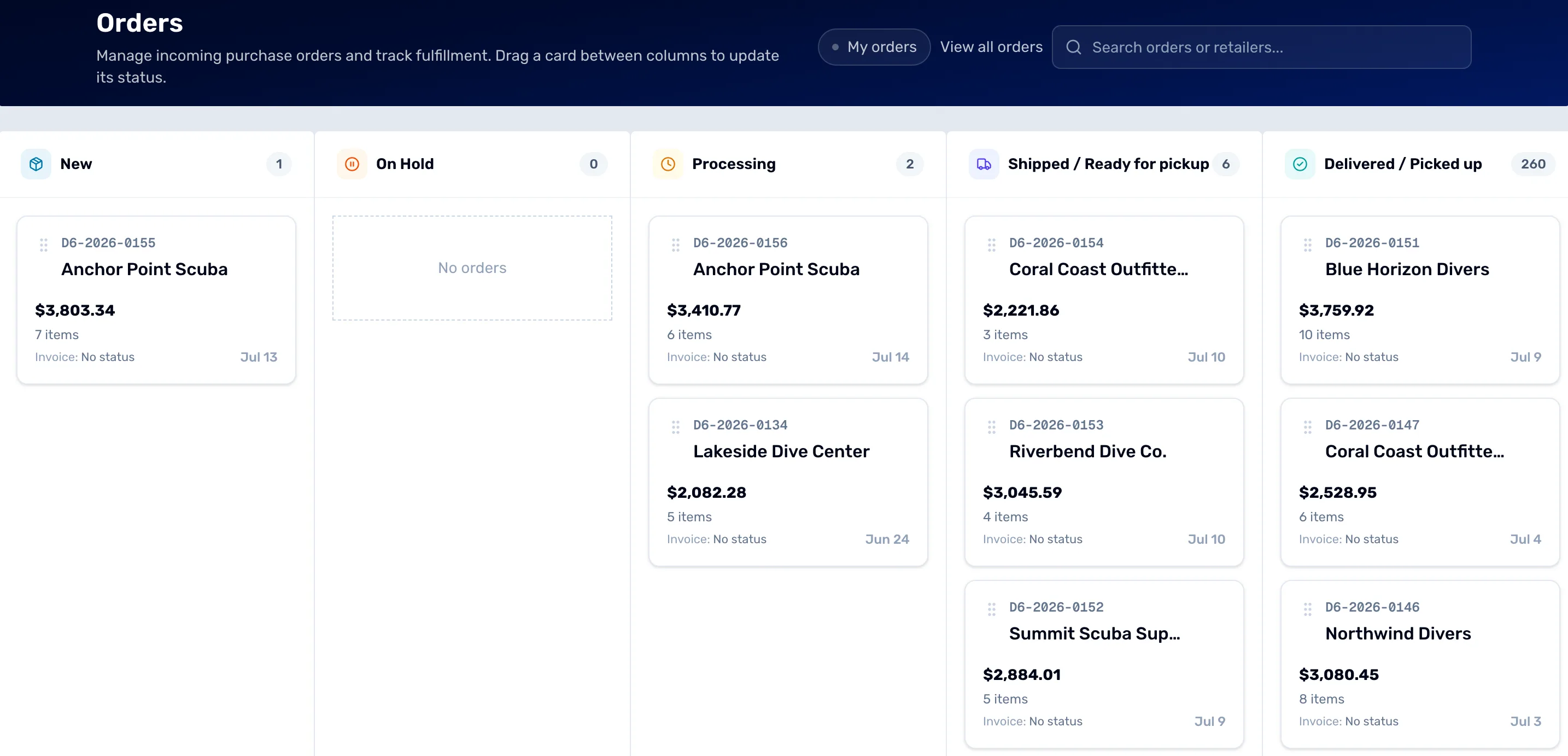
- New. Orders that just arrived and need you.
- On Hold. Orders you are holding. It can be empty.
- Processing. Orders you are getting ready.
- Shipped / Ready for pickup. Orders on their way, or waiting for the dealer to collect them.
- Delivered / Picked up. Orders that are done.
- My orders. Turn it on to see only the orders given to you.
Move an order
Drag a card to the next column. Or point at the card and press the small arrow that appears at its right, then pick a column under Move to. The card jumps there at once.
If the move can't be saved, the card goes back where it was and a message says "Couldn't move" with the order number, then "Change reverted". If the order is short of stock, the message tells you so and offers Open order, which takes you to the order to see which products to fix.
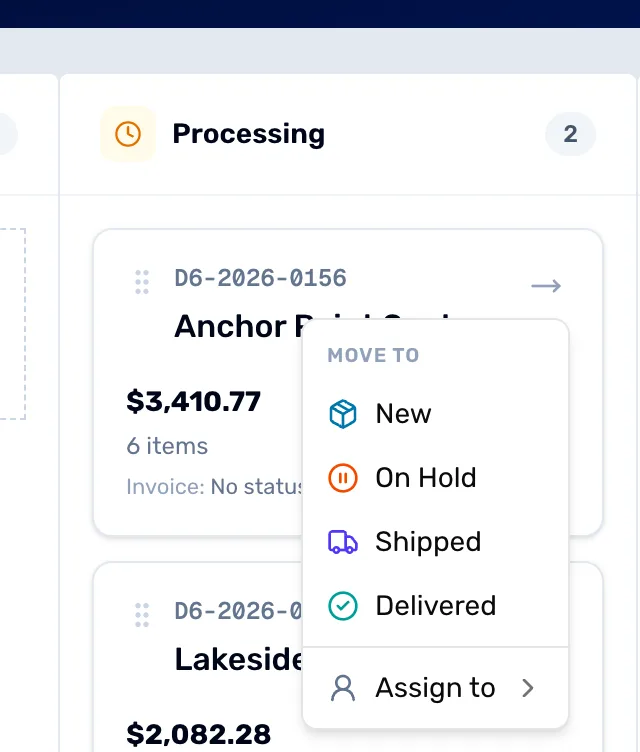
- Move to. Pick the column to send this order to. The one it is already in isn't listed.
- Assign to. Give this order to someone on your team. The next step covers it.
Give it to someone
In the same card menu, point at Assign to and pick a person. They get a notice in OneDive and an email saying the order is theirs. Pick Unassigned to take it back. Assign to shows only for the owner and admins.
Assign many at once
The owner and admins can do this. Go to All Orders, where New is called Placed, and tick the box beside each order. A bar appears at the bottom saying how many are selected, for example "2 selected". Press Assign to in the bar, then pick a person, or pick Unassign to clear them. Untick the boxes, or press the × in the bar, to clear your choice.
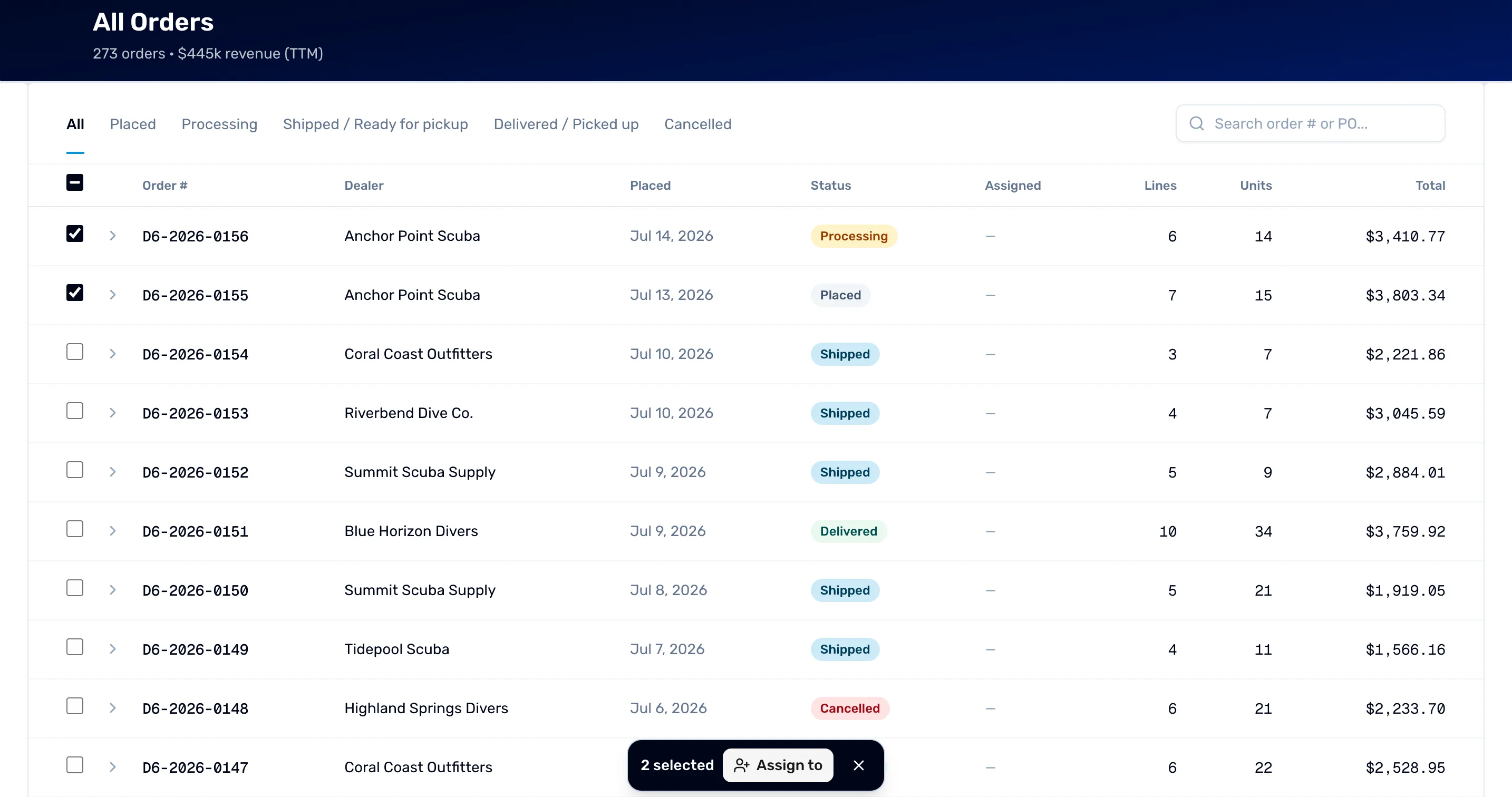
- A ticked row. Tick every order you want to hand over.
- 2 selected. How many orders you have ticked.
- Assign to. Opens the list of people. It also holds Unassign.
When you are done
Every order sits in the column that matches where it really is.
- Bill the dealer: Send an invoice.
- Check Dealers for new applications: Approve a dealer who applied.