
What this is for. An invoice is how you get paid for work that isn't an order: a regulator service, a piece of gear, a training day. Saving it as a draft first lets you check it before the dealer sees anything.
Before your first invoice
Every invoice number starts with your own invoice code, a short code of letters or numbers. The owner or an admin sets it in Settings › Payments & invoicing › Invoice code. Set it once, before the first invoice. If a message asks you to set the code first, that panel is where to go.
Once you have sent an invoice, the code is fixed.
Pick who to bill
Open Invoices and press New invoice. A search opens with your accounts in two groups, Dealers and Direct accounts. Type a name, a city or a state to narrow the list, then pick the account.
An account you can't bill yet is grey, with the reason on the right, for example "Application pending". New invoice is also on an active dealer's page.
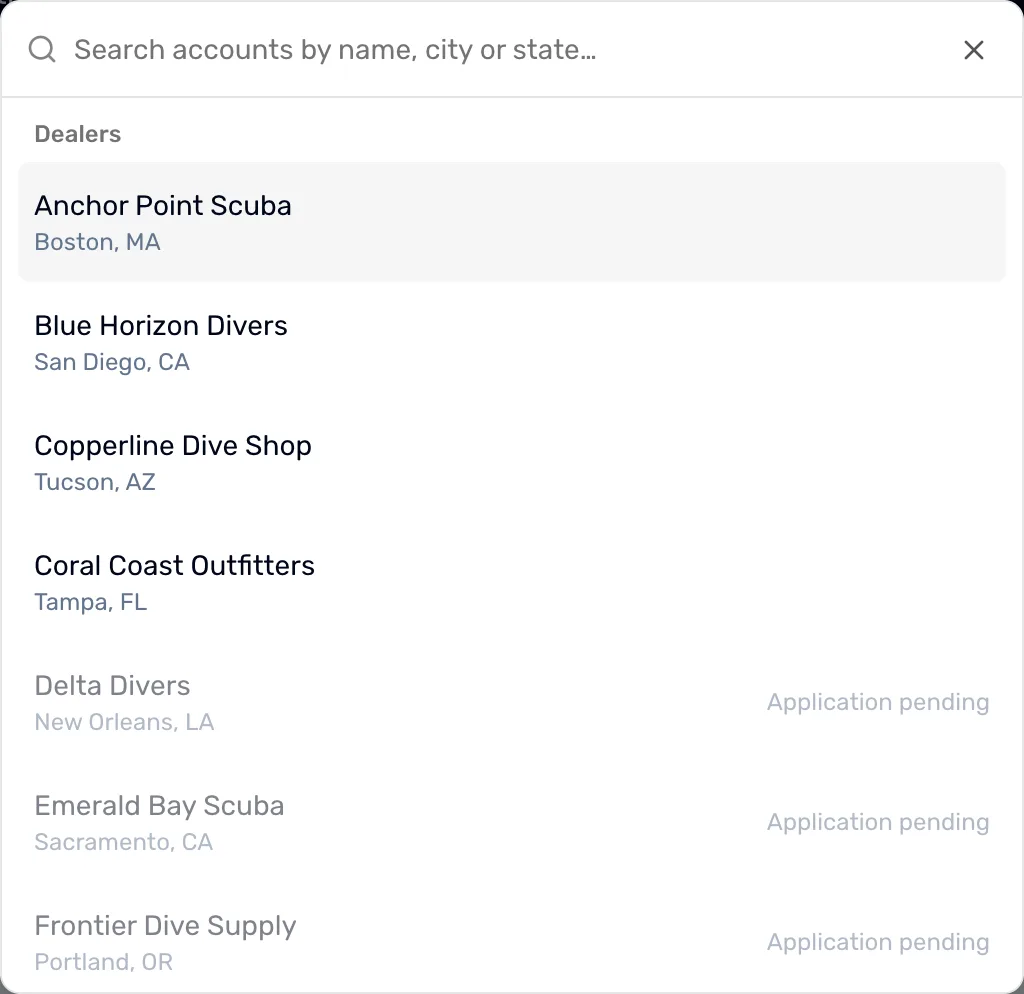
- The search. Type part of the name, city or state of the account to bill.
- A dealer. Pick one in black to open its invoice form.
- A grey account. It can't be billed yet. The reason is on the right.
Add the lines
Type what the work was in Description, then the Qty and the Unit price. The line total fills in for you. Press Add line for another line.
Set the Due date. Tick Ask this account to approve before paying if they should approve the invoice first. The memo is for the account to read. The internal note is seen only by your team.
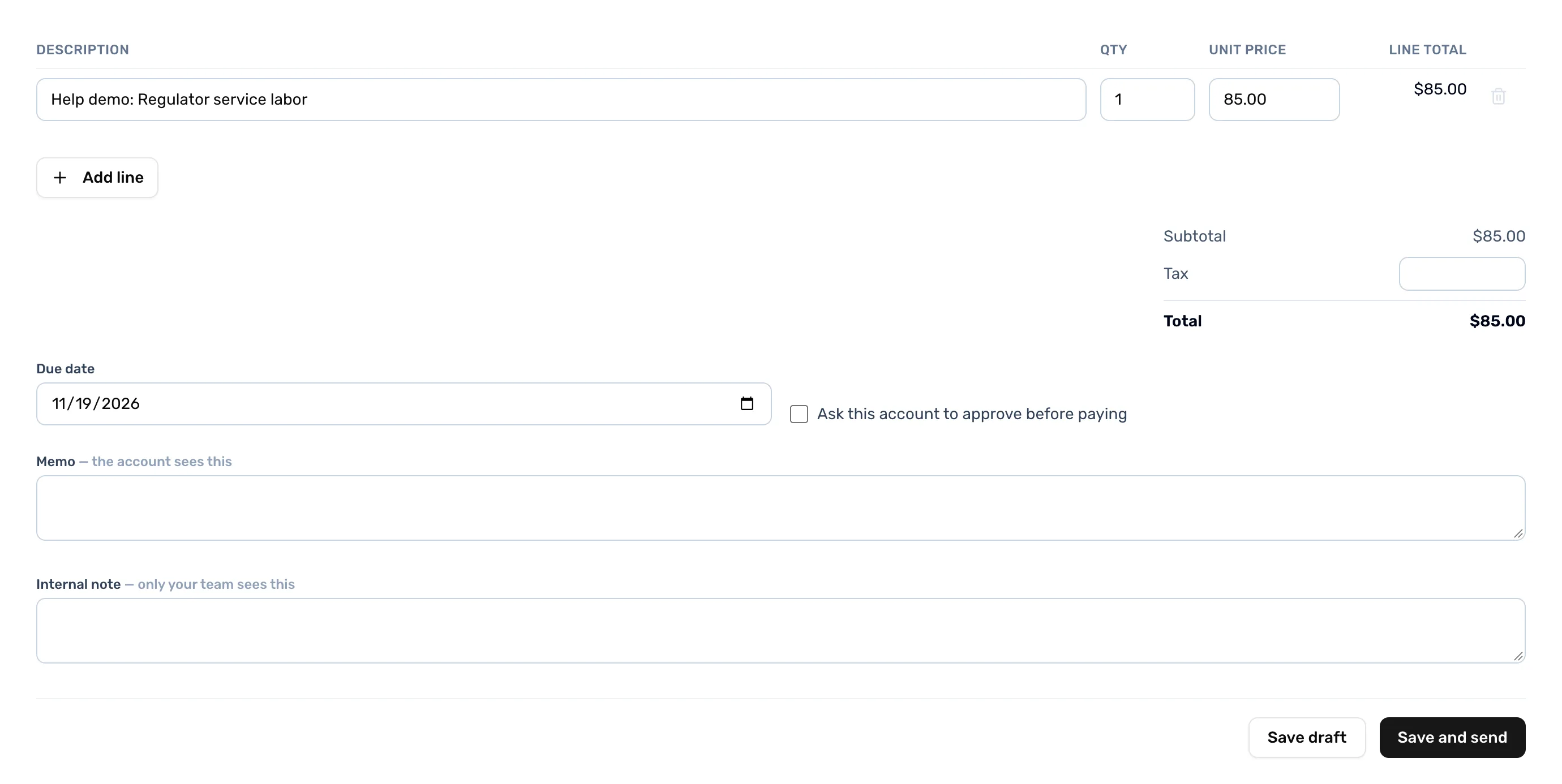
- Description. What you are billing for. Qty and Unit price sit beside it.
- Add line. Adds another line to the invoice.
- Due date. The day the invoice is due.
- Ask this account to approve before paying. Tick it if they should approve the invoice first.
- Save draft. Keeps the invoice without sending it.
- Save and send. Saves it and sends it to the account at once.
Save it, then send it
Save draft keeps the invoice and a message says "INV-… saved as a draft." with its number. You land on the invoice's page, marked Draft. Nothing has gone to the account yet.
Check the lines, then press Send. Save and send on the form does both in one go. A sent invoice reads "Awaiting payment", or "Awaiting approval" if you asked the account to approve it. After that it becomes Approved, Paid, Declined or Void. If the account declines, the page offers Send again.
Revise changes the lines later. If the invoice was already approved, revising sends it back for approval. Void cancels an invoice that isn't paid.
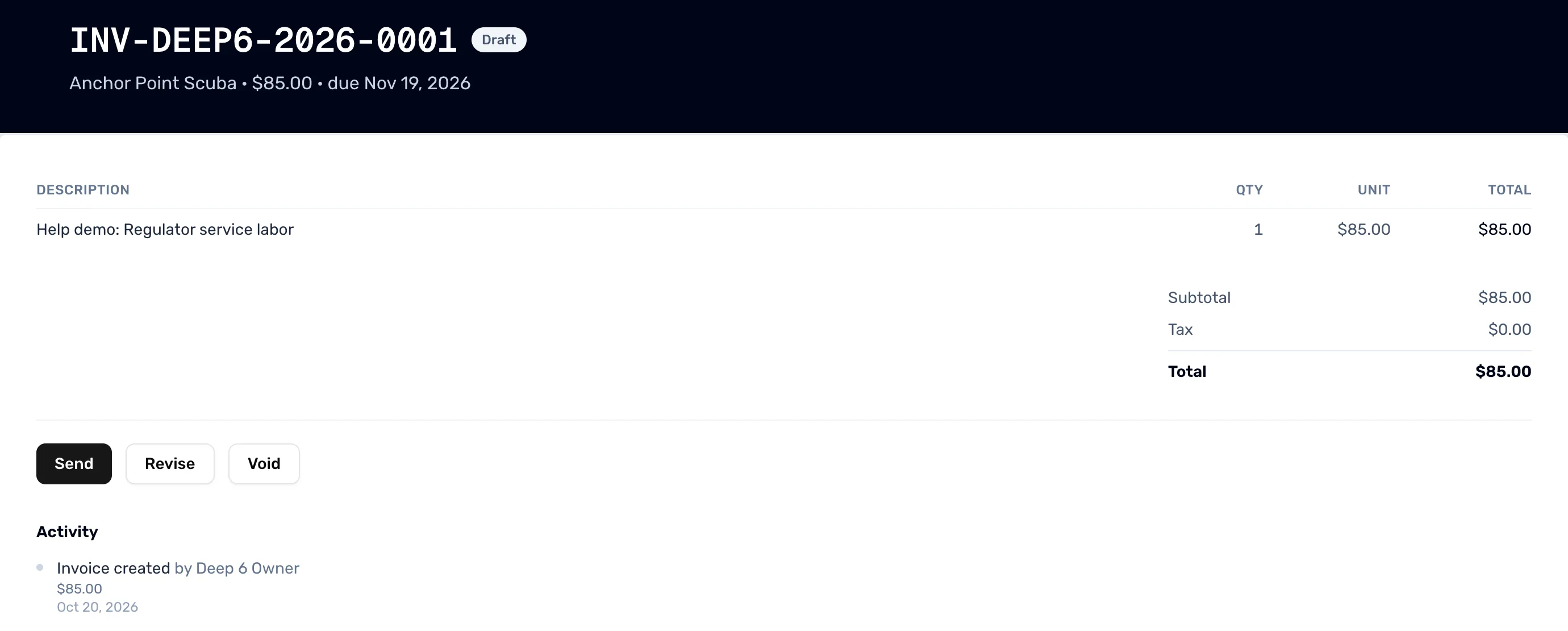
- Draft. The invoice is saved but not sent.
- Send. Sends it to the account.
- Revise. Opens the lines so you can change them.
When you are done
The dealer has the invoice, and you can follow it from Invoices.
- Let dealers pay by card: Let dealers pay by card.
- Keep an eye on orders too: Work the orders board.