
What this is for. Dealers pay faster when they can settle an order with a card on the spot. The money goes to your own Stripe account, and a dealer who would rather pay another way still can.
Connect Stripe
Go to Settings › Payments & invoicing › Card payments. "Card payments via Stripe" reads Not connected. Press Connect Stripe. It takes you to Stripe, where you connect your own account, then brings you back.
Only an owner or an admin can do this. Everyone else sees "An owner or admin can connect Stripe."
Card payments are on for every account unless OneDive turned them off for yours. If the panel isn't on your page, ask OneDive.
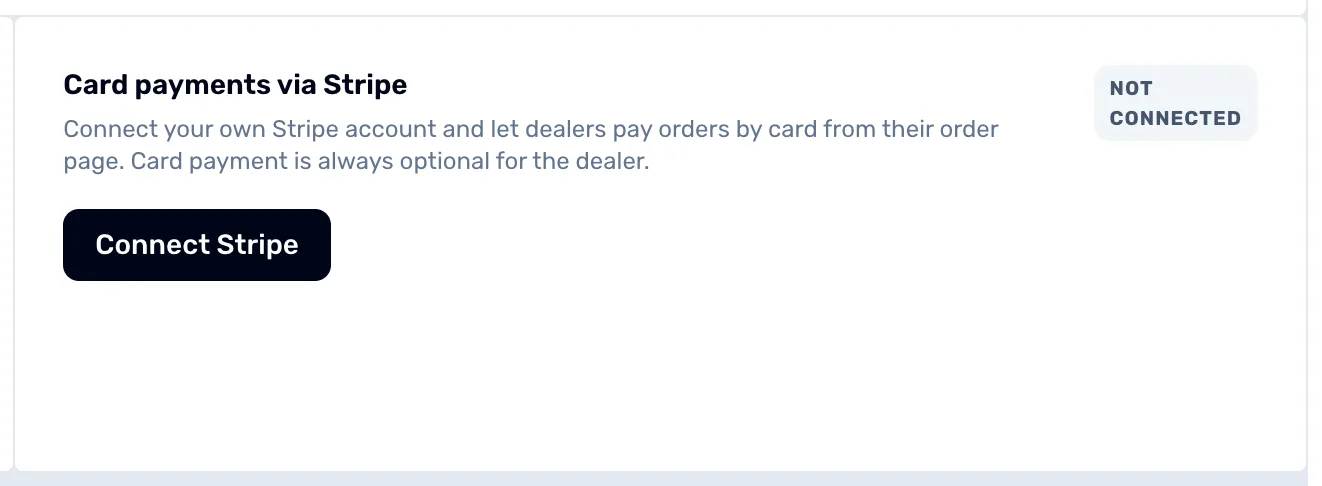
- Not connected. Shows until a Stripe account is linked. It changes to Connected once Stripe is ready to take charges.
- Connect Stripe. Opens Stripe so you can link your account.
Turn it on
Once the panel lists Charges as Enabled, switch on Offer card payment on orders. The switch stays off until then.
If Stripe still needs details from you, the panel says so and shows Finish Stripe onboarding. Press it to go straight back to the step Stripe is waiting on. The panel updates by itself once Stripe enables charges.
With the switch on, dealers see Pay by card on their order and invoice pages. They choose it only if they want to. OneDive's card fee is explained on the panel once Stripe is connected, so you and your dealers know what a card payment costs.
Set your invoice code
The same page holds Invoice code. Type a short code of letters or numbers, and the sentence above the field shows how your invoice numbers will look, such as INV-YOURCODE-… with the year and a count after it. Press Save.
Set it before your first invoice. The code appears on every invoice you send, and once you send one it is fixed.
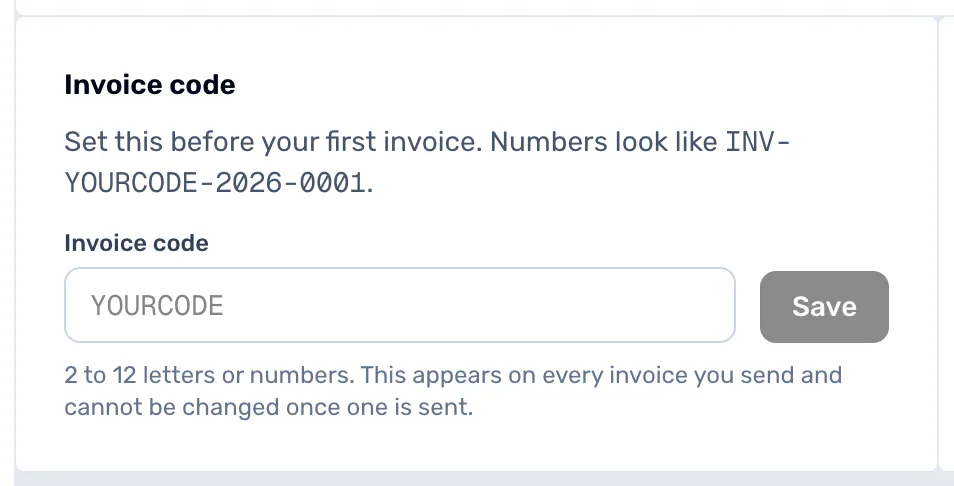
- The code field. Type your code here. Letters are capitalized for you.
- The example number. Updates as you type, so you see the real look of your invoice numbers.
- Save. Stores the code. It stays grey until you have typed a code.
Stop taking cards
To switch cards off, turn off Offer card payment on orders. To unlink Stripe, press Disconnect and confirm "Disconnect Stripe?". Dealers can no longer pay by card, and refunds and later shipping or tax adjustments on orders already paid stop until you connect again. Press Keep connected to back out.
When you are done
Dealers can pay by card, and your invoices carry your own code.
- Bill a dealer: Send an invoice.
- Watch payments come in on Orders: Work the orders board.