
What this is for. Dealers only see a product once it is published, and a product can only be published when it has its basics. Finding what is missing and filling it in takes a few minutes, and then your whole catalog is in front of dealers.
Find what needs details
Open Catalog and press the Needs Details tile. The list narrows to the products that are not ready. Each one has a red flag. Hold your pointer over the flag and it tells you what is missing, for example "Missing: MAP".
A product needs details when it has no wholesale price, no name, or no MAP above zero. Category, brand, photos, description and MSRP never hold a product back.
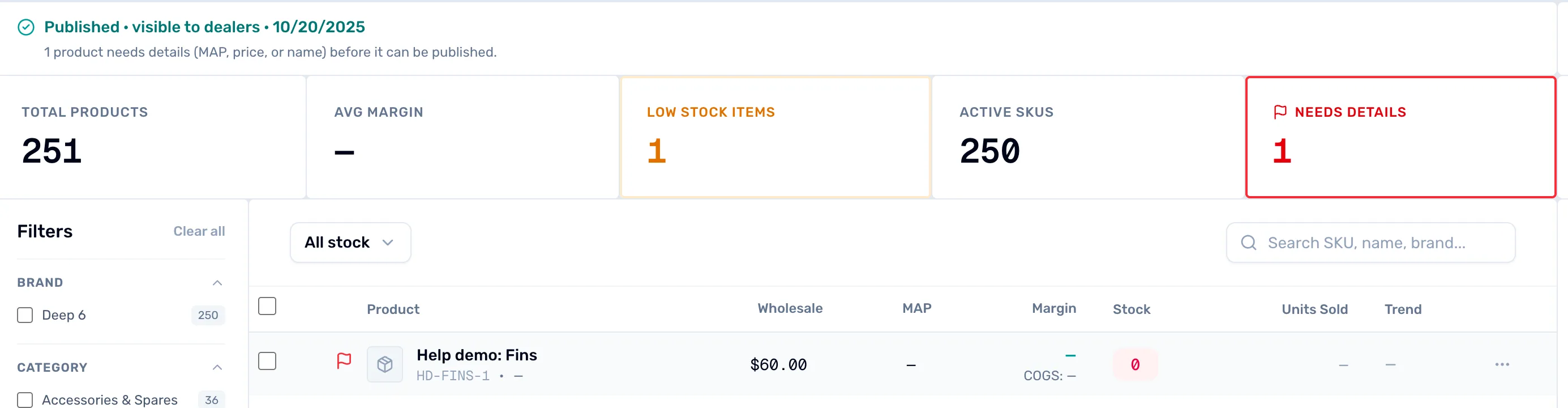
- Needs Details. Shows only the products that are not ready to publish.
- The red flag. Hold your pointer over it to see what is missing.
- The note. Counts the products that need a price, a name or a MAP before they can be published.
Fill it in
Open the product by its name, or choose Edit Product in the row menu. A banner at the top says "This product needs details" and names what to add. Further down, in the panel with the prices, fill in the box it points to. Price is required to publish to dealers. MAP is the floor dealers may advertise at, and it is also required. Then press Save.
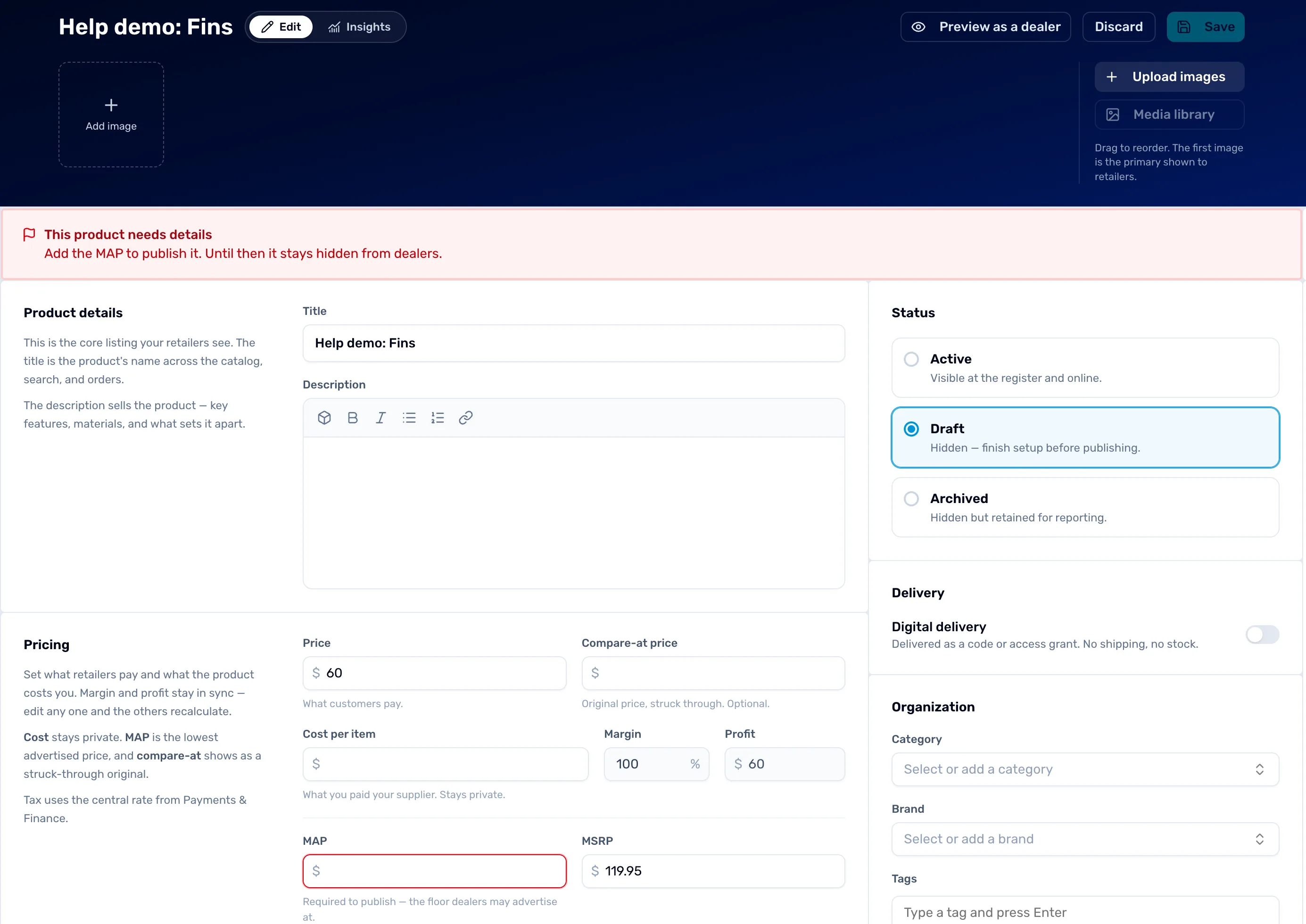
- The banner. Says this product needs details and what to add.
- Price. The wholesale price. Required to publish.
- MAP. The lowest price dealers may advertise. Red until you fill it in.
- Save. Keeps your changes.
Publish
Go back to Catalog. An amber banner says how many products are ready, for example "1 product is ready to publish", and "Dealers can't see it until you publish." Press Publish on the banner. The button names the count, for example "Publish 1 product".
Publishing also moves any Active product that has lost a detail back to Draft, and tells you how many it moved.

- The ready count. How many products will be published.
- Publish. Makes them visible to dealers.
When you are done
Catalog now shows a green line, "Published · visible to dealers", with a date. That date is when your catalog was first published, and later publishes don't change it. Dealers can see your published products.

- Published. Your catalog is visible to dealers.
A product's Status panel tells you where it stands. Active is "Visible at the register and online." Draft is "Hidden — finish setup before publishing." Archived is "Hidden but retained for reporting."
Only the owner or an admin can publish or edit a product. Other roles can look.
- Set your dealer terms.
- Bring in your first dealers.