
What this is for. Your price list is the fastest way to fill your catalog. Bring in the file you already have, check how OneDive read it, and apply it. Your products arrive as drafts, so dealers see nothing until you publish.
Open the importer
Open Catalog, titled "Product Catalog". Press Import at the top right. A small menu called "Import From" opens with five choices: Import from Shopify, Import from WooCommerce, Import from Magento, Upload from computer and Paste rows into a grid. If your catalog is empty, you also see an Import price list button on the page.
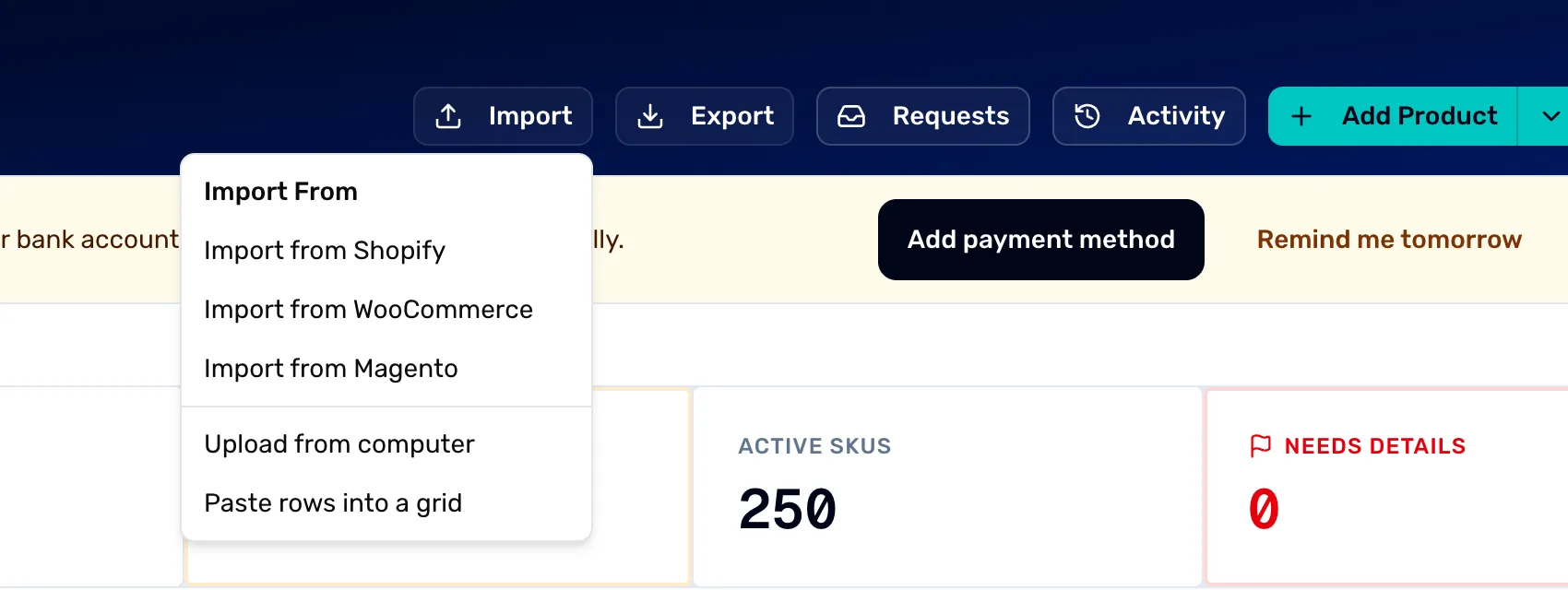
- Import. Opens the menu.
- Upload from computer. For a spreadsheet, a PDF or a Word file.
- Paste rows into a grid. For rows you copy from anywhere.
- Import from Shopify. Starts from your Shopify store. See the last step.
Upload a file or paste rows
Either choice opens one window, "Import from XLSX, PDF, or Word", with two tabs.
- Upload a file takes a spreadsheet, a PDF or a Word file.
- Paste rows gives you a grid. Type or paste a header row first, then one row for each product. Add row and Add column make room, and Clear empties the grid.
Press Extract. OneDive reads your rows. It takes a few seconds.
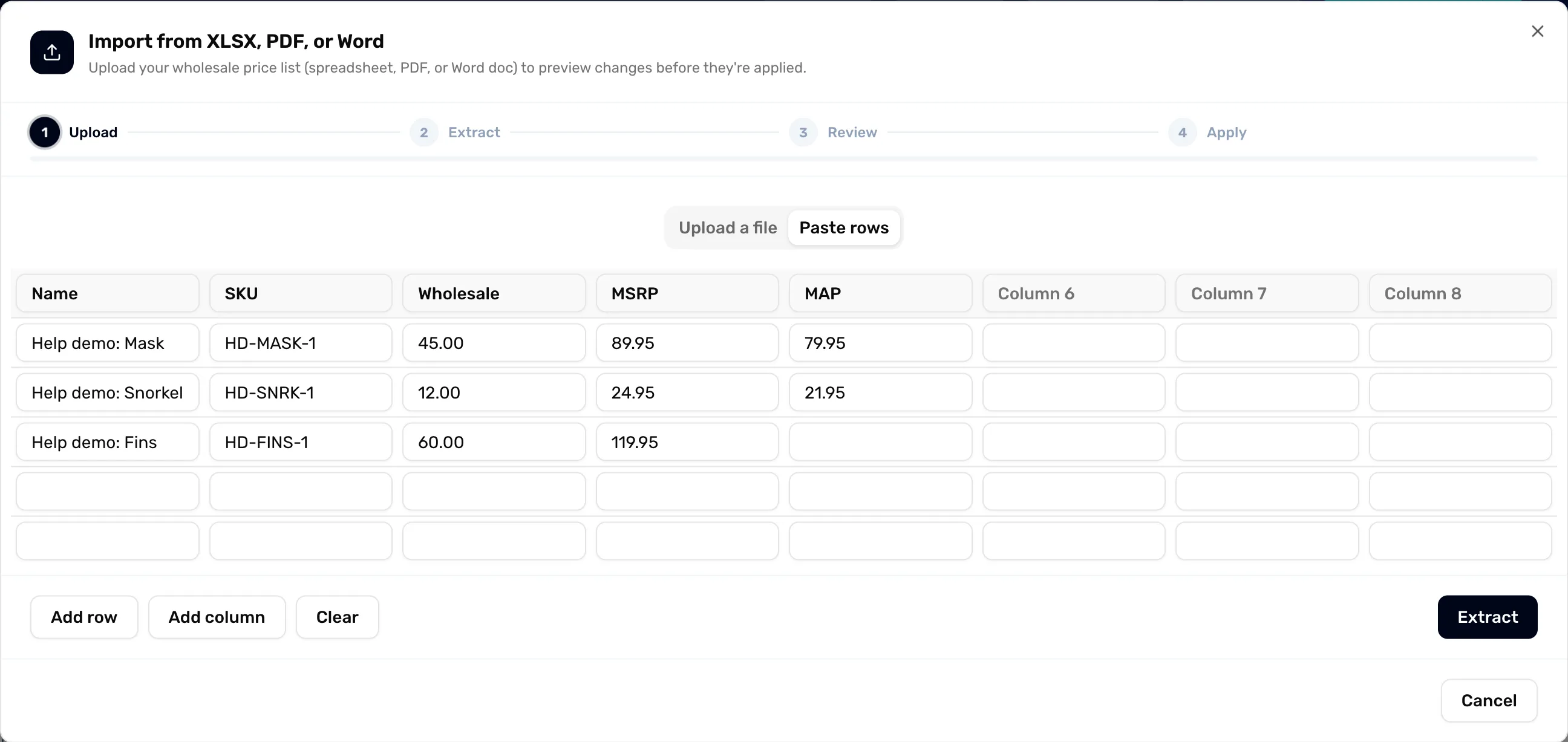
- Paste rows. The tab for typing or pasting your own rows.
- The grid. The first row is your column names. Each row after it is one product.
- Extract. Reads the grid and moves you on.
Map your columns
"Map your columns" pairs each of your columns with something OneDive knows: name, distributor sku, barcode, MSRP, MAP, cost, size and category. Pick the matching column of yours in each box. A pasted grid is not matched for you, so check each one.
Name is required. A product also needs a wholesale price and a MAP before it can be published, so map both if you have them.
Your wholesale price goes in the price tiers box below the fields. Choose your column, then name the price list it feeds. + Add tier adds another column for another dealer price. Choose a Brand at the bottom, or add a new one. The next import remembers this mapping.
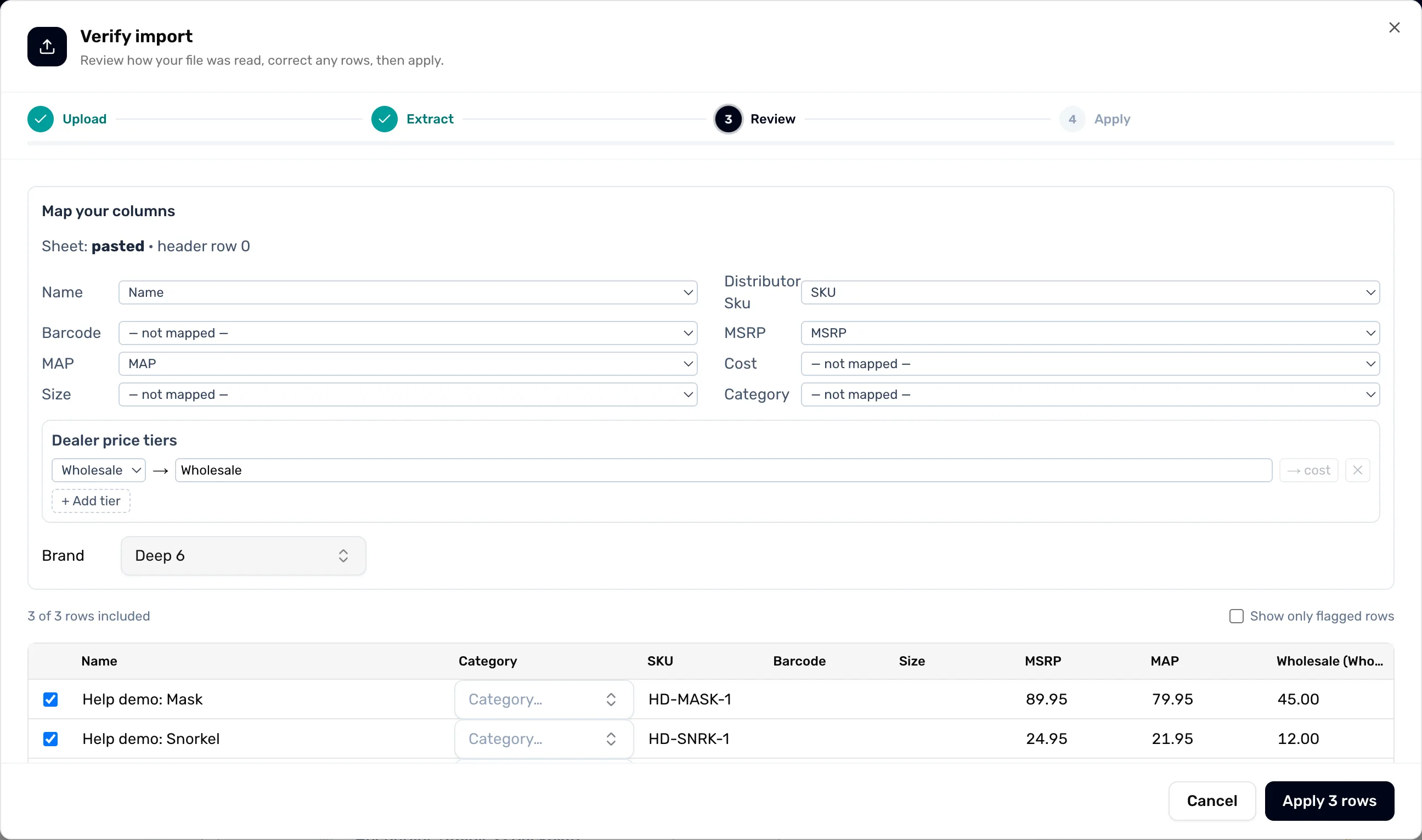
- A mapped field. Each box takes the matching column of yours.
- MAP. The minimum advertised price. Map it if your list has one.
- + Add tier. Adds a column for another dealer price.
- Brand. The brand these products belong to.
Check and apply
The next screen is "Verify import". It says how many of your rows are included, for example "3 of 3 rows included", and lists every row so you can fix a cell or untick a row.
If something blocks the import, a box called "Fix these before applying" tells you what to fix. Rows listed under "Heads up" still import, as drafts. A row with a missing price, such as a blank MAP, shows a red cell. It imports, but it needs details before you can publish it.
When it looks right, press Apply with the count on it, such as Apply 3 rows. To stop without importing anything, press Cancel.
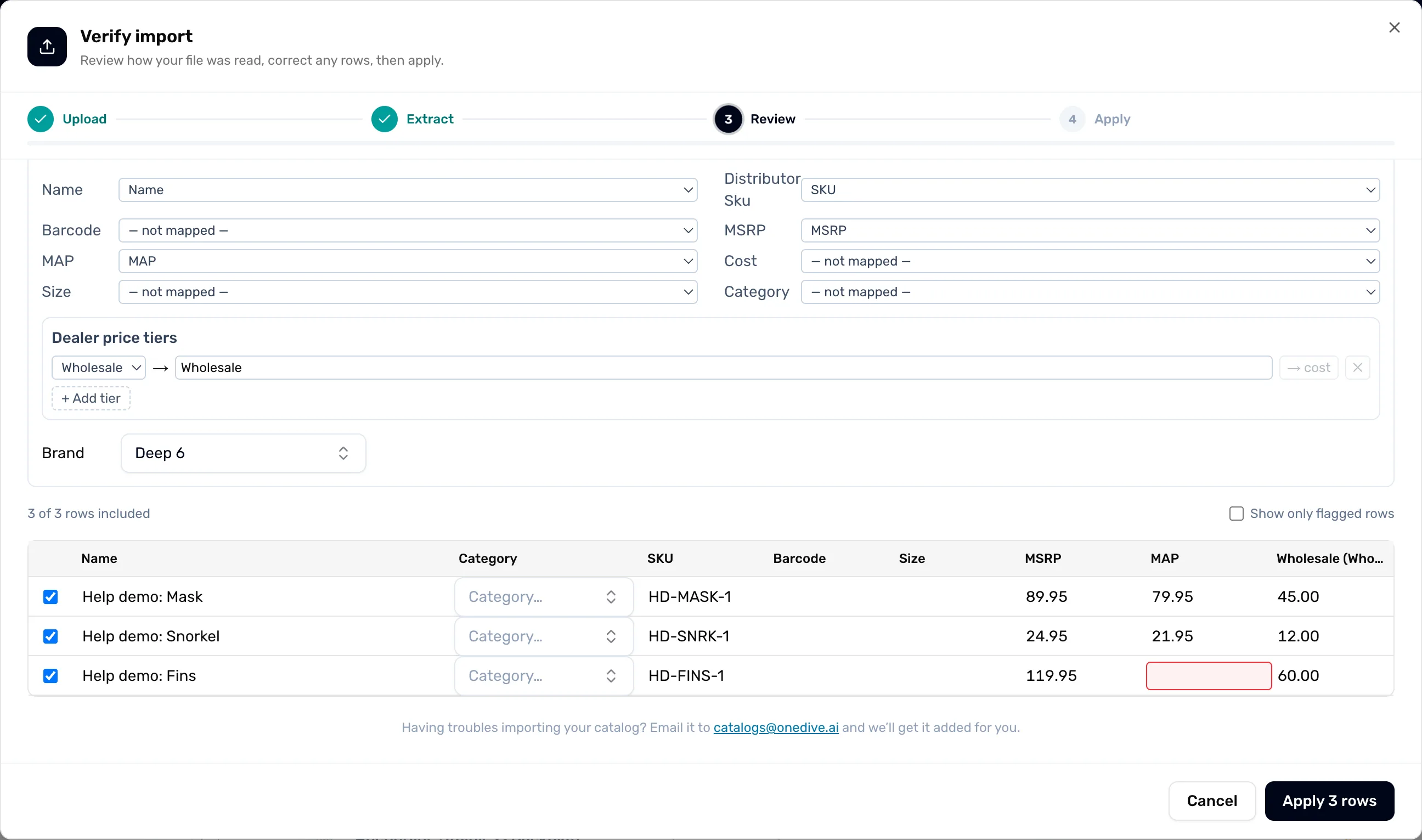
- Rows included. How many rows will import. Untick a row to leave it out.
- A red cell. Something is missing. The row still imports as a draft.
- Apply. Imports the rows.
Your products are drafts
A window called "Import complete" confirms it: your products were imported as drafts, and you can publish the eligible ones from the catalog. Back on Catalog, a banner counts the products that are ready to publish and the ones that still need details.
Dealers see nothing yet. Filling in what is missing and publishing is the next mission.
If you start from Shopify
Choose Import from Shopify in the Import menu. The page is called "Connect your Shopify store". OneDive takes a snapshot of your catalog for you to review and price here. Nothing changes in Shopify, and your store keeps selling as it does.
Press Install from the Shopify App Store to add the OneDive B2B Sync app. When you finish there, you come back here to review your products.
Next
- Fill in what's missing, then publish your products to dealers.
- Back to the Catalog to see your drafts.