
What this is for. OneDive B2B is the website you sign in to at onediveb2b.com. Its Team page holds the same staff list as your register. Adding someone here needs their email. A Manager gets an email invitation, sets a password, and from then on signs in with their own email on the web and at the register. Anyone else is added to the register's list and switches in with a PIN you set there. You end up with the person on your team, and for a Manager, a link you can send them yourself.
Someone with no email, or someone you'd rather give a PIN only? Add them at the register instead: Add a PIN-only operator.
Open your team
Go to Settings › Team. You see everyone on your team, the same list as the register.
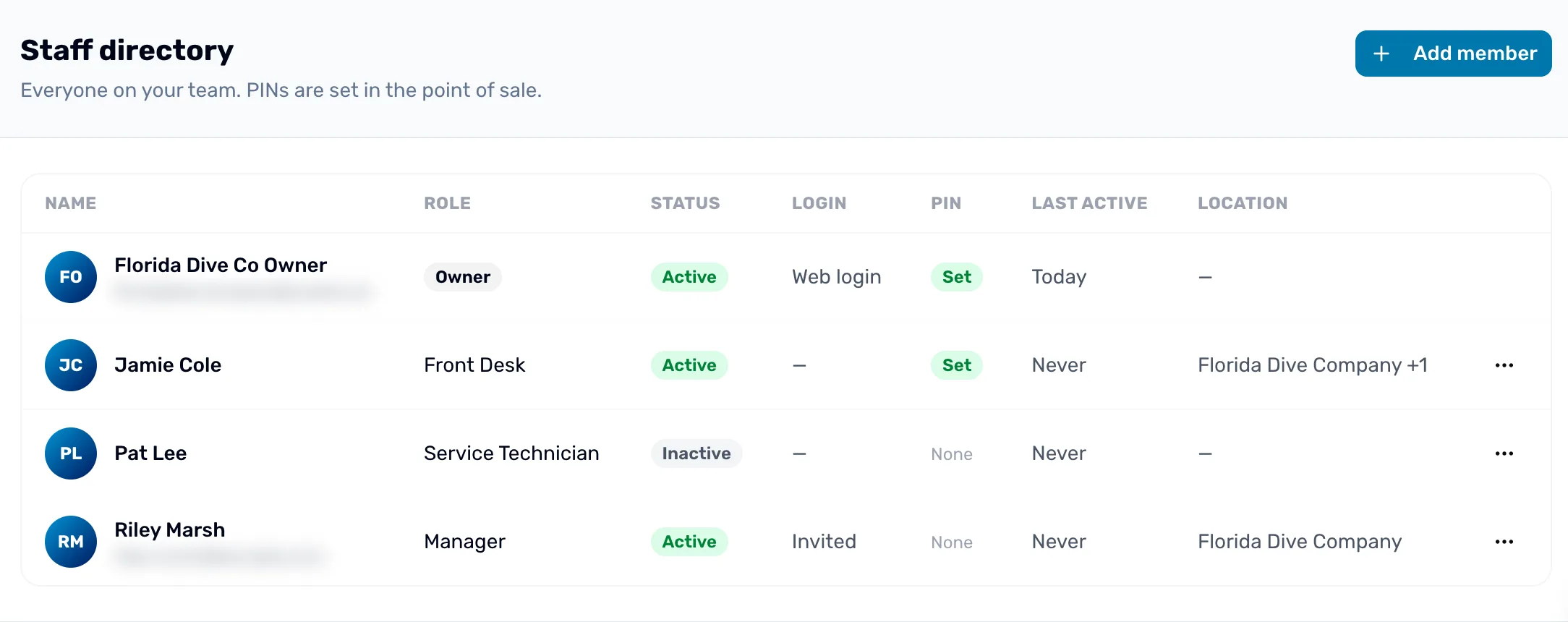
- Add member. Adds someone. Step 2.
- Login. Web login once they can sign in. Invited while a Manager hasn't accepted yet. A dash for someone who uses a PIN only, or who was deactivated.
- PIN. Set or None. PINs are set at the register, not here.
Fill in who they are
Choose Add member. Fill in:
- Email. Required here. It's where a Manager's invitation goes.
- First name and Last name. What the register shows on their tile.
- Role. Manager, Front Desk, Service Technician or Instructor. It starts on Front Desk. The line under it says what happens next. See Roles and what each can do.
- Location (optional). Which of your shops they work at. You can add more later.
Then choose Add member. The button stays grey until the email has an @ in it.
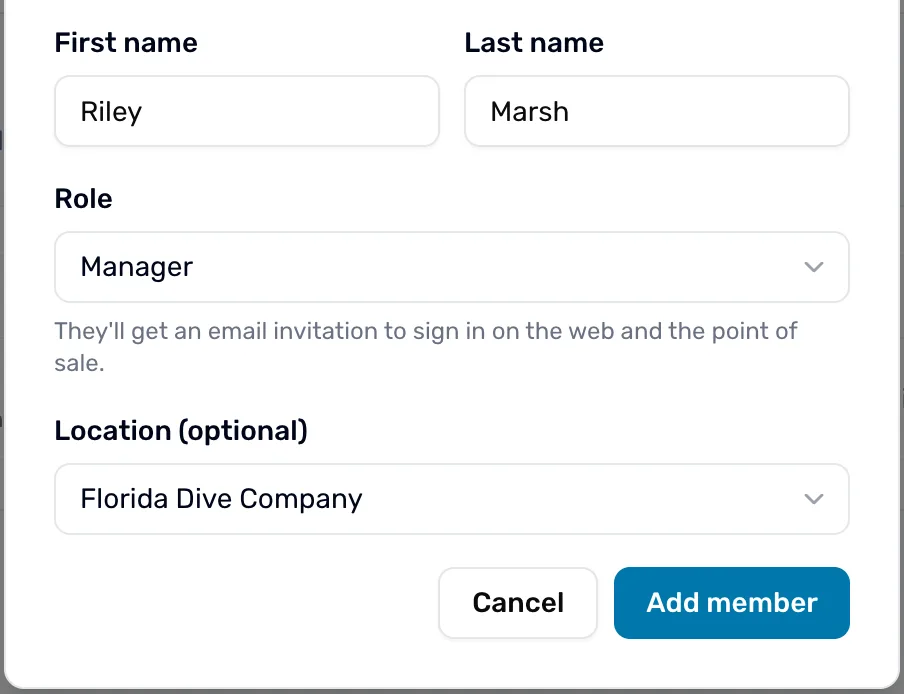
- Role. Only a Manager gets an invitation and their own sign-in.
- The line under Role. Says what happens for the role you picked.
- Add member. Adds them.
For any role except Manager, the line reads "They'll appear in the point of sale. An owner or general manager can set their PIN there, in Settings › Users & Access." The window closes and you see Added and their name. Skip to step 4.
Send a Manager their invitation
For a Manager, the window changes to Invitation sent to and their email. OneDive emails them a link to set a password. The same link is on screen, so you can send it another way too, for example by text.
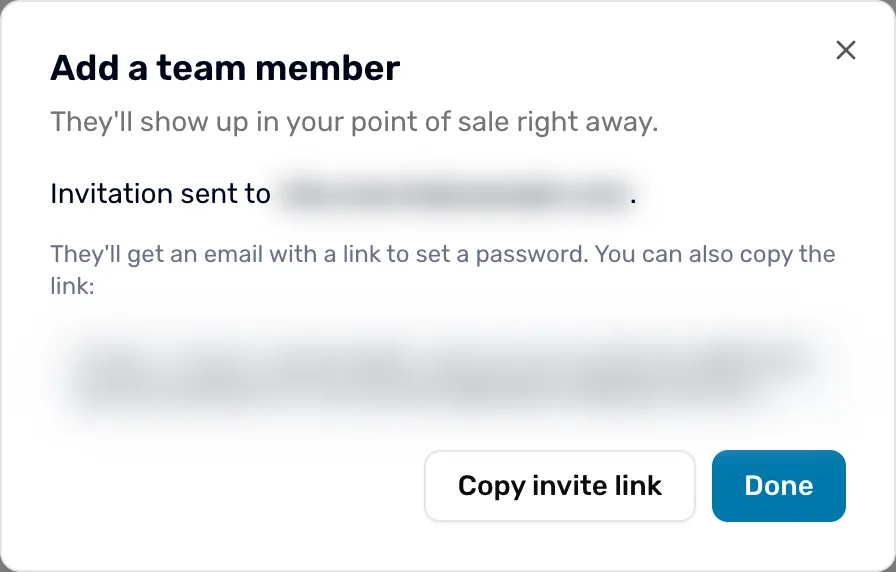
- The link. Their own invite link. Only send it to them.
- Copy invite link. Copies it, so you can paste it into a text or a chat.
- Done. Closes the window. Their Login shows Invited.
The email comes from OneDive with the subject "(your name) invited you to join (your shop) on OneDive" and a button, Accept invitation. Opening the link shows Join and your shop's name, with "You’ve been invited as Manager. Set a password to accept." They type a password and choose Accept invitation, and they're signed in.
- The link works for 7 days. After that the page says Invitation expired. There is no button to send a new one yet, so ask us in Contact support.
- Already have a OneDive account with that email? The page says "You already have an account — log in instead." They sign in, open the link again, and accept.
Once they accept, their Login reads Web login.
Give them a PIN at the register
A PIN is how they switch in at the counter, and how a Manager approves a discount. PINs are set at the register only. Go to Settings › Users & Access on the register, open their row's menu and choose Set PIN. See Set, reset and clear PINs.
What happens next
- Pick the right role: Roles and what each can do.
- Choose where they work: Assign staff to locations.
- Someone leaving: Deactivate someone.