
What this is for. If you run more than one shop, each person on your team can be tied to the shops they work at, with one as their main, or primary, location. It matters most for a Manager who signs in with their own email: they see registers, stock counts and cash drawer counts only for their locations. For everyone else it's a label on their row today. You end up with the right shops on each person's row.
What a location changes
- A Manager with their own sign-in sees registers, stock and cash drawer counts only at their locations. A Manager with no location sees none of them, so give every Manager at least one.
- The owner and General Managers see every location, whatever is ticked.
- Someone who only uses a PIN can switch in on any register in your shop, whatever their own locations are. Their location shows on their row. The stock and cash drawer they see follow whoever is signed in on that register, so on a register signed in as you, they see every location.
Open the person's locations
At the register, go to Settings › Users & Access, open the menu at the end of their row and choose Manage locations. If someone else is switched in, switch in with your own PIN first.
Tick where they work
Tick every location they work at. The first one you tick becomes their primary. To change it, choose Set primary beside another ticked location. The primary shows ★ Primary. Then choose Save locations.
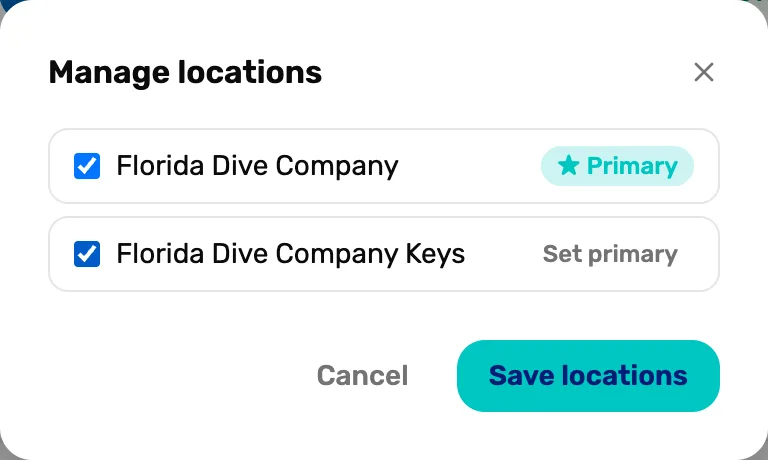
- The tick. They work here.
- ★ Primary. Their main location. It's the one their row shows.
- Set primary. Makes this one their main location instead.
- Save locations. Saves. Nothing changes until you do.
Untick a location to take them off it. Untick them all and save to leave them with none.
If the window says "No locations set up for this shop yet.", add a location first in Locations on OneDive B2B.
Check their row
The Location column shows their primary, and +1, +2 and so on for the others.
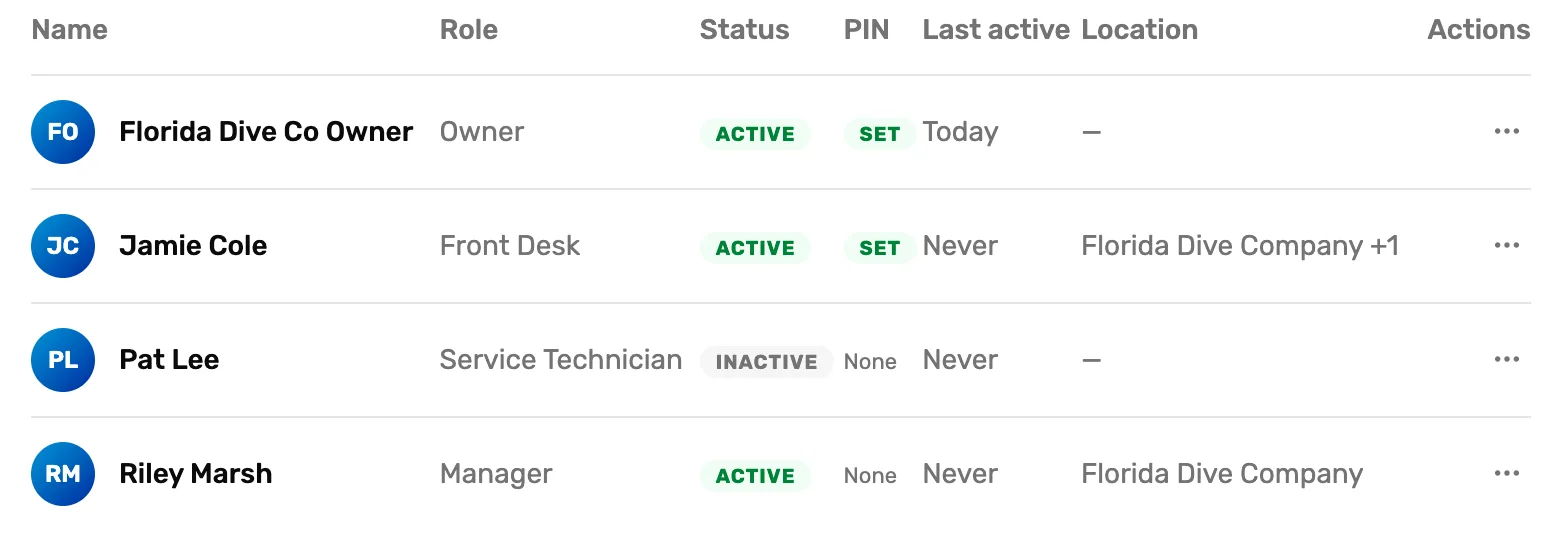
From OneDive B2B
The same list is on the web. Go to Settings › Team, open the person's menu and choose Manage locations. The window is called Locations for and their name, "Pick where they work. One location is the primary." Tick their locations, pick one Primary, and choose Save. You see Locations updated.
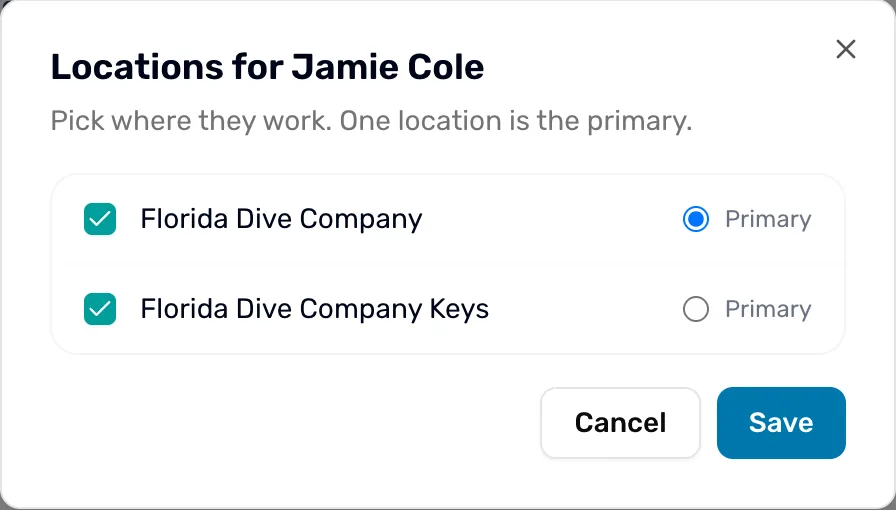
The owner's row has no menu on the web. Set the owner's locations at the register.
What happens next
- Add someone and give them a location as you go: Add a PIN-only operator or Invite staff from OneDive B2B.
- What each role sees: Roles and what each can do.