
What this is for. Most of your floor staff never need to sign in to OneDive. They walk up to the counter, tap their name and type a PIN, and every sale they ring up carries their name. That person is a PIN-only operator: someone on your team with no email and no password of their own. You end up with them on the Switch User screen, ready to work.
Open Users & Access
On the register, go to Settings › Users & Access. You can also tap the gear at the top right and choose Users & Access.
Add them with no email
Choose Add user. In Add staff member:
- Email (optional). Leave it blank. The box says "Leave blank for a PIN-only operator".
- First name and Last name. With no email, a first name is required. It's what their tile shows on the register.
- Role. Manager, Front Desk, Service Technician or Instructor. It starts on Front Desk. See Roles and what each can do.
- PIN (optional). 4 digits, or leave it blank and set it later. It shows as dots.
- Location (optional). Which of your shops they work at. Only shows when your shop has a location. See Assign staff to locations.
Then choose Add user. It stays grey until there is a first name.
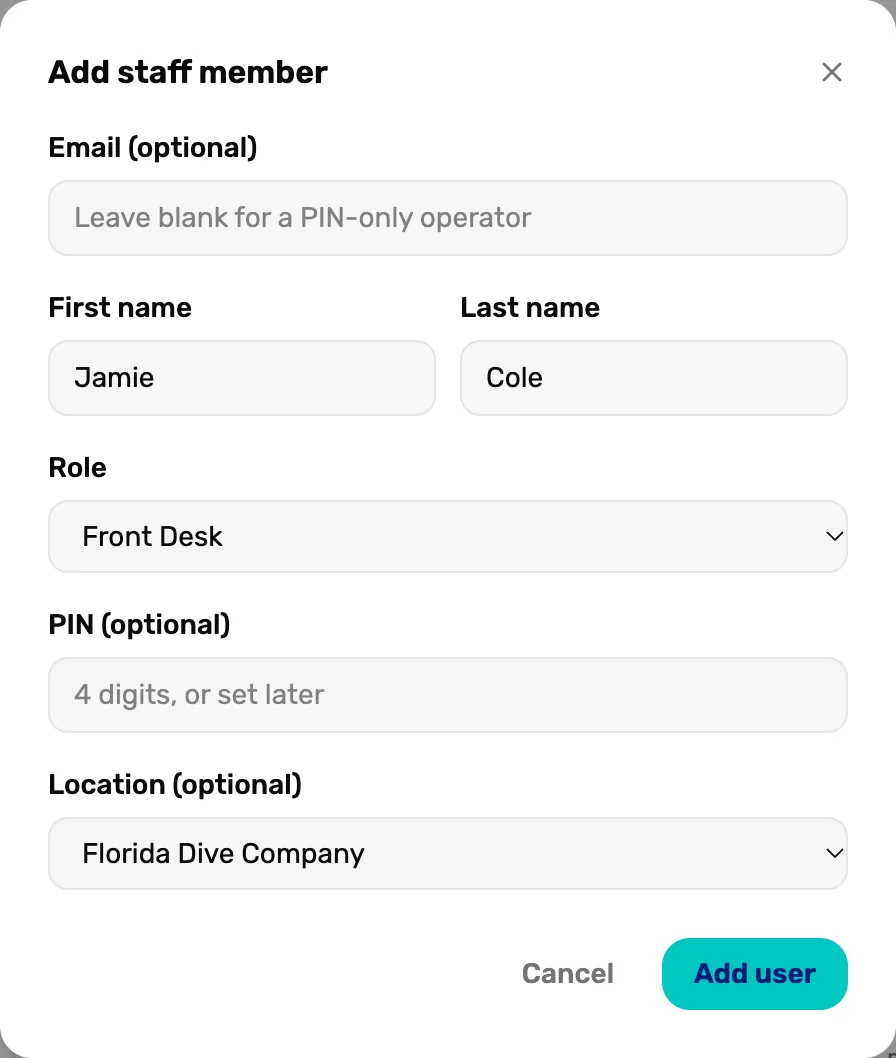
- Email (optional). Blank makes a PIN-only operator.
- First name. Required when there is no email.
- Role. What they can do.
- PIN (optional). 4 digits now, or set it later.
- Add user. Adds them to your team.
If you type 1 to 3 digits, the box says "A PIN is 4 digits. Finish it, or clear it to set one later." If OneDive refuses the PIN, you see "PIN does not meet requirements." and nobody is added. Pick another: the rules are in Set, reset and clear PINs.
Check their row
They show in the list straight away.
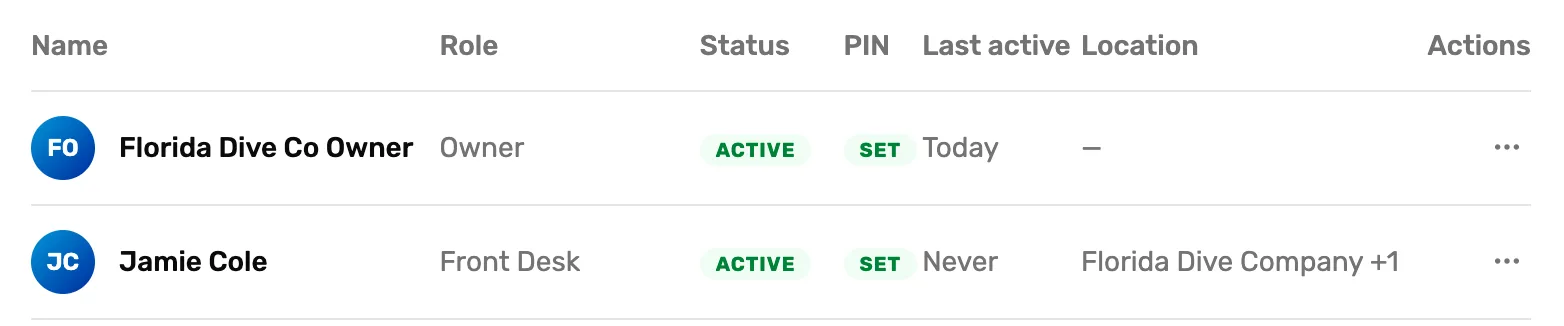
- PIN. SET means they can switch in. None means set a PIN first.
- Last active. Never until they first switch in.
Let them switch in
Tap the lock at the top left of the register. Switch User shows everyone with a PIN. They tap their name and type their PIN, and their name shows at the top right.
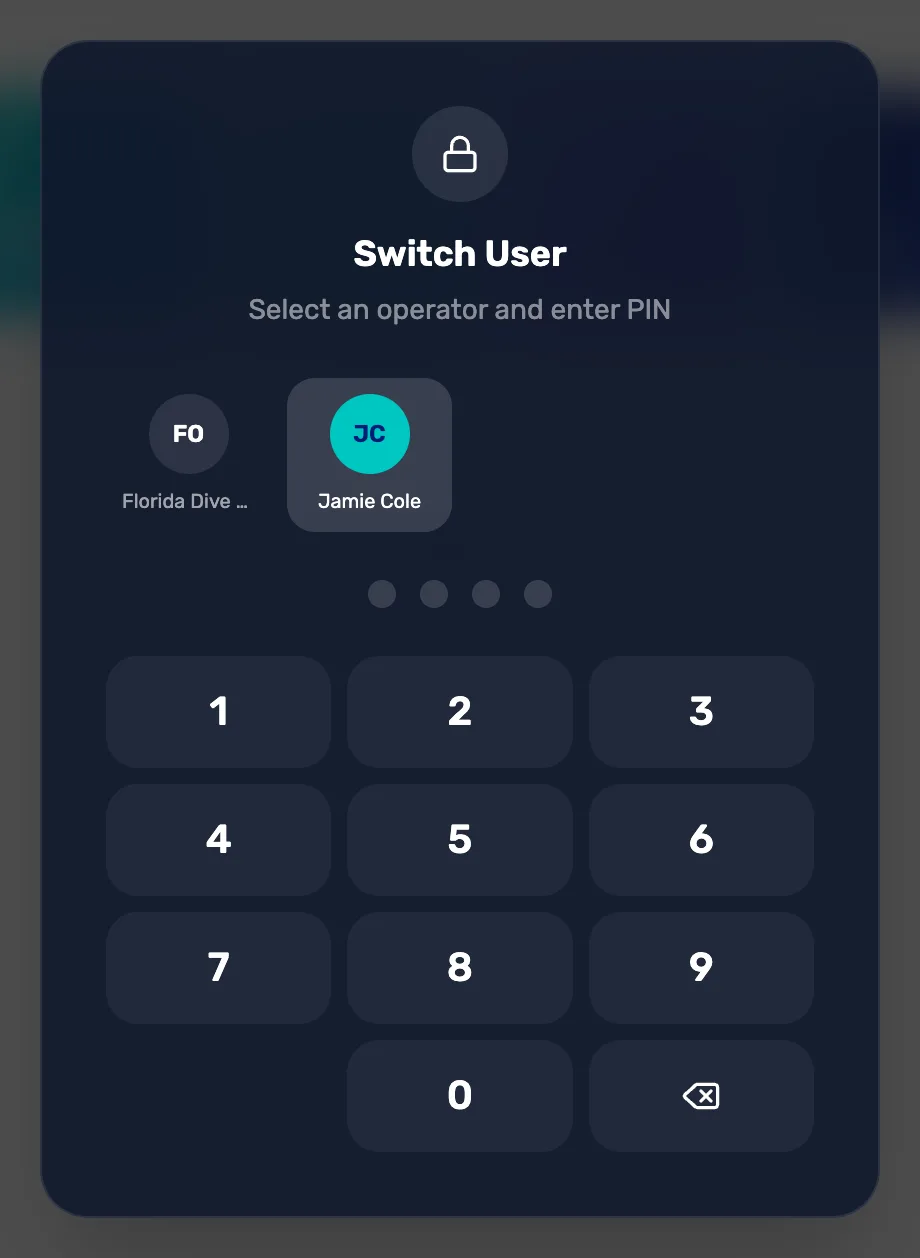
- Their tile. Only people with a PIN show here.
- The dots. 4 for staff, 6 for the owner.
Lock and switch work only on a device added as a register, when your plan includes Staff PIN lock, and when the person signed in on that device has a PIN of their own. If the lock is grey, see Device access and auto-lock and Your team on the floor.
What happens next
- Give them an email sign-in later? You can't add an email to an existing row today. Add a Manager by email instead: Invite staff from OneDive B2B.
- Change their PIN: Set, reset and clear PINs.