
What this is for. A PIN is how someone switches in at the register, and how a manager approves a big discount or a refund. Only the owner or a General Manager can set one, at the register. They can set anyone's, the owner's too. Nobody can see a PIN once it's saved, so a forgotten PIN is reset, never looked up.
Pick a PIN that works
- Length. 6 digits for the owner. 4 digits for everyone else, General Managers and Managers included.
- Not all the same digit, like 0000 or 999999.
- Not a straight run, up or down, like 1234, 4321, 7890 or 123456.
- Not a common one, like 1212, 2580, 1004 or 2000.
- Not someone else's. No two active people on your team can share a PIN.
OneDive won't say which rule a PIN broke. Every refusal reads "PIN does not meet requirements." If you see it, pick a different PIN.
Set or reset a PIN
Go to Settings › Users & Access. Find the person in the Staff directory and open the menu at the end of their row.
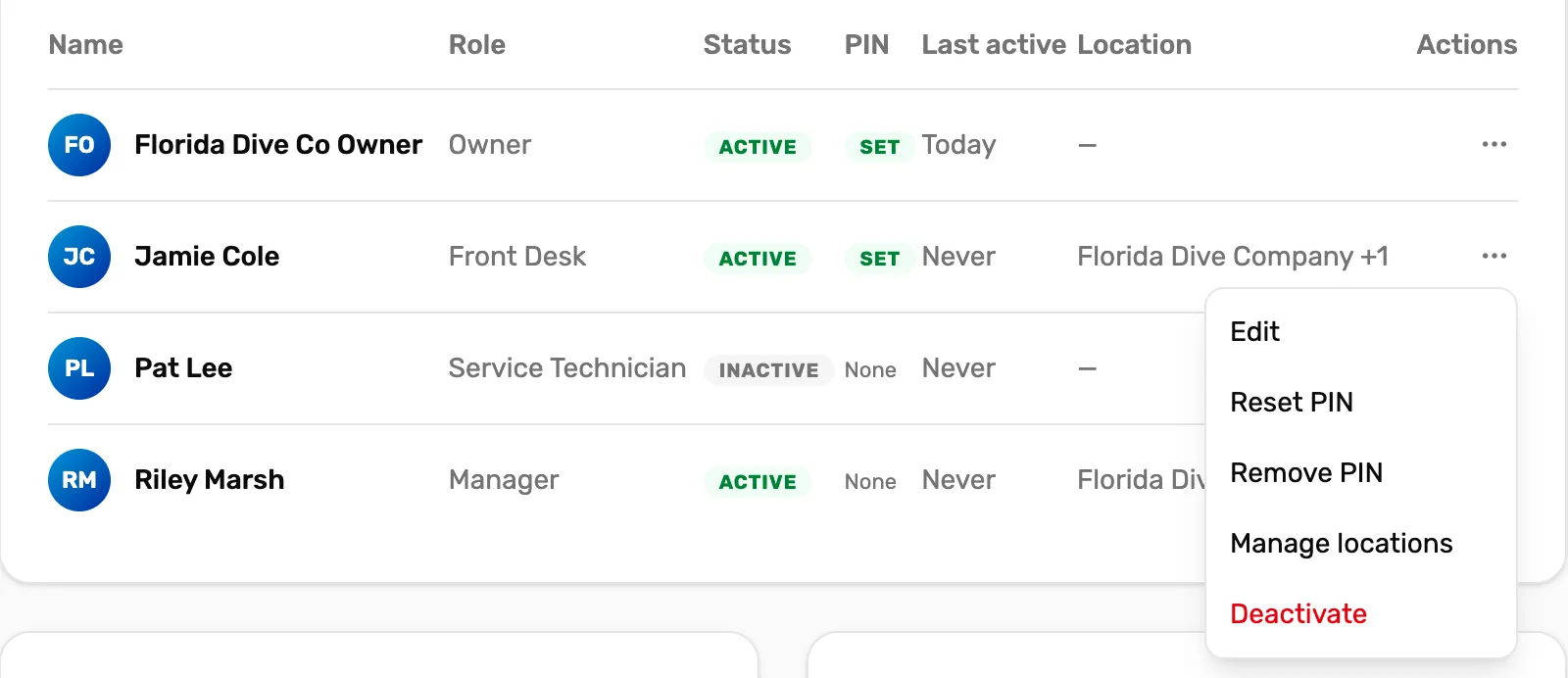
- Set PIN or Reset PIN. Set PIN when they have none. Reset PIN to change it.
- Remove PIN. Takes their PIN away. Step 3.
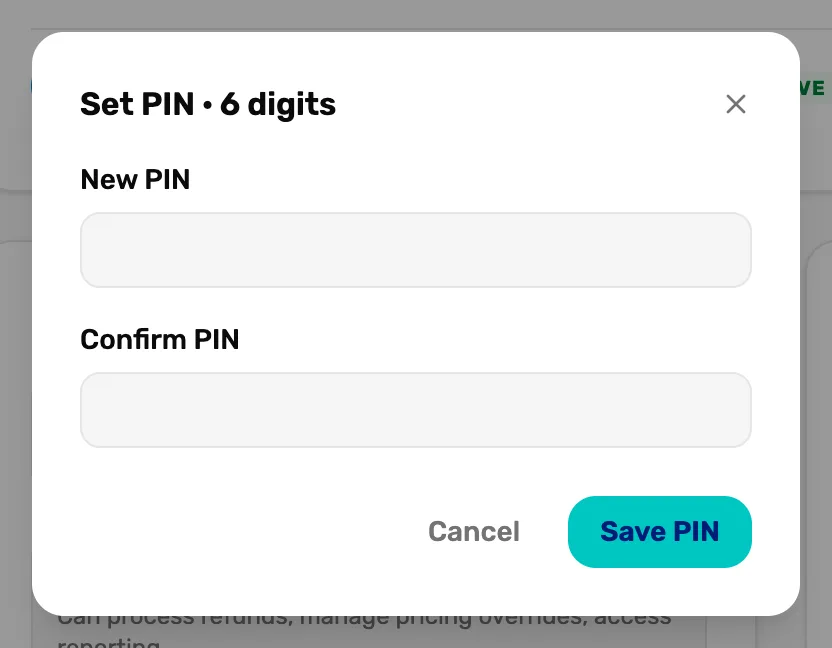
Choose Set PIN or Reset PIN. The window's title says how many digits it needs, like Reset PIN · 4 digits. Type the PIN into both boxes, New PIN and Confirm PIN, and choose Save PIN. The old PIN stops working straight away.
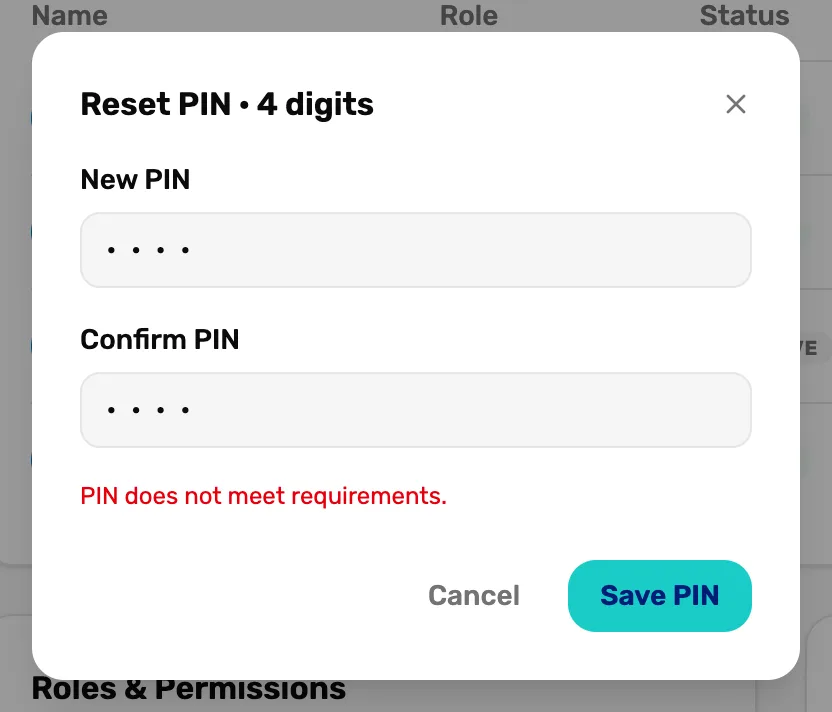
- The title. 4 digits for staff, 6 for the owner.
- New PIN and Confirm PIN. Type it twice. The boxes only take digits.
- The red line. Why it didn't save. Pick a different PIN.
- Save PIN. Saves it.
- "PINs do not match." The two boxes are different. Type both again.
- "PIN does not meet requirements." Too short, or it broke a rule in step 1.
Take a PIN away
Open the person's menu and choose Remove PIN. It happens at once, with no question first. Their PIN column turns to None, and they disappear from Switch User until they get a new one.
Take a PIN away from someone who shouldn't switch in for now. For someone who has left, deactivate them instead: see Deactivate someone.
If someone types the wrong PIN
The first four wrong tries show no message. Five wrong tries in a row on a register pause its keypad for 10 seconds. It reads "Too many attempts — wait" and the seconds left, then works again. Every failed try is kept in Audit access.
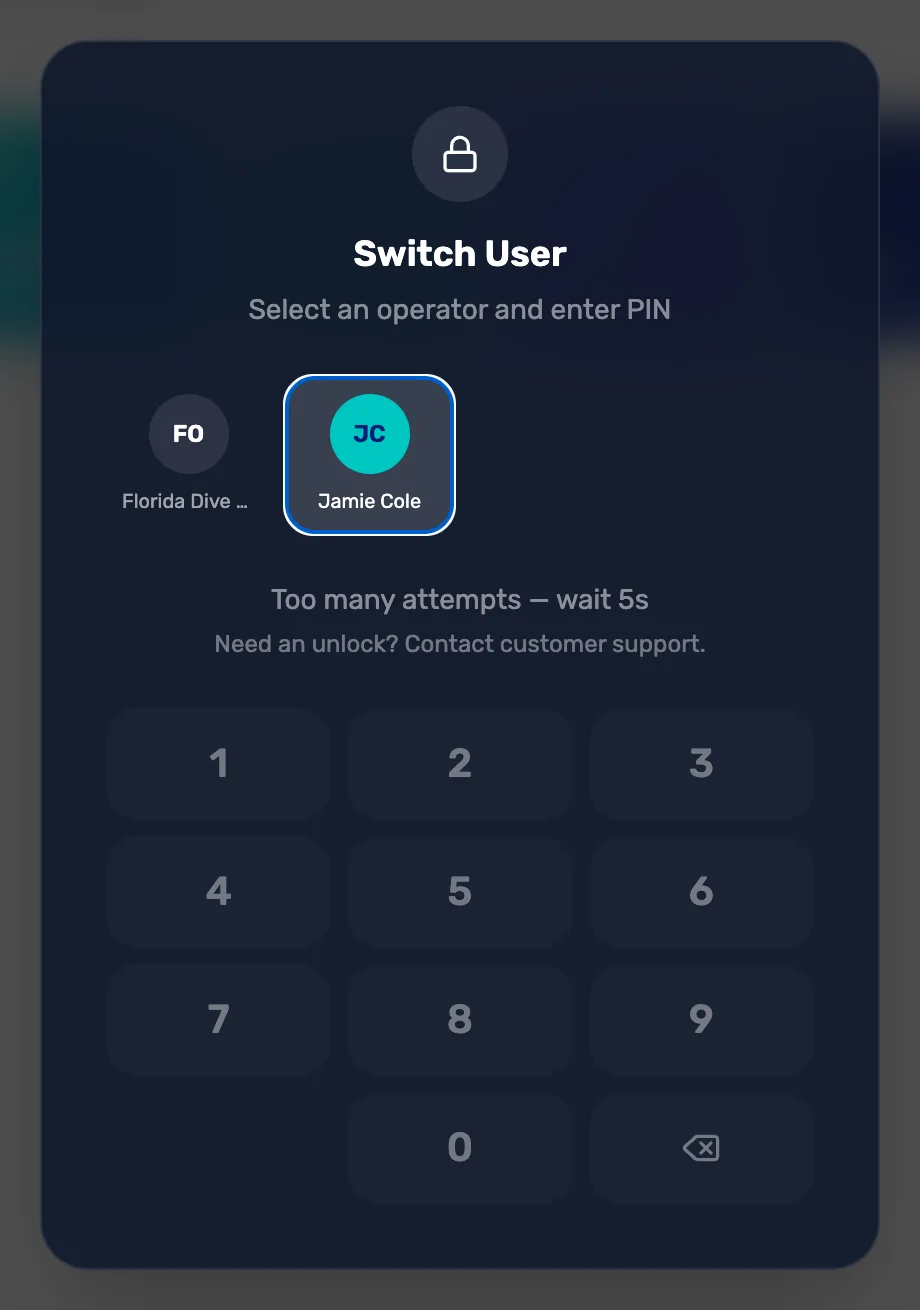
If someone has forgotten their PIN, reset it in step 2. Stuck on a locked register with no manager around? Contact us from any other device in Contact support.
What happens next
- Add someone new with a PIN: Add a PIN-only operator.
- How the lock and auto-lock work: Device access and auto-lock.
- What a manager's PIN approves: Give a discount on a sale.