
What this is for. When someone leaves your shop, deactivate them. Their PIN stops working, their name leaves the Switch User screen, and if they had their own email sign-in, it no longer opens your shop. Their staff seat is free for someone new. Every sale and refund they made keeps their name. Nothing is deleted, so if they come back you reactivate the same row.
Deactivate them at the register
Go to Settings › Users & Access. Open the menu at the end of their row and choose Deactivate, in red. A box asks Deactivate and their name, and says "They lose access to this shop in OneDive B2B and the POS, and their PIN stops working. Their history is kept." Choose OK.
Their status turns to INACTIVE, and the same menu now offers Reactivate. The PIN items in the menu stay as they were: Set PIN for someone with no PIN, as in the picture, or Reset PIN and Remove PIN for someone with one.
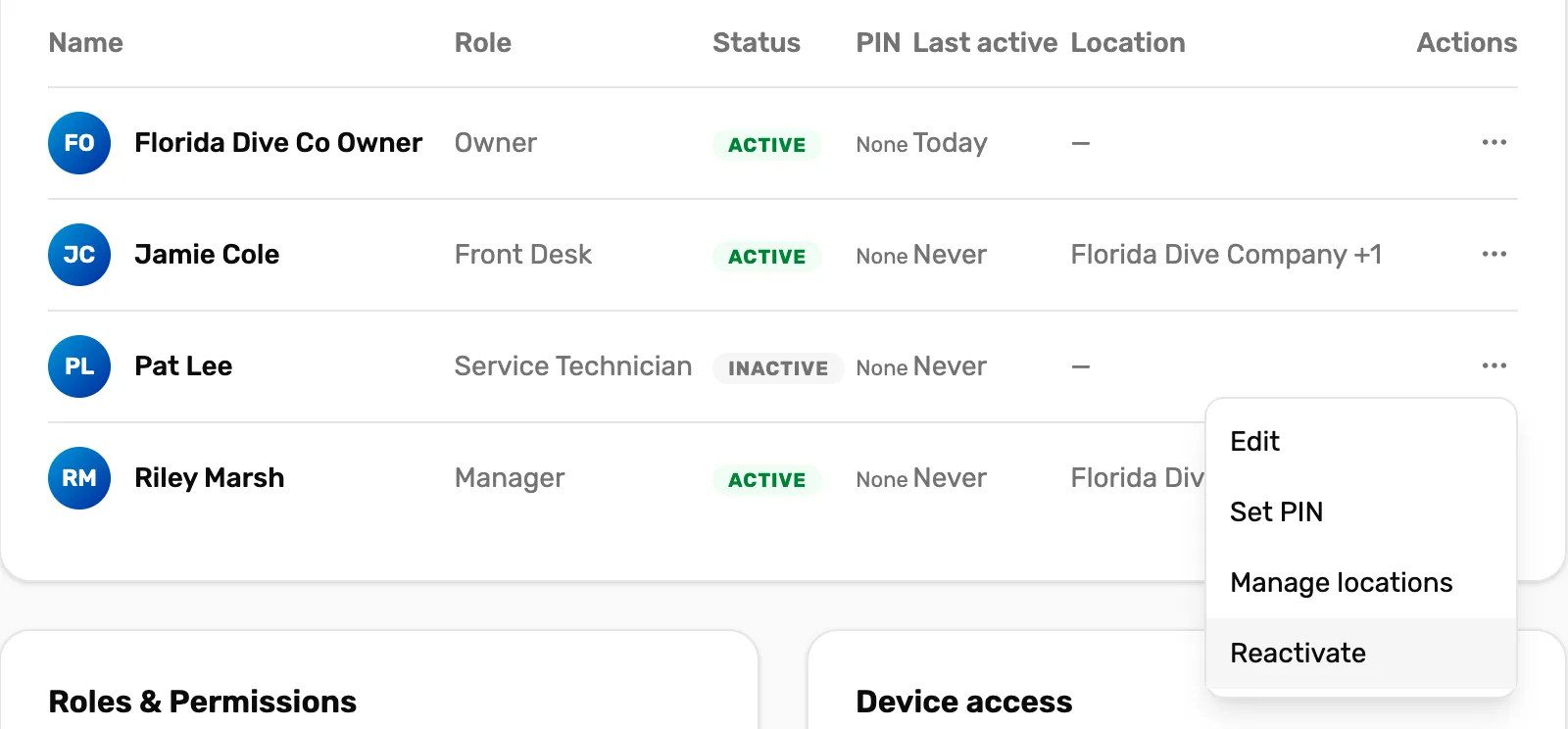
- INACTIVE. They can't switch in or sign in to your shop. Their history stays.
- Reactivate. Brings them back with the same role, PIN and locations.
The owner's row has no Deactivate. Nobody can deactivate the owner.
Or from OneDive B2B
Go to Settings › Team, open the person's menu and choose Deactivate. The window asks Deactivate and their name, and says "They lose access to this shop in OneDive B2B and the POS, and their PIN stops working. Their history is kept." Choose Deactivate.
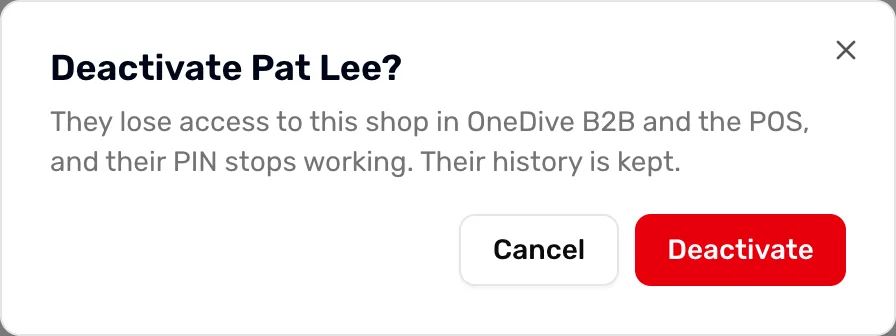
On the web the menu then shows Deactivated, greyed out, and their Login column shows a dash. To bring them back, use Reactivate at the register.
If they had their own sign-in
A Manager or General Manager who signed in with their own email loses your shop as soon as you deactivate them, on OneDive B2B and at the register. You don't need to do anything else.
- They hadn't accepted their invitation yet? The link stops working. It shows Invitation revoked.
- One of your registers was signed in with their email? That register no longer opens your shop. Sign it out in Settings › Devices, then sign it back in with your own email and password. See Sign out other devices.
If they're switched in right now
If they're switched in on a register when you deactivate them, that register locks itself. Within about 20 seconds it shows Switch User, and their name is gone from it, so the next person has to switch in with their own PIN.
Bringing someone back
Choose Reactivate in their row's menu at the register. They come back with the same role, PIN and locations. A Manager or General Manager gets their email sign-in back too, and an invitation they hadn't accepted works again until its 7 days run out. Reactivating uses a staff seat again. If your plan's seats are full, the row says so with View plans.
Don't add them again as a new person: OneDive says "That person is already on your team." on the web, and refuses the add at the register.
What happens next
- Sign a device out: Sign out other devices.
- Stop someone switching in for a while without deactivating them: Set, reset and clear PINs.