
What this is for. Everyone on your team has one role. The role decides three things: whether they can sign in to OneDive with their own email, what the register shows them, and whether their PIN can approve a big discount or a cash refund. This page lists all ten roles and what each one can really do today, so you can pick the right one when you add someone.
Three levels
OneDive has ten role names, but they work at three levels. Every role in a level can do the same things today. The name is mostly a label for your team.
- Owner and General Manager. They run the shop. They see every tab, open every setting and can change it, add staff and set PINs. Each has their own sign-in.
- Manager. Runs the floor. Sees every tab, opens Settings, refunds sales, and approves discounts, big sales and cash refunds with their PIN. Most settings are read-only for a Manager, and they can't add staff or set PINs. A Manager added with an email gets their own sign-in.
- Everyone else. Front Desk, Service Technician, Instructor, Assistant Instructor, Instructor Trainer, Divemaster and Bookkeeper ring up sales, look after customers, and work service tickets and the calendar. They switch in at the register with a PIN. They don't get Settings and don't get their own sign-in.
You can read the short version any time in Settings › Users & Access › Roles & Permissions.
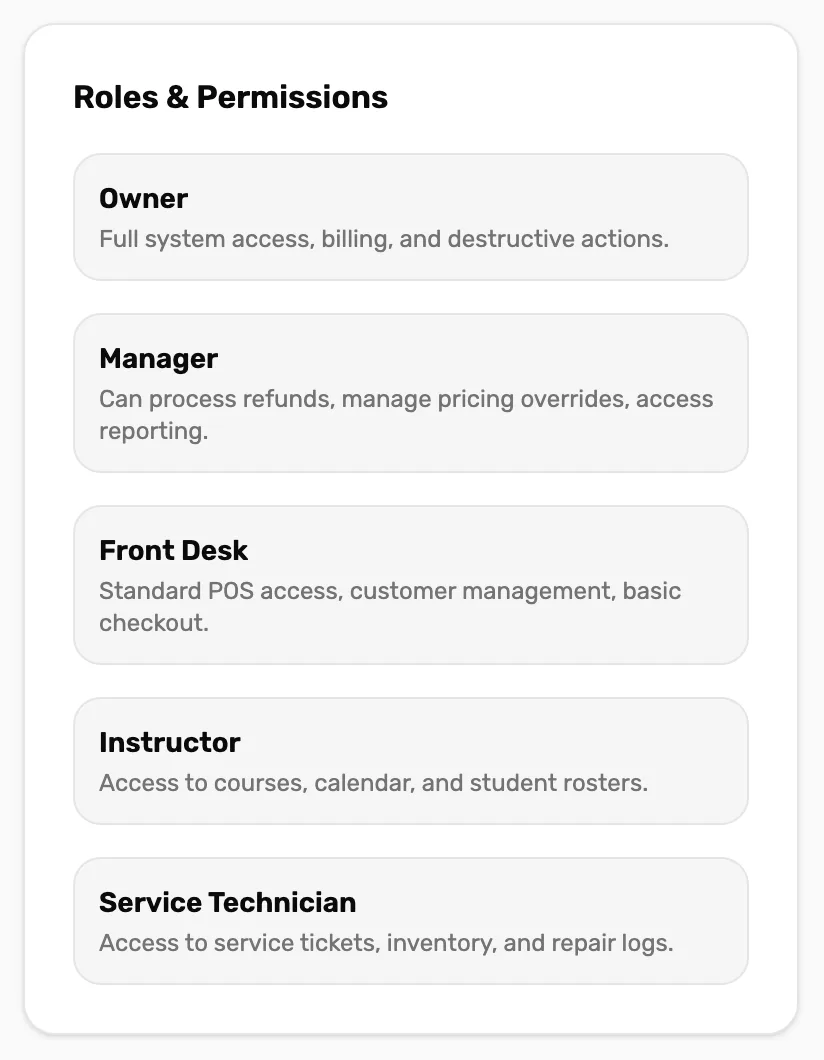
- Roles & Permissions. A reference card. It shows five of the ten roles.
- Front Desk. The role new people start on when you add them.
Every role, one by one
The line in quotes is what OneDive says about each role. The card on the register, above, words a few of them a little differently.
- Owner. "Full system access, billing, and destructive actions." The person who signed the shop up. There is one, and the role can't be given to anyone else from the screen.
- General Manager. "Store-wide management, staff, and reporting." The same powers as the owner, apart from the owner-only things further down.
- Manager. "Process refunds, manage pricing overrides, and access reporting."
- Front Desk. "Standard POS access, customer management, and basic checkout."
- Service Technician. "Service tickets, inventory, and repair logs."
- Instructor. "Courses, calendar, and student rosters."
- Assistant Instructor, Instructor Trainer, Divemaster and Bookkeeper. These four can't be picked when you add someone. A person who already has one keeps it, and it still shows in their row.
When you add someone, the Role list offers Manager, Front Desk, Service Technician and Instructor. General Manager isn't in it. See Add a PIN-only operator or Invite staff from OneDive B2B.
What the register shows each level
The owner, then a Front Desk PIN


- Tabs. The owner, General Managers and Managers get Cashier, Customers, Service, Calendar, Courses, Rentals, Trips and Catalog. Everyone else gets the first four.
- The settings gear. Only the owner, General Managers and Managers have it. It opens Manager tools.
- Approving with a PIN. When a discount is over your limit, a sale is over your approval amount, or a refund needs approval, the register asks for a manager's PIN. Only the owner, a General Manager or a Manager can approve. Set those limits in Settings › Commerce Settings.
- Staff and PINs. Only the owner or a General Manager sees Users & Access, adds people, changes roles and sets PINs.
The person switched in decides
A register usually runs on the owner's sign-in, and staff switch in with their PIN. OneDive goes by whoever is switched in, never higher than the sign-in.
- A Front Desk PIN on the owner's register gets the Front Desk tabs, no gear and no Settings. If Settings is open when they switch in, it closes and they land on the register.
- A locked register has no Settings either. Unlock it with your own PIN to get yours back.
- A PIN never raises anyone. If a Front Desk person is signed in, an owner's PIN switched in on their register still gets Front Desk.
- The same browser follows along. While a Front Desk person is switched in, the owner's other tabs in that browser, OneDive B2B included, are limited too. Your phone or laptop with its own sign-in isn't affected.
To change settings on the counter register, tap your name at the top right and switch in with your own PIN first. See Your team on the floor.
Only the owner can
- Be the owner. Nobody can edit the owner's row, change its role or deactivate it.
- Have a 6-digit PIN. The owner's PIN is 6 digits. Everyone else's is 4.
- Make someone a General Manager. OneDive only lets the owner give that role, but neither Add screen offers it today. If you need a General Manager, ask us in Settings › Support & Diagnostics › Contact support.
A General Manager can set or reset anyone's PIN, the owner's included.
What happens next
- Add someone with no email: Add a PIN-only operator.
- Add a Manager who signs in on the web: Invite staff from OneDive B2B.
- Change someone's role: open their row's menu in the Staff directory and choose Edit.