
What this is for. A floor model with a scuffed box, a regular who bought a whole kit, a staff purchase. The discount comes off the items you have ticked in the cart, before tax, and the note goes on the receipt and in your records so you can always see who gave what and why.
Ring up the items
Add everything the customer is buying in the register. The discount covers every item that is ticked in the cart, so untick anything it should not apply to.
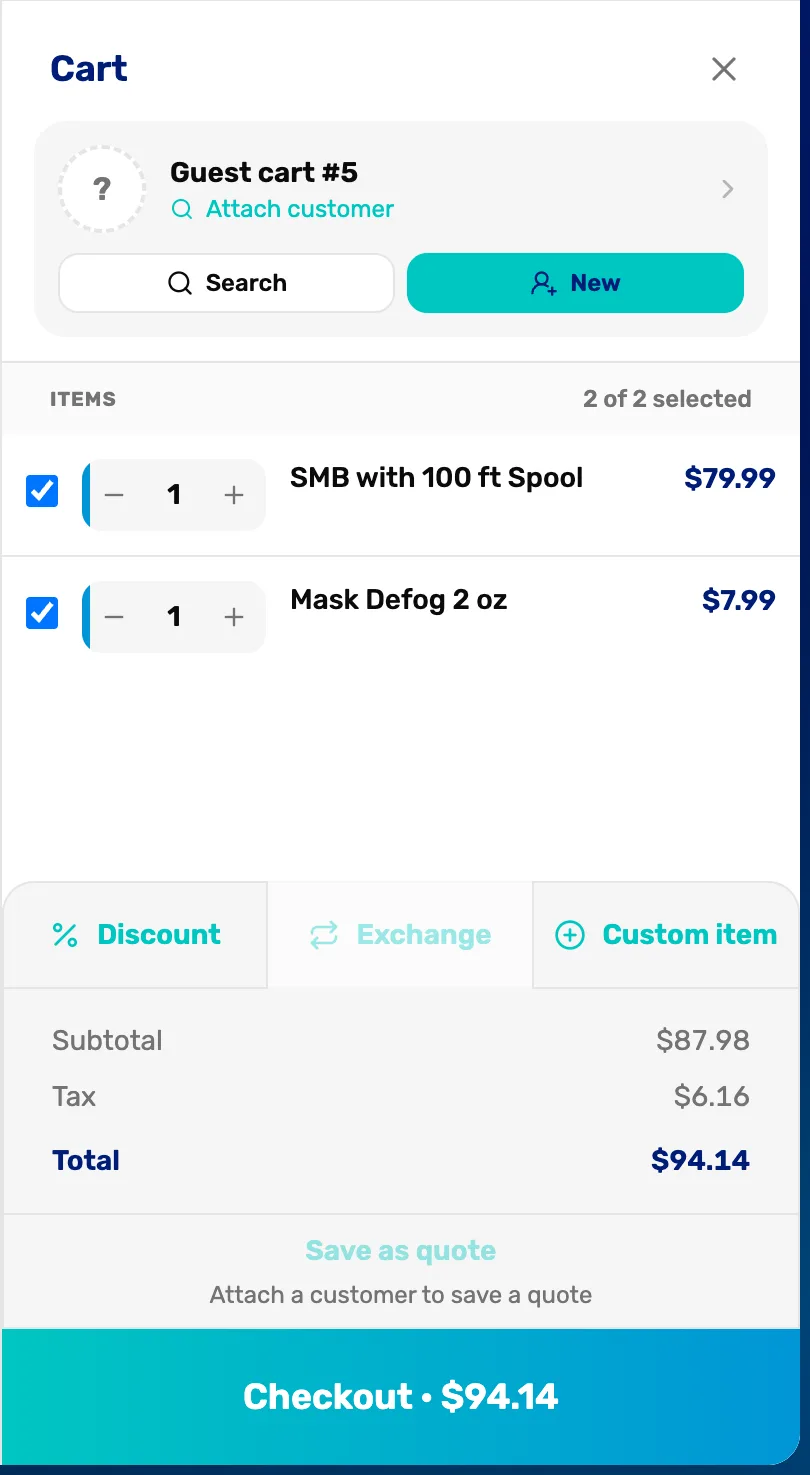
- The tick boxes. Only ticked items are discounted and paid for. Unticked items stay in the cart for later.
- Discount. Opens the discount window for this sale.
Say why, then choose an amount or a percentage
Tap Discount. Write a note first: it is required, between 2 and 80 characters. Then pick Amount for dollars or Percent for a percentage, and type the number. Check the preview at the bottom, then tap Apply.
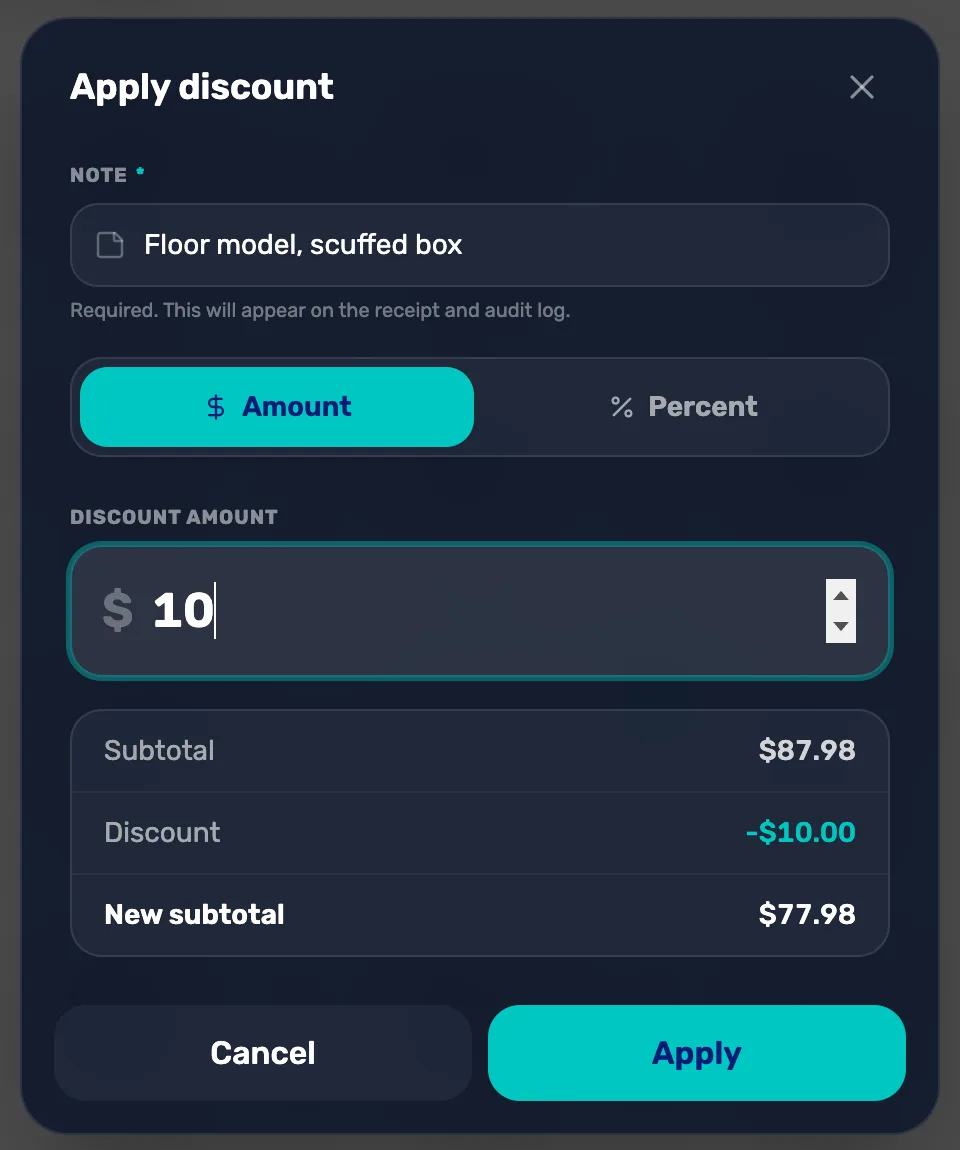
- Note. Why you are giving the discount. It prints on the receipt.
- Amount or Percent. Dollars off, or a percentage of the ticked items.
- The number. An amount can't be more than the items cost. If you type more, it shows "Capped at" the most it can be.
- Preview. The subtotal, the discount and the new subtotal, before tax.
- Apply. Stays grey until there is a note and a number.
If it is over your limit, a manager approves it
Your shop decides how much staff can take off on their own. Owners, general managers and managers never need approval. For everyone else, a discount over the limit opens Manager approval: a manager picks their name and types their PIN, and the discount goes through with their name on it.
| Your shop's setting | Staff can give without approval |
|---|---|
| None | No discount at all. Every discount needs a manager. |
| Up to 10% | Up to 10% of the ticked items |
| Up to 25% | Up to 25% of the ticked items |
| Unlimited | Any discount |
An amount counts as the percentage it works out to, rounded up to a whole percent. On an $87.98 sale with a 25% limit, $21.99 goes through and $22.00 needs a manager.
To change the limit, go to Settings › Commerce Settings › Default discount permissions. Only the owner or a General Manager can change it.
Check the cart and take payment
The discount shows in the totals with your note under it, and the button reads Discount · $10.00. Tax is worked out on the discounted amount, so the customer pays tax only on what they actually pay. Then check out at the register as usual.
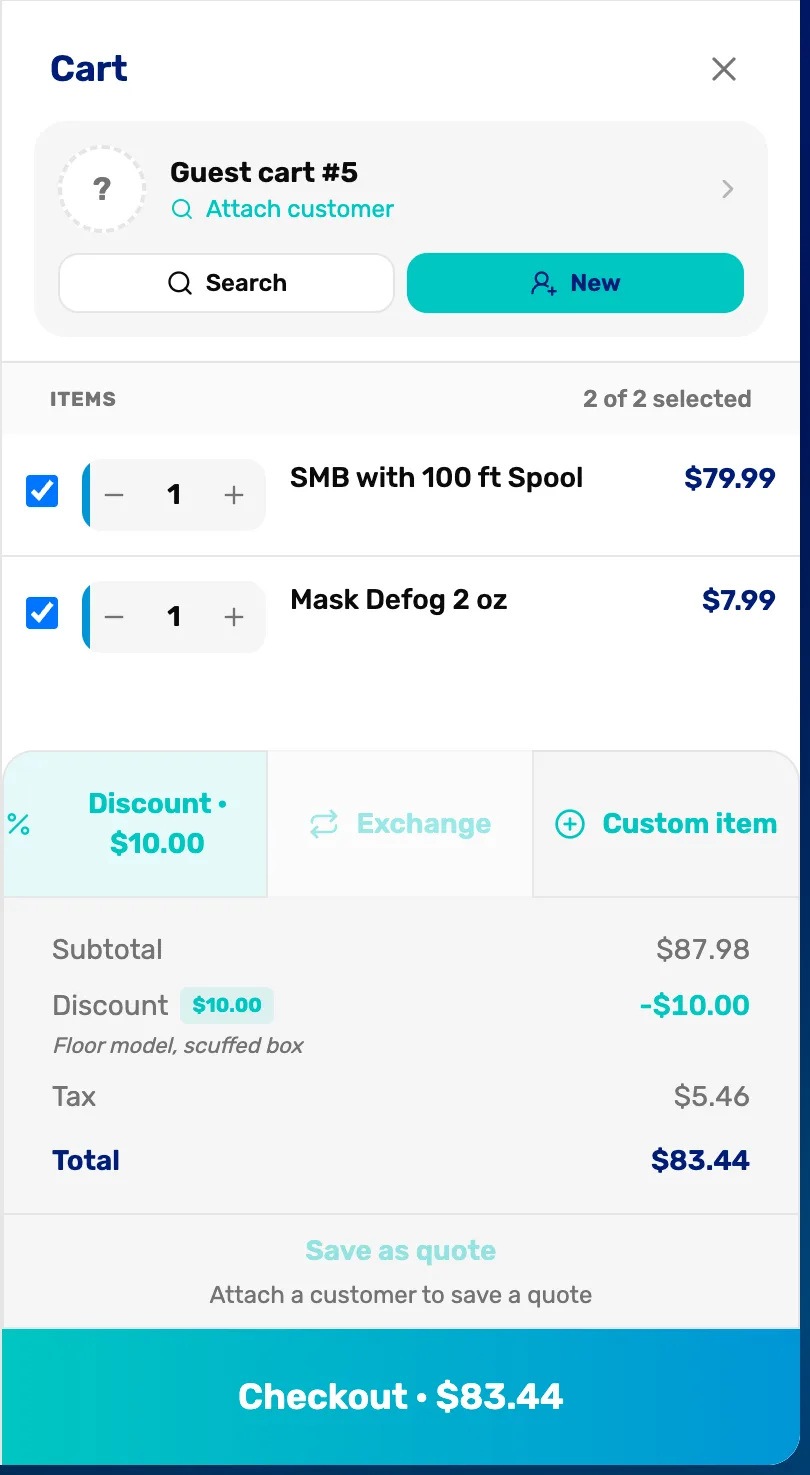
- The discount on the button. Tap it again to change the discount. Inside, Update saves the change and the bin removes the discount.
- The discount line. The amount off and the note, exactly as the receipt will show them.
- Checkout. The new total, tax included.
What happens next
- The receipt lists the discount and its note. Your sales reports count it under the person who rang up the sale.
- If the customer has store credit, it comes off after the discount.
- If you refund part of the sale later, the customer gets back what they paid for those items, with the discount shared across them.
- Saved this cart as a quote in the register? The discount is kept with it.