
What this is for. Do one real sale and one refund now, while nobody is waiting. You will know where every button is when a customer is at the counter. Sell something cheap, or ring yourself up.
Start a cart and add items
Open the register and choose New guest cart, or New customer to attach someone. Tap + on a product to add it, then check the cart on the right.
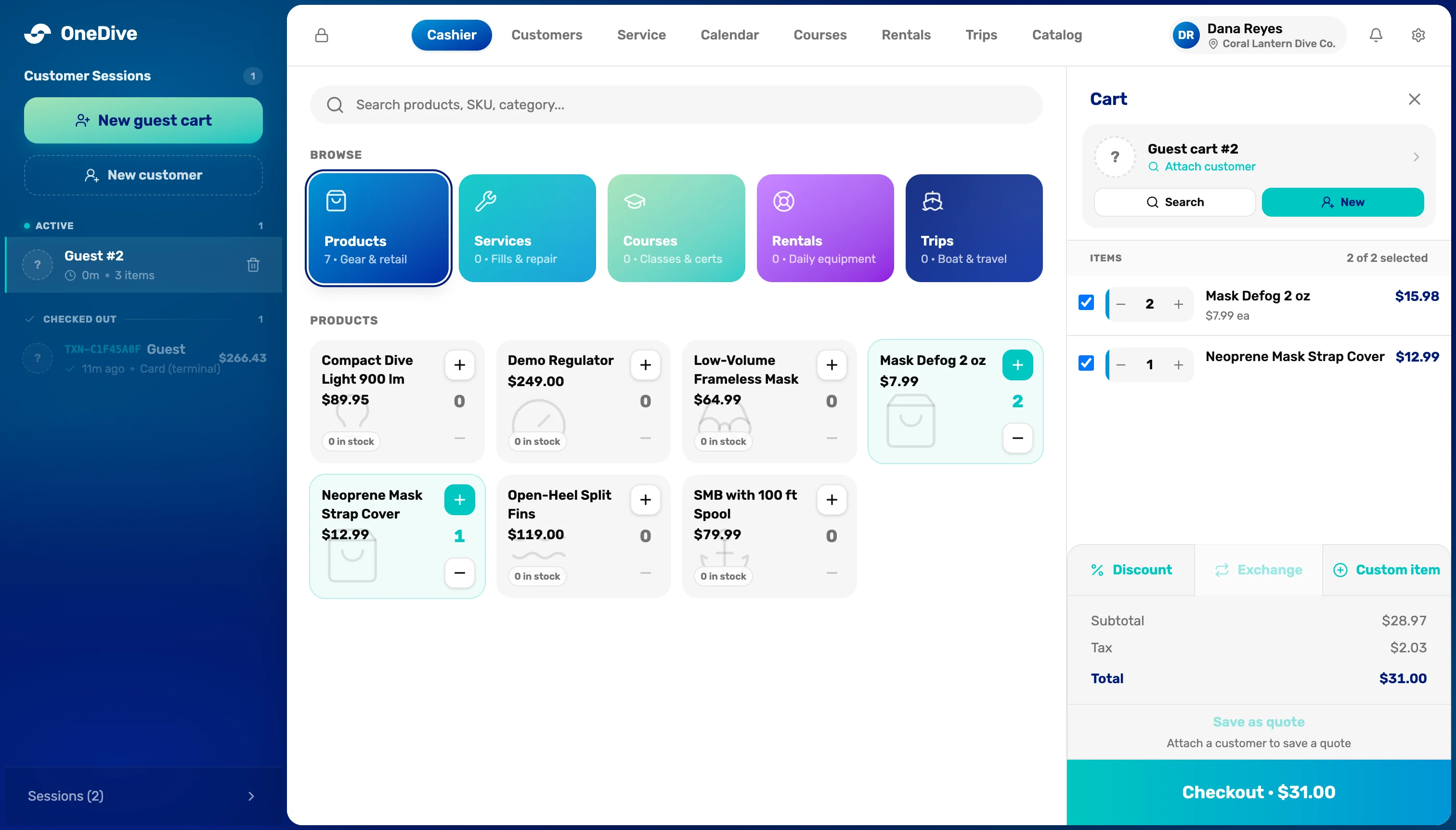
- New guest cart. A sale with no customer attached. Attach one to email or text the receipt.
- + on a product. Adds one. The number shows how many are in the cart.
- The tick boxes. Only ticked items are paid for. Unticked items move to a new cart after checkout.
- Checkout. The total, tax included.
Take payment
Choose Checkout. For cash, tap the amount the customer hands you, or Custom to type it; the register shows the change. For a card, choose Charge card and type the card in.
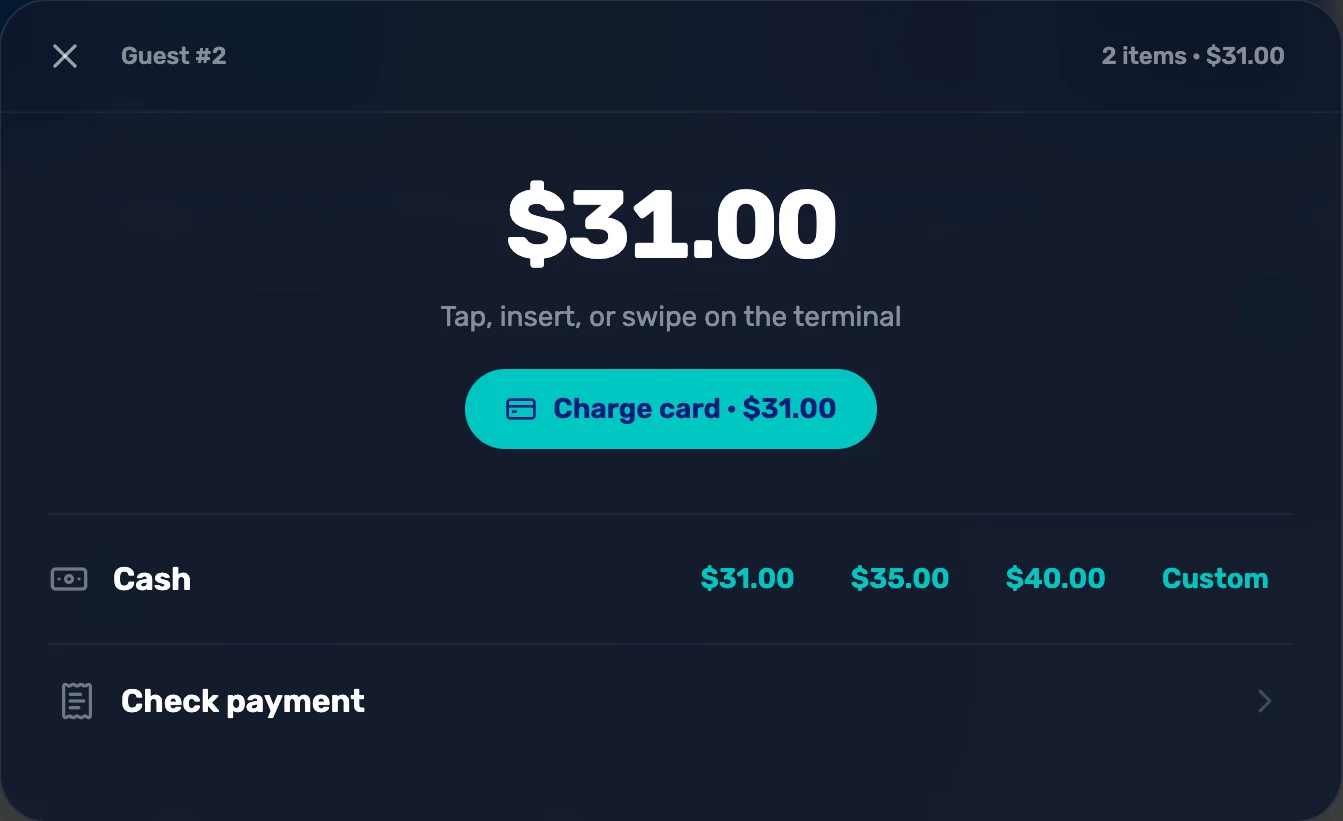
- Charge card. Charges the card through your processor. Needs Mission 2 done, with Charges Enabled.
- Cash amounts. Exact, then the next round amounts. Custom lets you type what you were handed.
- Check payment. Records a check and its number.
Print the receipt
The sale is done when you see the tick. Choose Print, then Done. Email and Text work when a customer with an email or phone is attached.
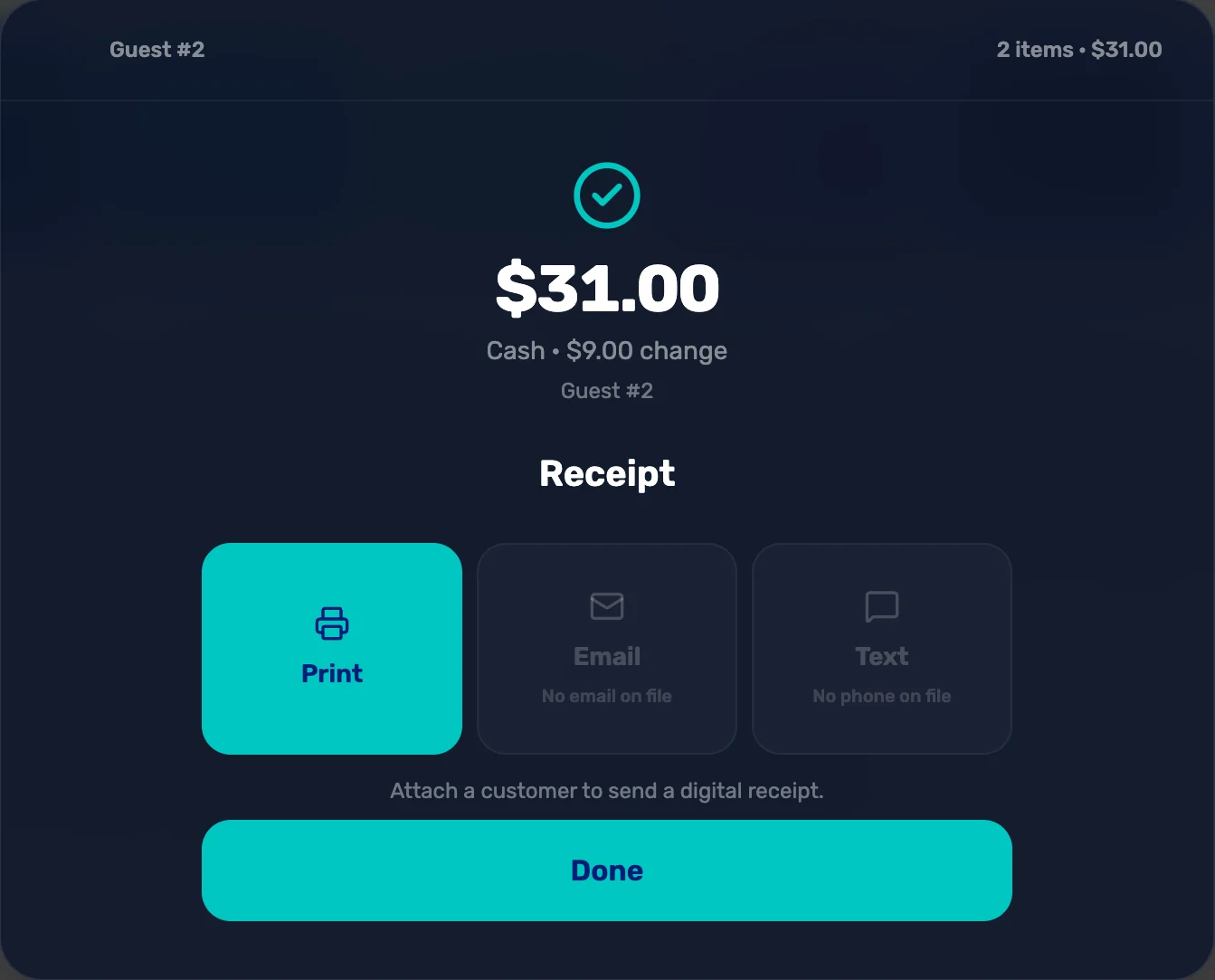
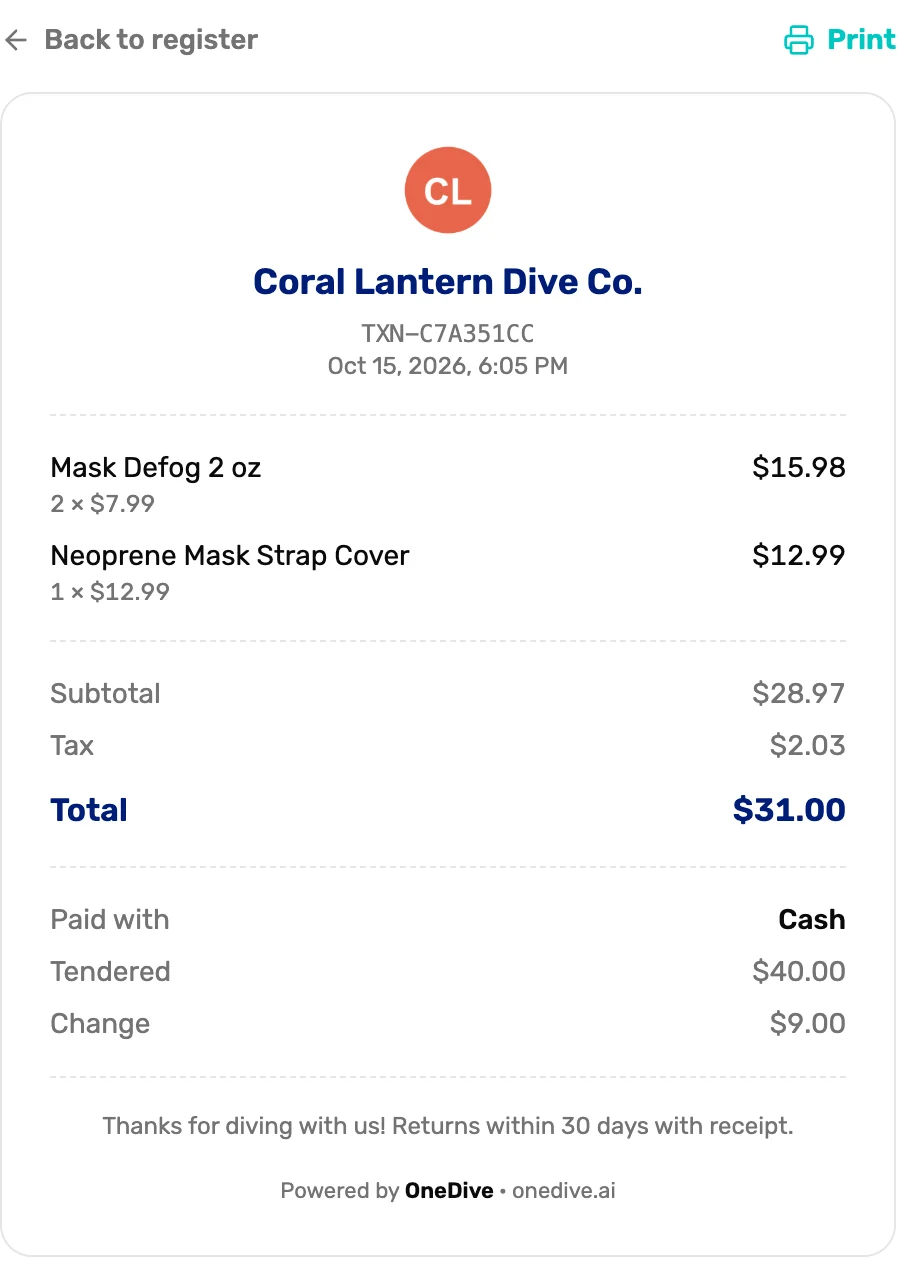
- Print. Prints the receipt on this device's printer.
- Done. Closes the sale. It moves to Checked out in the left column.
Find the sale in Transactions
Refunds happen in Settings › Transactions, not at the register. Owners, general managers and managers can open it. Your sale is at the top.
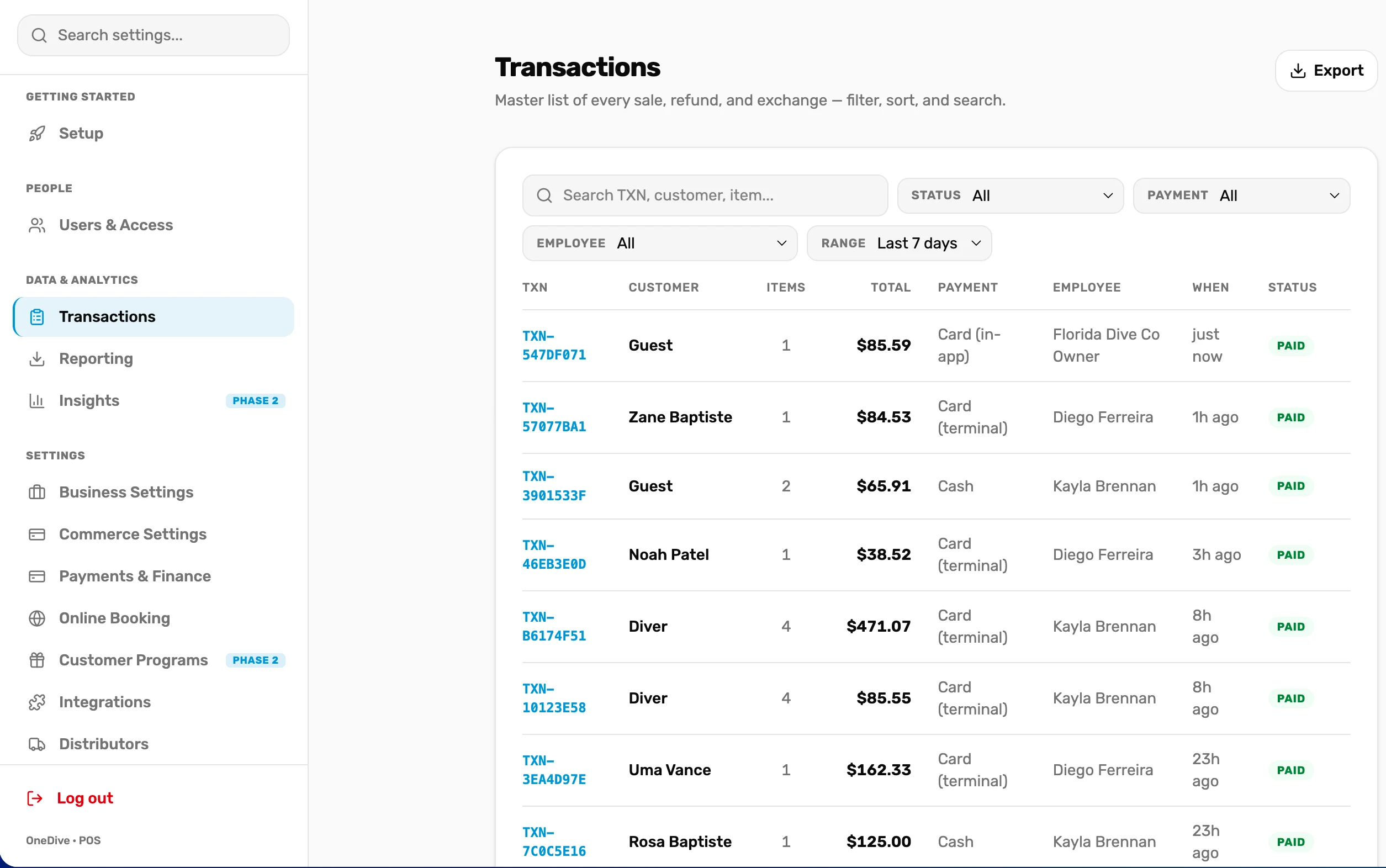
- Transactions. Every sale, refund and exchange. Search by TXN, customer or item.
- The TXN number. The same number as on the receipt. Tap the row to open it.
- Status. Paid, Partially refunded or Refunded.
Refund it
Tap the sale. Under Items, use + to choose how many of each item come back, then choose Refund selected. The next screen shows the Refund total: exactly what goes back, with the tax the customer paid on those items. Pick how the money goes back and choose Refund.
- Cash hands the refund total back from the drawer.
- Store credit puts it on the customer's account, so it needs a customer on the sale.
- The sale is marked Partially refunded until every item is back.
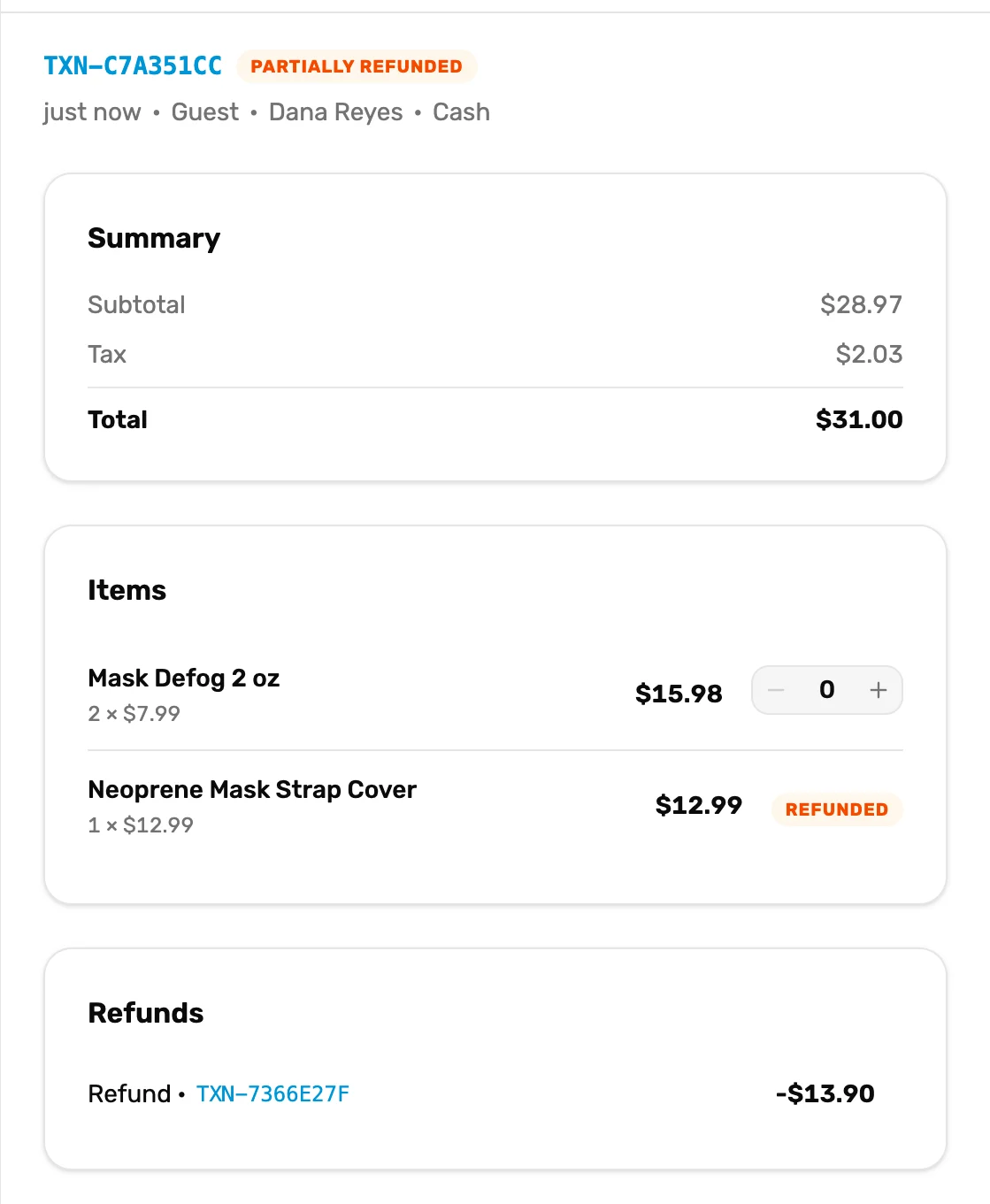
- Partially refunded. Some items came back. Refund the rest the same way.
- Refunds. Each refund, with what went back.
A card sale goes back to the card
For a sale paid by card, Card is picked for you. The money goes back to the same card, and it usually takes 5 to 10 days to reach the customer. Refund another way offers cash or store credit instead, for example if the card was cancelled.
What happens next
- The refund is its own line in Transactions, linked to the sale. Your reports count the sale and the refund separately.
- Refunds have a return window, 30 days unless you change it in Commerce Settings › Refund policy. After it, the sale can't be refunded.
- With Manager override required for cash refunds on, staff need a manager's PIN to refund cash. Set it in Refund policy.
- Swapping one item for another? Use Exchange in the register's cart. It refunds to store credit and you ring up the new item.