
What this is for. The register sells what is in your inventory. Bring in many products at once from a spreadsheet, or add a few by hand. A product shows on the register once it has a price and is listed.
Pick how to bring them in
In setup, go to Get your products in. Any one of these finishes the step, and you can mix them later.
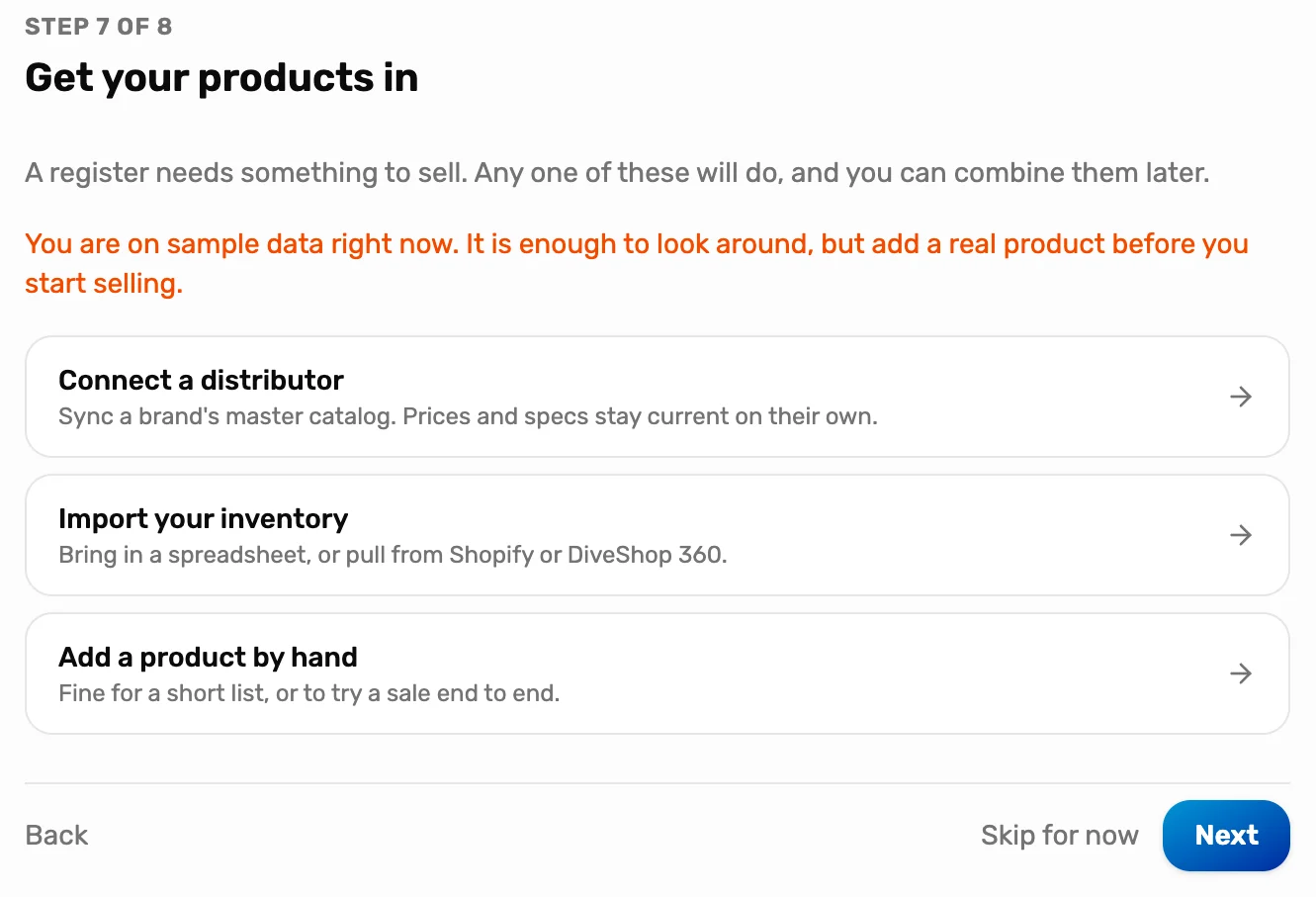
- Connect a distributor. Sync a brand's catalog from Distributors. Prices and specs stay current on their own.
- Import your inventory. A spreadsheet, Shopify or a DiveShop 360 export. All of these live in OneDive B2B › My Inventory › Import. Step 2 shows the spreadsheet.
- Add a product by hand. Good for a short list, or to try a sale end to end. Step 4.
Import a spreadsheet
Open OneDive B2B › My Inventory, choose Import, then From Excel / CSV template.
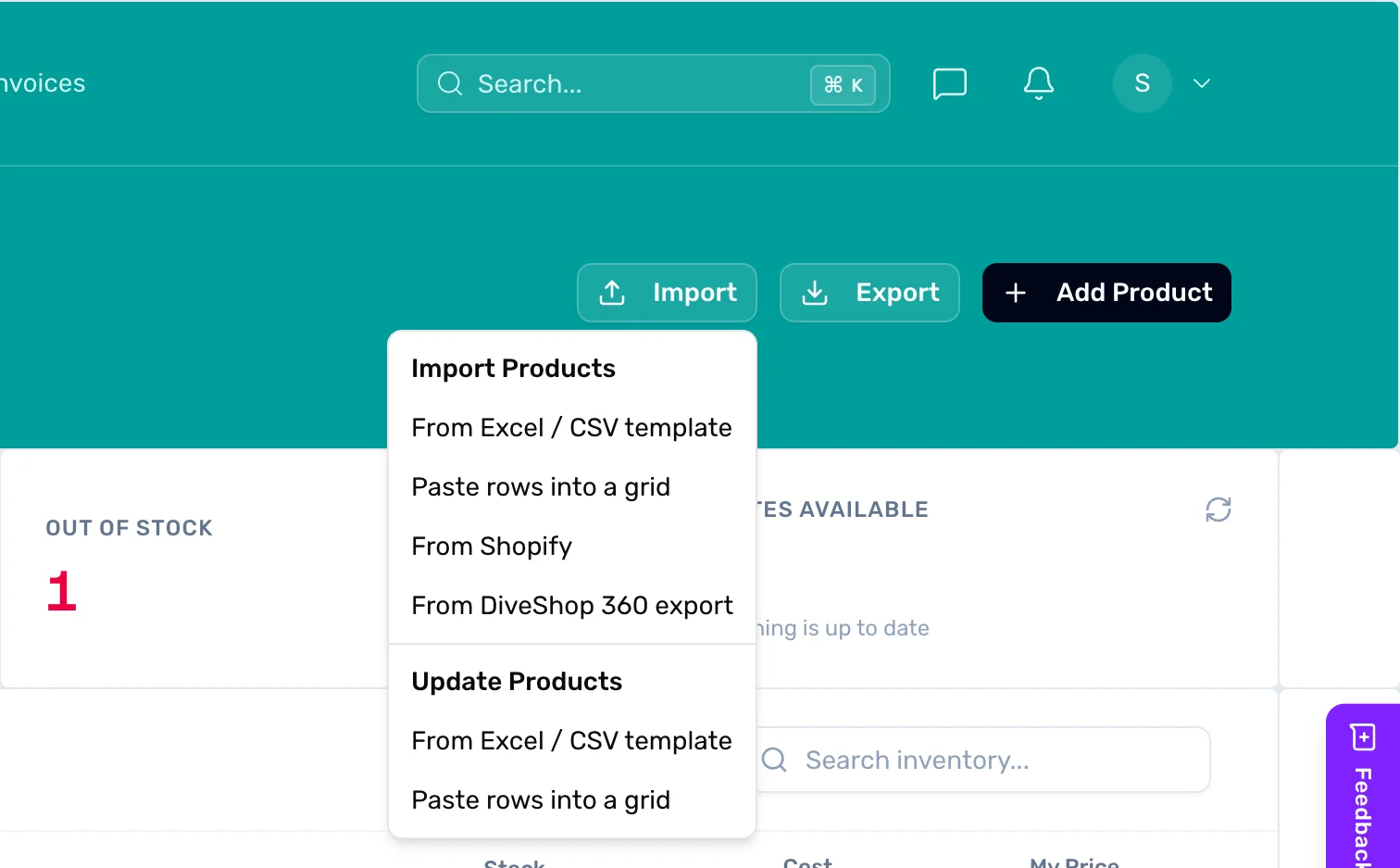
- Import. Opens the list of importers.
- From Excel / CSV template. Use OneDive's template. Paste rows into a grid does the same without a file.
Choose Download template and fill in one row per product: Name, Category, Brand, SKU, UPC, My Price, Cost, MSRP, MAP and Listed. Delete the example row, save, then drop the file in the box.
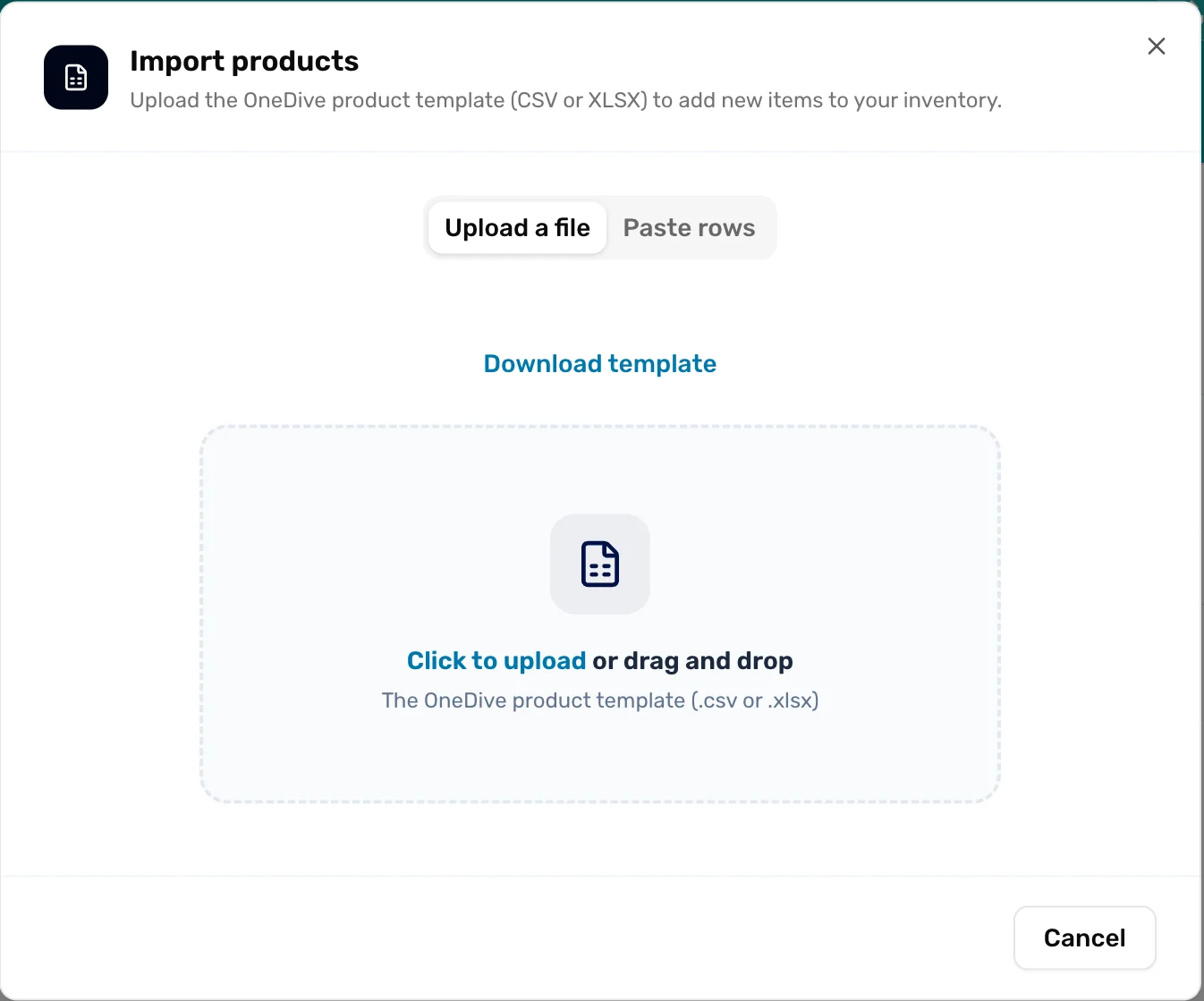
- Download template. A spreadsheet with the right columns. My Price is what customers pay.
- Drop the file here. CSV or XLSX. There is no preview: it imports as soon as the file lands.
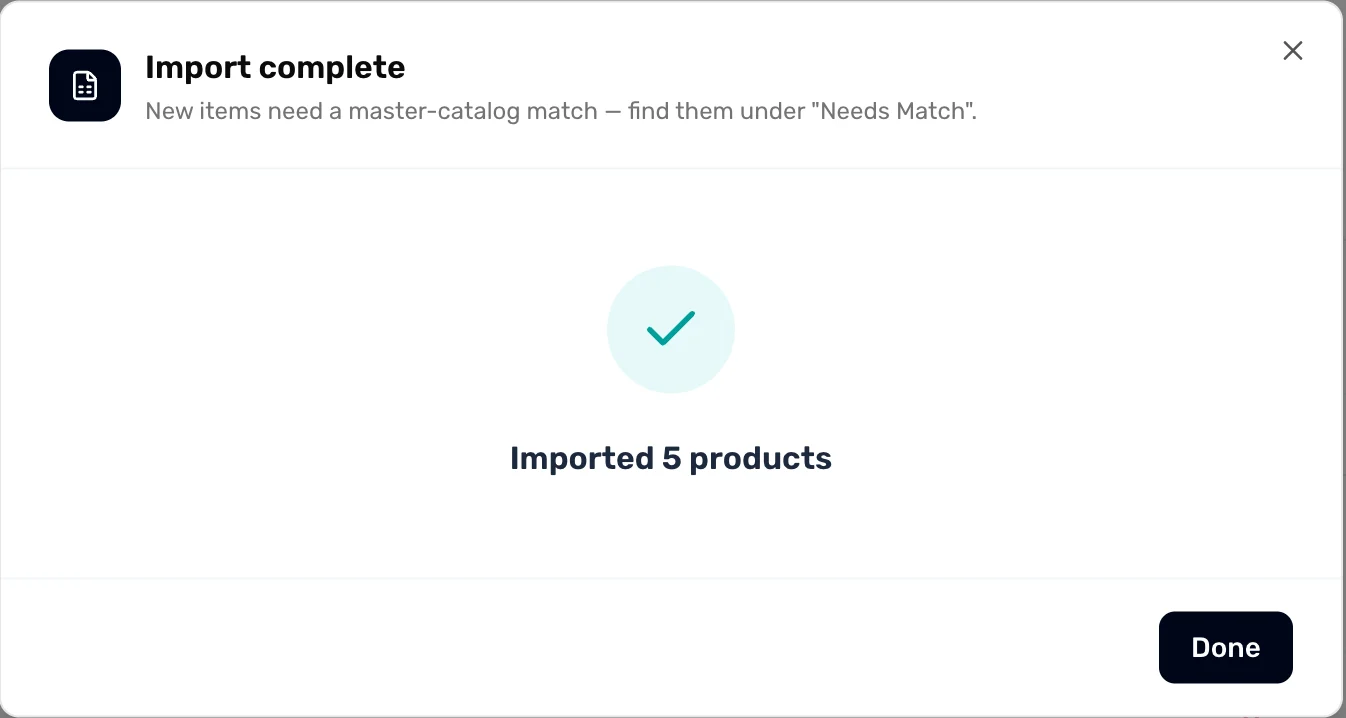
- Done. A product whose SKU or UPC you already have is updated, not added twice.
Set how many you have
The spreadsheet does not carry stock counts, so imported products start at 0 on hand. The register still sells them, but your counts and low-stock alerts are wrong until you set them. Open each product in My Inventory and type On hand.
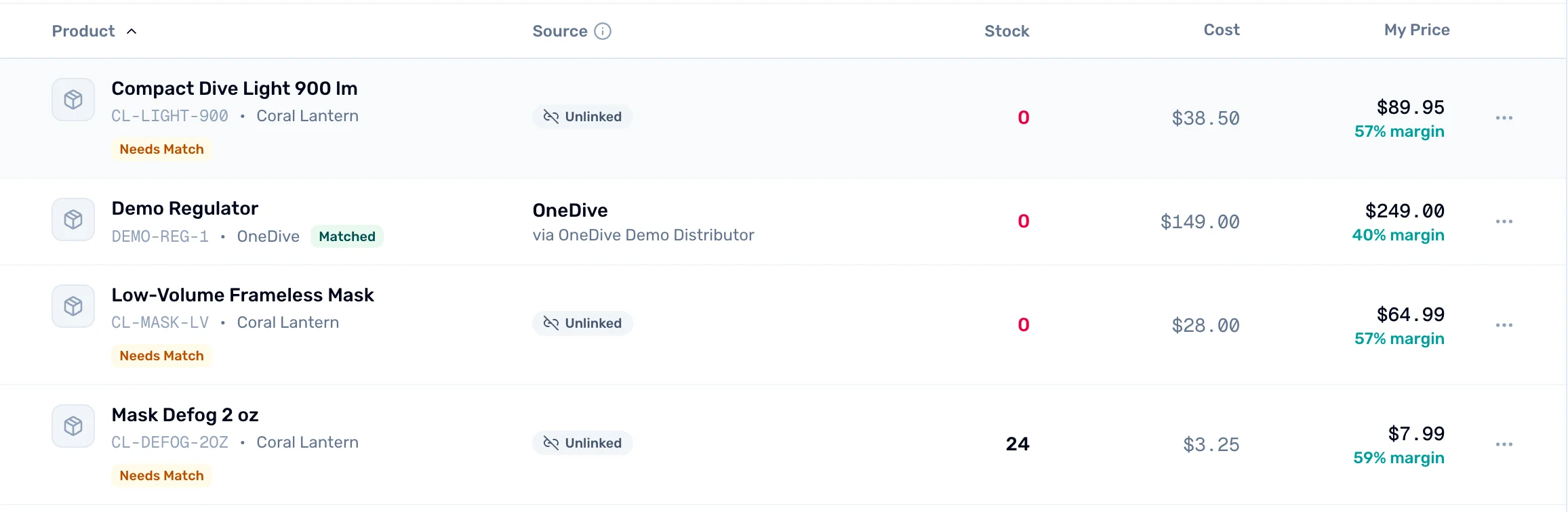
- Stock. Red 0 means none on hand. Set it before you sell.
- Needs Match. Optional. Matching a product to a distributor's catalog keeps its details current.
- My Price. What the register charges, with your margin under it.
Or add one by hand
On the register, go to Catalog and choose Add product. Type the name and price, set On hand, leave it Listed, and choose Save. The same form is in OneDive B2B under My Inventory › Add Product.
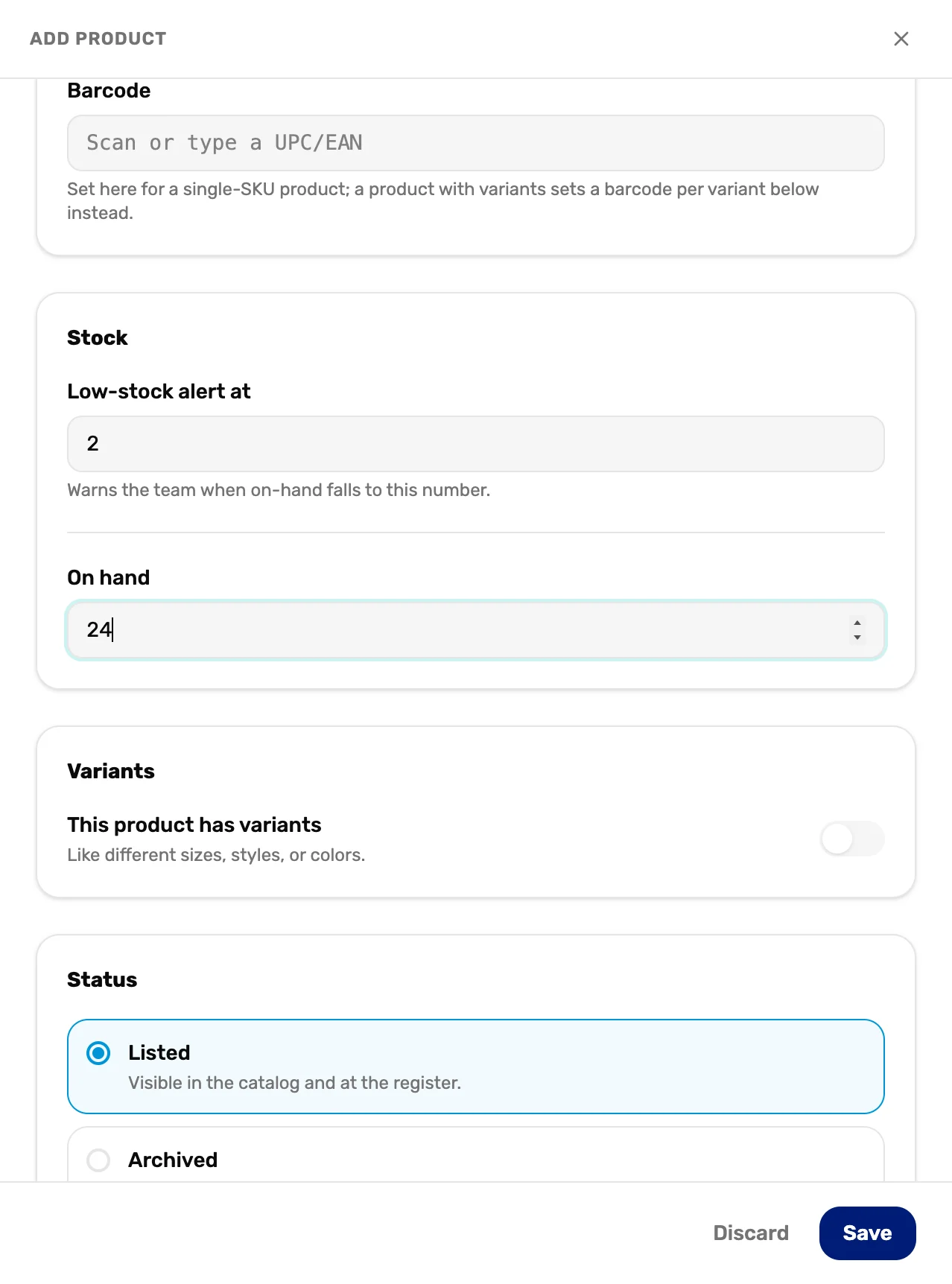
- On hand. How many you have right now.
- Listed. Shows it on the register. Archived hides it without deleting it.
- Save. It is on the register straight away.
Check the register
Open the register. Your products are under Products, with their price and stock.
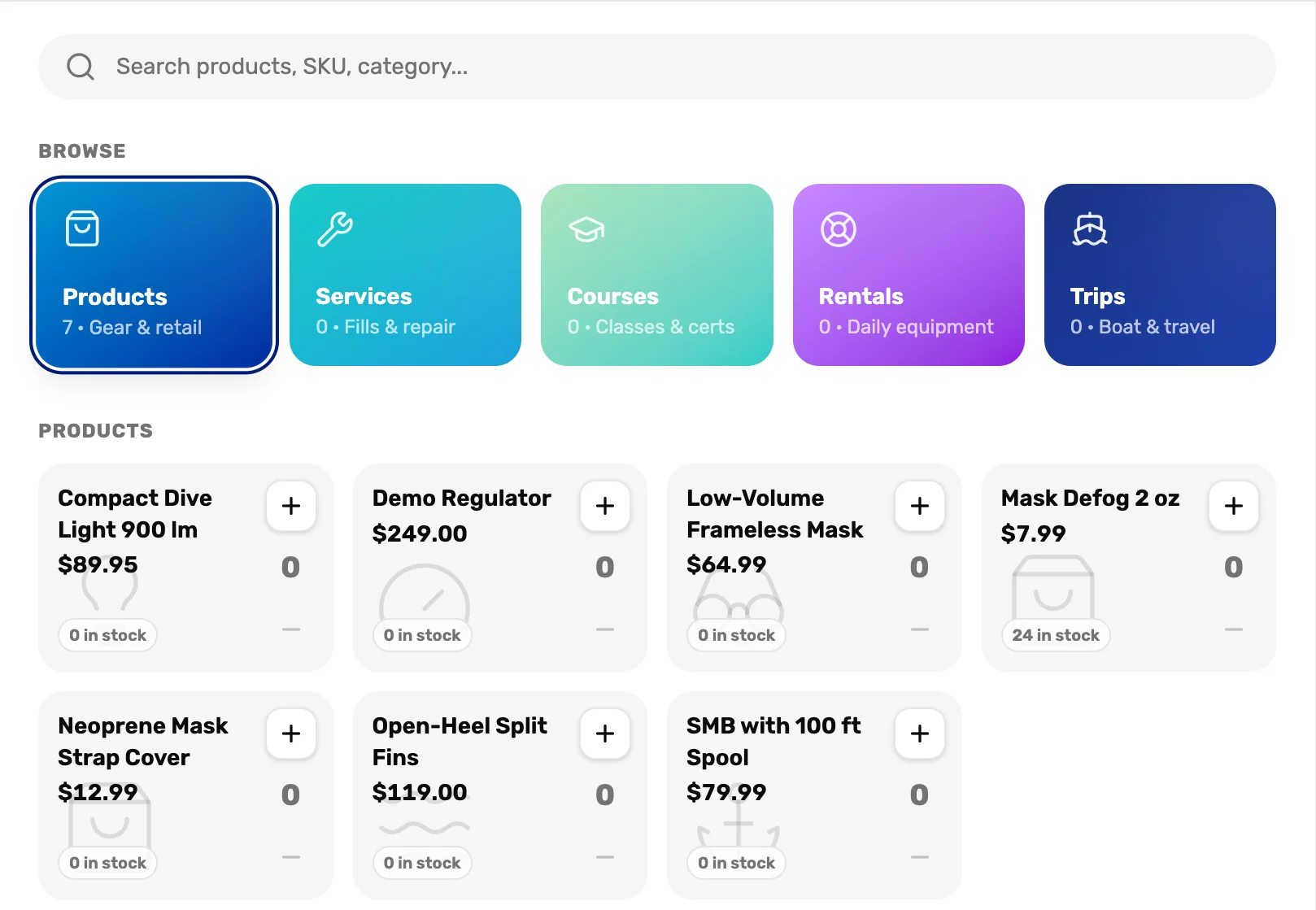
- Products. Tap to see everything you sell. Search finds a product by name, SKU or barcode.
- A product tile. Price, and how many are in stock. Tap + to add it to a sale.
What happens next
- Next: ring one up and refund it, Mission 5.
- Selling a brand a distributor carries? Connect the distributor and its catalog stays current for you.
- Sell online with Shopify? Import from Shopify brings those products in without a spreadsheet, and your Shopify store keeps selling as it does today.
- Need to change prices for many products at once? In My Inventory, Import › Update Products shows each change before it applies.