
What this is for. OneDive does not hold your card money. You connect your own Stripe or Square account, and every card sale is paid straight into it. Until one is connected and ready, the register takes cash and checks.
Open the card payment step
In setup, go to Take card payments. Any time after setup, the same choices are in Settings › Payments & Finance › Payment providers.
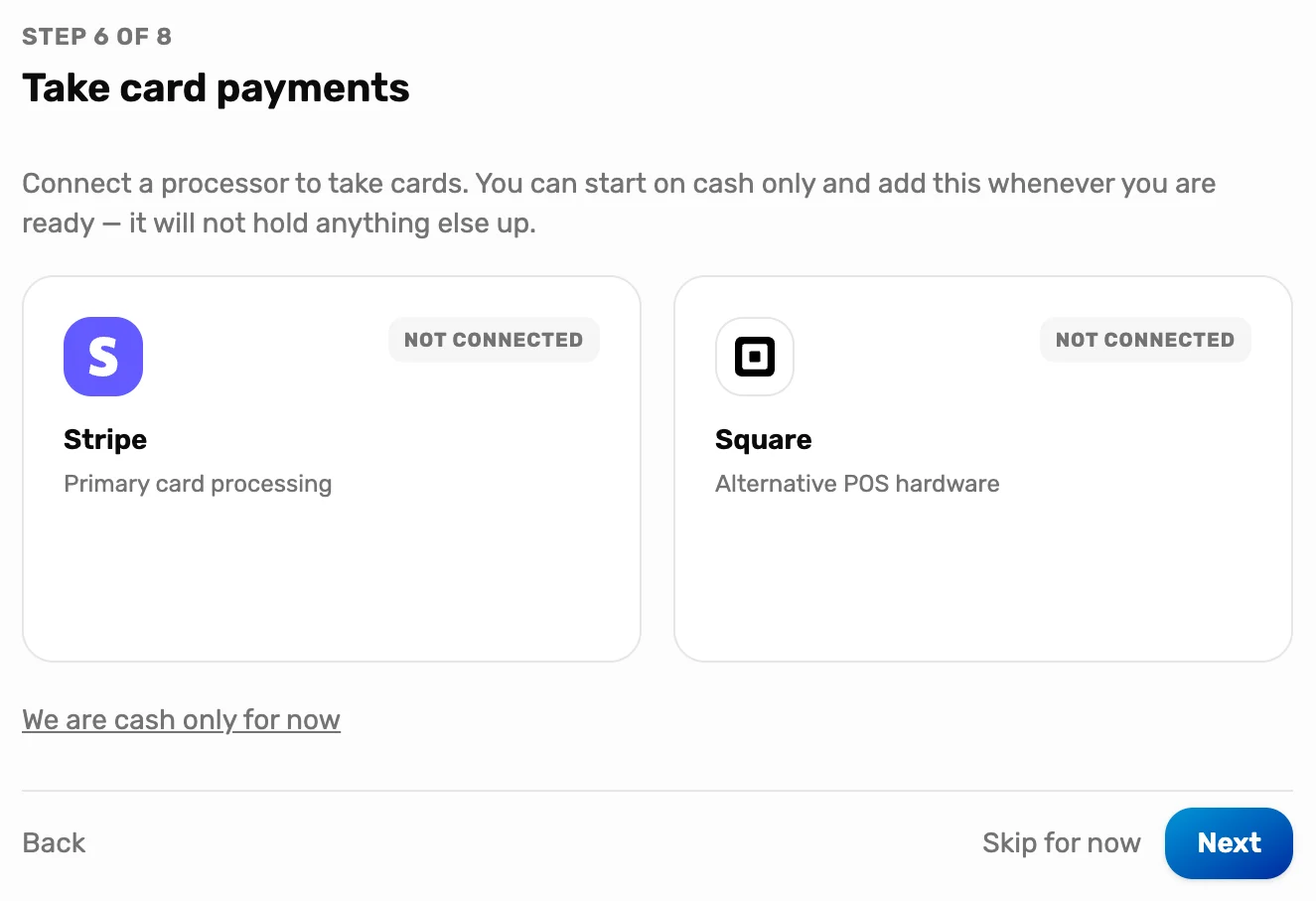
- Stripe. Your own Stripe account. Pick this if you are not sure.
- Square. Your own Square account, if you already use Square.
- We are cash only for now. Marks this step done without a processor. You can connect one later from Settings.
The same tiles in Settings, once Stripe is connected
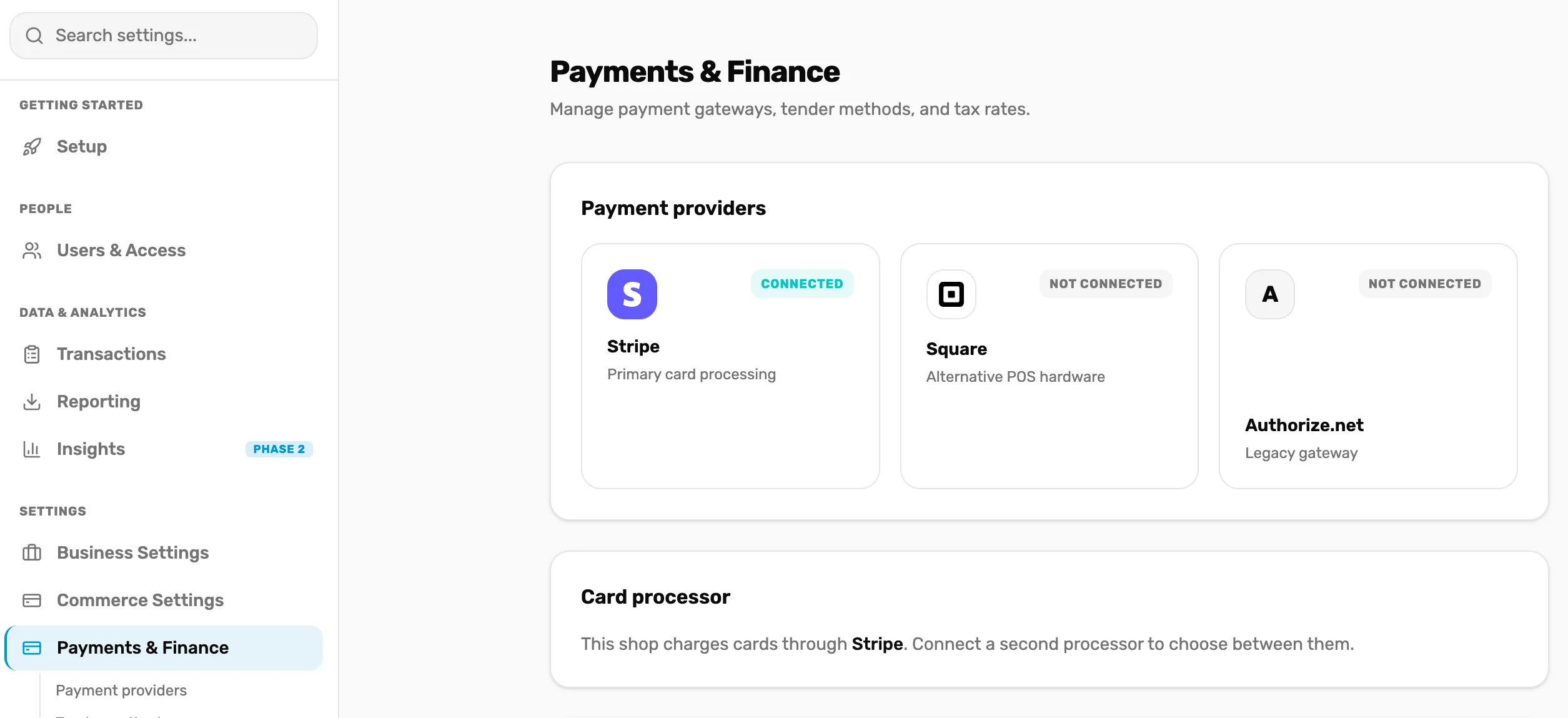
- Payments & Finance. Where this lives in Settings.
- The Stripe tile. Connected means OneDive can reach your account. Manage shows if it can take cards.
- Card processor. Which processor the register charges. With both connected, you choose here.
Connect Stripe and fill in Stripe's form
Point at the Stripe tile and choose Connect. Stripe opens its own page. Sign in if you already have a Stripe account, or type your email to make one. Stripe asks for your business, the owner, and the bank account your money is paid into.
When you finish, Stripe sends you back to Payments & Finance with the message Stripe account connected.
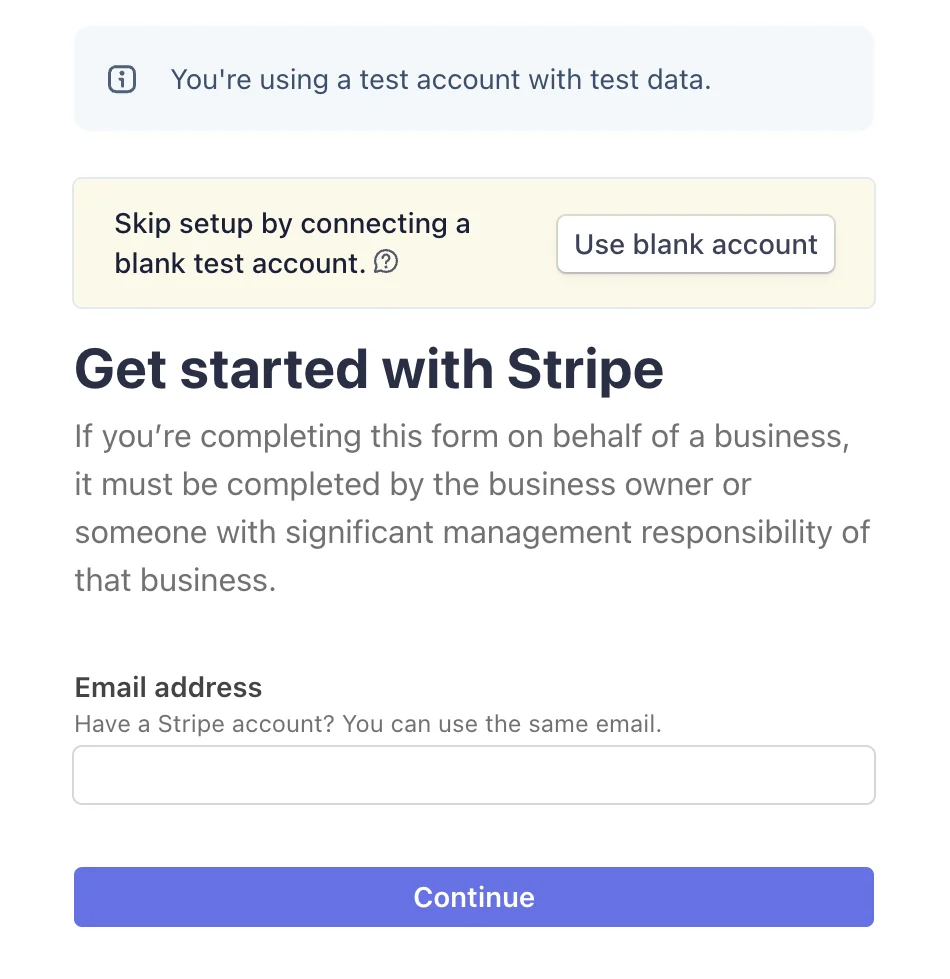
- Email. Already on Stripe? Use the same email and sign in.
- Continue. Stripe walks you through the rest. It takes about ten minutes.
Check that Charges says Enabled
Back on Payments & Finance, choose Manage on the Stripe tile. You are ready when Charges reads Enabled.
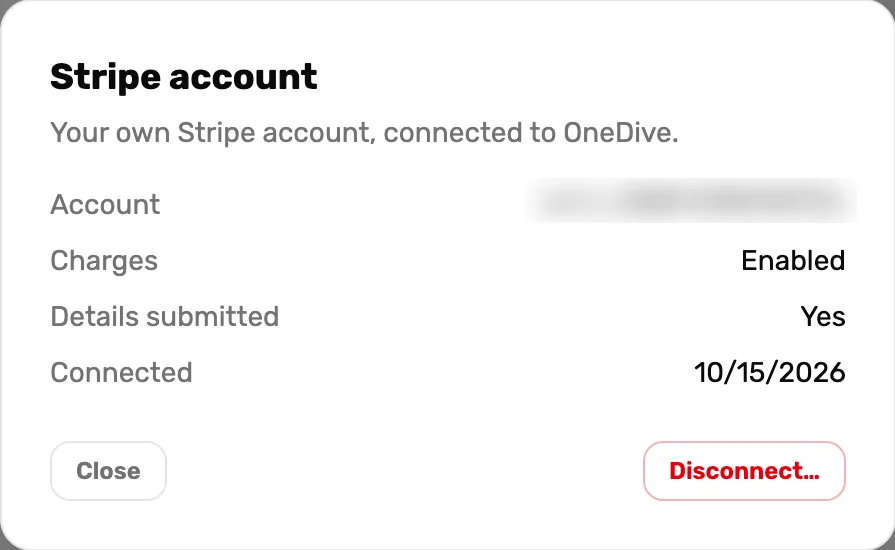
- Charges: Enabled. Stripe will take card payments for you. The setup step shows a tick.
- Disconnect. Stops card charges. Only do this if you are moving to another account.
Prefer Square?
Choose Connect on the Square tile and sign in to Square. Your Square account needs a location that can take card payments; if it has none, OneDive tells you after you sign in. With both connected, choose which one charges new sales in Card processor. Past sales always refund to the processor that charged them.
What happens next
- Card sales are paid into your Stripe or Square account, on that processor's payout schedule.
- Your plan's platform fee on card payments is listed on Subscription & Billing. Cash and checks never carry a fee.
- Next: ring up a sale and refund it, Mission 5. A card sale refunds back to the same card.
- Using your own card terminal and no processor? Take the payment on your terminal, then choose Charge card and Record card taken on another terminal. The sale is recorded as card so your totals match, and nothing is charged here.