
What this is for. A register left open at the counter is a register anyone can use. Auto-lock closes it behind the Switch User screen after a set time with nobody touching it, so the next person has to type their PIN. This page goes through the Device access card on Users & Access line by line, and says what the lock needs before it works.
Where it is
Go to Settings › Users & Access › Device access. Every change saves the moment you make it. There is no Save button.
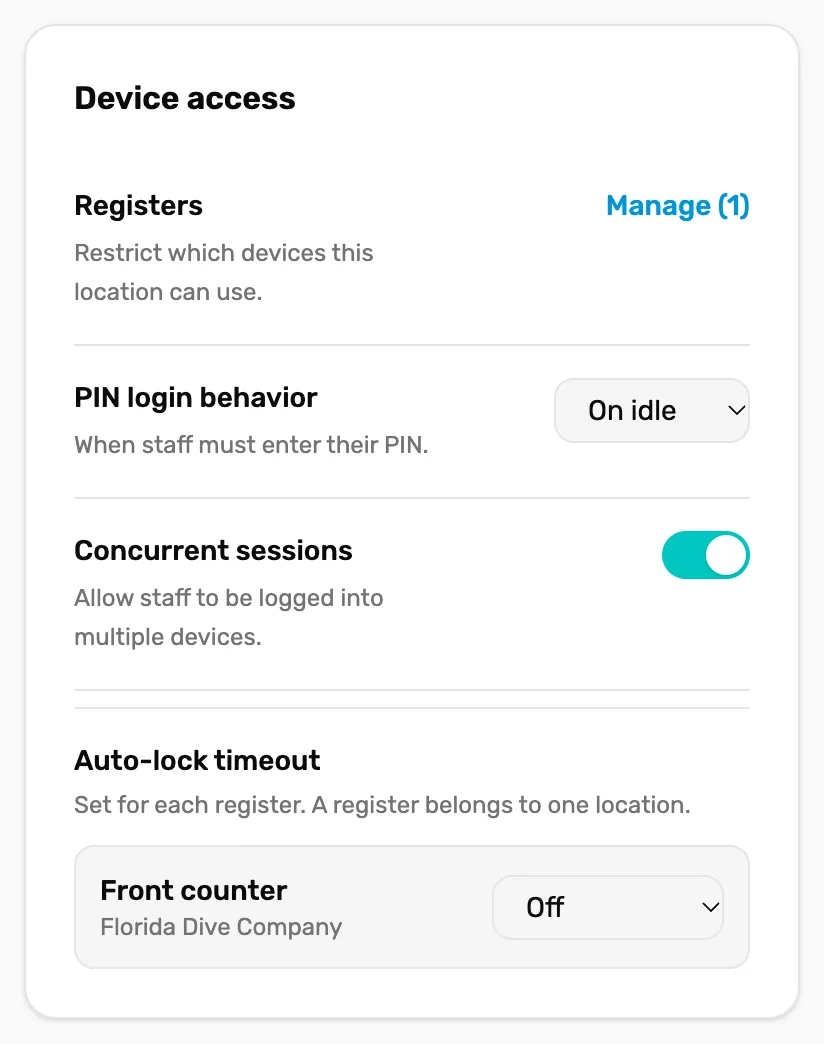
- Registers. A link to your registers. Not a setting.
- PIN login behavior. Doesn't do anything yet. See below.
- Concurrent sessions. Doesn't do anything yet. See below.
- Auto-lock timeout. How long each register waits before it locks.
Registers
The line says "Restrict which devices this location can use." with Manage and the number of registers you have. It only opens Settings › Devices, where you add, rename and deactivate registers. Nothing on this card restricts a device.
PIN login behavior
A list of On idle, Always and Disabled, under "When staff must enter their PIN." It starts on On idle.
Concurrent sessions
A switch, "Allow staff to be logged into multiple devices." It starts on.
Auto-lock timeout
"Set for each register. A register belongs to one location." Each register you have is listed with its location and its own time: Off, 1 minute, 2 minutes, 5 minutes, 15 minutes or 30 minutes. A new register starts on Off.
You can set the same thing when you configure a register: in Settings › Devices, choose Configure on the register and tick Auto-lock this register when idle. Ticking it picks 5 minutes, and a list lets you change it.
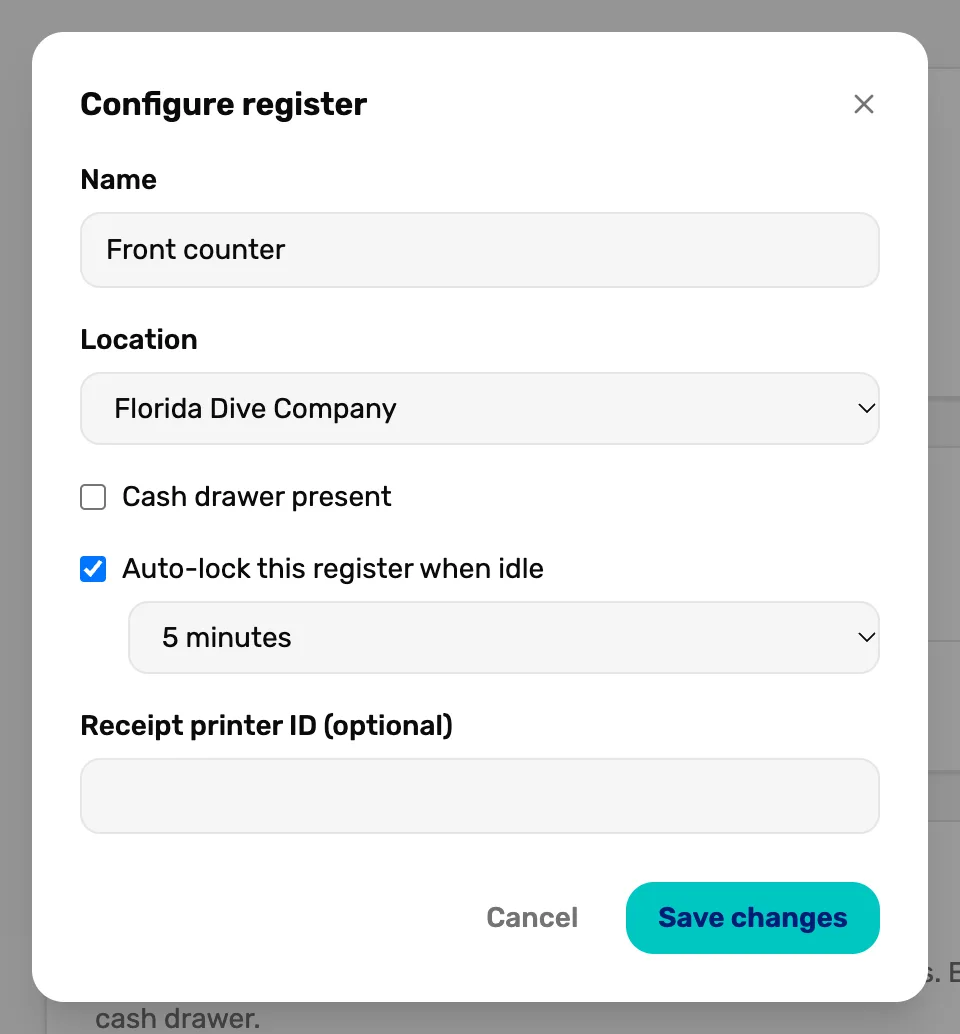
- Auto-lock this register when idle. Turns auto-lock on for this register.
- The time. How long it waits.
- Save changes. Saves the register. Here, unlike the card, nothing changes until you save.
What counts as idle
Idle means nobody has tapped the screen, moved or clicked the mouse, scrolled, or pressed a key on that register. Any of those starts the wait again. In the last 45 seconds, a blue ring fills in around the lock at the top left. Hover over it and it says how many seconds are left, like "Locking in 36s — move to stay signed in". Touch the screen to stay in.

When the time runs out, the register shows Switch User and whoever was switched in is switched out. The next person taps their name and types their PIN. A locked register has no Settings until someone unlocks it, and unlocking with your own PIN gives you back what you can do. See Roles and what each can do.
What the lock needs
The lock at the top left, Switch User and auto-lock all need four things:
- The device is a register. Add it in Settings › Devices or in Setup. See Your team on the floor.
- Your plan includes Staff PIN lock. If it doesn't, the lock is grey and the card says Requires upgrade. The table below shows today's plans.
- The person signed in on that register has a PIN. On the owner's sign-in that's the owner's 6-digit PIN. Without it the lock is grey and says "Set your PIN to enable lock". See Set, reset and clear PINs.
- The screen is wide enough to show the top bar: a laptop, or an iPad.
| Plan | |||
|---|---|---|---|
| Loading the current plans… | |||
| What you get | |
|---|---|
| Loading the current plans… | |
| What you get | |
|---|---|
| Loading the current plans… | |
| What you get | |
|---|---|
| Loading the current plans… | |
Who can change these
The owner or a General Manager. If a Manager is switched in on your register, the card says "Only owners and admins can change these settings." as soon as they try, and nothing changes. Switch in with your own PIN and try again.
What happens next
- Lock and switch at the counter: Your team on the floor.
- Sign a device out completely: Sign out other devices.