
What this is for. A service customer hears from your shop twice: once when they leave their gear, and once when it's ready. OneDive sends both for you, by text and by email. This page shows exactly what they get, where it goes, and how to change it, so you know what your customer is looking at when they call.
The two messages at a glance
| When | Text | |
|---|---|---|
| You tap Create ticket at drop-off | One line saying you have it | The full confirmation |
| The ticket moves into Ready for pickup | One line saying it's ready | The ready email, with your pickup note |
Nothing else sends a message. Starting work, holding, cancelling and closing a ticket send nothing. For when a ticket moves, see Service tickets explained.
The drop-off confirmation
The text is one line, with your shop's name, the ticket number and the gear, like "Florida Dive Company: ticket FDC-2026-00105 received, Regulator. We'll be in touch when it's ready."
The email has the subject "Florida Dive Company has your Regulator · ticket FDC-2026-00105". It says:
- Your shop's name at the top.
- "We have your Regulator. Ticket FDC-2026-00105, received" and the date and time.
- Ticket, Gear, and the Serial and what was Dropped off when you recorded them.
- Any messages you wrote for the answers given at the counter. See Messages for an answer, below.
- "Questions about this ticket? Reply to this email or call the shop."
The ready-for-pickup message
The text is one line, like "Florida Dive Company: your Regulator (ticket FDC-2026-00105) is ready for pickup."
The email has the subject "Your Regulator is ready for pickup at Florida Dive Company · ticket FDC-2026-00105". It says:
- "Your Regulator is ready for pickup. Ticket FDC-2026-00105, finished" and the date and time.
- Ticket, Gear, and the Serial if you recorded one.
- Your Pickup note, if you wrote one. It's the only place the note goes: never in the text.
- "Questions about this ticket? Reply to this email or call the shop."
Who gets them, and where
- Email goes to the address typed on the ticket at drop-off, under Email (optional). With none typed, it goes to the email on the customer's profile.
- Text goes to the phone number on the customer's profile.
- A customer with both gets both.
- Nothing is sent when the customer has no email and no phone, when their profile shows Awaiting consent or Consent revoked, or when that message is switched off.
- Your shop's name on every message is the name in your shop profile. See Shop profile and branding.
- Times are on your shop's clock. See Time zone, currency and date format.
The switches
Both messages are on to start. Only the owner or a General Manager can change them. Go to Service › Configure services and scroll to Customer messages.
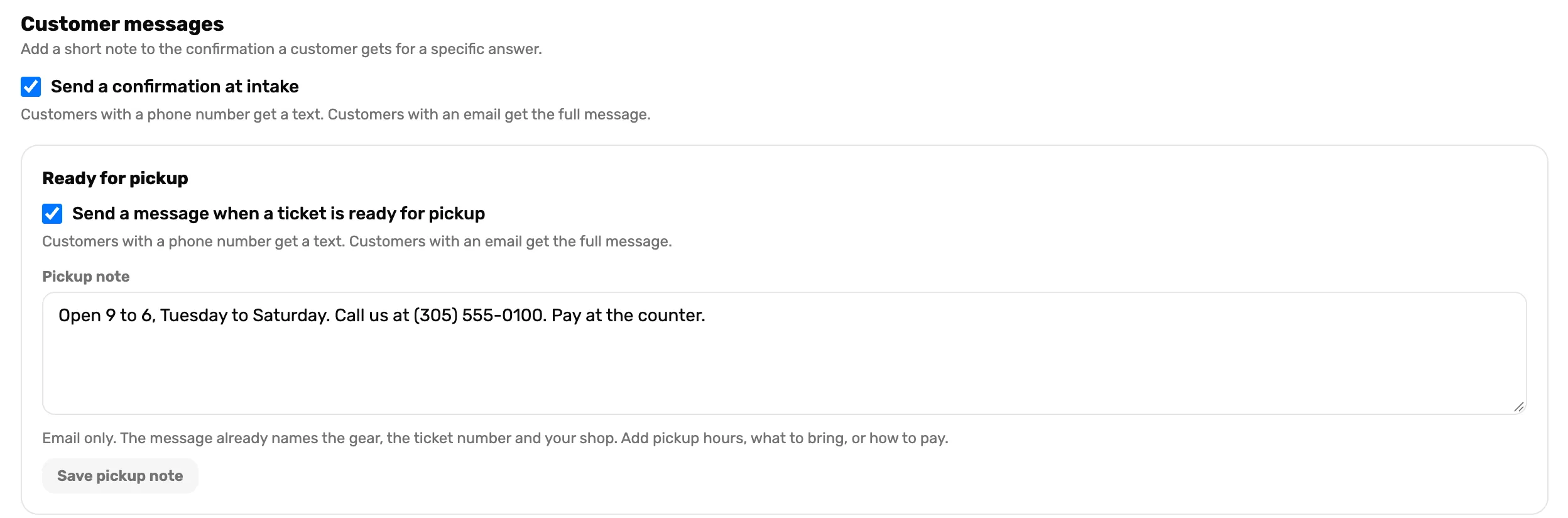
- Send a confirmation at intake. Off: no message when a ticket is created.
- Send a message when a ticket is ready for pickup. Off: no message when a ticket moves into Ready for pickup.
- Pickup note. Goes in the ready email only. Up to 2,000 characters. A blank line starts a new paragraph.
- Save pickup note. Saves the note. The two ticks save the moment you tap them.
Messages for an answer
You can add a short paragraph to the confirmation that only goes out when a certain answer is given at drop-off. For example, when a regulator is marked as corroded, tell the customer you'll call with a price before replacing parts.
Under Customer messages, find the gear type and the answer, and tap Write a message for and the answer. Type the message, choose Applies to, and tap Save message.
- Only for the gear type: the message goes out for this gear type only.
- Every type that asks this question: it goes out for any gear type with the same question. Its row then shows Every type.
- To change or delete one, tap Edit the message for the answer, then Save message or Remove message.
The steps with pictures are in Set up your service menu.
Check what was sent
Open the ticket from the Service board and tap Activity. Each message that went out has its own line, by System:
- "Confirmation emailed to" and the email address
- "Confirmation texted to" and the phone number
- "Ready for pickup emailed to" and the address
- "Ready for pickup texted to" and the number
No line means nothing went out on that channel. Check the customer's contact details and consent, then see The customer did not get the receipt or the waiver: the same causes apply.
What happens next
- When a ticket moves and what each button does: Service tickets explained.
- Marking a ticket ready and handing the gear back: Charge and hand back.