
What this is for. Set this up once and every ticket uses it. The menu fills in prices, the gear types decide the questions asked at the counter, and the messages tell customers their gear is in and when it is ready.
Open Configure services
Go to Service › Configure services. Everything below is on this one page.
Set your labor rate
Type what you charge for an hour of bench work and choose Save the rate.
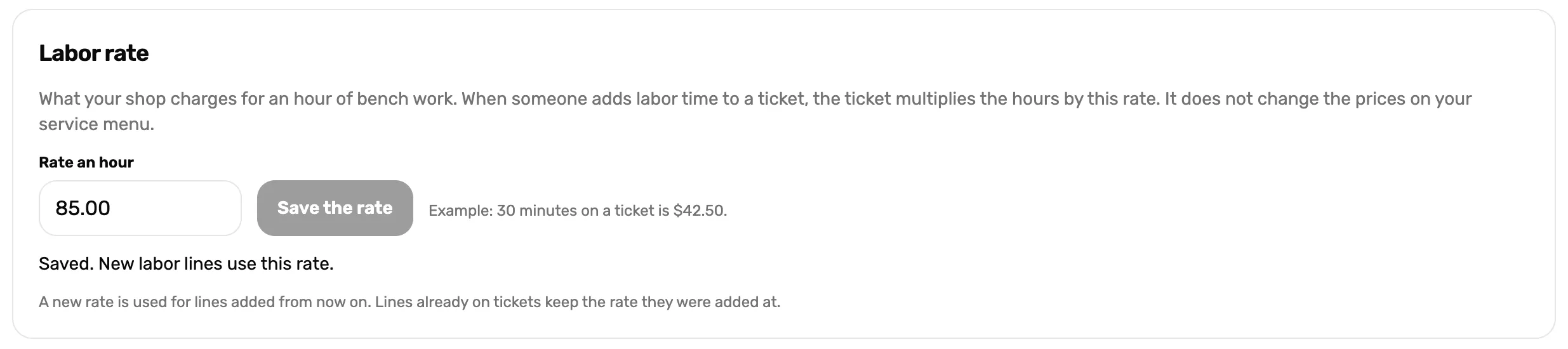
- Rate an hour. Labor time on a ticket is the hours times this rate. It does not change your menu prices.
- Save the rate. New labor lines use it. Lines already on tickets keep the rate they were added at.
Add the services you sell
Choose Add service. Give it a name, a category and a price. Each service becomes a tile on the register and a line you can add to a ticket.
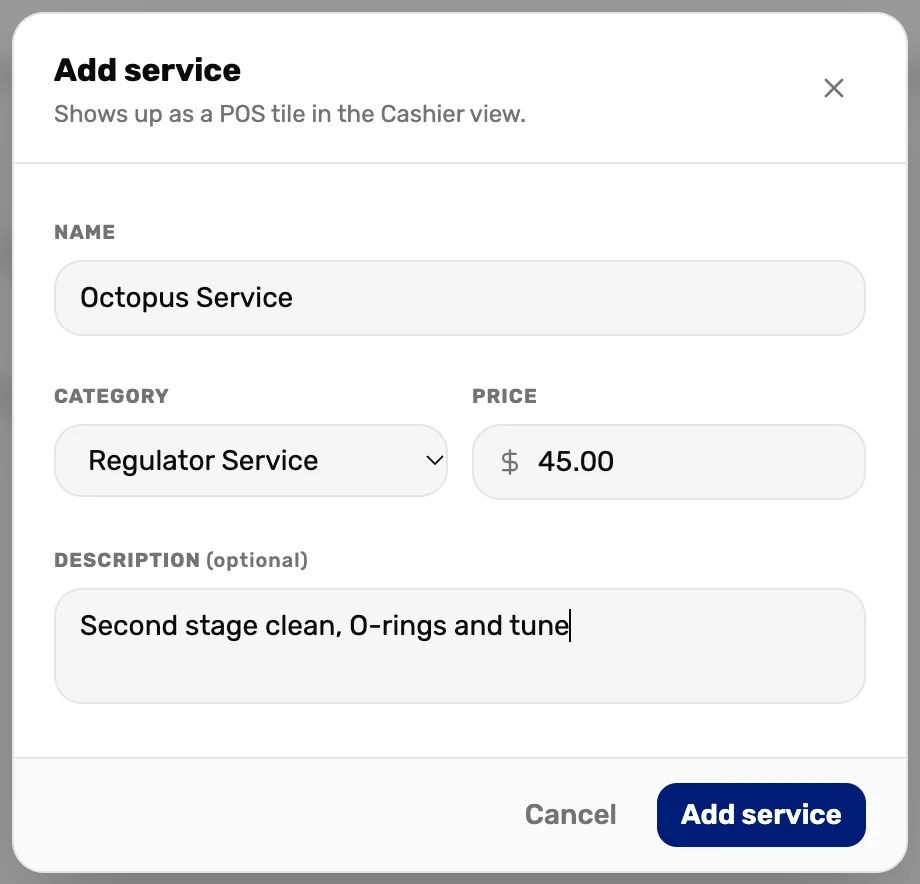
- Name. What the customer sees on the receipt.
- Category. Groups the services on this page and on the register.
- Price. The usual price. You can change it on a single ticket.
- Add service. Saves it to your menu.
Check the questions each gear type asks
Under Gear types, each tile is a kind of gear a customer can drop off. The speech-bubble button opens the questions asked at the counter for that type. The eight built-in types can't be removed, but their questions are yours to change. Add gear type adds one of your own.

- A gear type. Serial means the counter asks for a serial number.
- Questions. Opens this type's questions.
- Add gear type. For gear the built-in types don't cover.
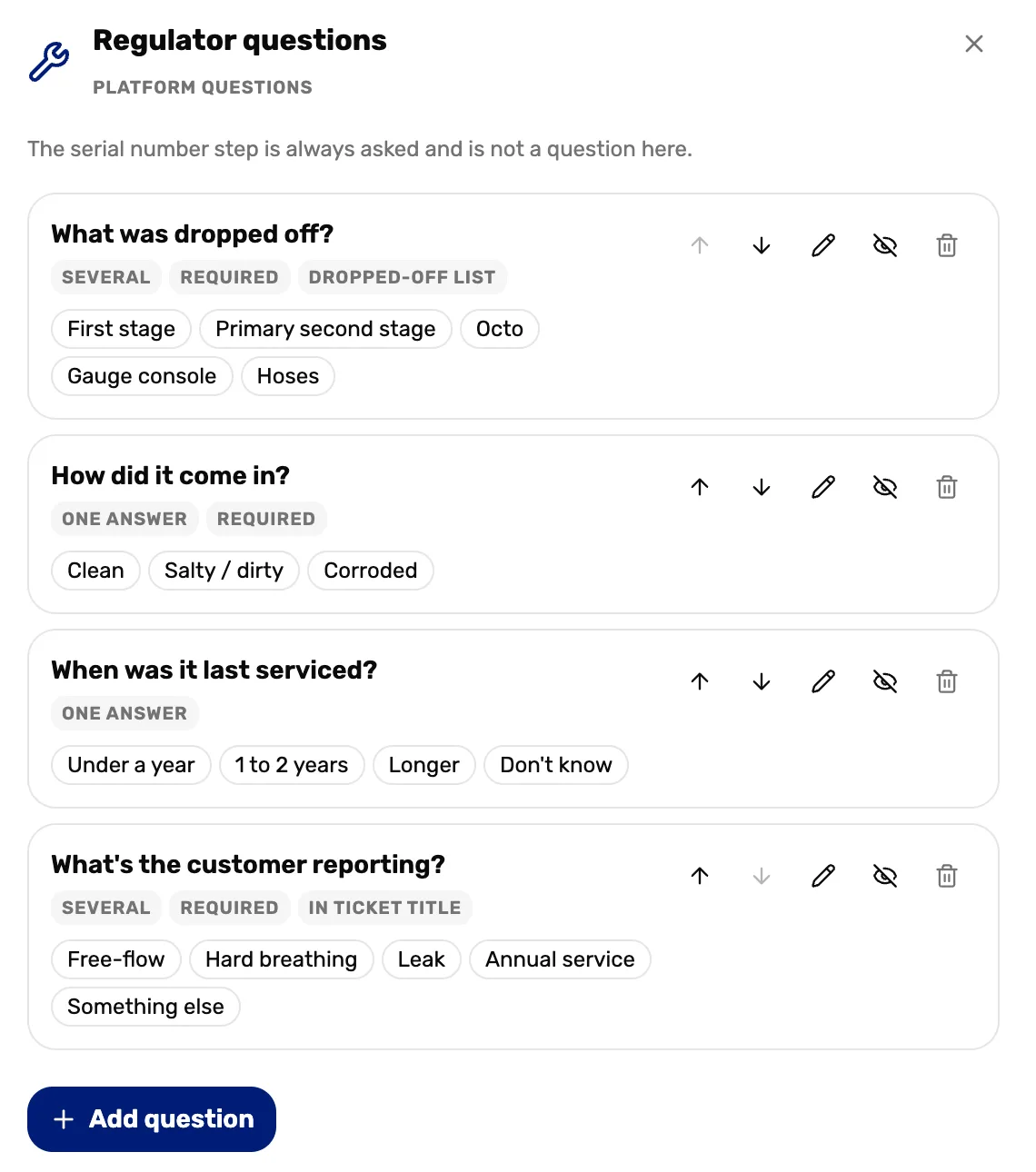
- Several, Required, Dropped-off list. Several means more than one answer can be picked. Required means the counter can't skip it. Dropped-off list makes the answers the tick list on the printout.
- In ticket title. The answers become the ticket's name on the board, like "Hard breathing, Annual service".
- Hide. Stops asking a question without deleting it. The arrows change the order.
- Add question. Asks something new for this gear type.
Choose what customers are sent
Under Customer messages, tick Send a confirmation at intake and Send a message when a ticket is ready for pickup. Customers with a phone number get a text, and customers with an email get the full message.
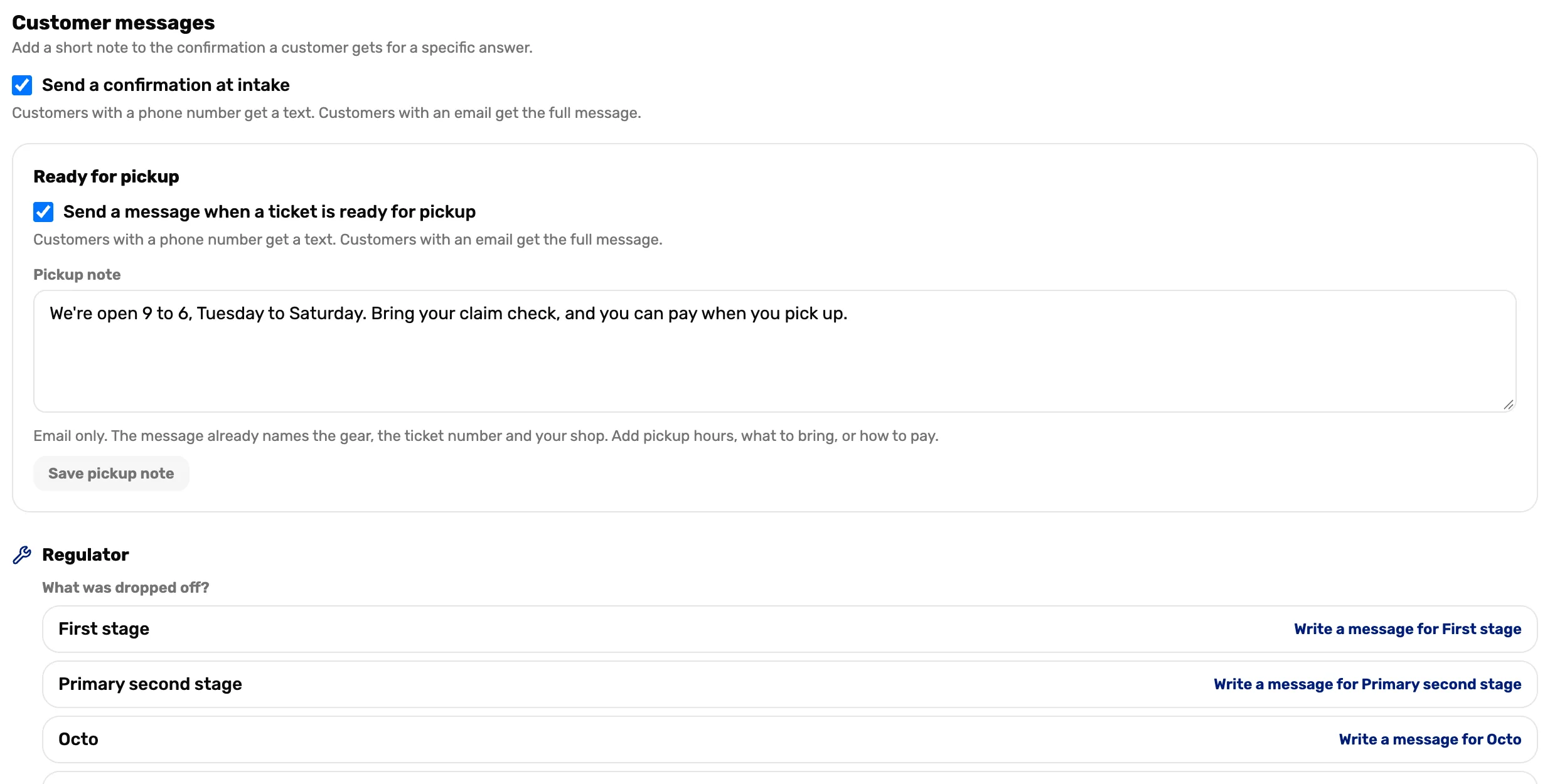
- Confirmation at intake. Sent when the ticket is created.
- Ready for pickup. Sent when someone marks the ticket ready.
- Pickup note. Your hours, what to bring, how to pay. Choose Save pickup note.
- Write a message. Adds a line to the confirmation only when that answer is picked.
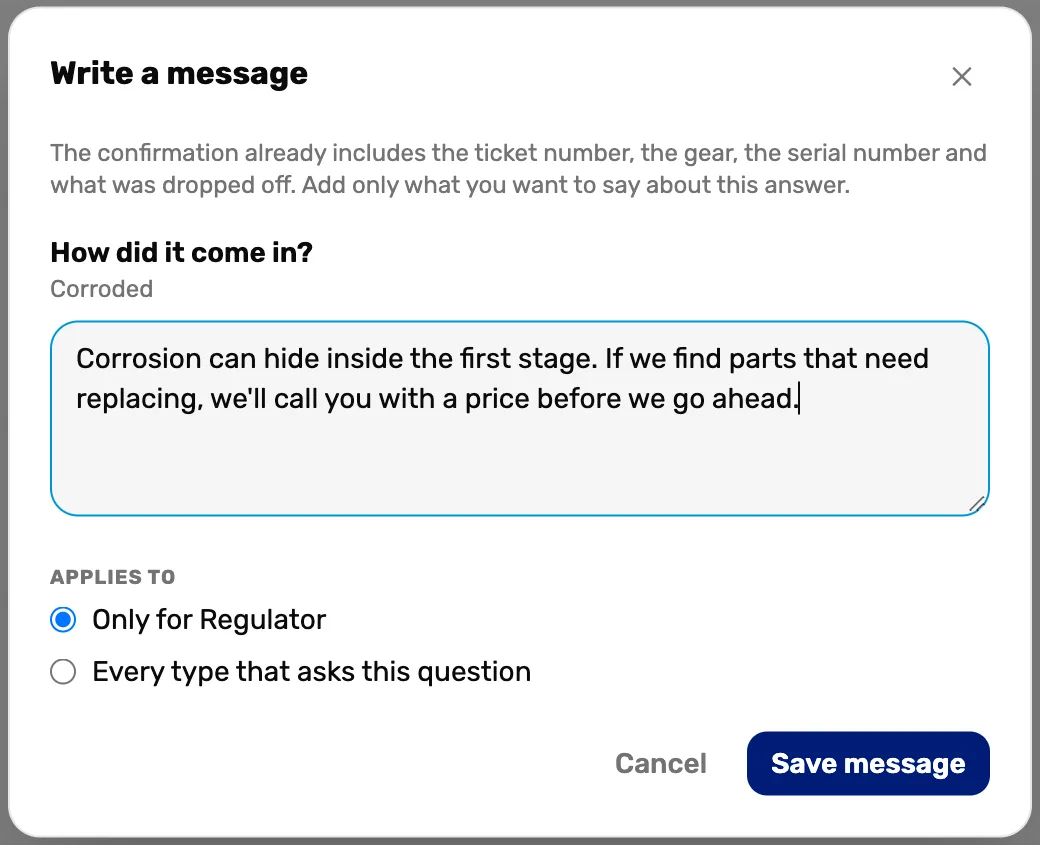
- The message. Only what you want to say about this answer. The ticket number, the gear and the serial are already in it.
- Applies to. This gear type only, or every type that asks the same question.
- Save message. Done. The answer now shows the message is set.
What happens next
- Your services are on the register under Services, and on every ticket.
- Next: take in gear, Mission 2.