
What this is for. The ticket keeps what you did and what it costs while the gear is on the bench. The customer pays at the register like any sale, and the ticket shows it was paid before the gear goes home.
Start work
On the Service board, tap the ticket and choose Start work. It moves to In progress. Hold parks it while you wait for a part or an answer.
Add what you did
Under Work and parts, add a line for each thing you charge for.
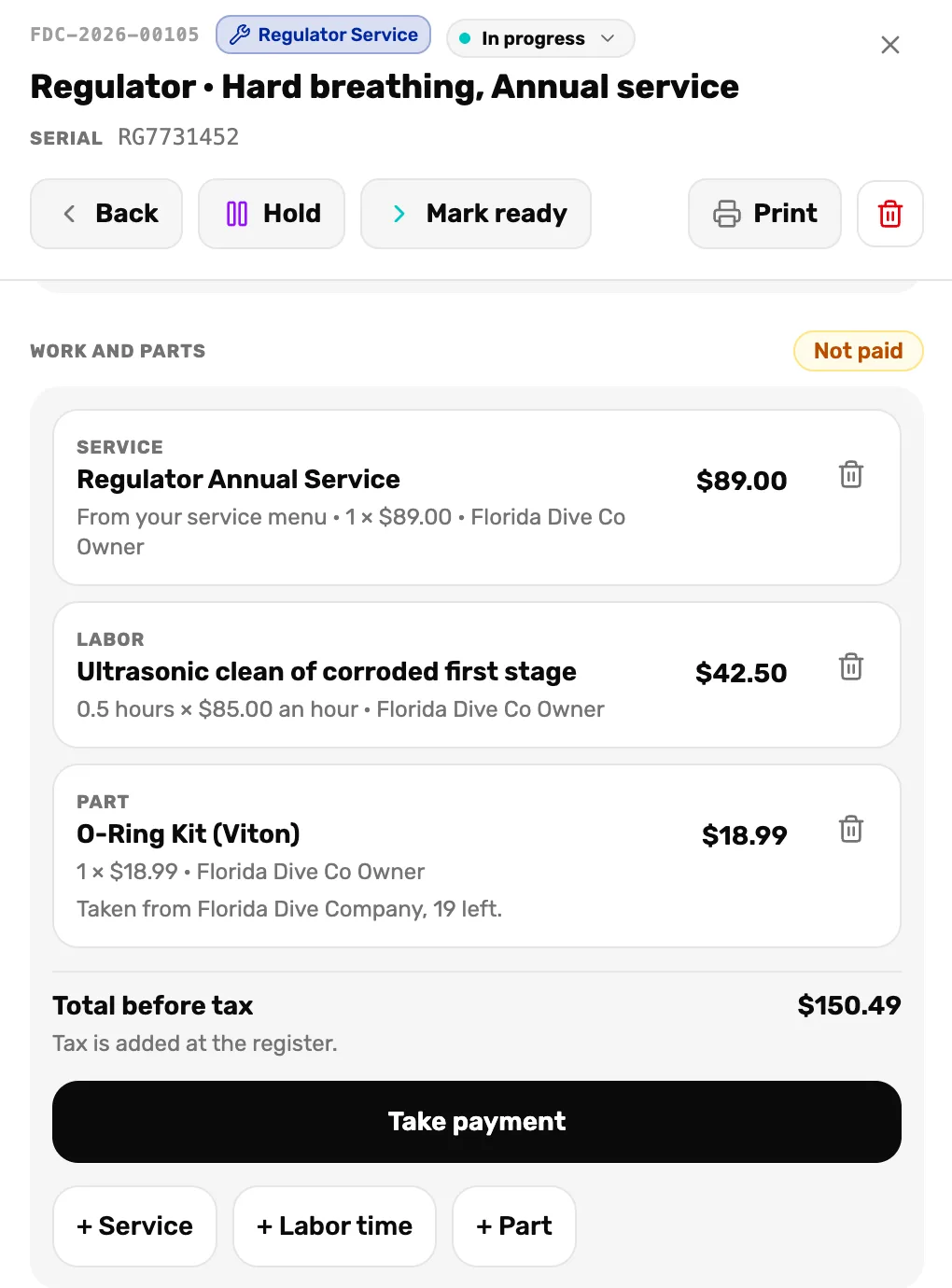
- Service, Labor time, Part. Each adds a line. The bin on a line removes it.
- Not paid. Nothing on this ticket has been paid yet.
- Total before tax. Tax is added at the register.
- Take payment. Sends the lines to the register. Step 4.
- Mark ready. The work is done. Step 3.
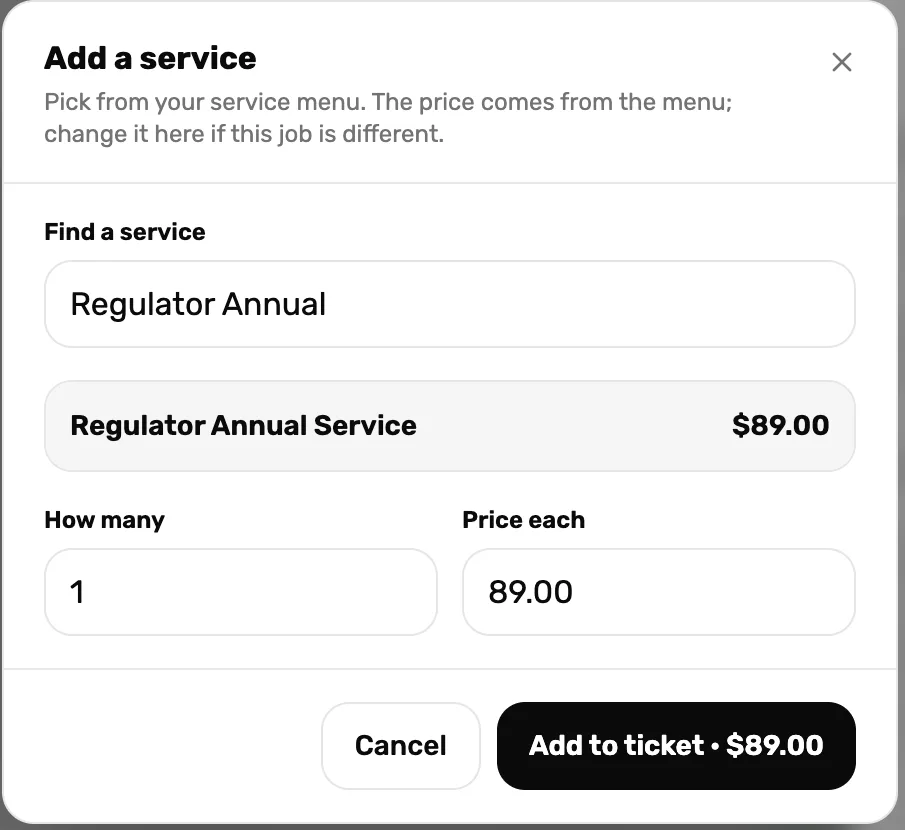
- Find a service. From your menu. The price comes with it.
- Price each. Change it for this job only. Your menu stays the same.
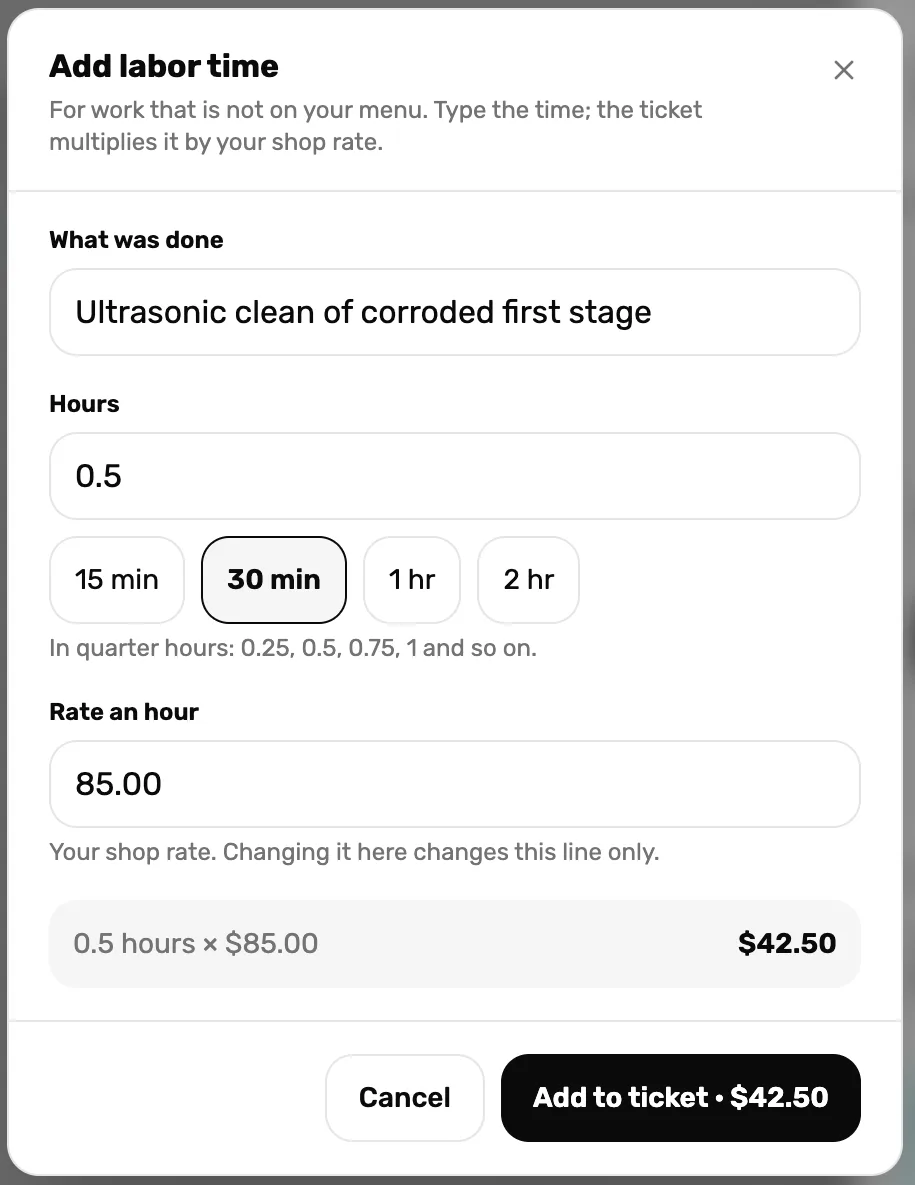
- Hours. In quarter hours. The buttons fill in 15 minutes to 2 hours.
- Rate an hour. Your shop rate. Changing it here changes this line only.
- The total. Hours times the rate. It is the price on the button.
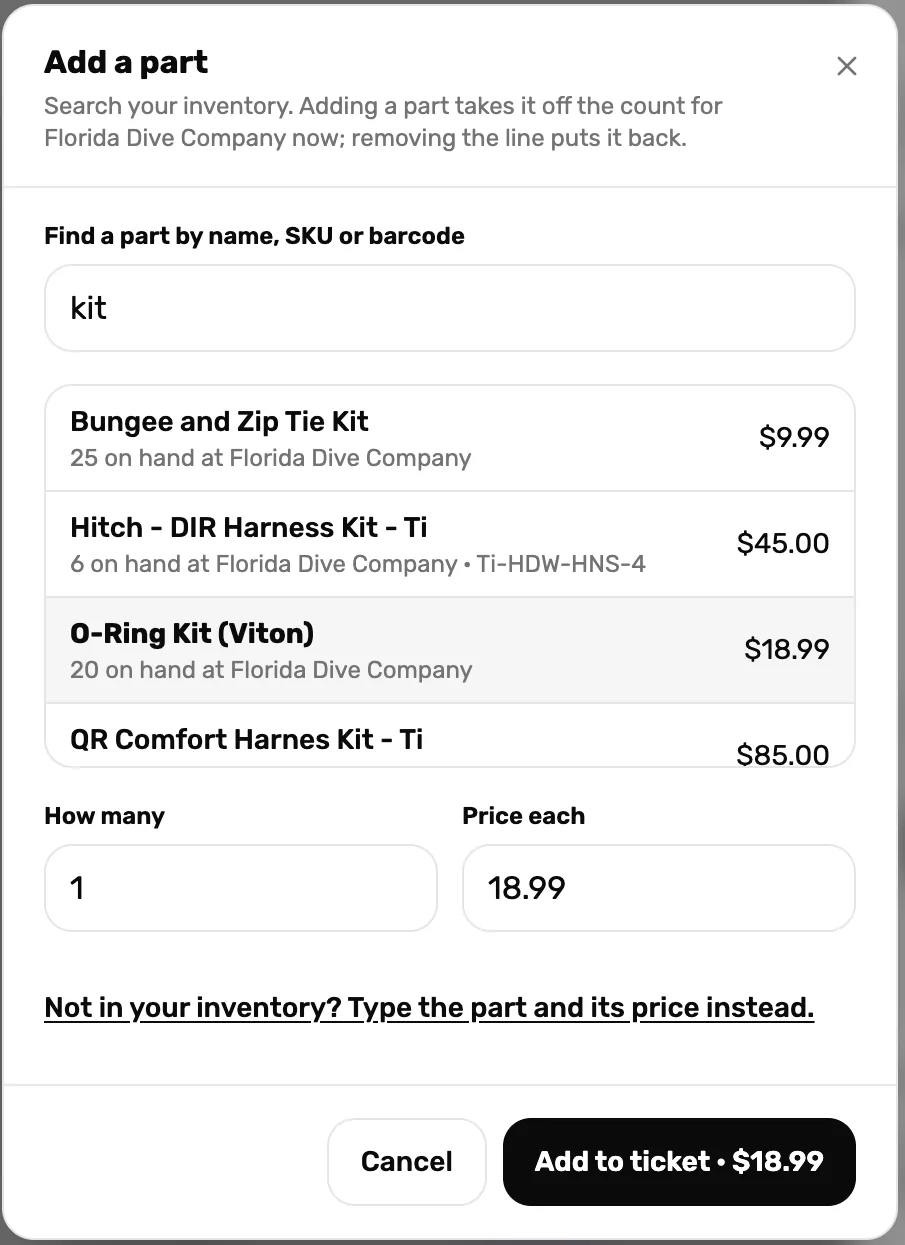
- Find a part. By name, SKU or barcode, from your inventory.
- On hand. Adding the part takes it off the count now. Removing the line puts it back.
- Not in your inventory? Type the part and its price instead. Nothing comes off the count.
Mark it ready
When the work is done, choose Mark ready. The ticket moves to Ready for pickup, and the customer is sent your ready-for-pickup message if that is switched on in Configure services.
Take payment at the register
Choose Take payment on the ticket. The register opens with the customer and the ticket's lines in the cart. Check out the way you take any payment.
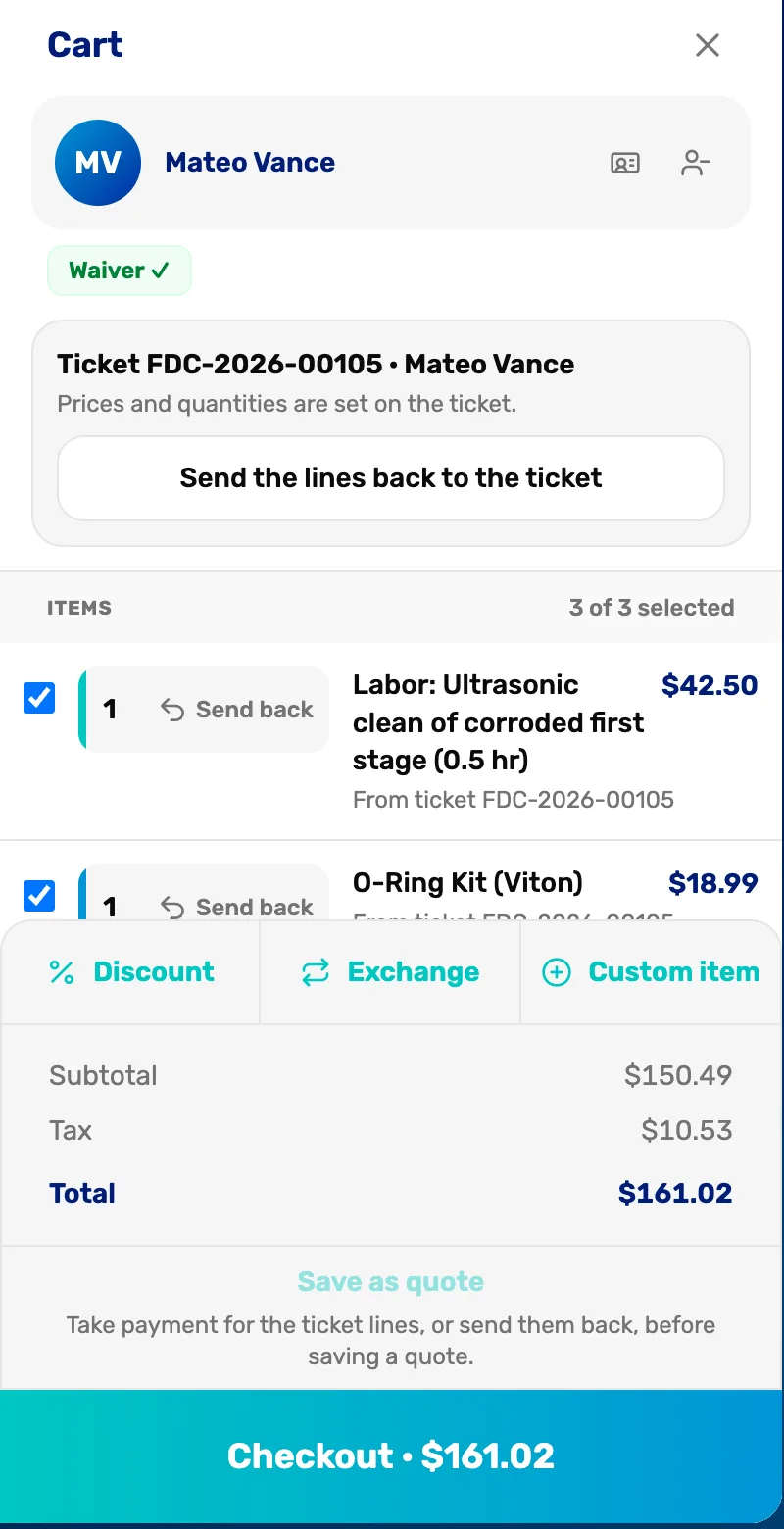
- The ticket banner. These lines belong to the ticket. Prices and amounts are set on the ticket, not here.
- Send the lines back to the ticket. Changed your mind? Puts them back, unpaid.
- Total. The ticket's total plus tax.
- Checkout. Cash, card or any other way. Same as a sale.
Back on the ticket, every line now says Paid, with the time it was paid and a link to the receipt.
Hand it back
When the customer collects, choose Mark picked up. The ticket leaves the board and goes to Closed tickets.
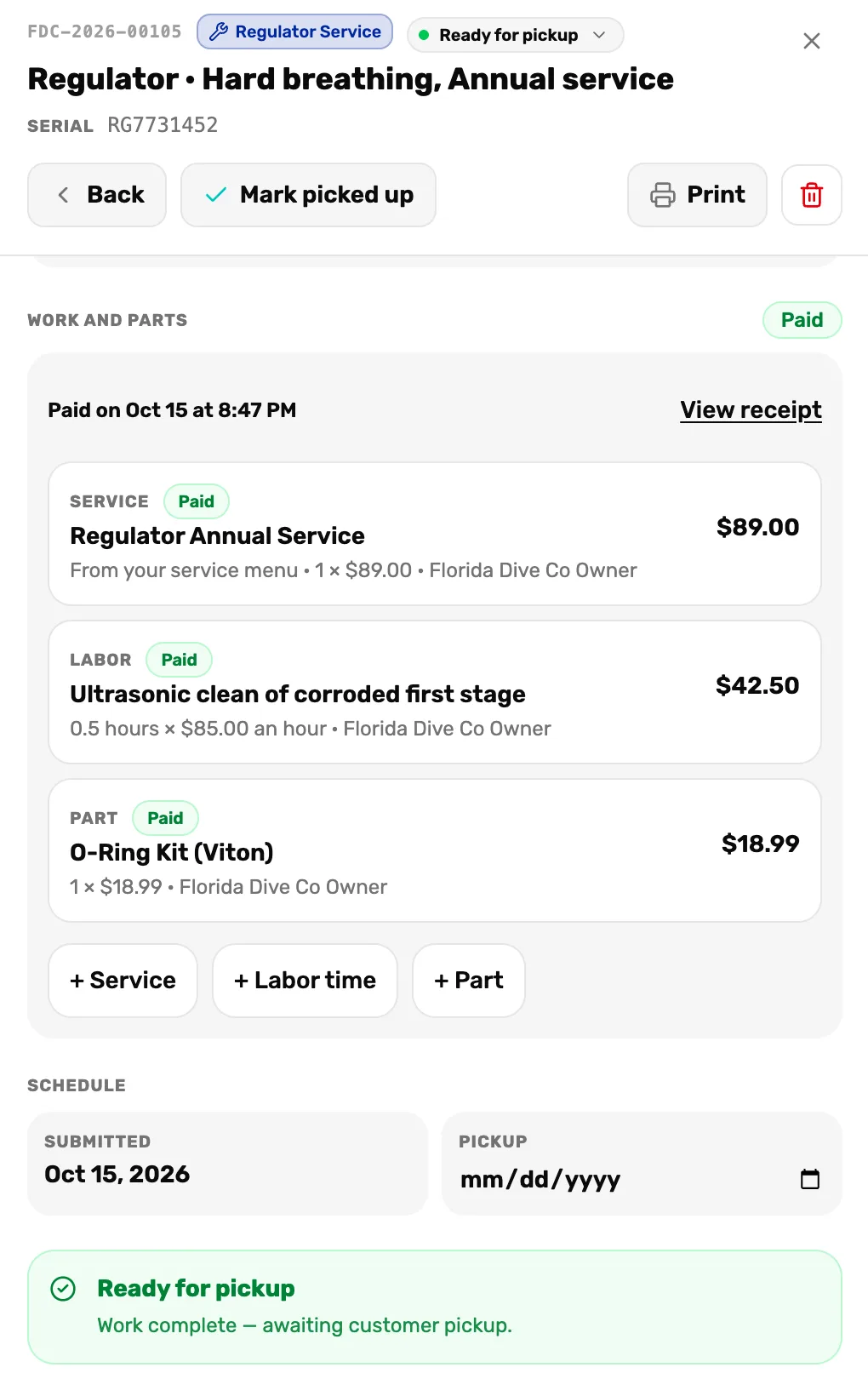
- Mark picked up. Closes the ticket.
- Paid on. When the register took the payment.
- View receipt. The sale it was paid on.
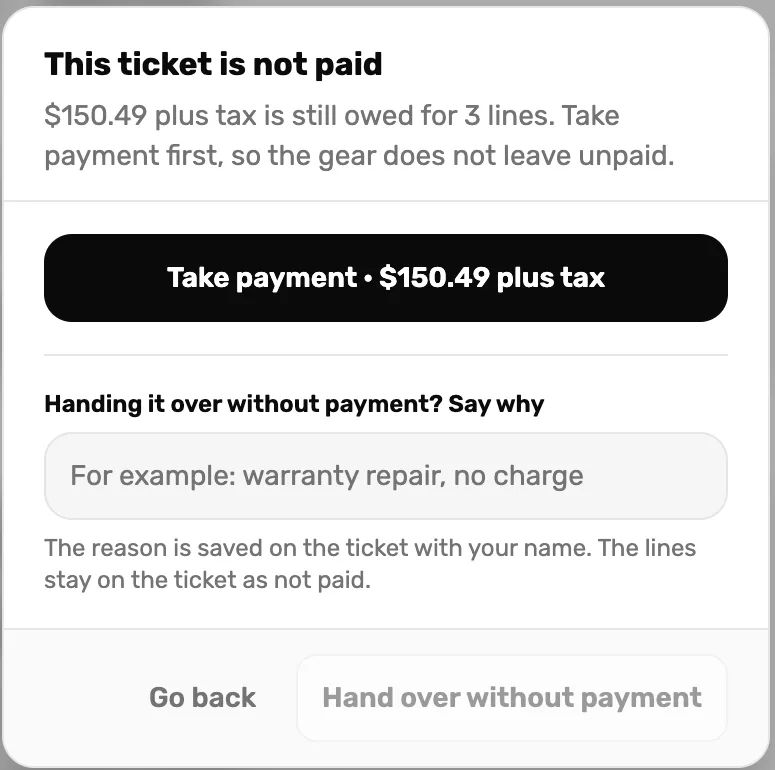
- Take payment. The usual way. Goes to the register.
- Say why. For a warranty job or a favor. The reason is saved on the ticket with your name.
- Hand over without payment. Closes the ticket. The lines stay on it as not paid.
What happens next
- The sale is in Transactions like any other. A refund works the same way too: see ring one up and refund it.
- Parts you used came off your stock count when you added them.
- Back to the campaign: Your first service ticket.