
What this is for. Every piece of gear a customer leaves with you gets a ticket. The ticket says whose gear it is, what came in and what they asked for. It moves across the board as you work, takes the payment, and closes when the customer picks it up.
Open the Service board
Go to Service. Each ticket is a card in the column for where it is.
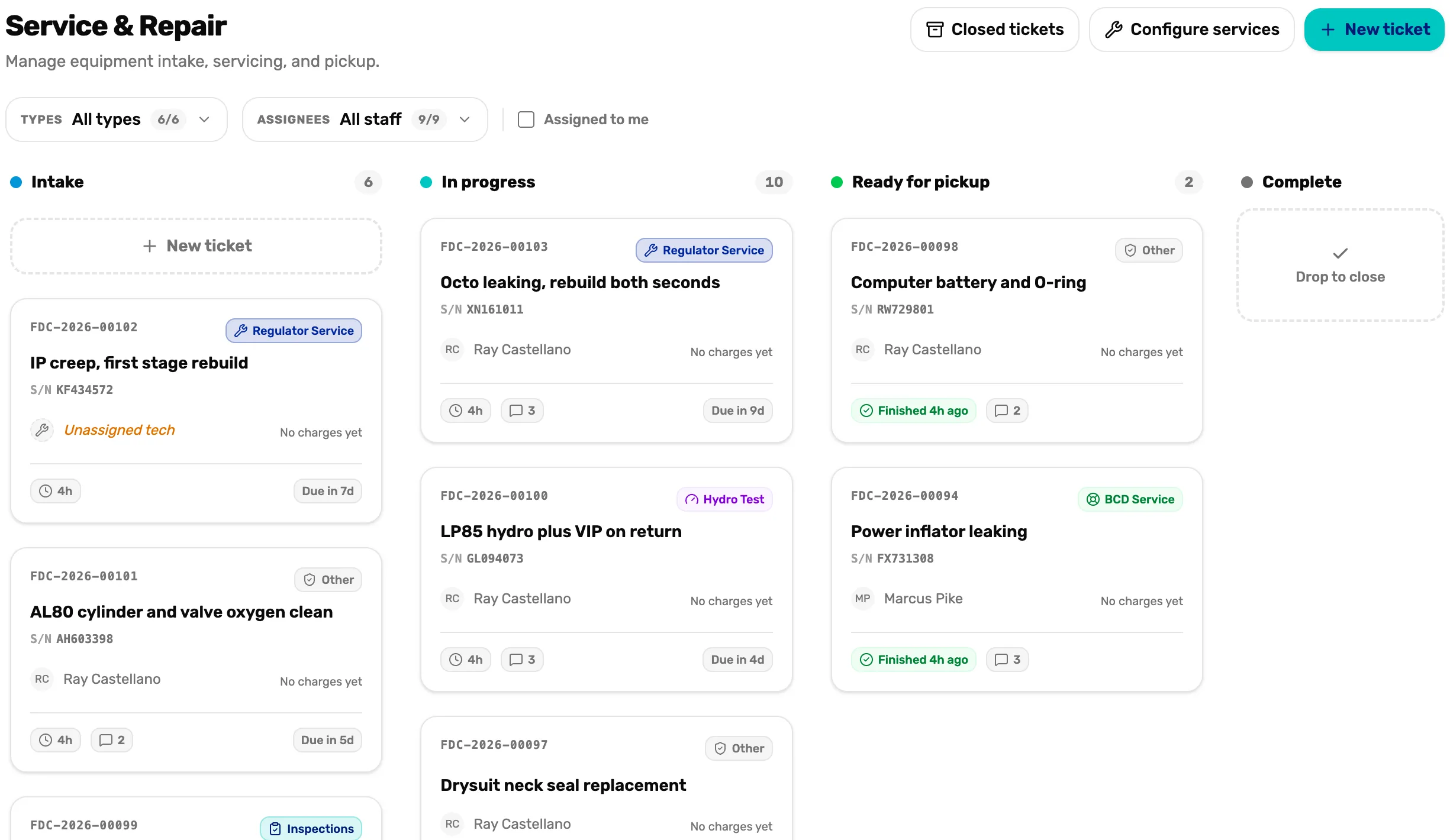
- Intake. Gear that came in and nobody has started.
- In progress. Someone is working on it.
- Ready for pickup. The work is done and the customer has been told.
- New ticket. Takes in a piece of gear. Mission 2.
- Configure services. Your prices, labor rate, gear types and customer messages. Mission 1.
Tap a card to open its ticket. Tickets that have been picked up leave the board and live in Closed tickets.
Mission 1: Set up your service menu
What you charge, the questions asked at drop-off, and the messages customers get.
- Your labor rate for bench time
- The services you sell, with prices
- The questions each gear type asks
- The text or email a customer gets

Mission 2: Take in gear
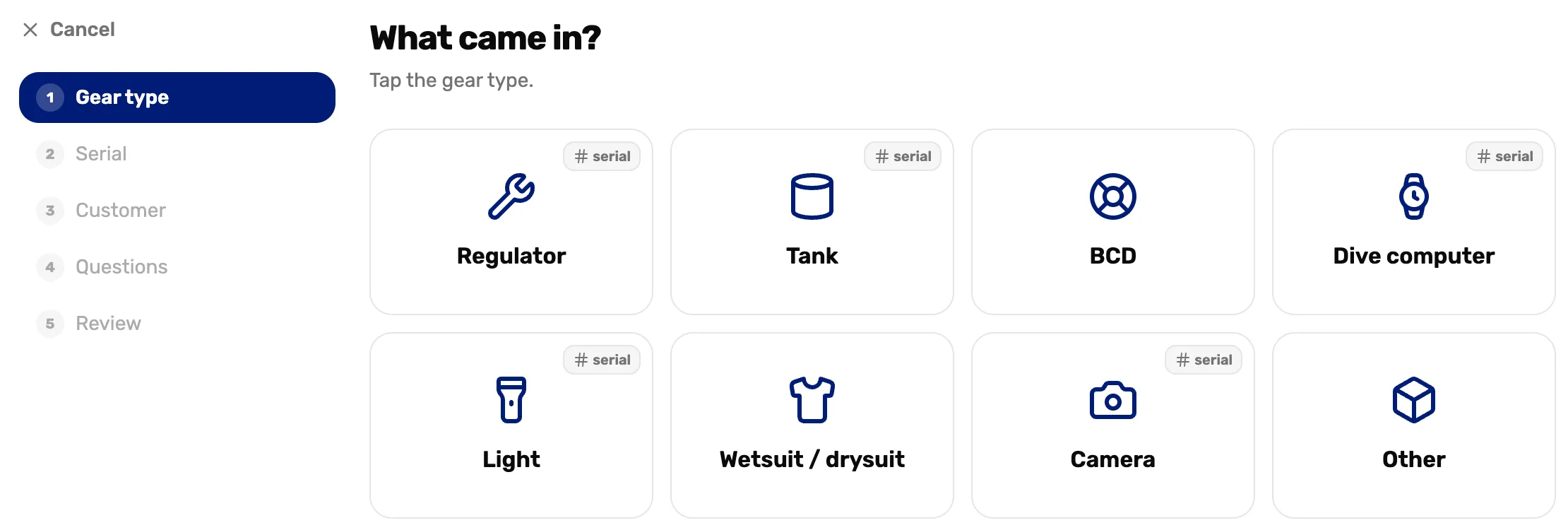
Five quick screens at the counter, then a printout that stays with the gear.
- Gear type and serial number
- The customer
- What came in and what they want
- Print the work order or a slip
Mission 3: Charge for the work and hand it back
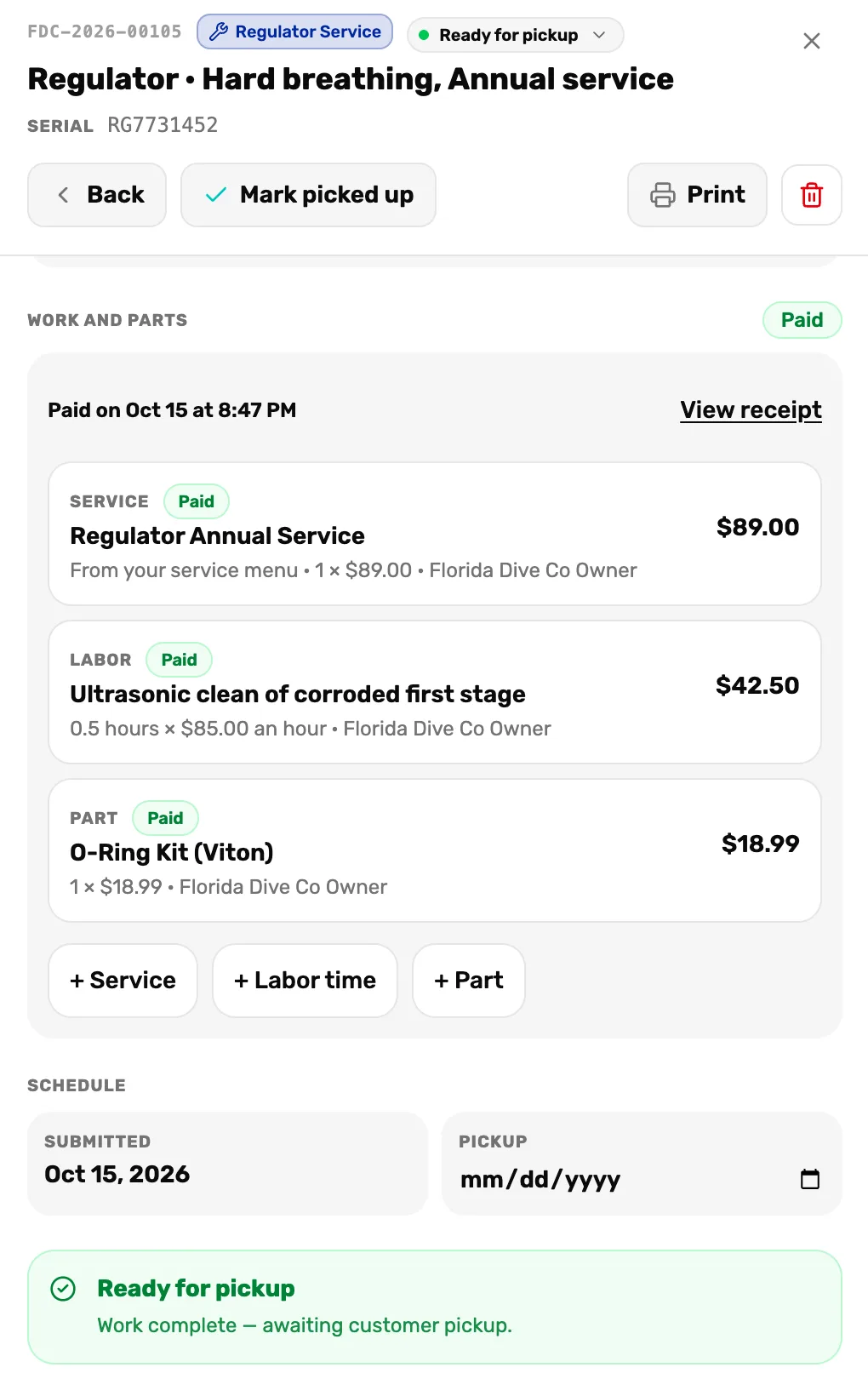
Add what you did, take the payment at the register, and close the ticket when the customer collects.
- Add services, labor time and parts
- Mark it ready, so the customer hears
- Take payment at the register
- Mark it picked up
When you are done
The ticket is in Closed tickets, marked Picked up and Paid. The gear's serial keeps its history, so the next ticket for it shows this one.
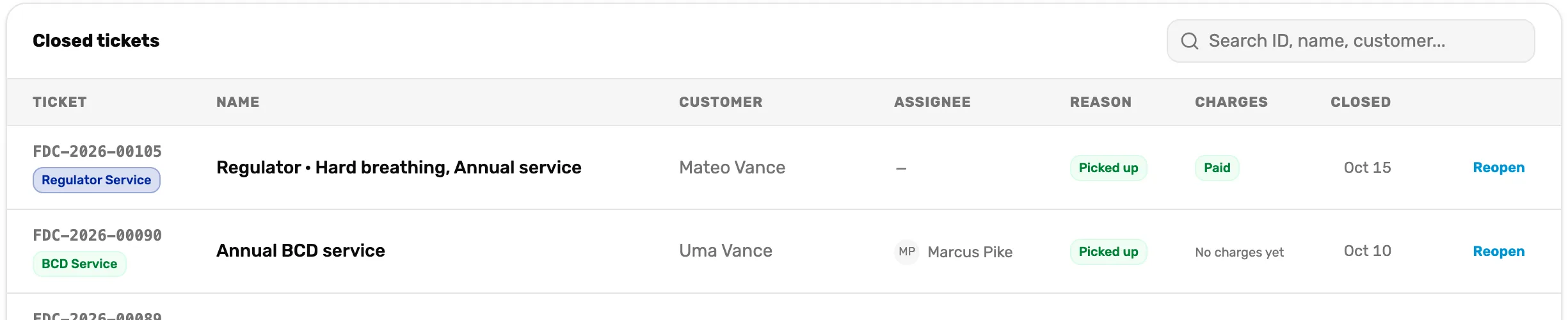
- Charges. Paid, or No charges yet for a ticket closed without any lines.
- Reopen. Puts the ticket back on the board if the customer comes back with a problem.