
What this is for. This is how your shop introduces itself: the name and address at the top of every receipt, the phone and email divers see when they book online, the logo on your receipts and card reader, and the letters at the front of every service ticket number. Fill it in once and every receipt, email and printout uses it. This page goes through every field, in the order the screen shows them.
Before you start
Go to Settings › Business Settings. The page has three cards: Store profile, Branding & receipts, and Locale & timezone (which has its own page).
- Each card has its own Save changes. It stays grey until you change something on that card. Change two cards, save each one.
- Nothing is saved until you tap Save changes. If you leave the page first, your change is dropped and nothing warns you. The two logos are the exception: they save the moment you upload or remove them.
- Only the owner or a General Manager can change them. A Manager sees every field greyed out, under "Only the owner or a General Manager can change these settings."
Store profile
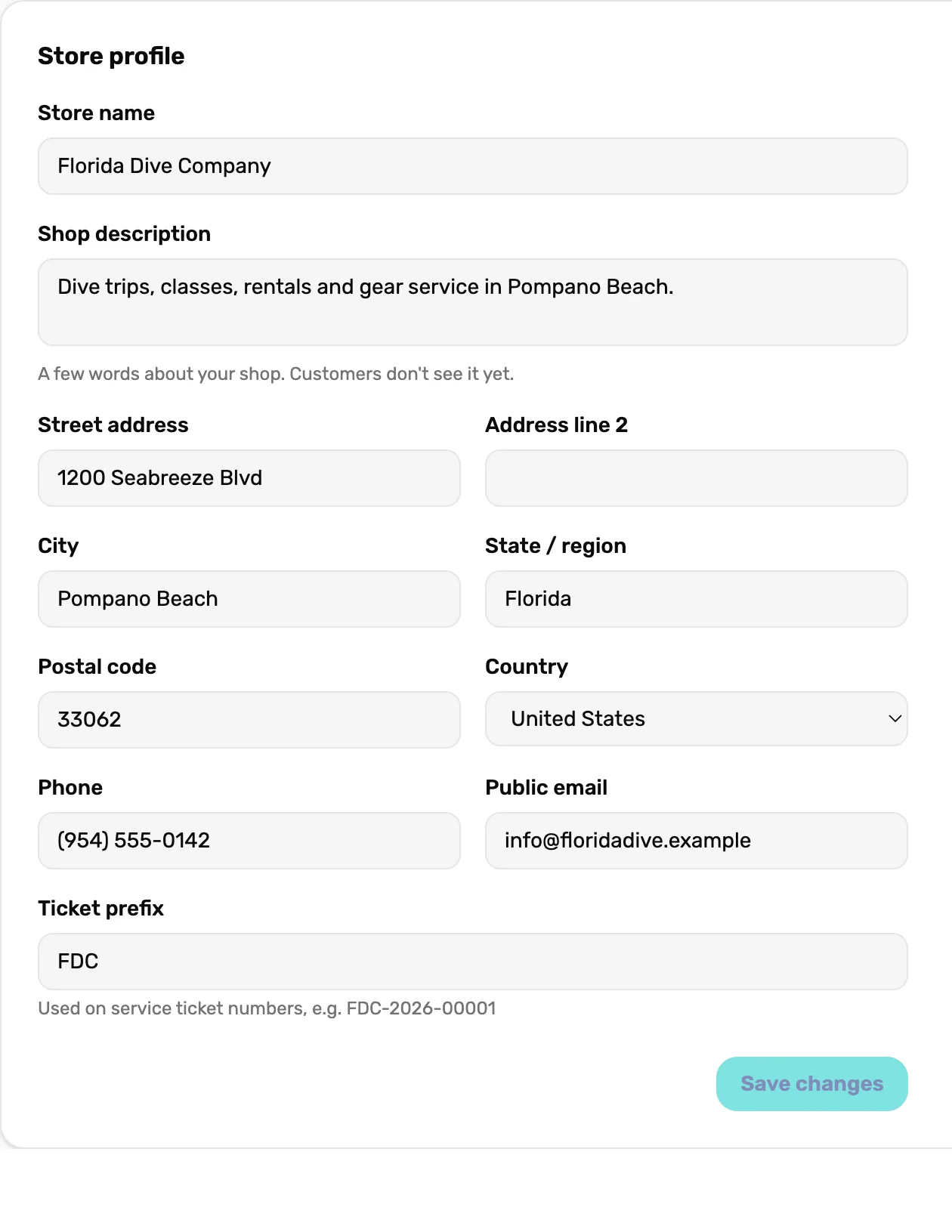
- Store name. Your shop's name everywhere customers see it. It can't be empty.
- Shop description. A few words about your shop. Customers don't see it yet.
- The address. Prints under your name on receipts.
- Phone. Prints on receipts. Divers see it at online checkout.
- Public email. Divers see it at online checkout, and their replies to booking emails come here.
- Ticket prefix. The letters at the front of each service ticket number.
- Save changes. Saves this card. Grey until you change something.
Store name
Your shop's name as customers see it: at the top of receipts and quotes, on printed work orders, on your online booking pages, in the From line of booking emails ("Florida Dive Company via OneDive"), on your card reader screen when you have no logo, and as the name of your calendar feed. Save changes stays grey while it is empty.
Shop description
A few words about your shop, for your own records. The screen says "A few words about your shop. Customers don't see it yet." Receipts, quotes and booking pages don't print it today.
Street address to Country
Street address, Address line 2, City, State / region and Postal code print under your name on every receipt and on printed work orders. If the store a sale was rung up at has its own address, the receipt prints that one instead, so a shop with two stores shows the right address on each. Country is a list: United States, Canada, Mexico, United Kingdom, Australia or New Zealand.
Phone
Prints on receipts and work orders, under the address. Divers also see it at online checkout as the number to call with questions.
Public email
Divers see it at online checkout, beside your phone, and when a diver replies to a booking email, the reply comes to this address. Use an inbox someone reads. If the phone or the public email is missing, Settings › Online Booking reminds you.
Ticket prefix
The letters at the front of every service ticket number. With FDC, tickets read FDC-2026-00001, FDC-2026-00002, and so on. The count starts again at 00001 each January.
- 2 to 5 letters or numbers. OneDive turns them into capitals as you type. Fewer than 2, or anything else, and Save changes shows "Could not save."
- Left empty, OneDive makes one from your store name's first letters when the next ticket is made.
- A change only affects new tickets. Tickets you already have keep their numbers.
See Service tickets explained for how numbers work on the board.
Branding & receipts
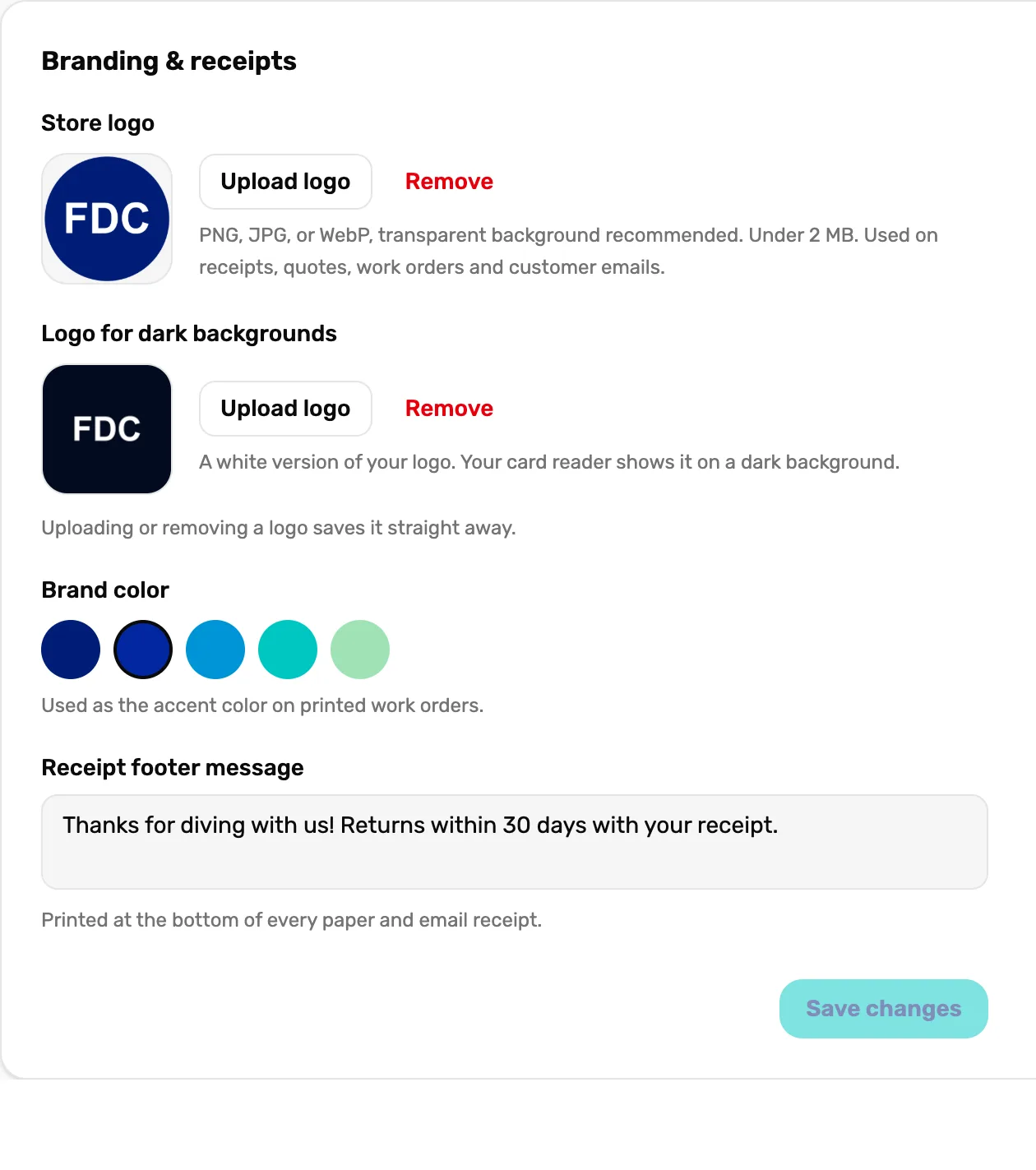
- Store logo. Your logo for receipts, quotes, work orders and emails. Upload logo picks a file; Remove takes it off.
- Logo for dark backgrounds. A white version for your card reader.
- Brand color. Colors the headings on printed work orders.
- Receipt footer message. Prints at the bottom of every receipt.
- Save changes. Saves the brand color and the footer. The logos save on their own.
Store logo
Your logo at the top of every printed and emailed receipt, on quotes and work orders, in customer emails, and on your card reader between sales when you have no white version. The card says "Uploading or removing a logo saves it straight away."
- Upload logo opens your files. Use a PNG, JPG or WebP under 2 MB. A transparent background looks best. The next receipt uses it, with no Save needed.
- Too big or the wrong kind of file? The card says "That image is over 2 MB. Pick a smaller one." or "That file type won't work. Use a PNG, JPG or WebP image."
- Remove asks "Remove your store logo?" first. Remove logo takes it off at once, and receipts then print your name only. You can upload it again later.
Logo for dark backgrounds
"A white version of your logo. Your card reader shows it on a dark background." It goes on the screen of your card reader between sales. The same files and the same 2 MB limit apply, and it saves as soon as you upload it. Remove asks "Remove the logo for dark backgrounds?" first, and your card reader stops showing it at once.
Brand color
Five OneDive blues and greens. Tap one to pick it, then tap Save changes. The screen says "Used as the accent color on printed work orders." It colors the headings on the work order you print for a service ticket. Receipts don't use it. Once a color is picked you can change it, but not clear it.
Receipt footer message
Printed at the bottom of every paper and email receipt. How to write one, and what it looks like, is in Receipts: print, email and text.
Sample data
A new shop may also see a Sample data card at the bottom: a sample product, customer and service ticket to try things on. Remove sample data deletes all three for good. Once they are gone the card disappears.
What happens next
- What the receipt looks like with all this filled in: Receipts: print, email and text.
- The third card on this page: Time zone, currency and date format.
- Divers see your phone and email when they book: Get your shop ready for online booking.