
What this is for. Your shop's link name starts every booking address and every Book button. The code for your site lets your website open the booking window over its own page, so divers never leave your site to book.
Choose your shop's link name
Go to Settings › Online Booking › Booking link. Type a short name for your shop and choose Save changes.
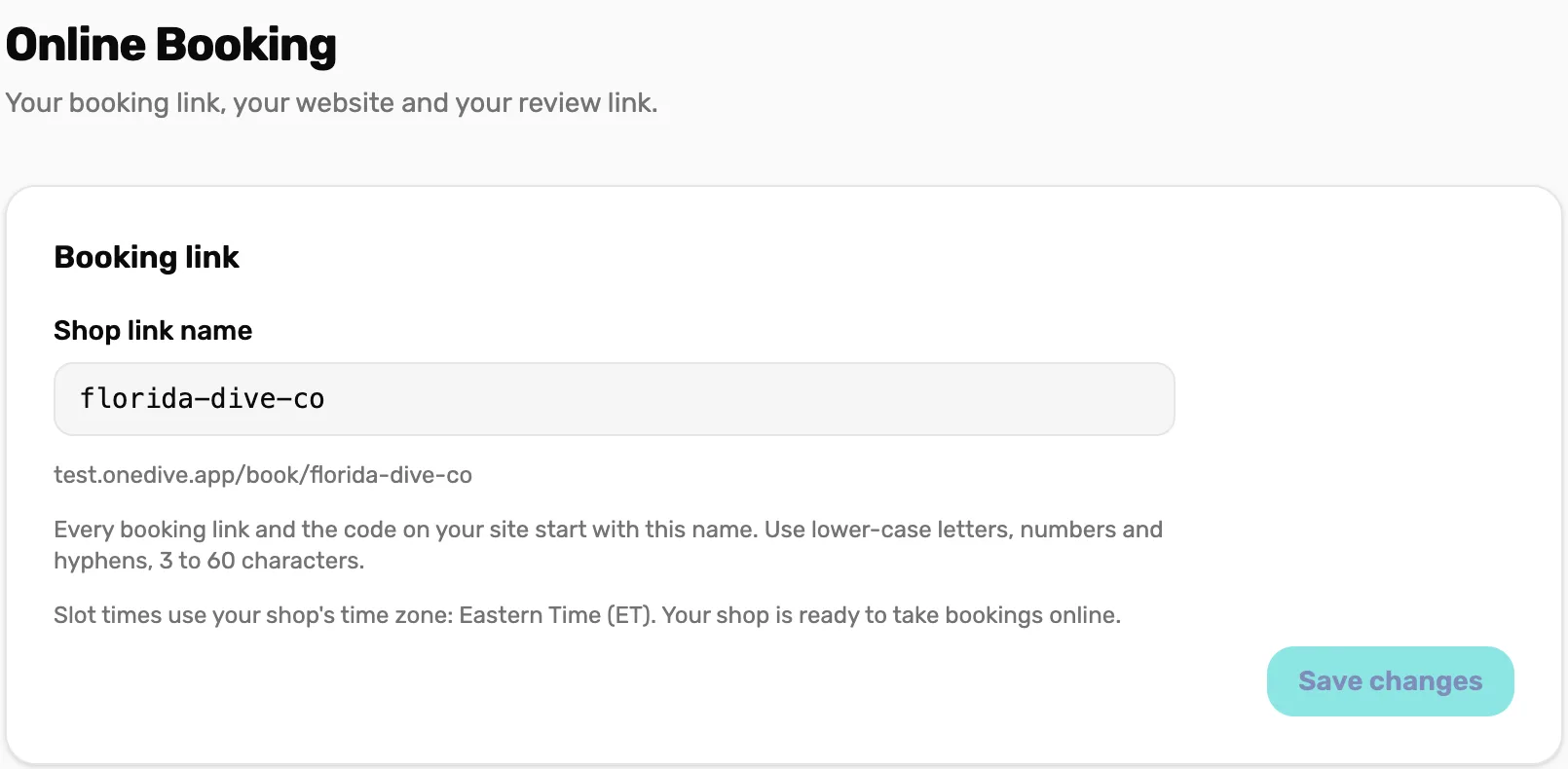
- Shop link name. Lower-case letters, numbers and hyphens, 3 to 60 characters.
- Your address. Where your trips are booked. Each trip adds its own name after it.
- Time zone and ready. Slot times use your shop's time zone. Ready means this part is done; each trip lists what else it needs.
- Save changes. You see Booking link saved.
No time zone yet? Set it in Settings › Business › Locale first.
Let your website open the booking window
In Your website, type your site's address, like https://www.yourshop.com, and choose Add. Add every address your site opens at; with and without www count as two.
Then copy the code under Code for your site and paste it once, anywhere on your site. Whoever runs your website can do this part.
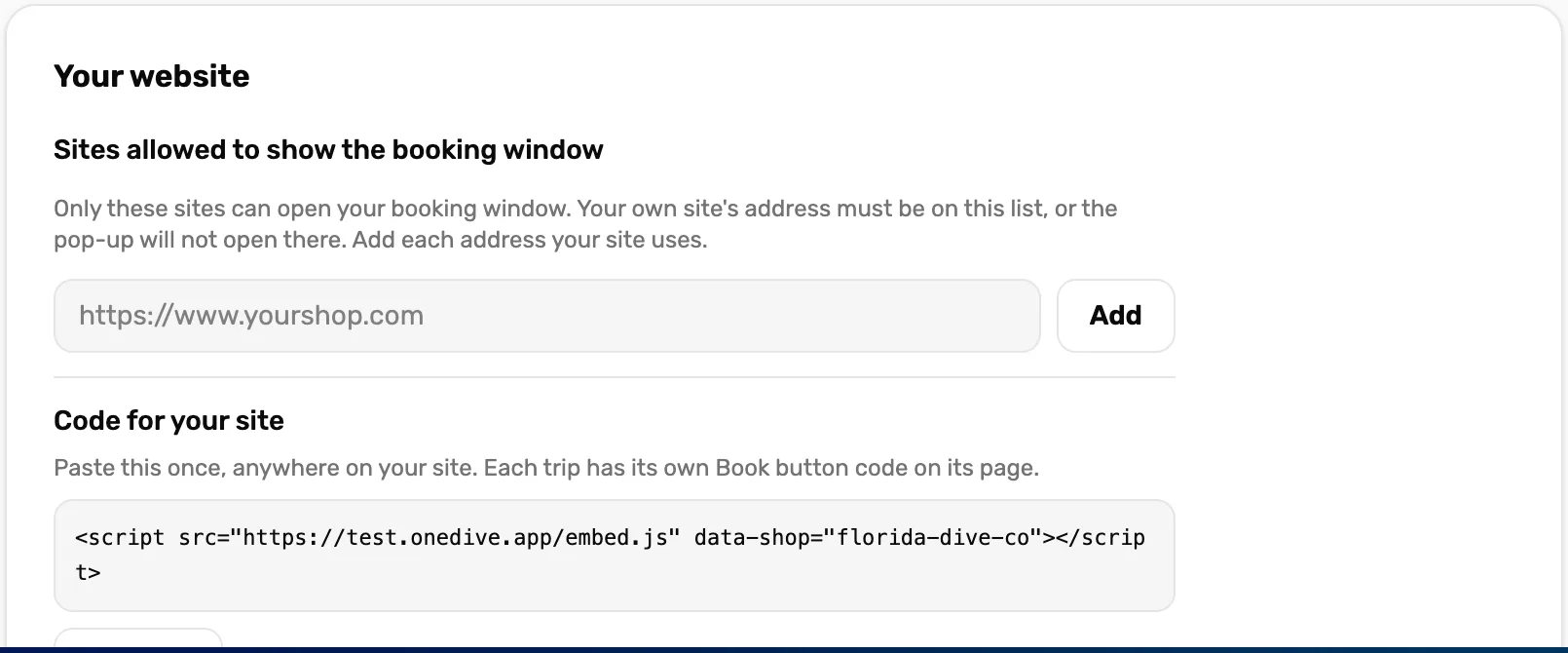
- Site address. Only sites on this list can open your booking window.
- Add. Saves the address. You see Sites saved.
- Code for your site. One line for the whole site. Each trip has its own Book button code, in Mission 2.
Optional: add your Google review link
In Reviews, paste your Google review link. Two days after a dive, divers who checked in are asked for a review, once. Leave it empty and nobody is asked.
What happens next
- Your shop is ready. Each trip still needs its own set-up before it takes bookings.
- Next: put a trip online, Mission 2.