
What this is for. Each trip has its own page, its own times and its own rules. A short checklist on the trip tells you what is still missing, so you can't switch it on half done.
Open the trip
Go to Trips and choose Manage trip on the trip you want online. The trip needs to be Active. New trip? Choose Add trip first.
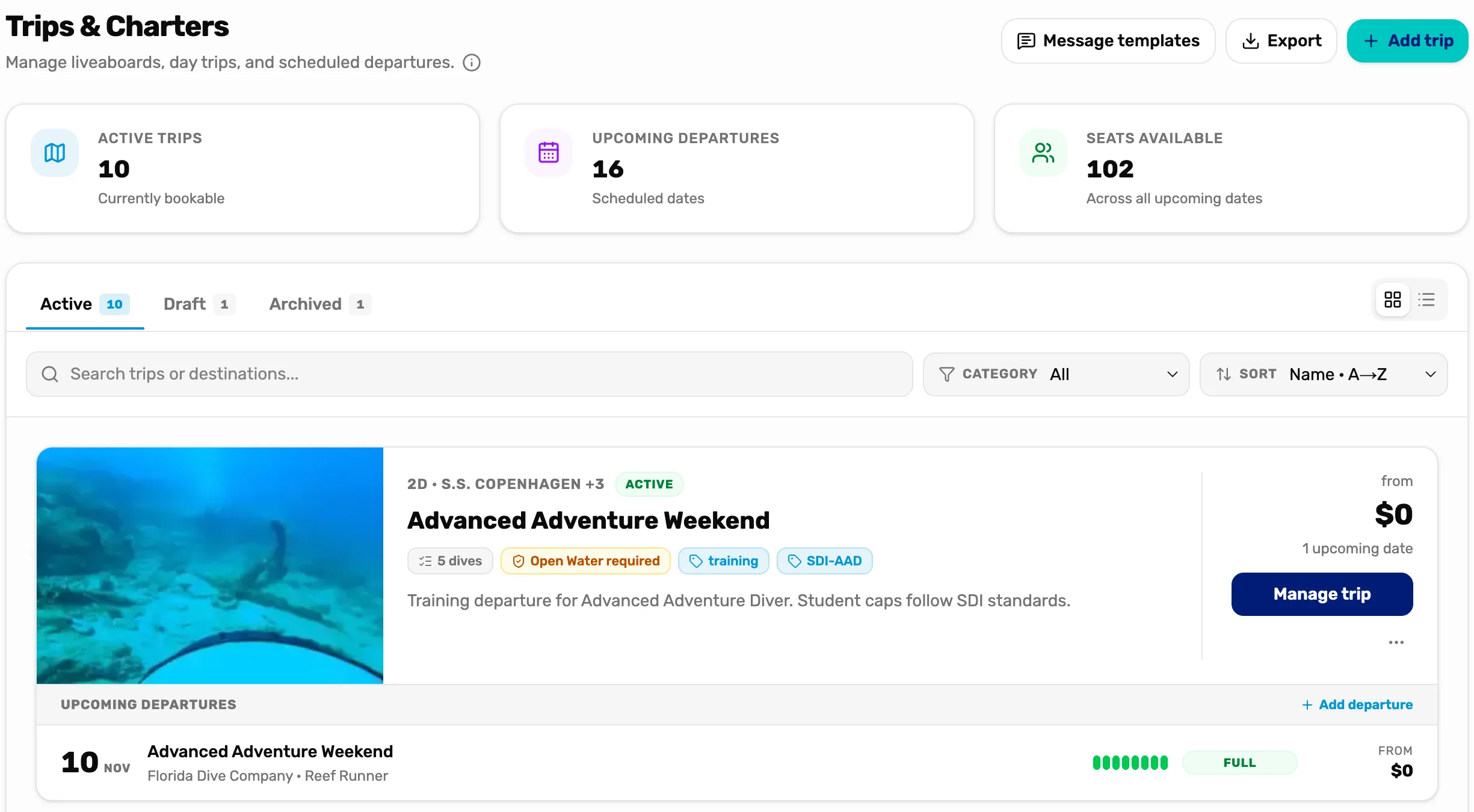
- Manage trip. Opens the trip, where the online booking cards are.
- Add trip. Makes a new trip first.
Fill in the booking page
On the Booking page card, the list on the right says what is missing. Each item has a Go to link to the place that fixes it.
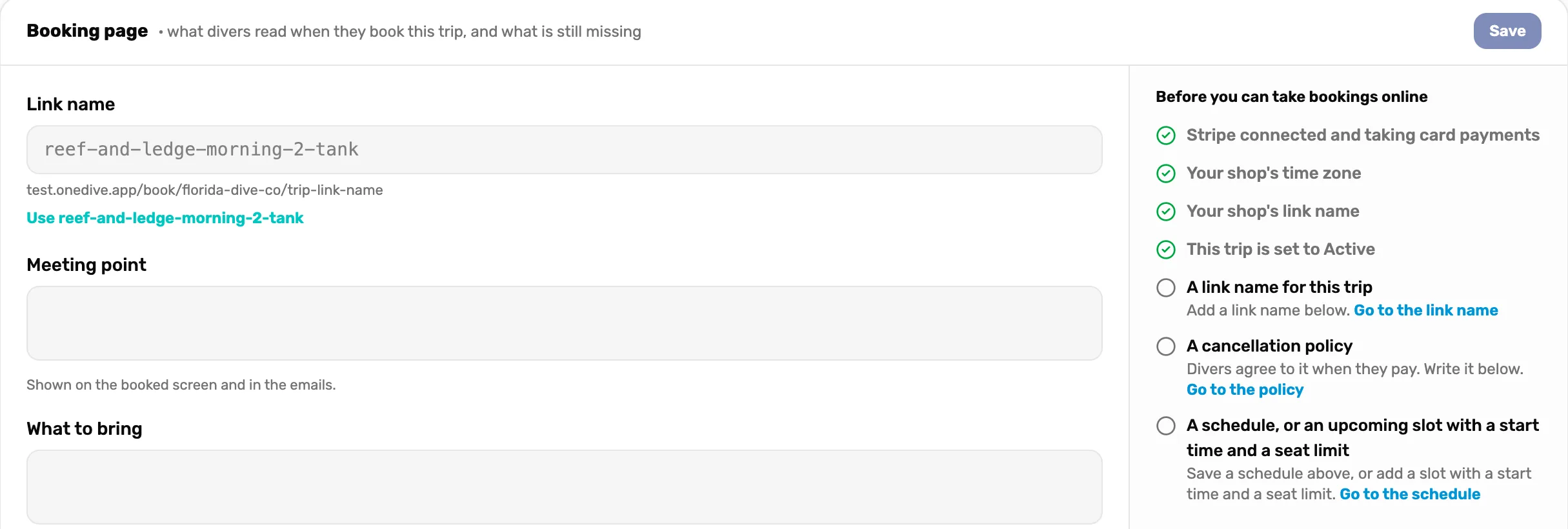
- Before you can take bookings online. A tick is done. The trip can't go online until every item has one.
- To do. What is missing, and what to do about it.
- Go to. Jumps to the field that fixes it.
- Use the suggested name. Fills in the trip's link name from its title.
Fill in the meeting point, what to bring and your cancellation policy, then choose Save.
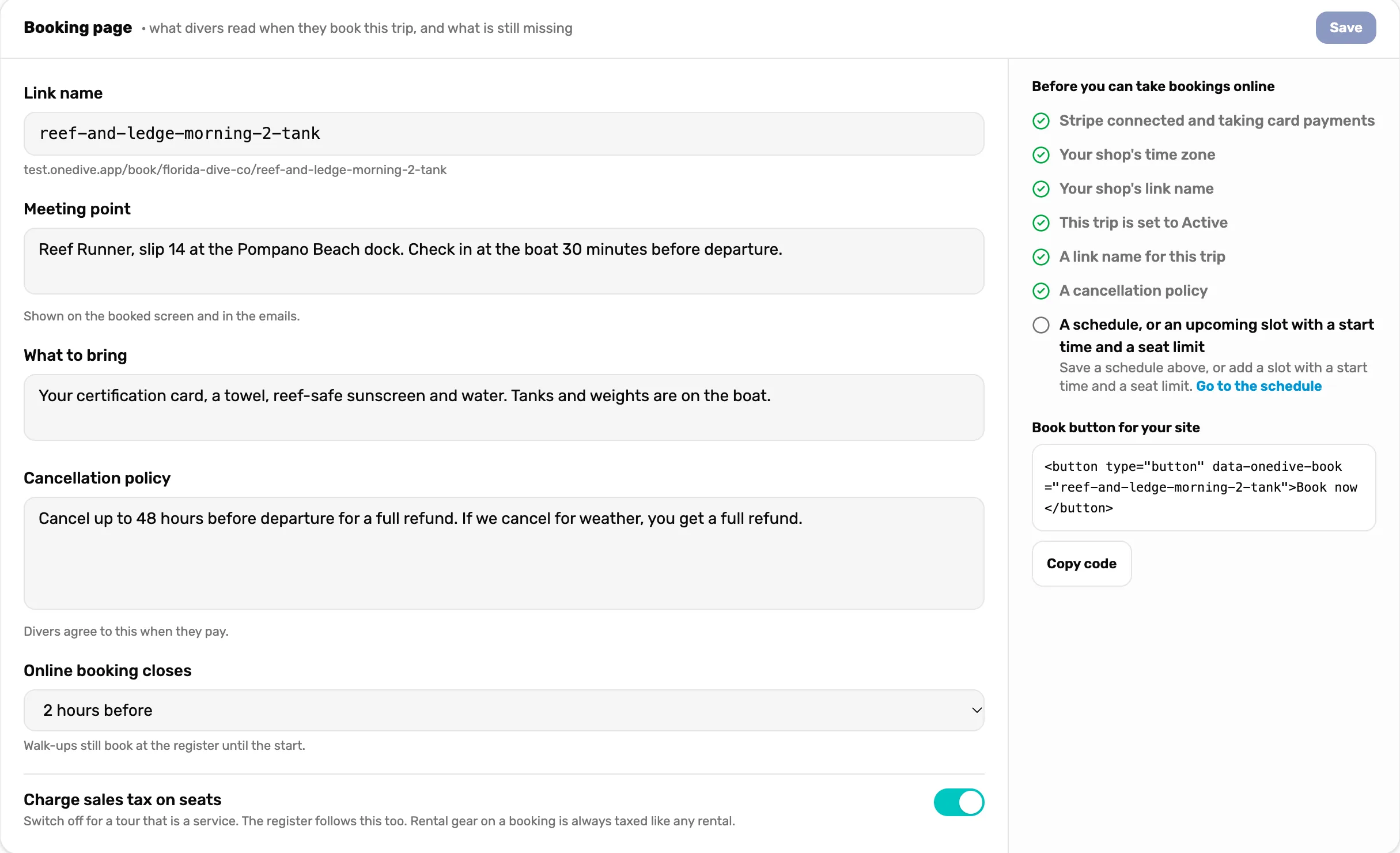
- Meeting point. Shown on the booked screen and in the emails.
- Cancellation policy. Divers tick that they agree to it when they pay.
- Online booking closes. How long before the start online booking stops. Walk-ups still book at the register.
- Charge sales tax on seats. Switch off if this trip is a service your state doesn't tax.
- Book button for your site. Appears once the trip has a link name. Step 6.
Set the schedule
On the Schedule card, say when the trip runs. Each time on each day becomes a slot divers can book. Choose Save schedule; you see how many slots were added.
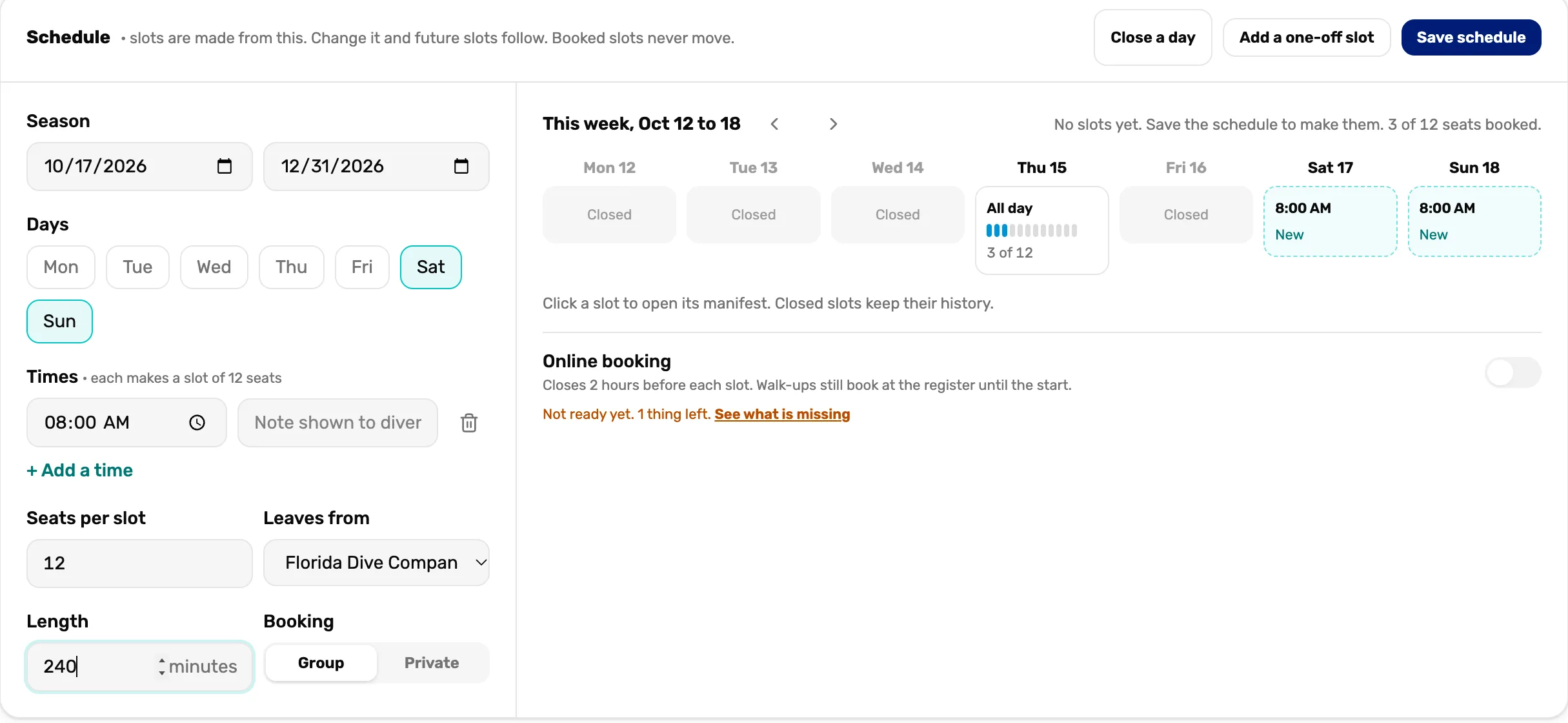
- Season. The first and last day it runs.
- Days. The days of the week it runs.
- Times. One slot per time. Add a time for a second boat or an afternoon dive.
- Seats per slot. How many divers each slot takes, online and at the register together.
- Group or Private. Group fills seat by seat. Private gives the whole slot to the first booking.
- The week. New slots show before you save. Use the arrows to look ahead.
- Save schedule. Makes the slots. Change the schedule later and future slots follow; booked slots never move.
Close a day closes every slot on one day, like a holiday. Add a one-off slot adds a single extra time.
Choose what a seat includes
The What a seat includes card is what the diver is asked on the Who is diving screen. The quickest start is Use a OneDive recipe: pick Guided dive, Snorkel tour, Boat charter, Try Scuba or Course, then change what you need.
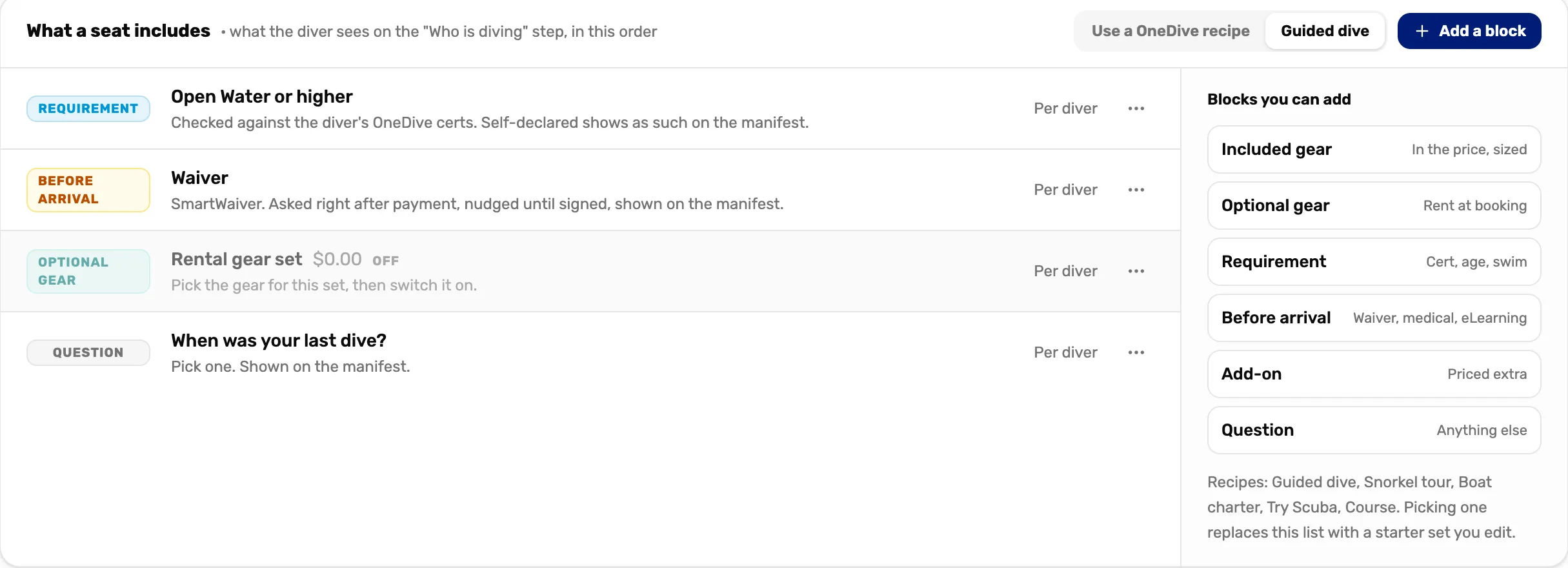
- Use a OneDive recipe. Replaces the list with a starter set you edit.
- Requirement. Like a certification. Checked against the diver's OneDive certs; a cert they only typed in shows as self-declared.
- Before arrival. Like a waiver. Asked right after payment, with reminders until it is done.
- Optional gear. Rental gear they can add. Pick the gear for the set, then switch it on.
- Blocks you can add. Included gear, optional gear, requirements, before arrival, priced add-ons and questions.
The three dots on a block change or remove it.
Turn on the automatic messages
On the Automatic messages card, choose Use OneDive's messages. You get the messages most shops send, sent in your shop's name. Replies come to your shop's email.
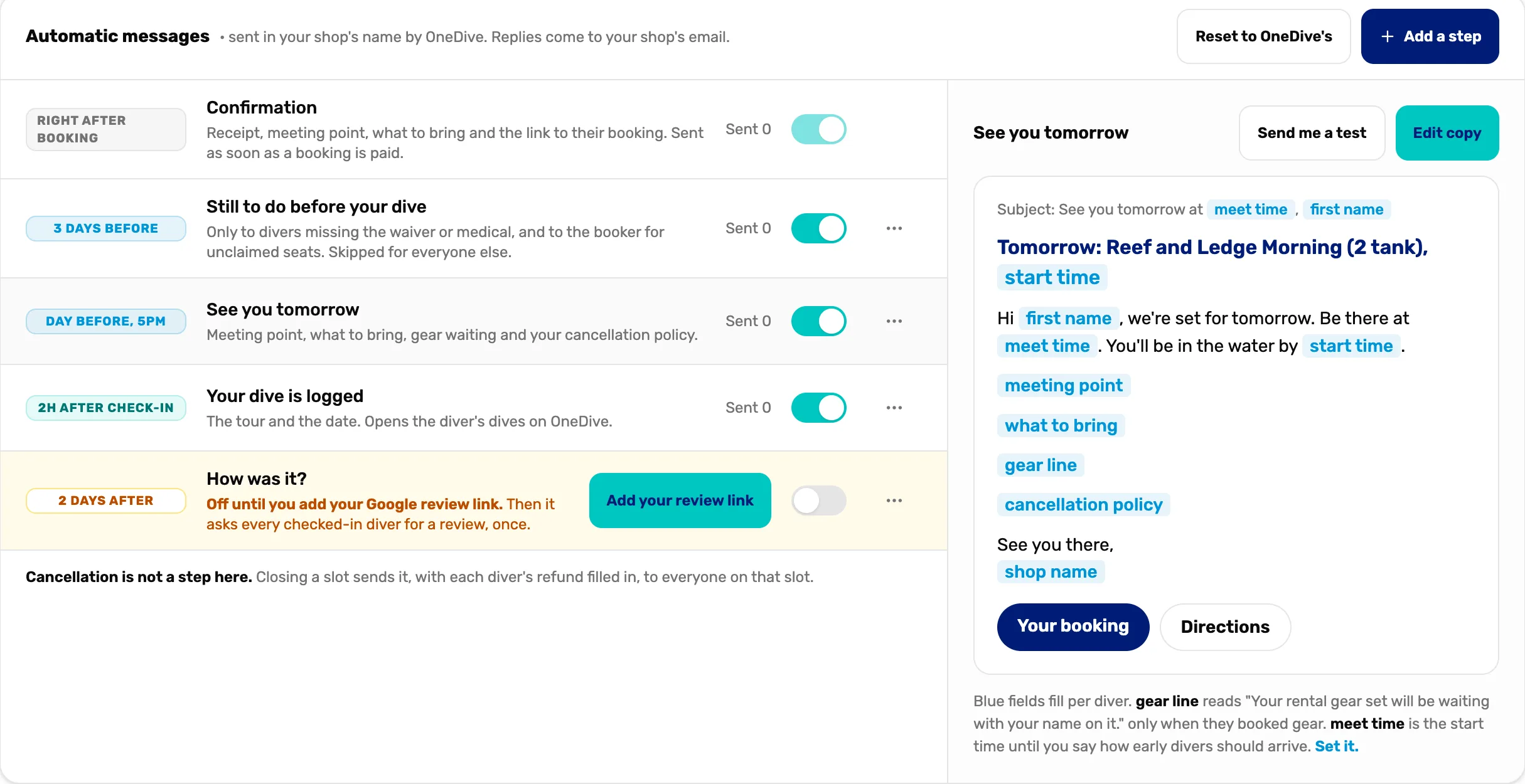
- Confirmation. The receipt, the meeting point and their booking link. Always sent.
- The switches. Turn a message off for this trip.
- How was it? Off until you add your Google review link in Settings.
- The preview. Blue fields fill in for each diver. Edit copy changes the words.
- Send me a test. Sends the message to you, so you can see it.
Cancellations aren't a message here: closing a slot tells everyone on it, with each diver's refund filled in.
Switch it on and add the Book button
When the checklist is all ticks, switch on Online booking on the Schedule card. You see Online booking is on.
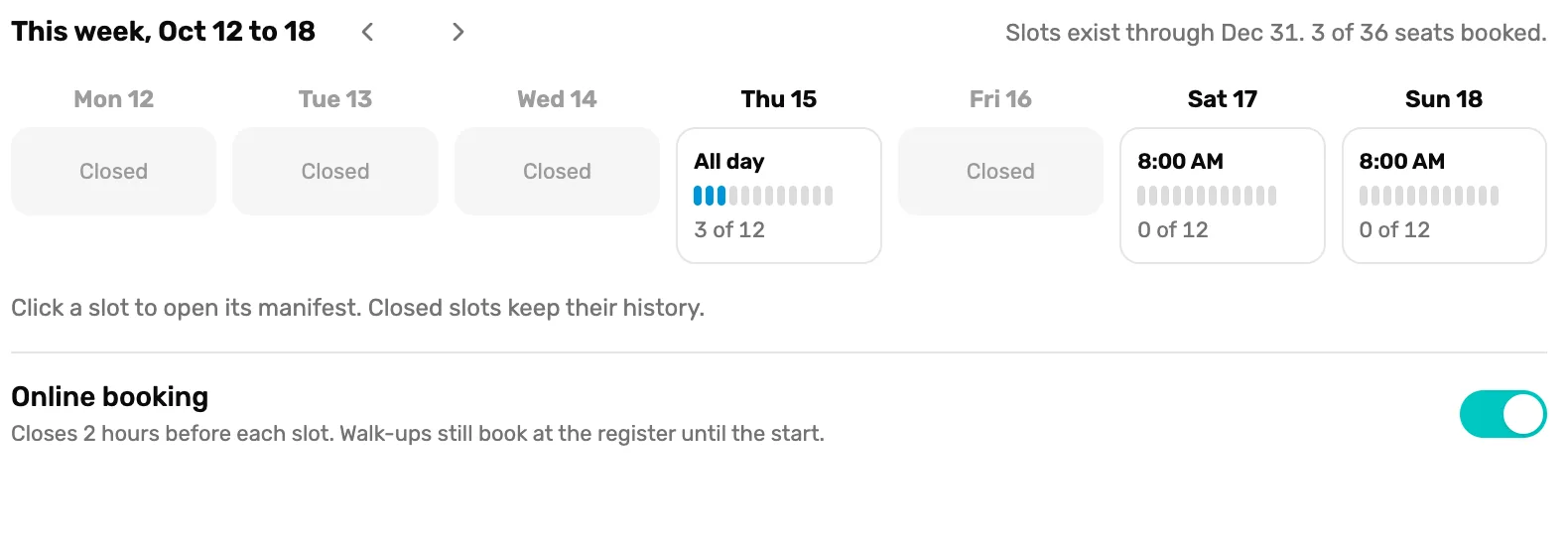
- Online booking. On means divers can book this trip. Off stops new bookings at once; divers who have paid stay booked.
- A slot. Shows booked seats out of the total. Tap it to open its manifest.
Now put the trip on your site. On the Booking page card, choose Copy code under Book button for your site, and paste it where the button should go. It needs the site code from Mission 1 on the same site.
What happens next
- Divers can book this trip on your site and at its booking address.
- Walk-ups still book at the register from the same seats.
- Next: when a diver books, Mission 3.