
What this is for. Every sale ends on the Receipt screen. From there you can print a paper receipt, email it, text it, or all three. The email and text go to the contact details on the customer's profile, so there is nothing to type at the counter. Once you tap Done, the sale is closed and the register is ready for the next customer.
The Receipt screen
The Receipt screen opens as soon as the payment goes through. It shows the total, how it was paid and who the sale is for.
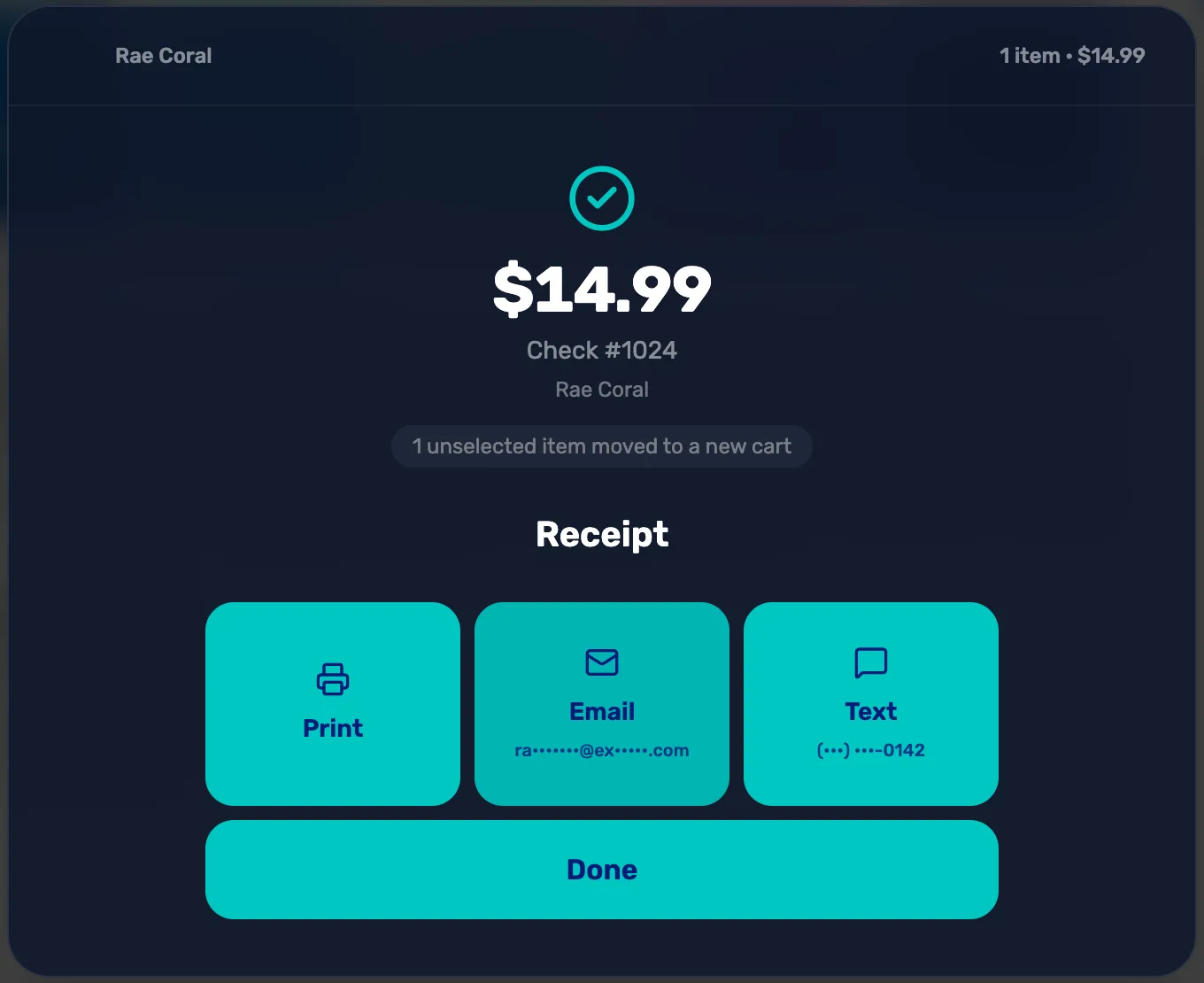
- Print. Opens the print window to print a paper receipt. See Step 2.
- Email. Emails the receipt to the address on the customer's profile, shown part hidden.
- Text. Texts it to the phone on the profile, shown part hidden.
- Done. Closes the sale. Print, email or text first: after Done, the receipt can't be sent from here again.
Print a paper receipt
Tap Print. Your browser's print window opens with the receipt. Pick your receipt printer and print. Tap Print again for a second copy.
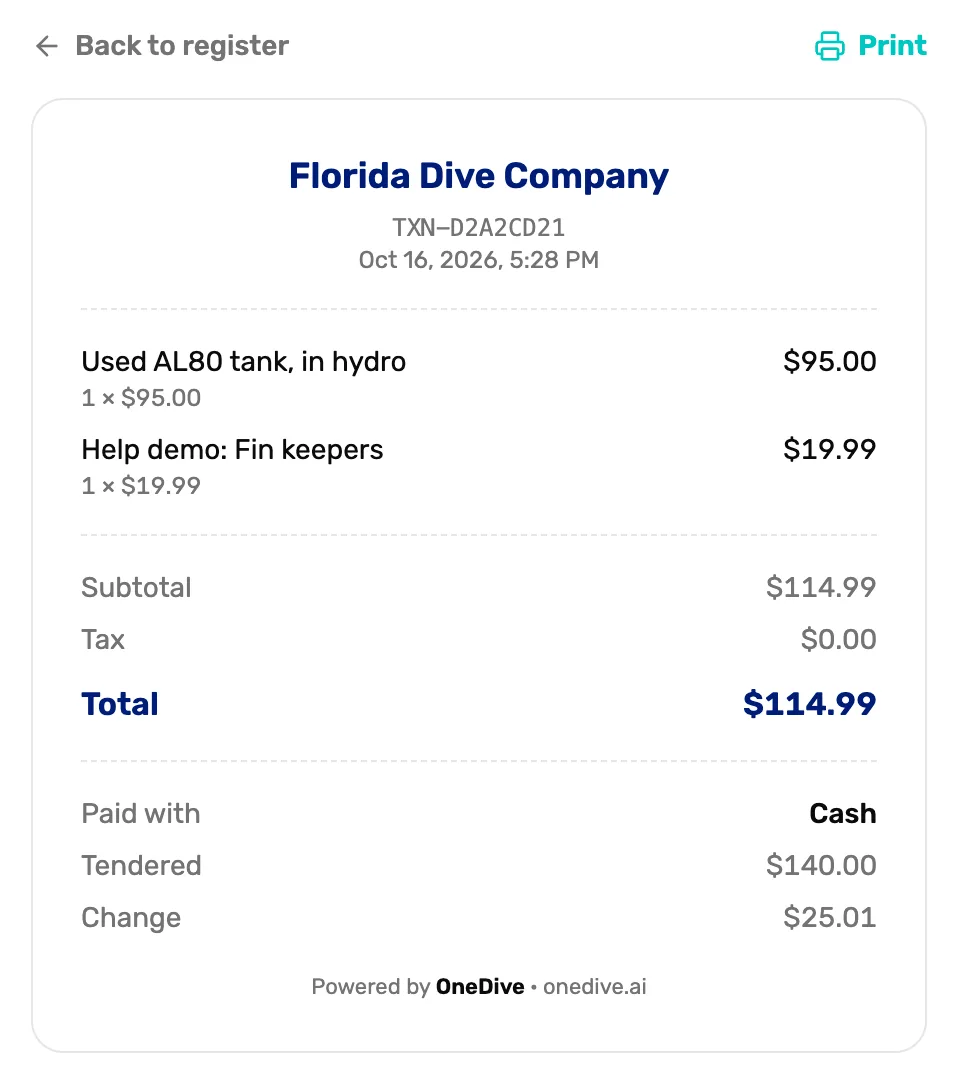
- The receipt number. The same TXN number as in your sales records. Use it to find the sale later.
- How it was paid. Cash shows what was handed over and the change. A check shows its number.
- The bottom. Your receipt footer message prints here, above Powered by OneDive. See Step 5.
The receipt lists each item with its quantity and price, any discount and its note, the tax, the total, and any store credit used. It also shows your logo if you have uploaded one. A note you add to a line in the cart doesn't print.
Email or text the receipt
Tap Email or Text. The tile reads Sent ✓ when OneDive has taken it to send. Tap it again to send another copy, as long as you are still on this screen.
A tile is grey when there is nothing to send to:
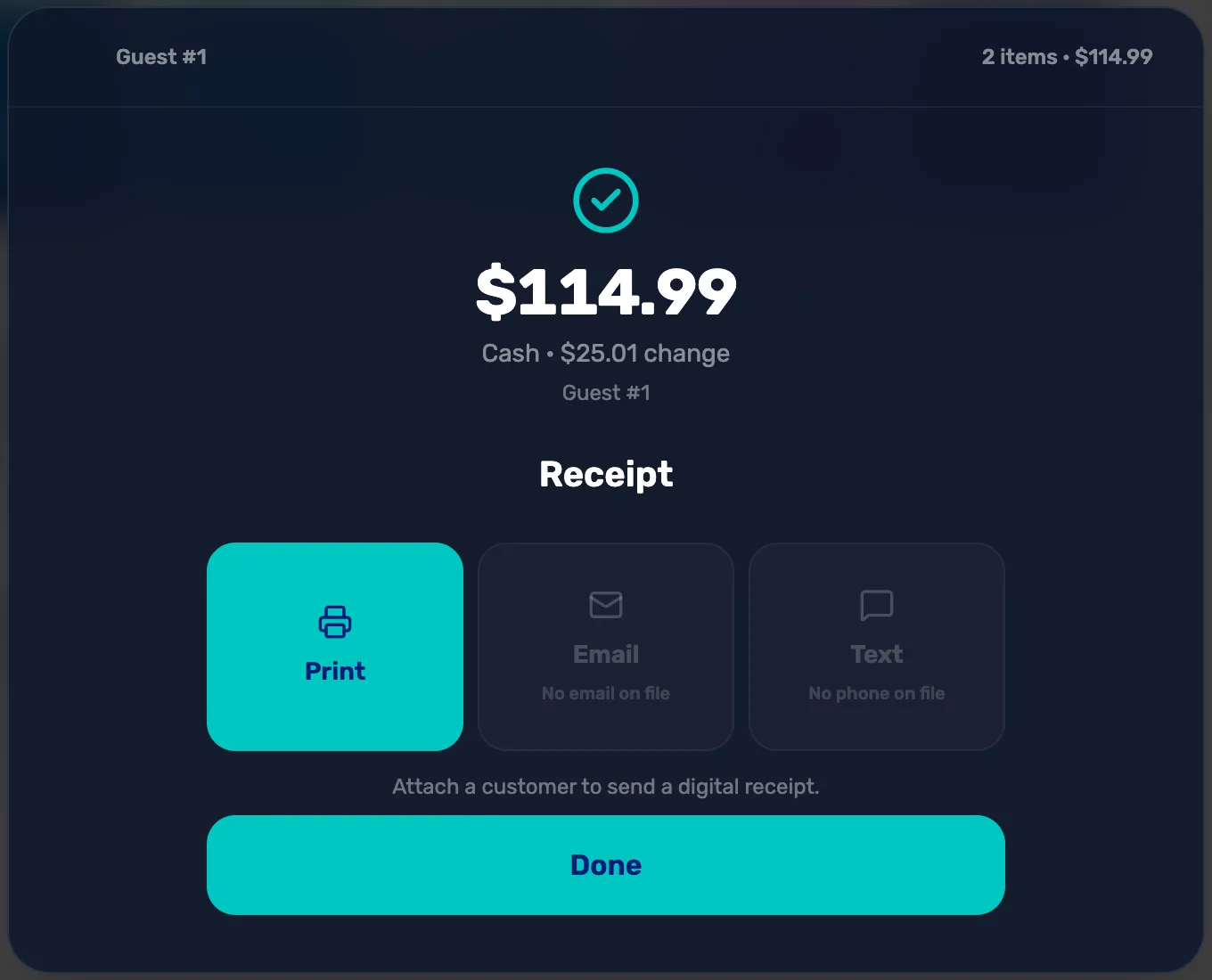
- No email on file. The customer's profile has no email, or there is no customer on the sale.
- No phone on file. The same, for a phone number.
- Attach a customer to send a digital receipt. A guest sale. Only Print works. Next time, attach the customer before checkout.
You can't type an address on this screen. To email someone, their email has to be on their profile in Customers before checkout. See Attach a customer and their waiver.
Sent ✓ but nothing came? See The customer did not get the receipt.
Tap Done
Tap Done. The sale moves to Checked out on the left of the register. Tap it there to see the finished sale.
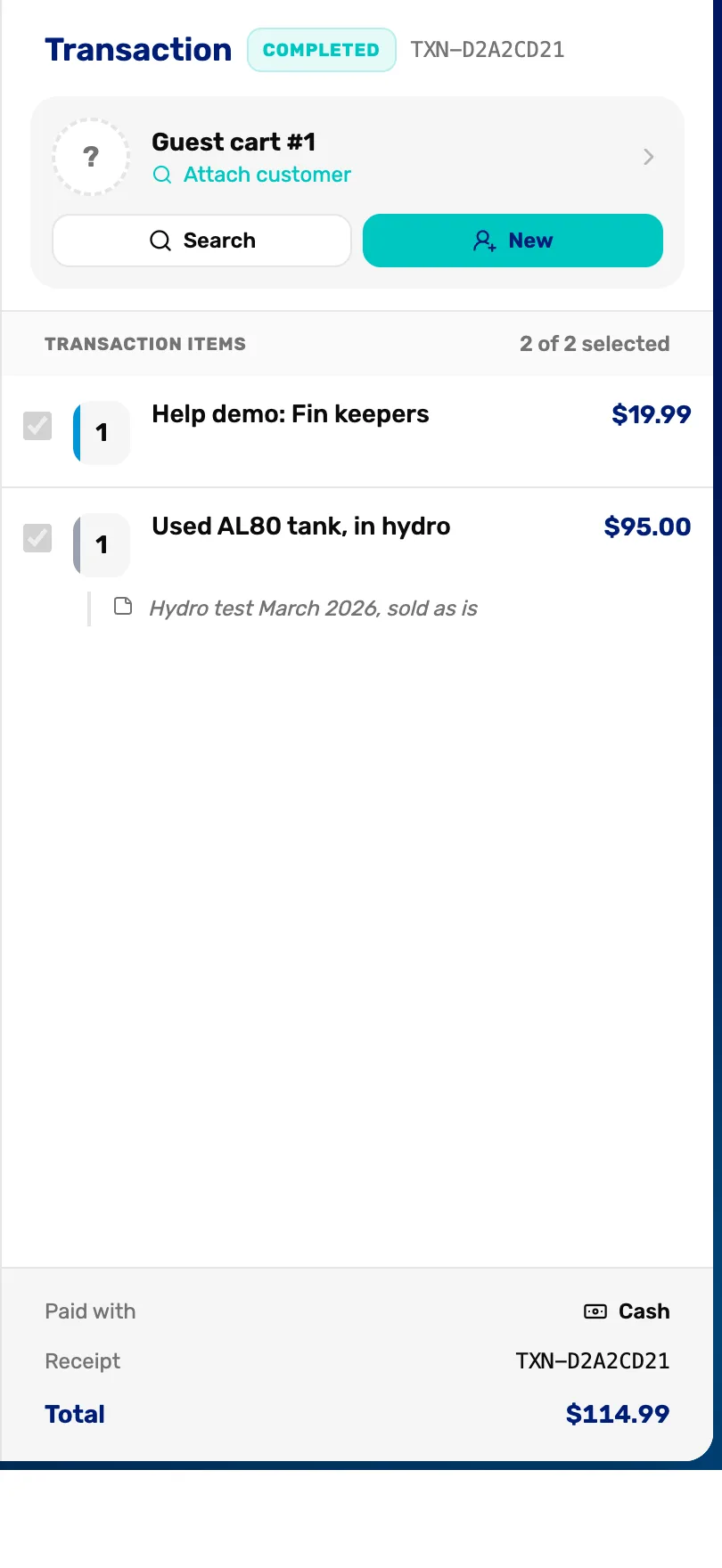
- COMPLETED and the number. The sale is paid and closed.
- Paid with. How it was paid.
- Receipt. The receipt number. There is no Print button here.
Add your own message at the bottom (owner or General Manager)
Your receipt footer prints at the bottom of every paper and email receipt. Use it for your return policy, opening hours or a thank you. Go to Settings › Business › Branding & receipts, type it in Receipt footer message, and tap Save changes.
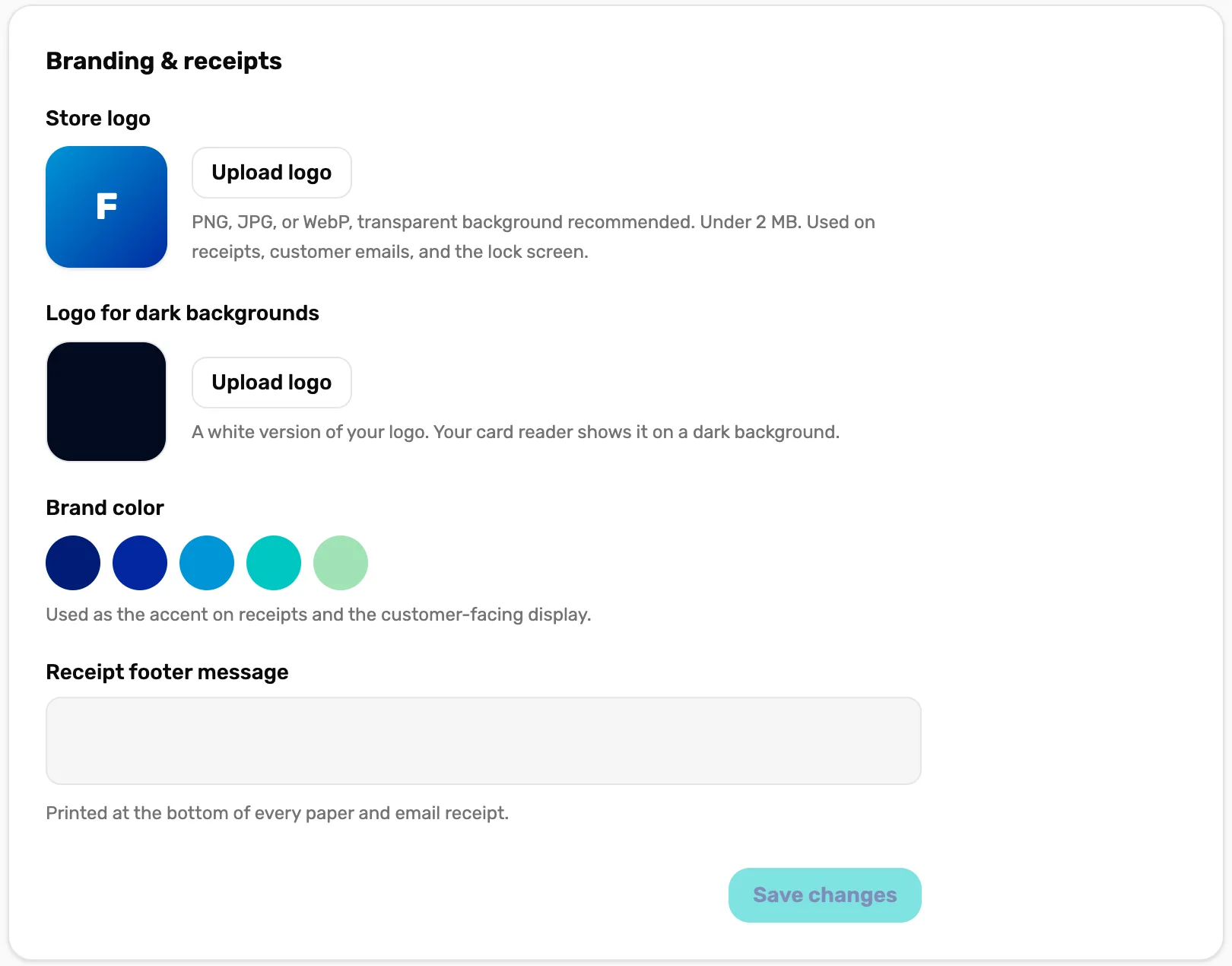
- Receipt footer message. Prints at the bottom of every receipt. Line breaks you type are kept.
- Save changes. Lights up once you change something. The next receipt uses the new message.
The Store logo on the same card prints at the top of the receipt.
What happens next
- A customer wants their money back? See Find a sale and refund a line.
- To take the next payment, see Take payment: cash, card, check and store credit.