
What this is for. Checkout is where the customer pays and the sale is recorded. Each sale is paid one way: cash, a check or a card, with any store credit taken off first. To split a bill between two ways to pay, you pay for some items, then the rest. When the payment goes through you get the Receipt screen and the sale is done.
Tap Checkout and pick how they pay
In the register, check the ticked items in the cart, then tap Checkout. The checkout window shows the amount due and every way to pay.
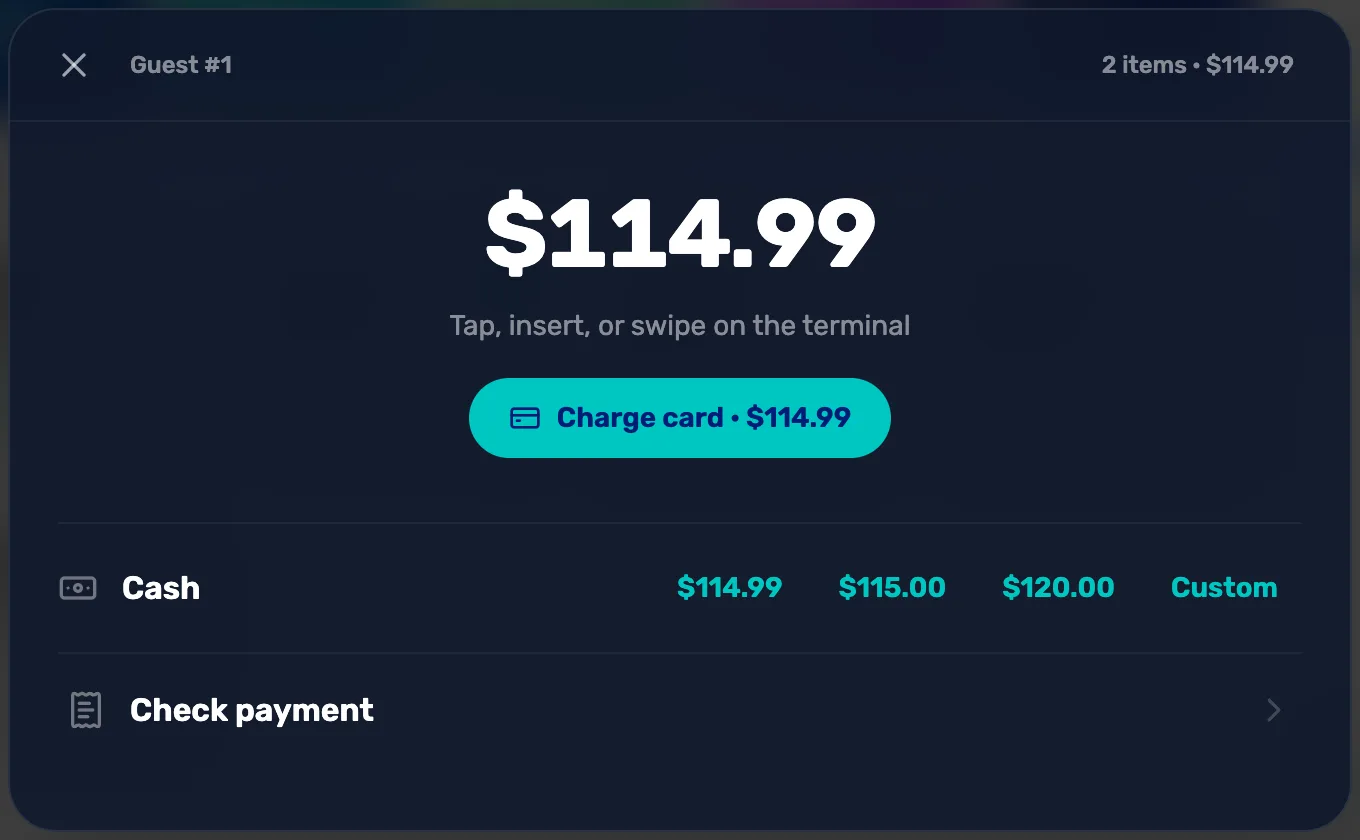
- Tap, insert, or swipe on the terminal. This line shows even when no card reader is set up. With no reader, ignore it.
- Charge card. Takes the card through your card processor. See Step 4.
- The cash amounts. The exact amount, then the next $5 and the next $10. Tap the one the customer handed you and the sale is done.
- Custom. Type the amount of cash you were handed. See Step 2.
- Check payment. Records a check and its number. See Step 3.
The X at the top left closes checkout without taking payment. The cart stays as it was.
Cash: let the register work out the change
Tap one of the cash amounts if it matches what you were handed. Otherwise tap Custom and type the amount. The register shows the change to give back.
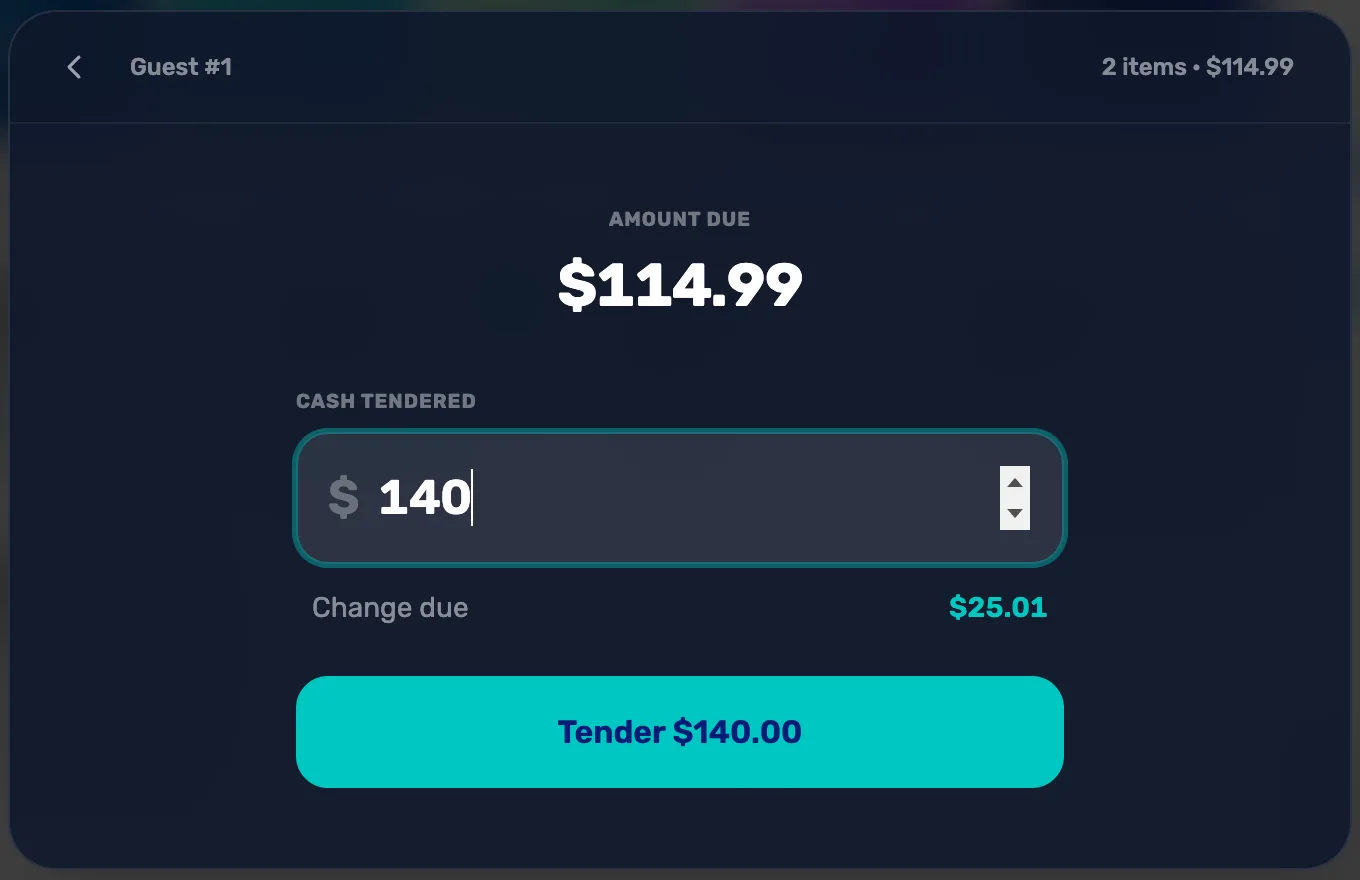
- Cash tendered. What the customer gave you. It starts at the amount due.
- Change due. What to hand back. If you type less than the amount due it reads Short and the amount missing.
- Tender. Records the cash sale. It stays grey while the cash is short.
The change also shows on the Receipt screen and prints on the receipt.
Check: type the check number
Tap Check payment, type the number printed on the check, and tap Accept check.
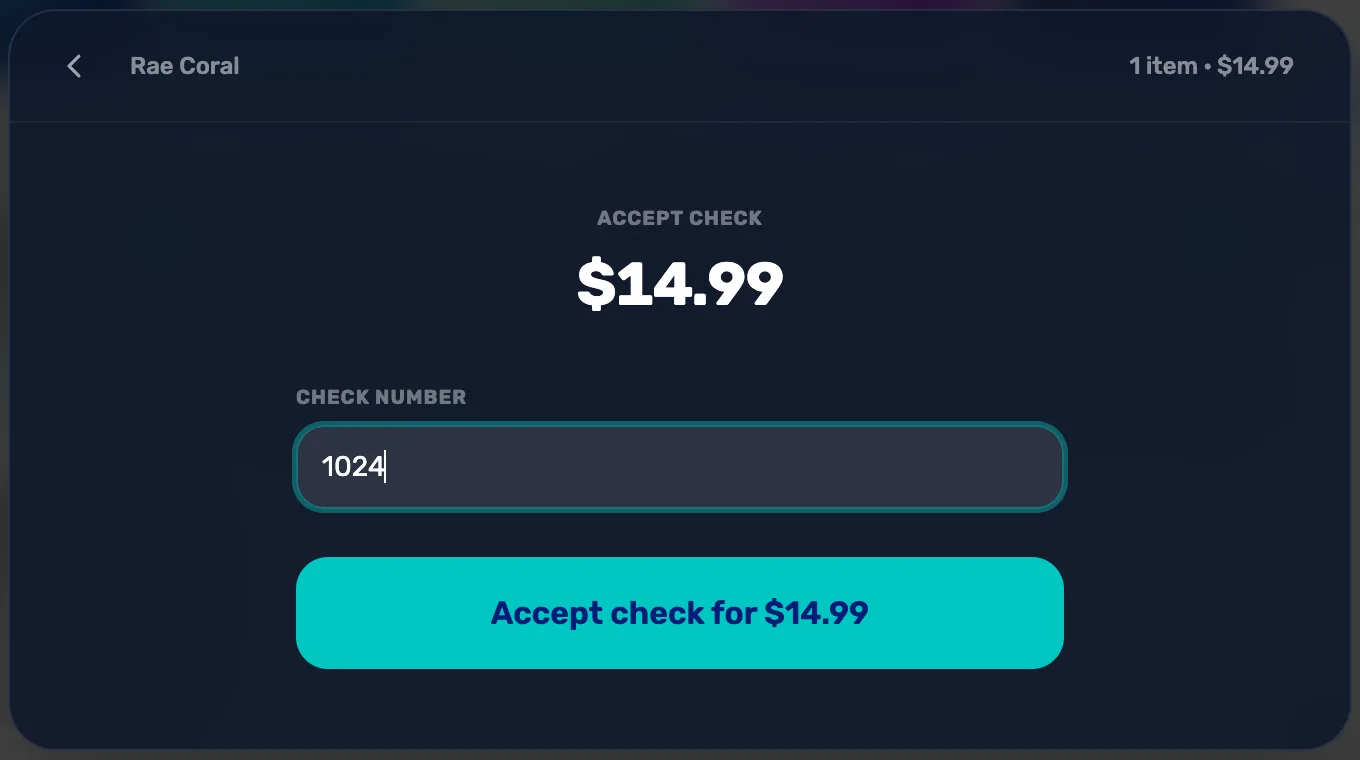
- Check number. Digits only, 3 to 12 of them.
- Accept check for. Records the sale for the full amount due. The number prints on the receipt.
Card: what Charge card does
What Charge card does depends on how your shop takes cards:
- Stripe connected and taking payments. A card box opens. Type the card number, expiry and code, then tap Pay. The money goes to your own Stripe account. See Connect Stripe, screen by screen.
- A card reader at this register. The big button reads Card on the reader instead. The customer taps, inserts or swipes on the reader. Type the card in instead is below it, for when the reader can't be used.
- No card processor connected. Nothing is charged. The register says so and asks what to do.
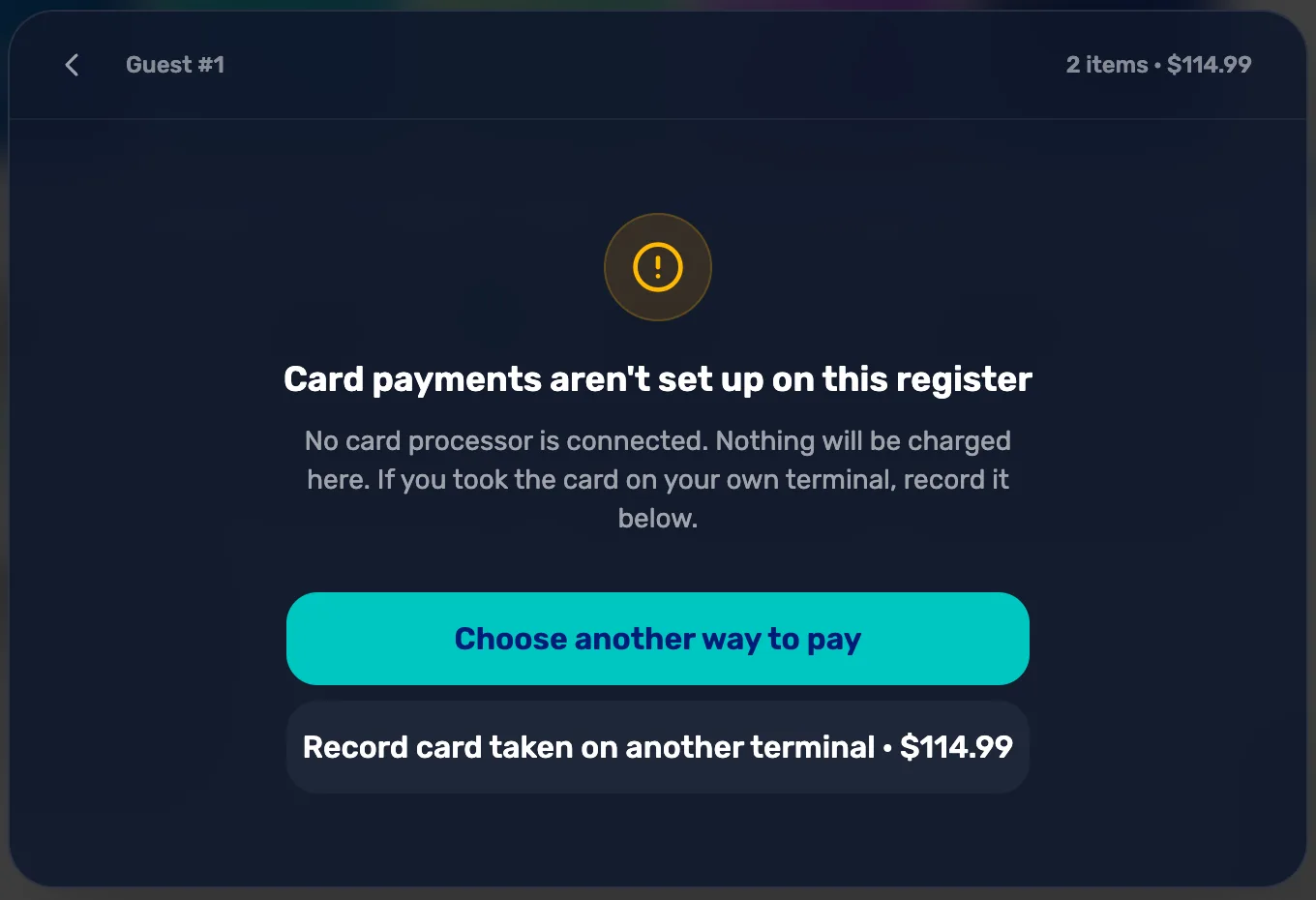
- Card payments aren't set up on this register. Your shop has no card processor connected. No money moves.
- Choose another way to pay. Back to cash, check and the rest.
- Record card taken on another terminal. Only if you already charged the card on a separate machine of your own. It records the sale as card. Nothing is charged here.
If Stripe is connected but still needs something from your shop, the same screen reads Stripe isn't taking card payments yet. The owner or a General Manager finishes it in the shop's Stripe dashboard. Until then, take cash or a check.
Store credit comes off by itself
When the customer on the cart has store credit, the cart shows a teal chip with their balance, like $25.00 credit. You don't need to do anything to use it:
- The credit comes off the total in the cart, on a Credit line.
- Checkout shows Store credit applied and the amount, and asks only for what is left. Pay that with cash, a check or a card.
- If the credit covers everything, checkout reads Covered entirely by store credit. Tap Complete with store credit.
The credit is used whenever that customer is on the cart. There is no switch to keep it for another day. Store credit is given in the customer's profile in Customers. See The customer drawer, tab by tab.
Split a sale between two ways to pay
Checkout takes one way to pay per sale. To split, pay for some items first, then the rest:
- In the cart, untick the items the customer will pay for the second way.
- Tap Checkout and take the first payment. Only the ticked items are paid for.
- The Receipt screen says the unticked items moved to a new cart. Tap Done.
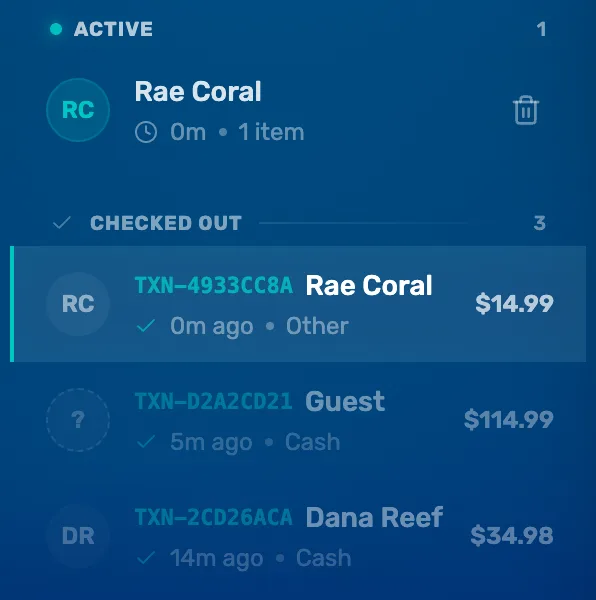
- Open that new cart on the left and check out again with the second way to pay.
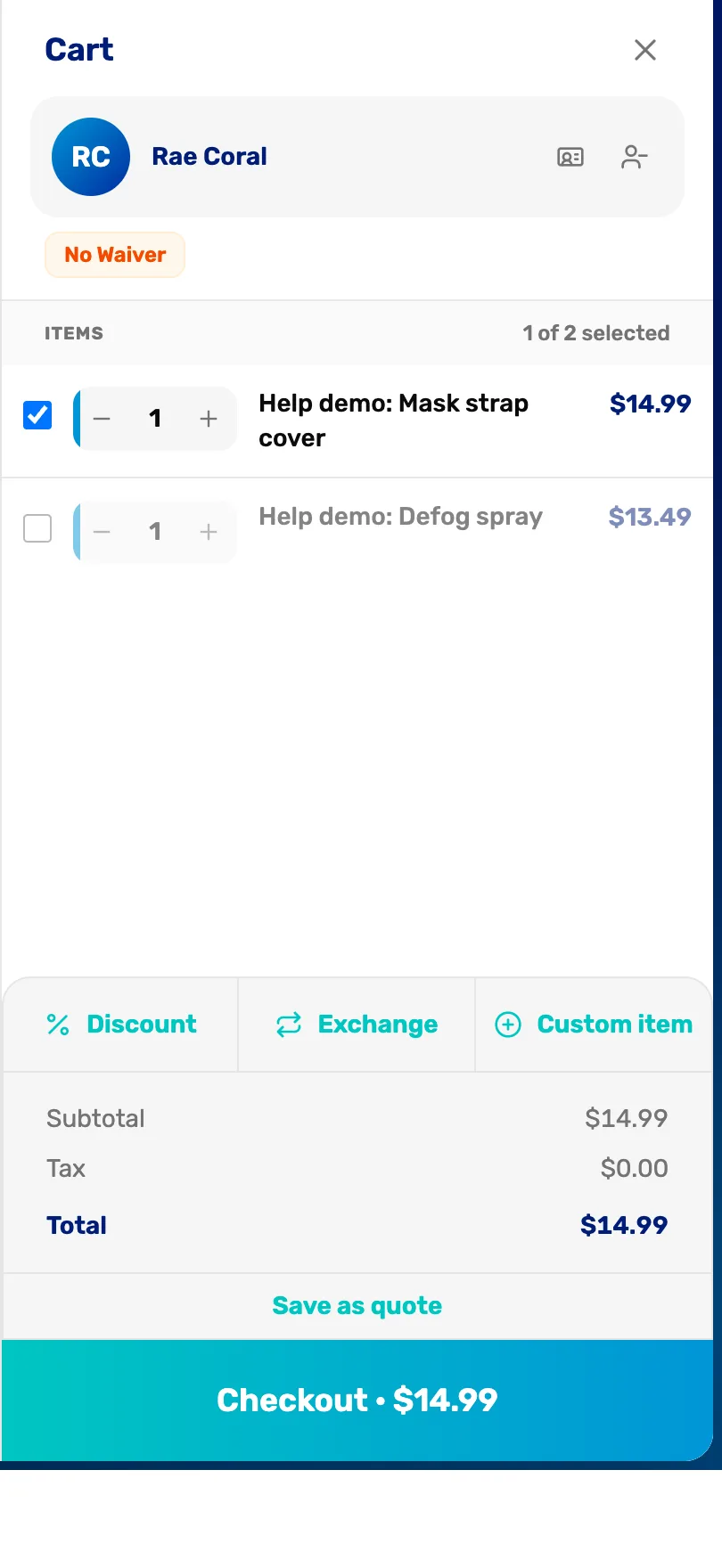
- An unticked item. Left out of this payment. It moves to a new cart after checkout.
- Checkout. The total for the ticked items only.
After the first payment
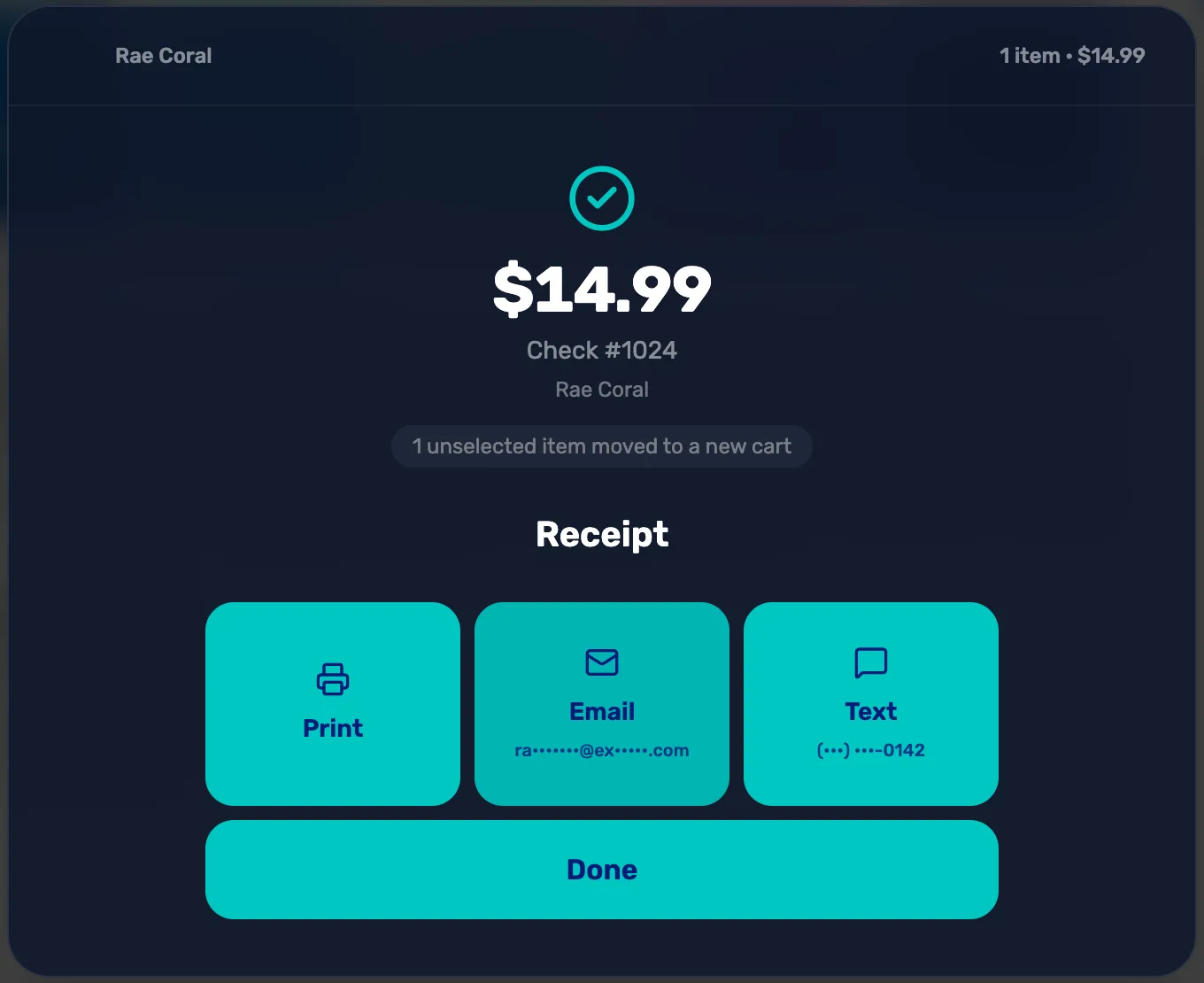
- 1 unselected item moved to a new cart. The first payment is done. The rest is waiting.
- The new cart. Same customer, the items you left out. Tap it and check out again.
Each payment is its own sale with its own receipt number.
If checkout says something else
- "This sale needs manager approval". The sale is over your shop's limit for staff. A manager picks their name and types their PIN, and the sale goes through.
- "This shop requires a customer on the cart before checkout." Your shop turned off guest checkout. Attach a customer to the cart, then check out.
What happens next
- After payment you are on the Receipt screen: Receipts: print, email and text.
- To give money back later, see Ring one up and refund it.