
What this is for. A busy counter has more than one customer at a time. Each customer gets their own cart, and the carts stay open on the left until they pay. One customer can try on a wetsuit while you ring up the next, and nothing gets mixed up.
Start a cart
On the Cashier screen, pick how to start:
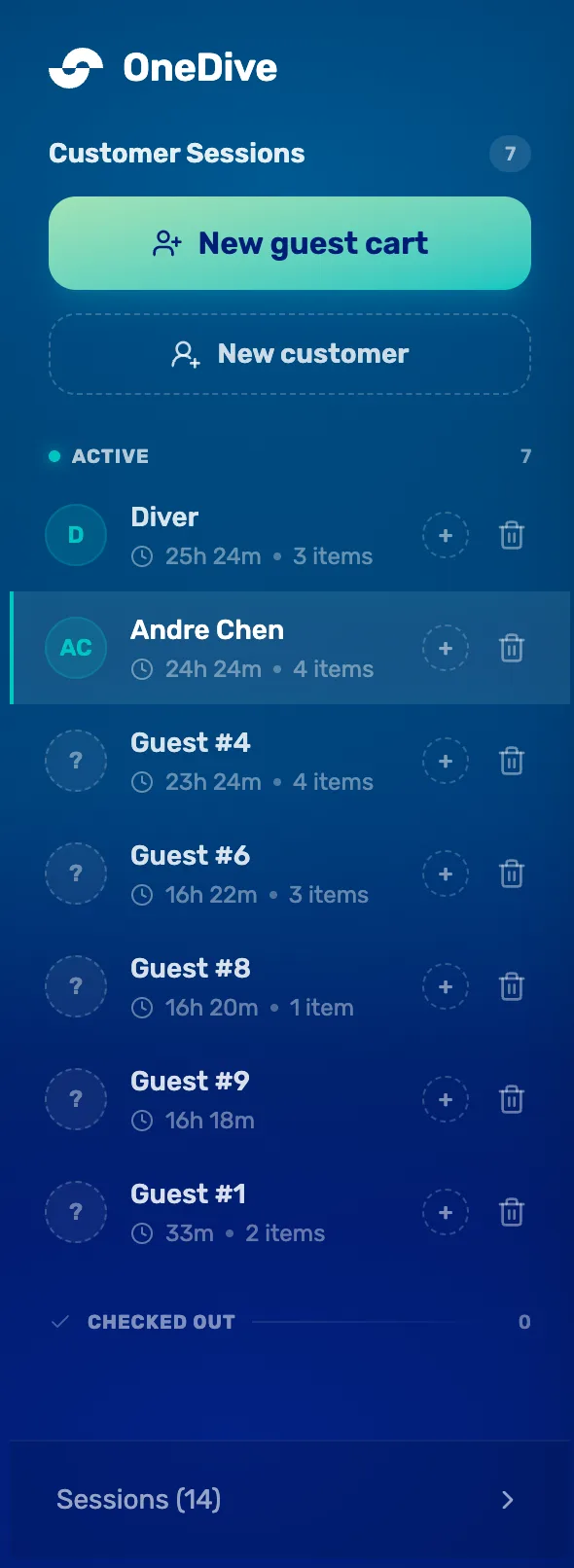
- Customer Sessions. The number is how many carts are open.
- New guest cart. A cart with no name, called Guest and a number. Use it for a quick sale. You can add a name later.
- New customer. Find the customer, or add a new one, and start a cart for them. If they already have a cart open, it opens that one instead of making a second.
- A cart. The customer's name, how long ago the cart was started, and how many items are in it. The time is not a countdown. Tap the cart to work on it.
- Checked out. Carts paid today. Open one to see what was sold. You can't add to it.
You can also just tap + on an item. If no cart is open, the register picks up the cart you used last, or starts a guest cart.
Put a name on a guest cart, if you want one
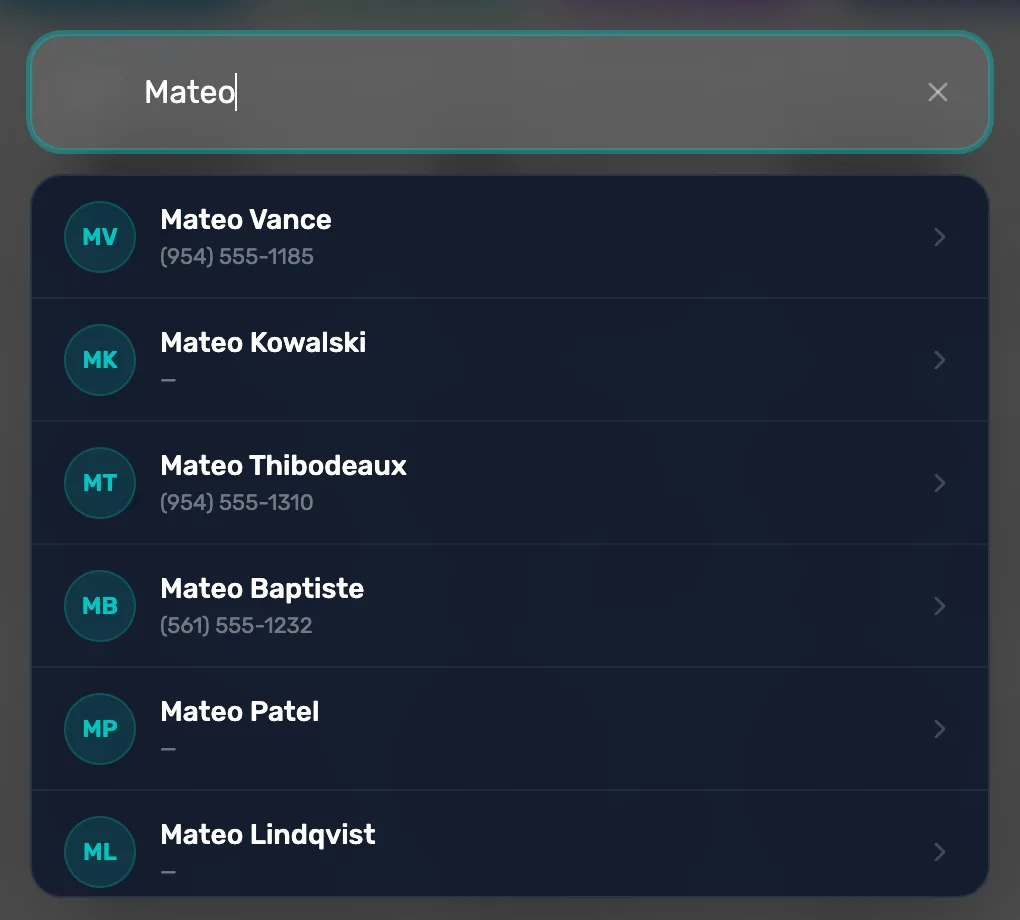
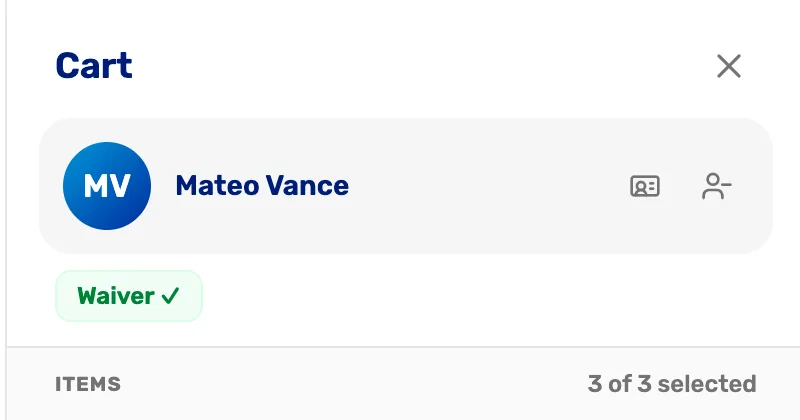
A guest cart shows Attach customer at the top. Tap Search to find the customer, or New to add them. The cart keeps its items. Attach a customer and their waiver walks through it.
Attaching a customer
Switch between carts
Tap any cart under ACTIVE to work on it. Its items, customer and discount are all as you left them. Open carts never expire, so a cart you started yesterday is still there today.
Choose whether staff can hold carts
Two settings decide how carts work. Go to Settings › Commerce Settings › Commerce behavior. Only the owner or a General Manager can change them.
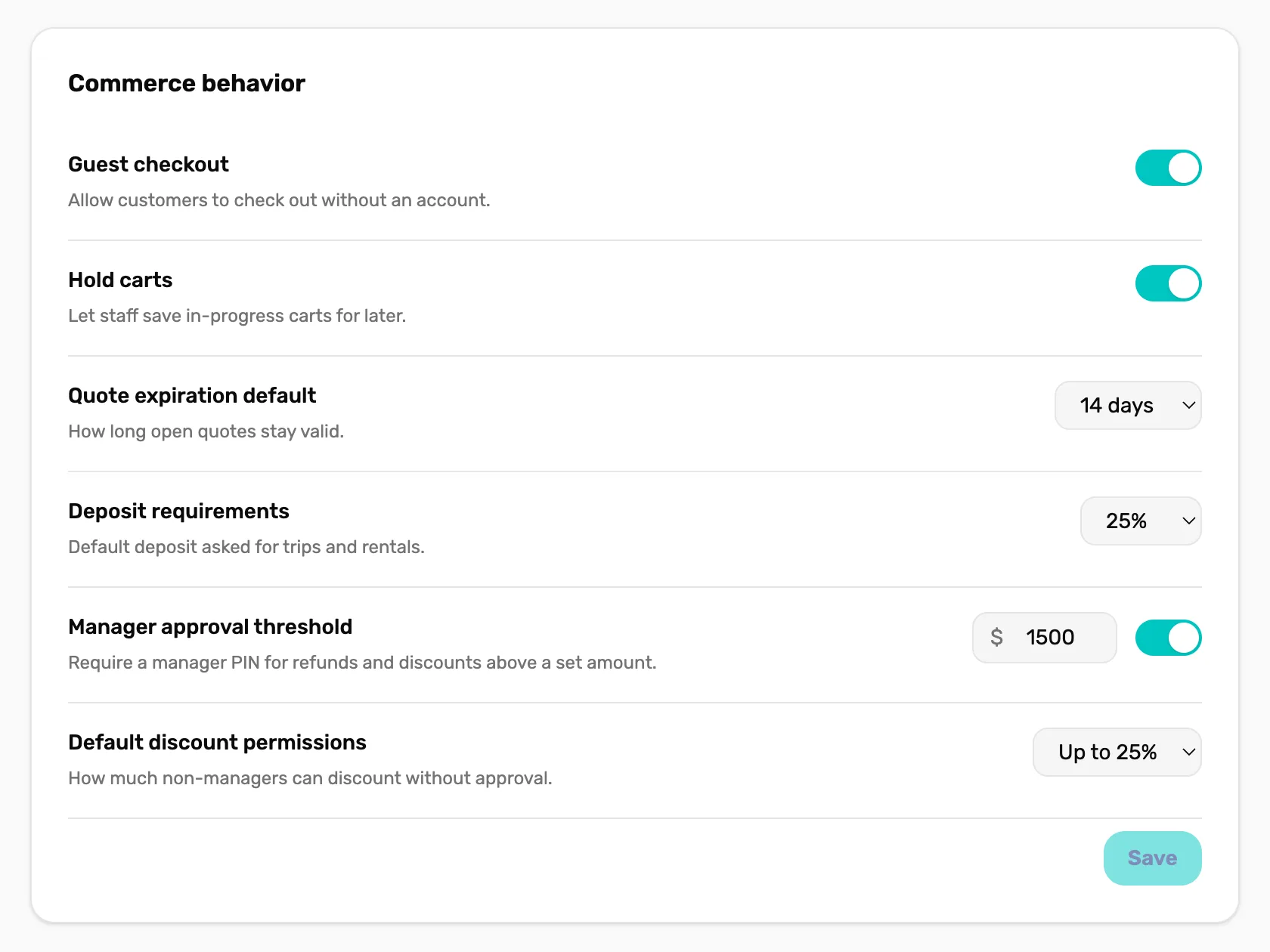
- Guest checkout. On: staff can start guest carts. Off: every cart needs a customer, so staff use New customer.
- Hold carts. On: several carts can be open at once. Off: one cart at a time.
Both are on for a new shop. Tap Save after changing them.
Delete a cart you don't need
Tap the bin beside a cart under ACTIVE. The register asks first, and says how many items will be lost. A deleted cart can't be brought back.
What happens next
- Ready to sell? Ring up retail, with sizes and colors.
- Customer not ready to buy? Save a cart as a quote keeps today's prices for them.
- At checkout, unticked items move to a new cart for the same customer, so nothing is lost.