
What this is for. Most sales are a few products off the shelf. Each product has a + to add it, and anything that comes in sizes or colors asks which one, so stock comes off the right size. You end up with the right items and quantities in the cart, ready to take payment.
Tap + on the product
On the Cashier screen, find the product under Products, or type its name, SKU or barcode in the search box. Tap + to add one. Tapping the name or picture does nothing, so aim for the +.
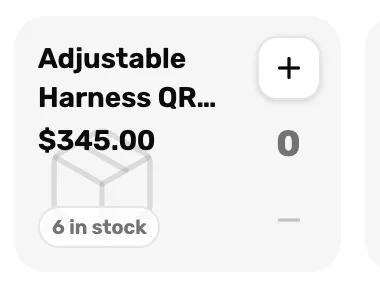
- + Adds one. Tap again for another.
- The number. How many are in the cart. Tap it to type a quantity.
- − Takes one off.
Scanning a barcode does the same as +. See Scan barcodes at the register.
Pick the size or color
A product that comes in sizes or colors opens Pick a size / option. Each row shows the size, its SKU and how many you have. Tap the one the customer wants, then Add to cart.
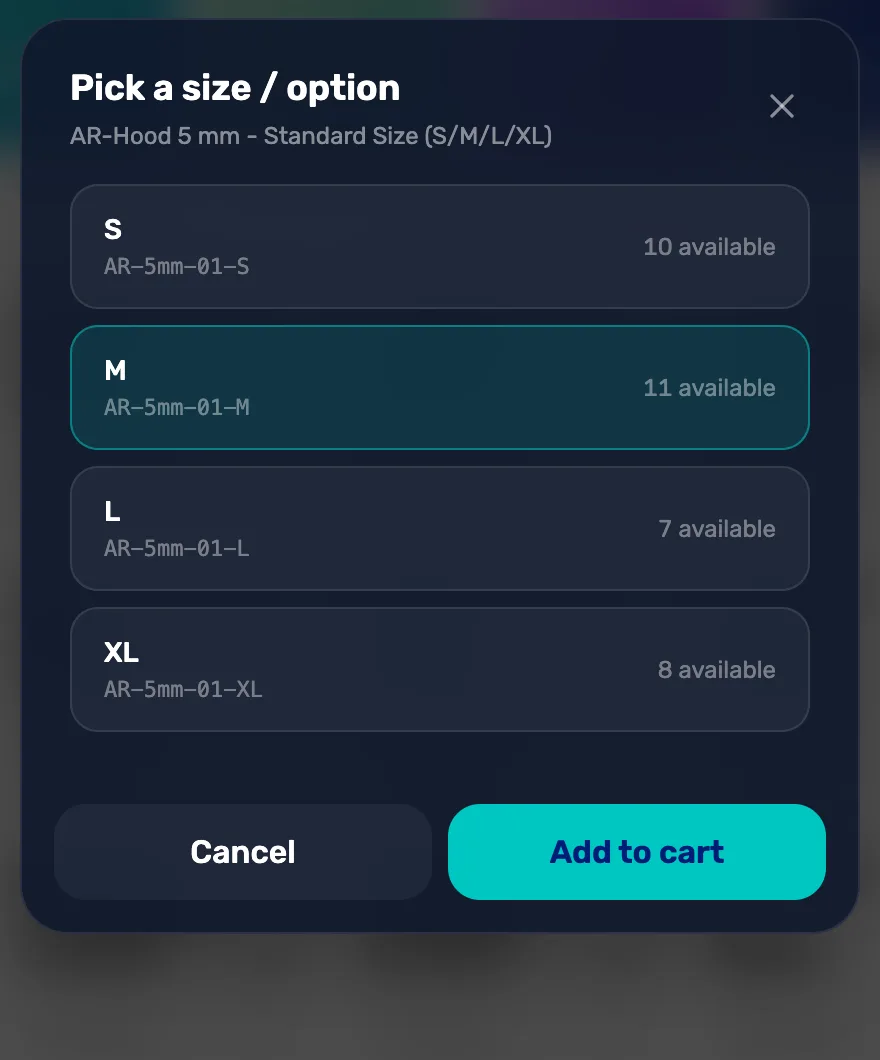
- The size. Tap one. It turns teal. A size with 0 available can still be sold.
- Add to cart. Adds one of that size. The cart shows the size under the product name.
Type a quantity
Selling five of something? Tap the number on the product, or on its line in the cart. Type the quantity on the keypad and tap Set qty to that number. Setting it to 0 removes the line.
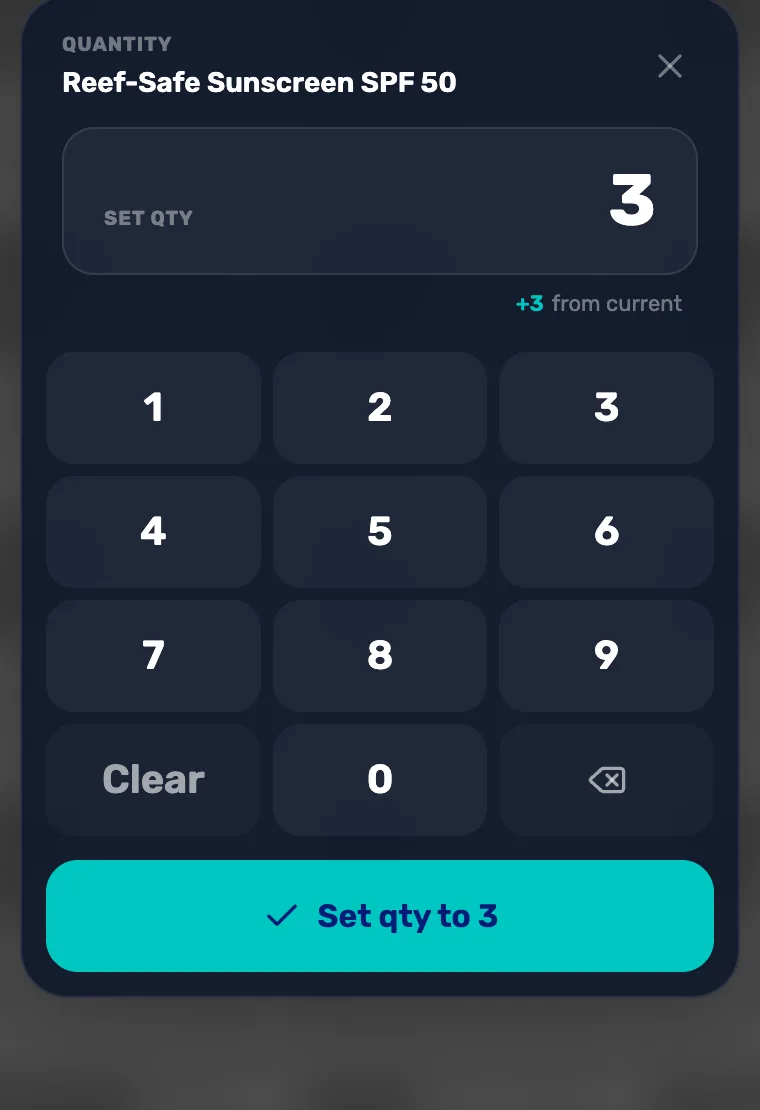
- The quantity you type replaces what is in the cart. It doesn't add to it. The line underneath says how much it changes.
Check the cart
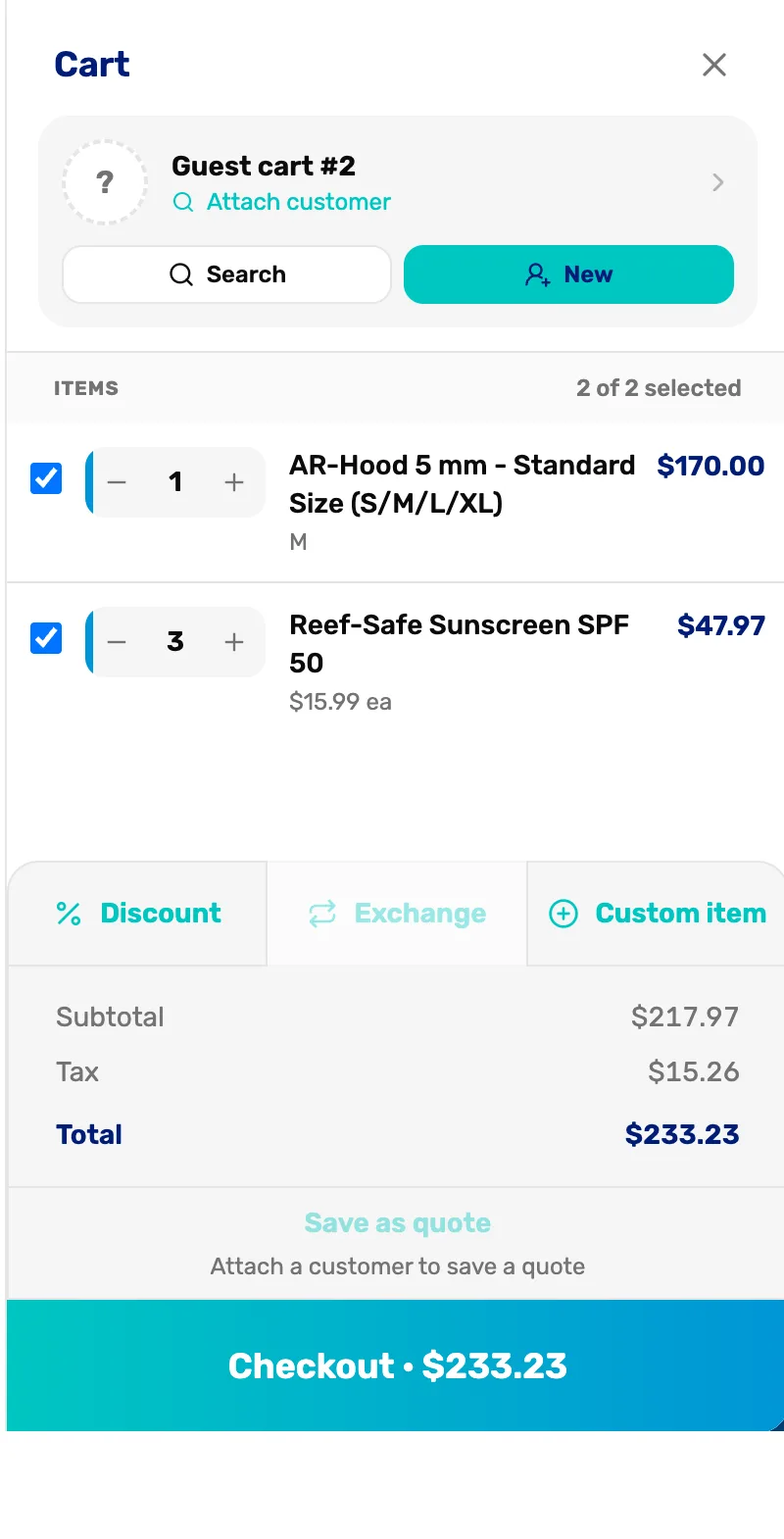
- The size. Shown under the product name.
- The price each. Shown when there is more than one.
- The tick. Only ticked lines are paid for. Untick a line to leave it in a cart for later.
- Checkout. The total with tax. Tap it to take payment.
To take a line off, tap its − until it goes, or set its quantity to 0.
Add a note or give one item free
Tap a line's name to open Edit line. Write a note that prints on the receipt, or switch on Complimentary to give that line away free. Tap Save.
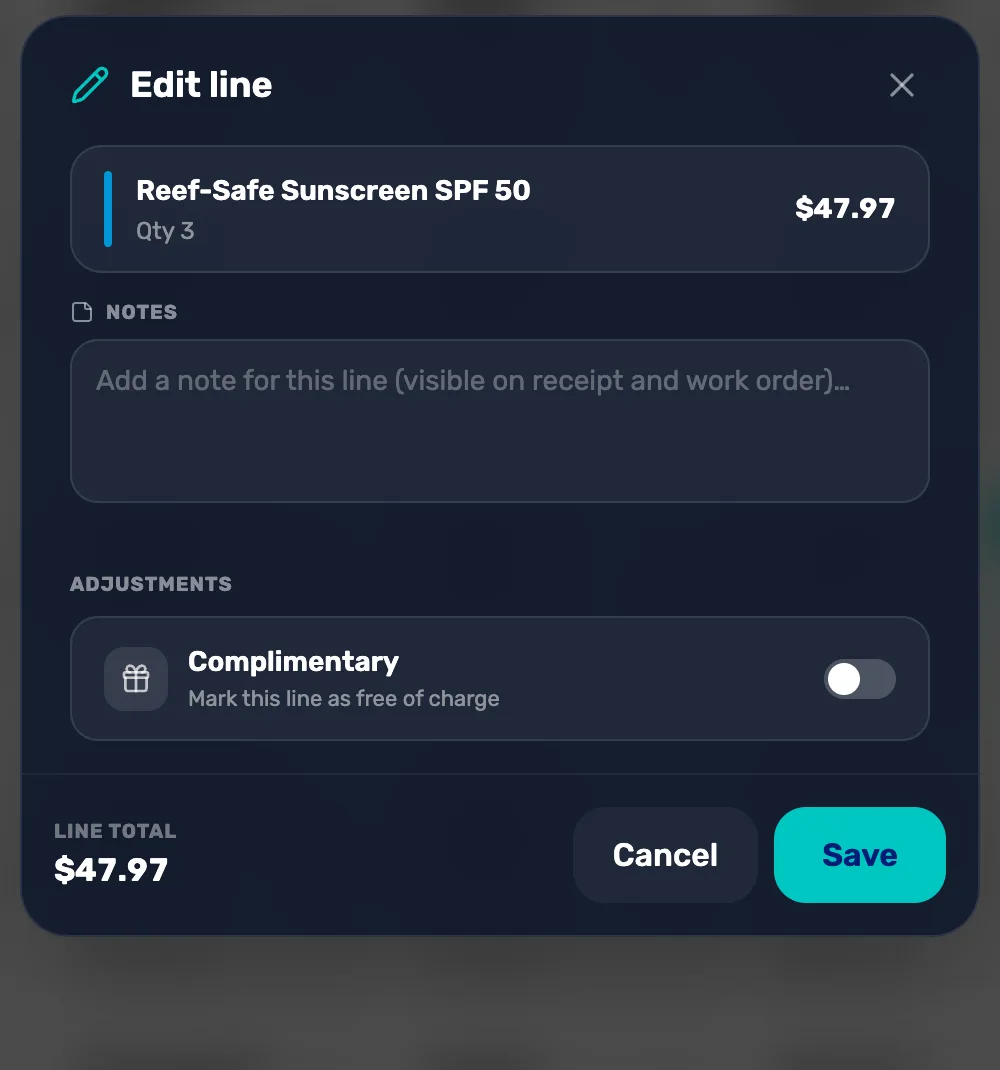
- Notes. Prints on the receipt and on a service work order.
- Complimentary. Makes the line free. It shows a Comp tag and $0.00.
What happens next
- Selling never stops for stock. If the count says 0, the sale still goes through and the count stays at 0.
- On the Free plan, a product past your plan's limit says it needs Plus.
- Ready to take payment? Ring one up and refund it covers checkout.