
What this is for. A scanner is faster than tapping tiles and never picks the wrong size. Scan an item and it goes straight into the cart. The first time you scan something new it may say "No item found". That only means the barcode isn't on the product yet, and you fix it once.
Plug in the scanner
Plug the scanner's cable into a USB port on the computer or tablet at your counter. There is nothing to install. The computer treats the scanner as a keyboard: each scan types the barcode's number and presses Enter.
A wireless scanner pairs in your device's Bluetooth settings, the same way a keyboard does.
Open the register and scan an item
Go to the Cashier screen. Point the scanner at the item's barcode and pull the trigger. You don't need to click anywhere first, and you don't need a cart open: if none is open, the first scan starts a guest cart.
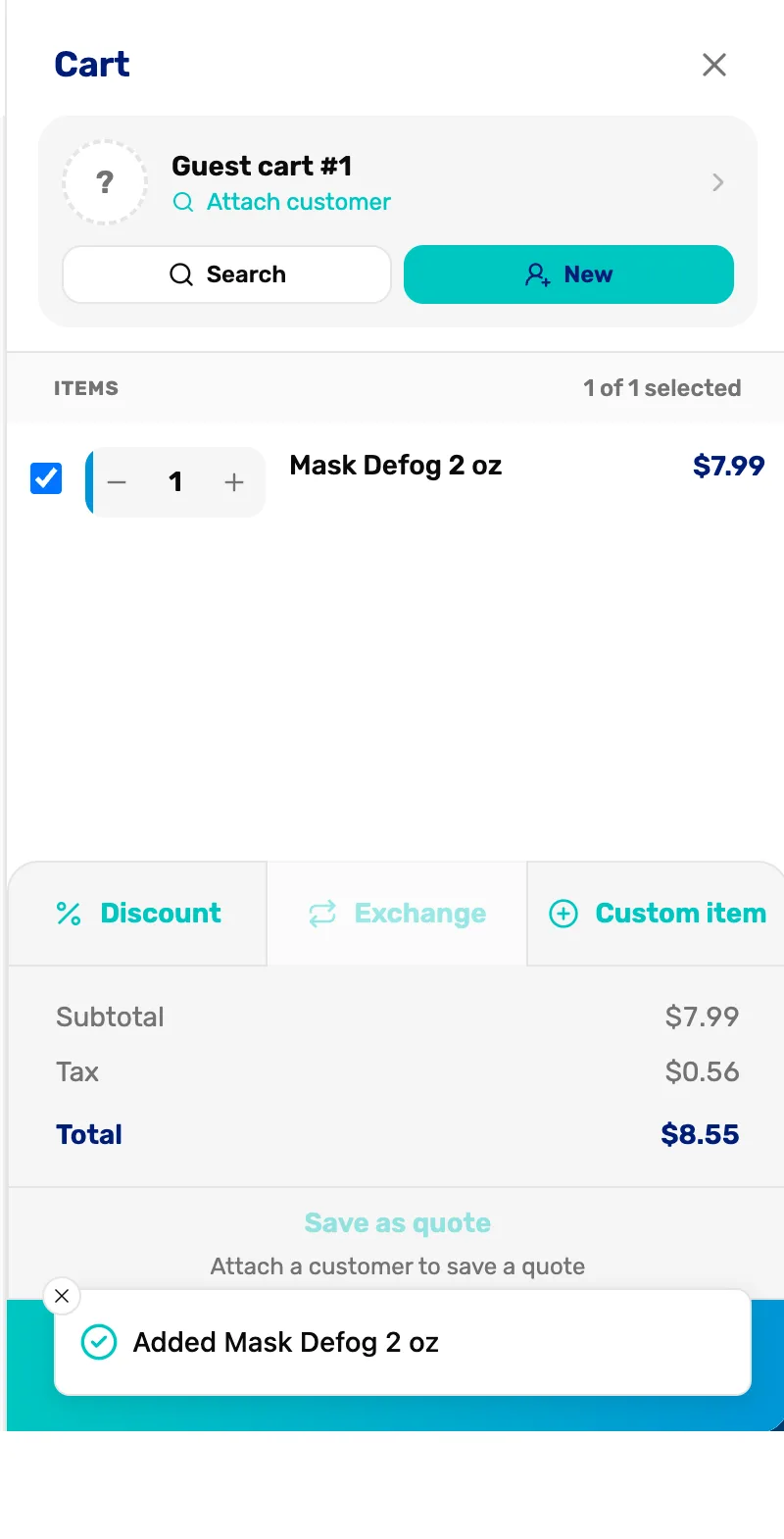
- Added. The scan worked. The message names the item.
- The item in the cart. Scan the same item again to add another. The number goes up by one.
Scans only work on the Cashier screen. Anywhere else, the scanner just types the number into whatever box you're in.
If it says No item found
"No item found for" and a number means none of your products has that barcode yet. Nothing was added to the cart. The number is what the scanner read.
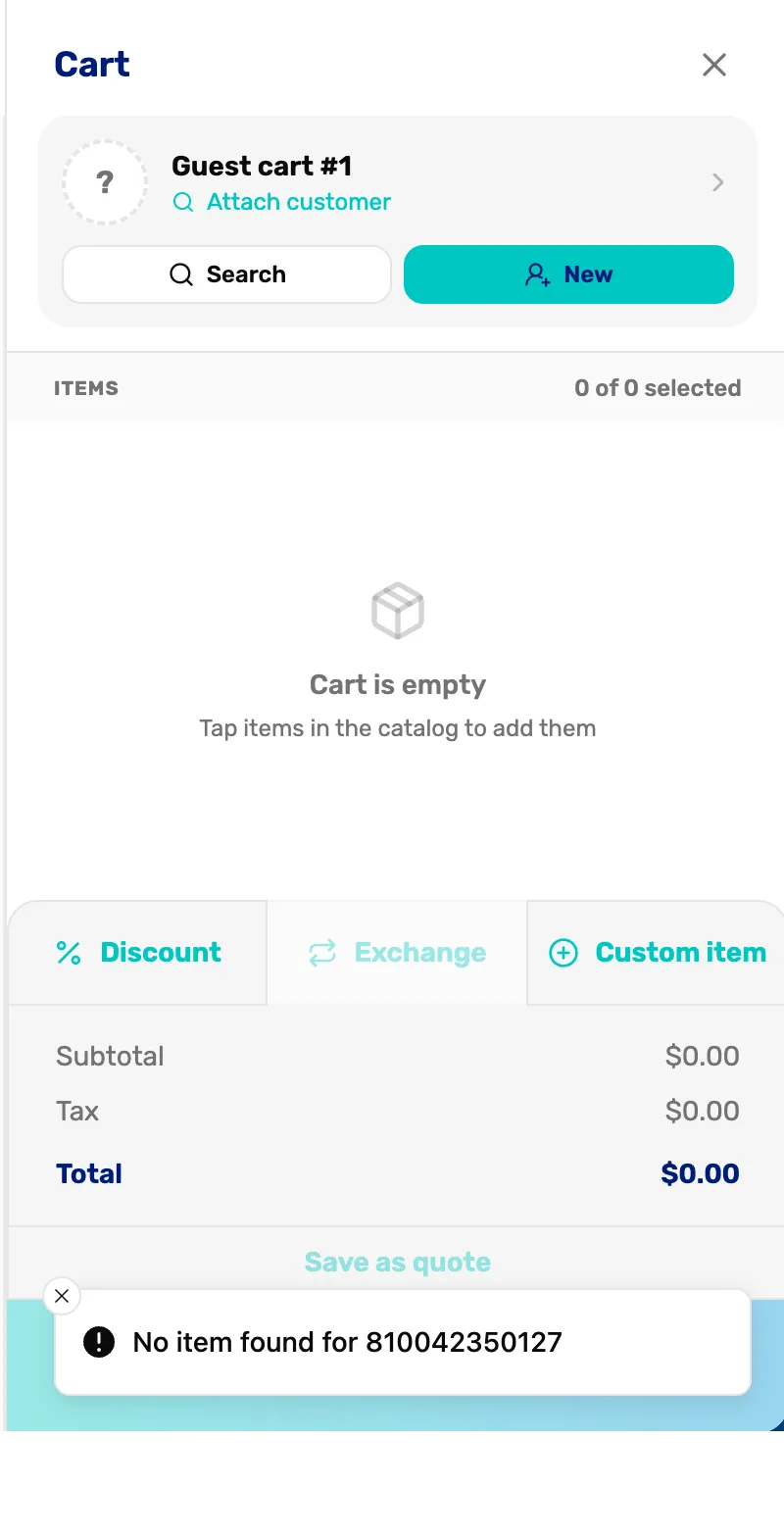
- No item found. Check the number is the whole barcode. If it is, give the product that barcode in the next step, then scan again.
Two other messages can come up when you scan:
- "This product needs Plus." The item is past the number of products your plan includes. Go to Settings › Subscription & Billing to see your plan.
- "This cart is checked out." The cart you have open is already paid. Start a new cart, or pick an open one on the left.
Give the product its barcode
Go to Catalog and tap the product. Click in the Barcode box and scan the item. The number types itself in. Tap Save, go back to the Cashier screen, and scan it again: this time it goes in the cart.
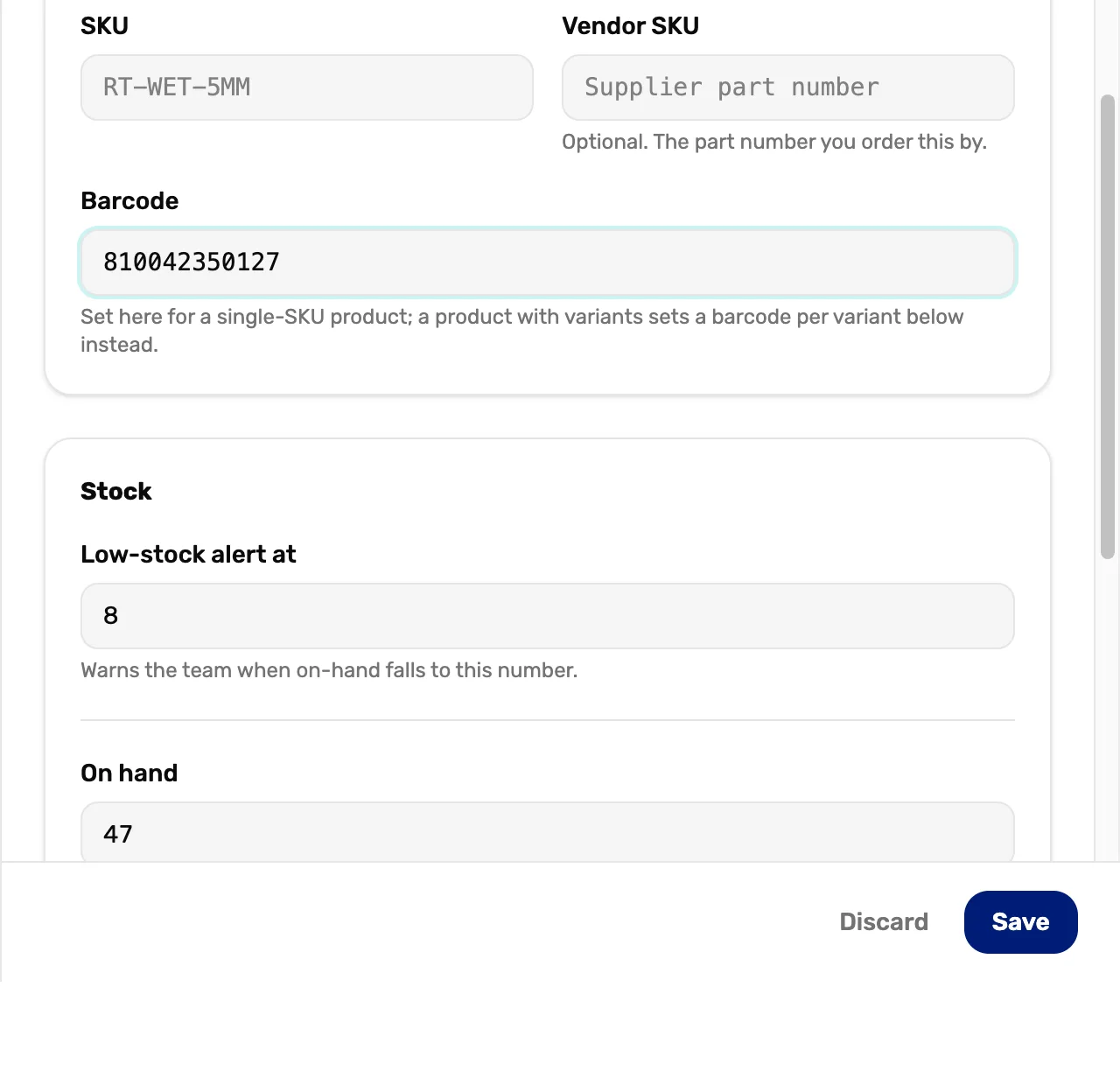
- Barcode. Click here, then scan the item. You can also type the number printed under the bars.
- Save. Saves the barcode. The next scan finds the item.
What happens next
- The search box on the Cashier screen finds barcodes too. Type the number to find an item when a label won't scan.
- If the cursor is in the search box when you scan, the number shows there as well. Tap the x in the box to clear it.
- Ready to take payment? Ring one up walks through checkout.