
What this is for. A rash guard in S, M and L, in black and blue, is one product with six variants. Each variant has its own stock count, so you always know you have two large blues left. Each can have its own barcode, so a scan puts the right size in the cart, and its own price if large sizes cost more. You end up with one tile on the register that asks which size.
Open the product and turn on options
In OneDive B2B, open My Inventory and choose the product's name, or choose Add Product for a new one. Scroll down to Variants and turn on This product has options. Then choose Add another option. You use this button for the first option too.
The register has the same editor: in Catalog, tap the product and turn on This product has variants.
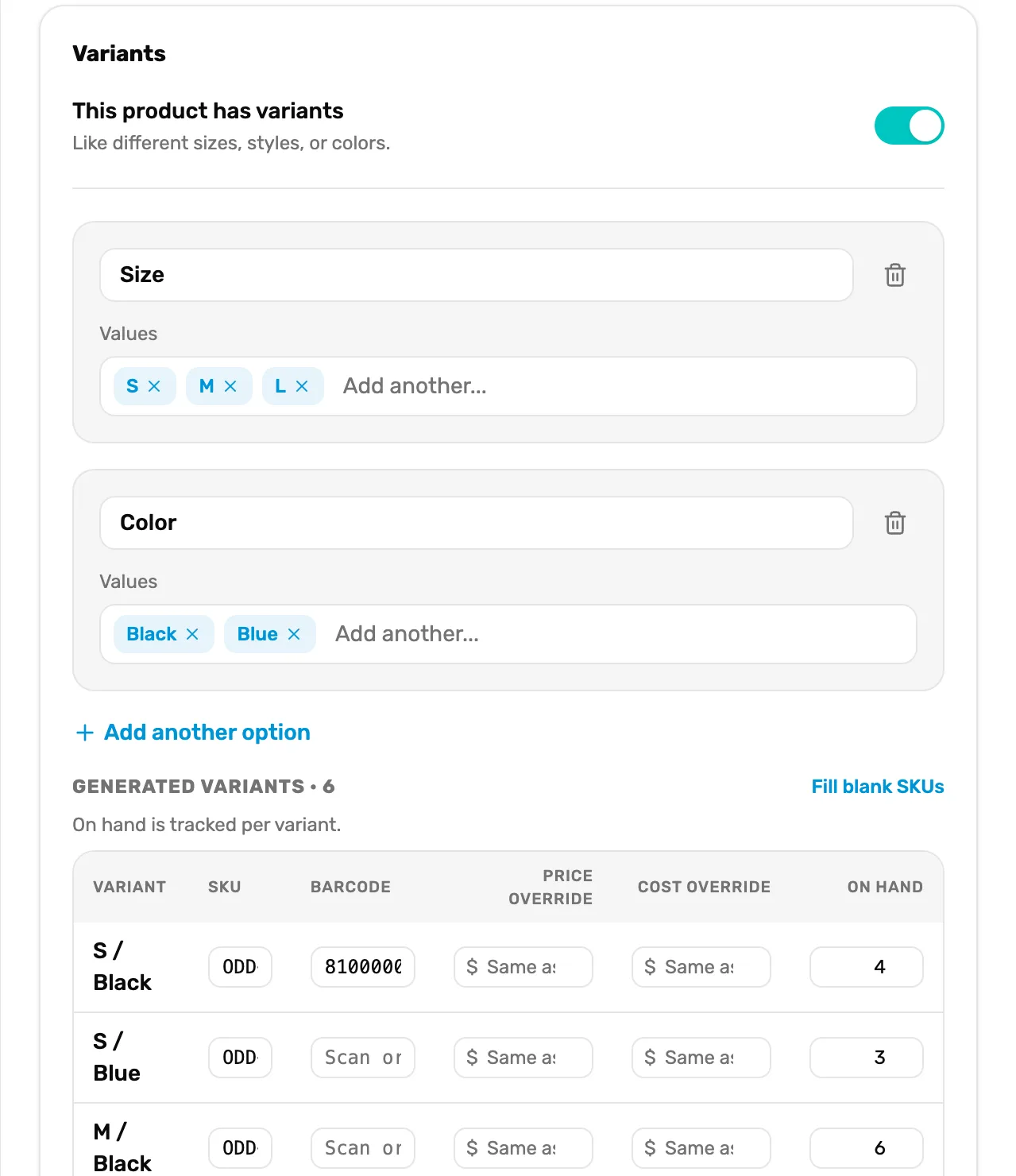
- This product has variants. The register's name for the same switch.
- Add another option. Adds Size, then Color, exactly as in OneDive B2B.
- Fill blank SKUs. The same SKU helper. The table is narrow on the register, so the steps below use OneDive B2B, where every column is wider.
Name each option and type its values
Type the option's name in Option name (e.g. Size). Click in Values, type the first value and press Enter. Do the same for each value. For a second option, such as color, choose Add another option again.
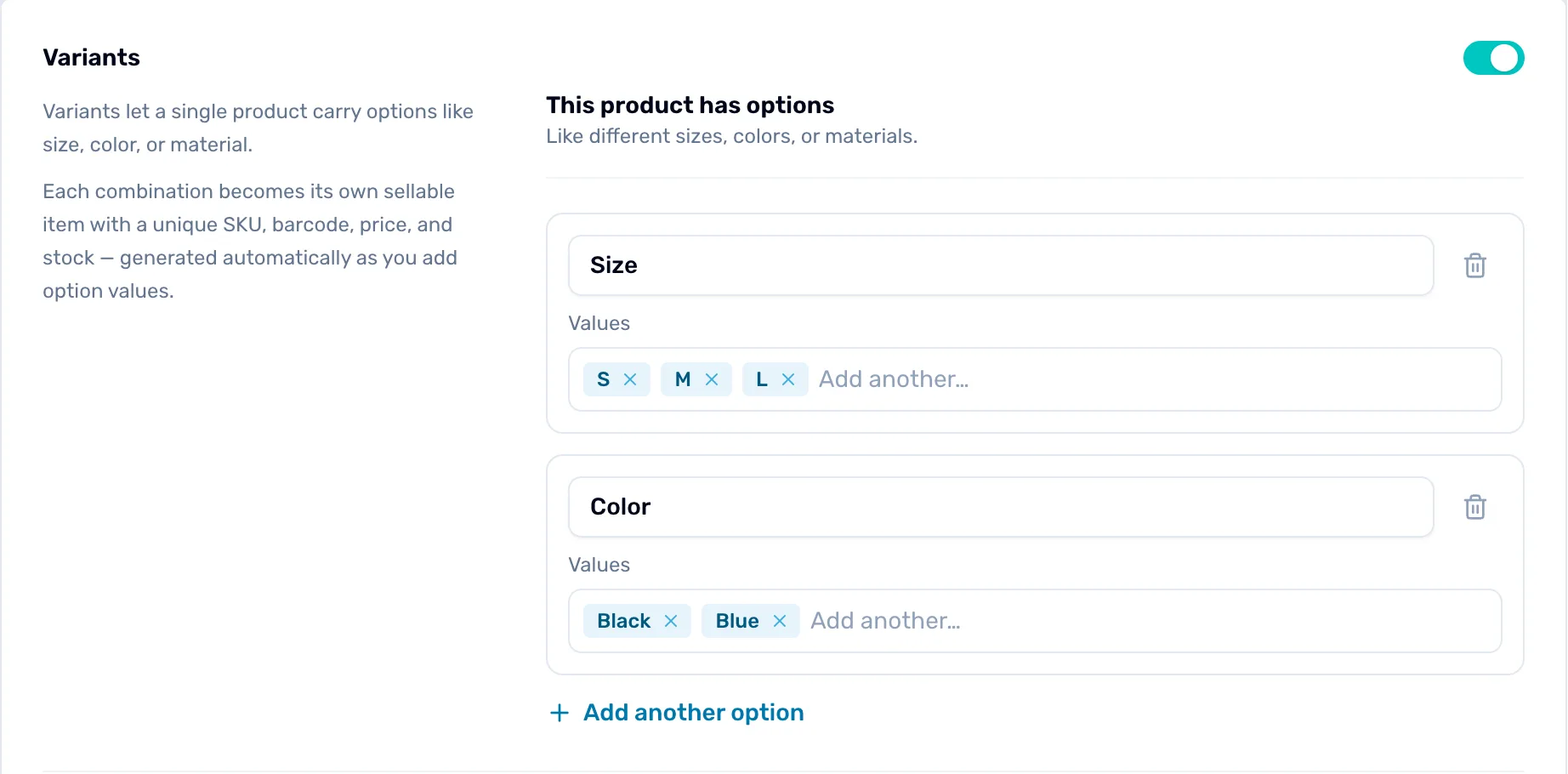
- This product has options. Turns sizes and colors on for this product.
- Option name. What the choice is called: Size, Color, Thickness.
- Values. One chip per value. Press Enter after each. The x on a chip removes it.
- Add another option. Adds a second kind of choice. The bin next to an option removes it.
Every combination becomes a variant. Three sizes and two colors make six.
Fill in each variant
Under Generated variants there is one row per combination. Fill in what you need, then the product's own SKU and On hand boxes show Managed per variant: each variant carries its own.
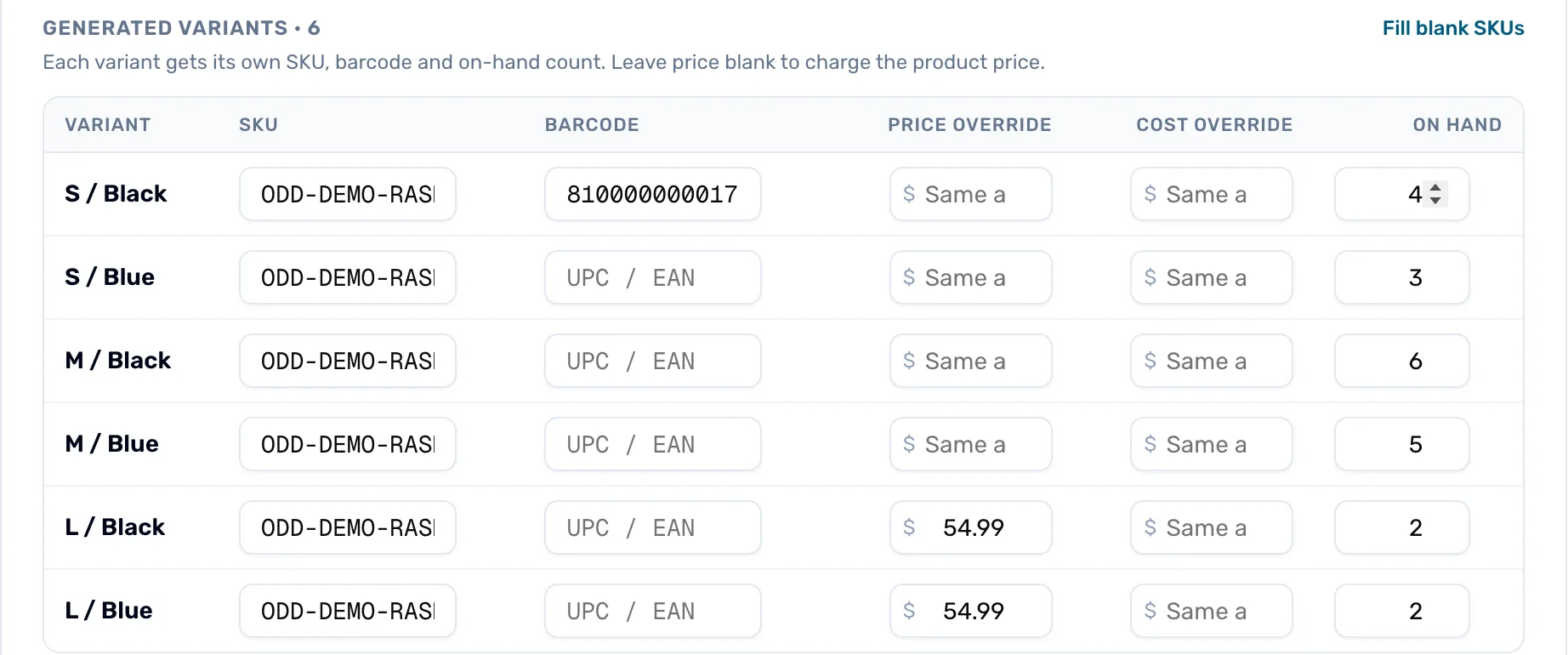
- Fill blank SKUs. Writes a SKU into every empty SKU box, made from the brand, the product name and the values. SKUs you typed are left alone.
- SKU. Your code for this variant. Two variants can't share a SKU.
- Barcode. Click here and scan the tag for that size. That size then scans straight into the cart.
- Price override. This variant's own price. Leave it blank to charge My Price.
- Cost override. This variant's own cost. Leave it blank to use the product's Cost.
- On hand. How many of this variant you have now.
Low-stock alert at on the product applies to each variant on its own. With it set to 2, you are warned when any one variant falls to 2.
Save
Choose Save changes (or Add product for a new one). On the register's editor, choose Save. The product's stock in My Inventory is now the total of all its variants.
If Save says Two variants share SKU and a code, change one of those two SKUs and save again.
Sell it at the register
On the register the product is one tile. Tap it and the register asks which variant.
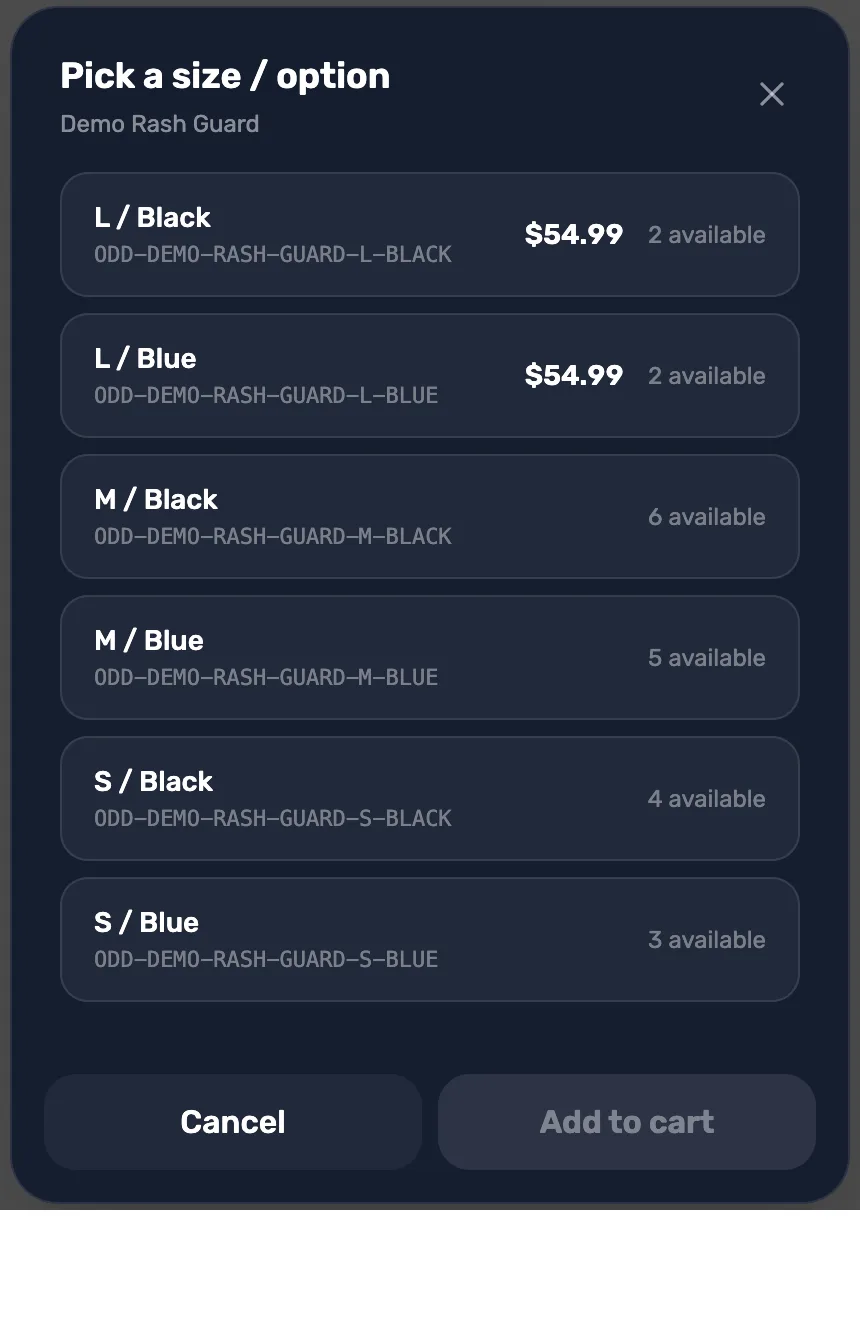
- A variant. Its values and SKU. Tap to pick it.
- Its own price and stock. Shown when the variant has a price override. "Available" is how many are on hand; a sale still goes through at 0.
- No price shown. This variant sells at My Price.
- Add to cart. Adds the variant you picked.
Scanning a variant's own barcode skips this step and adds that exact variant. Ring up retail with sizes and colors covers the selling side in full.
What happens next
- Each variant keeps its own count as it sells, so My Inventory and the register's Catalog show what is left in each.
- Need barcodes on the tags? See Scan barcodes at the register.
- What My Price, Cost and the margin mean: Cost, MSRP, MAP and My Price.