
What this is for. Every product carries up to four prices. Only one of them, My Price, is ever charged to a customer. The other three are for you: what you paid, what the manufacturer suggests, and the lowest price you may advertise. Knowing which is which tells you what you make on each sale and what changes when a distributor sends new prices.
The four prices
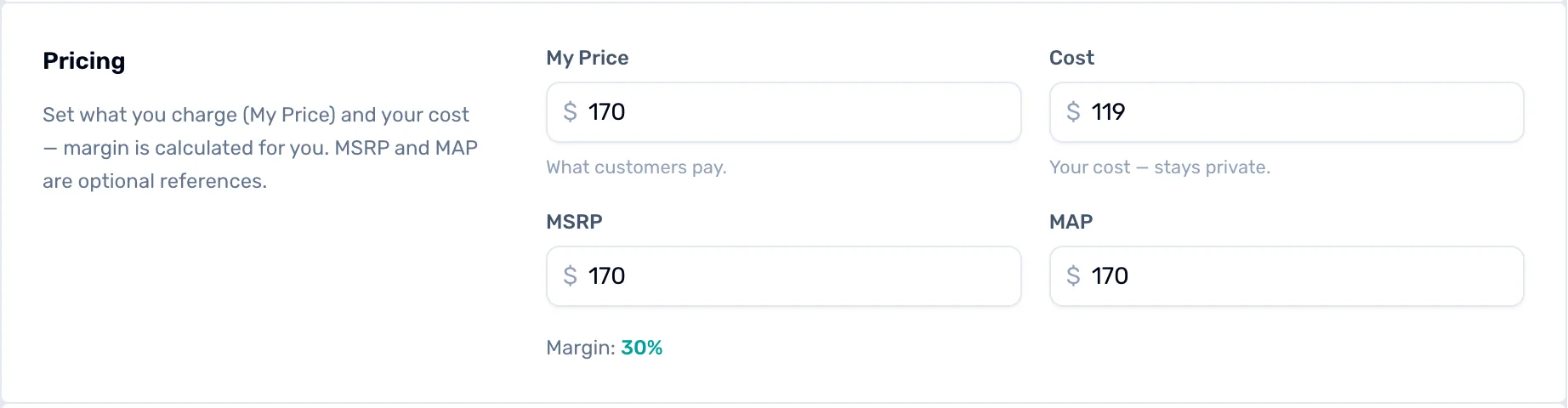
- My Price. What customers pay. The register charges it and the receipt prints it. On the register's own editor it is called Price.
- Cost. What one unit costs you. It is never shown to customers.
- MSRP. The manufacturer's suggested retail price. A reference only.
- MAP. Minimum advertised price: the lowest price the brand lets you advertise. A reference only. OneDive doesn't stop you selling below it.
- Margin. Worked out for you from My Price and Cost. You can't type it.
Customers only ever see My Price. If a product comes in sizes or colors, a size can have its own price instead (its Price override); see Sizes and colors. Cost, MSRP and MAP never print on a receipt or show at checkout.
How margin is worked out
Margin is the share of My Price you keep after Cost:
Margin = (My Price − Cost) ÷ My Price, rounded to a whole percent.
A hood you sell for $170 that cost you $119 has a margin of $51 ÷ $170 = 30%. This is margin, not markup: the same hood is a 43% markup on cost.
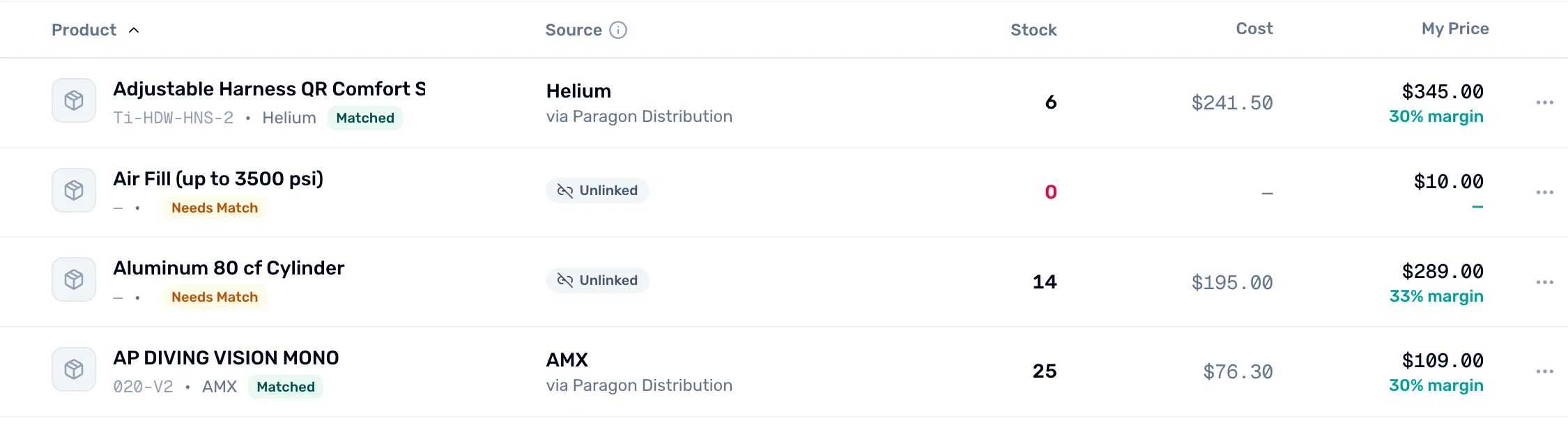
- Cost. What you paid, from the product. A dash means no cost is on file.
- My Price and margin. The margin sits under the price on every row of My Inventory. Click the price to change it right there.
- No margin. Without a cost, or without a price, the margin shows a dash.
If Cost is higher than My Price, the margin turns red and reads "cost is above your price". You are selling at a loss: check both numbers.
Where you set them
Only the shop owner or a General Manager can change prices. Everyone else sees them read only.
- In OneDive B2B. Open My Inventory, choose the product name, and use the Pricing panel. Choose Save changes when you're done.
- On the register. Go to Catalog and tap the product. The Pricing & identifiers card has the same four prices and the same margin.
- Many at once. The spreadsheet import has My Price, Cost, MSRP and MAP columns. See Get your products in.
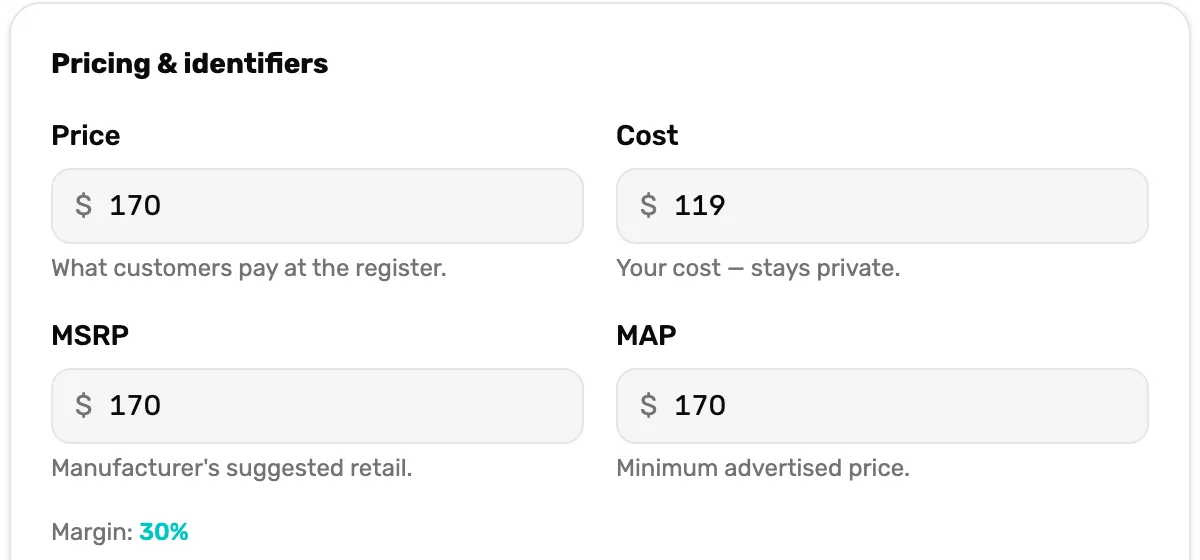
- Same prices, two places. The register's editor and OneDive B2B save to the same product. Change it in one and the other shows the change.
When you add a product from a distributor's catalog, My Price starts at the MSRP, or at the MAP if there is no MSRP. Change it any time.
When a distributor changes its prices
This only applies to products that are Matched to a distributor's catalog, and only while you have an active account with that distributor. A product you added yourself and never matched is yours alone: nothing changes it but you. See Match your products to the master catalog.
When that distributor updates the product in its catalog, OneDive does two kinds of thing.
Changed for you, straight away:
- Cost becomes your price from that distributor, at your pricing level with them.
- MSRP becomes the distributor's MSRP, if it lists one. If it lists none, yours stays.
- MAP becomes the distributor's MAP. (A product the distributor prices differently by size keeps its own MAP.)
- Barcode and brand become the distributor's, if it lists them. If it lists none, yours stay.
- My Price goes up to MAP if it is below the new MAP. This is the only time OneDive changes My Price without asking, and it only ever raises it.
Waiting for you to approve:
- A new retail price. When the MSRP changes, OneDive offers a new My Price: the new MSRP, or the MAP if that is higher. Approve takes it. Keep leaves your price as it is.
- A new product name, description or photos. Approve or Keep for each one.
- A discontinued product. Remove takes it out of your inventory. Keep leaves it.
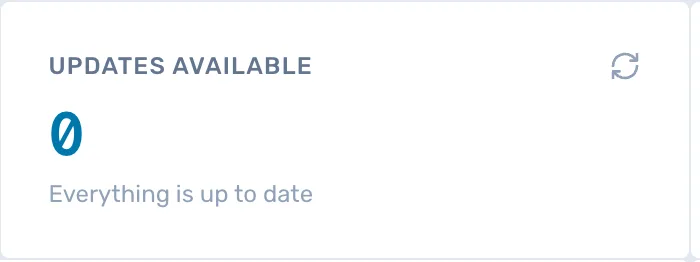
- Updates Available. How many matched products have a change waiting for you. Click it to see only those rows. Each one carries a Matched · review update tag: click the tag to review that distributor's changes.
You can also review a distributor's changes from Distributors: Sync now on its card shows how many changes are waiting. Choose Approve or Keep on each line, then the Apply button. Accept all picks Approve for every change and Keep for every discontinued product. Nothing is saved until you choose Apply.
What happens next
- When a distributor's update changes your prices, OneDive tells you. The notification opens My Inventory showing only the products it changed, each tagged Price updated.
- A discount at the register takes money off one sale. It never changes My Price. See Give a discount on a sale.
- Selling in sizes or colors? Each size can have its own price and cost. See Sizes and colors.