
What this is for. The master catalog is every product the distributors on OneDive sell. Matching tells OneDive that your "AR-Hood 5 mm" is the same hood a distributor lists. Once it is matched, and you have an active account with that distributor, their price and catalog changes reach your product: your cost stays current and you are asked about new prices, names and photos. A product you never match is yours alone and nothing changes it.
Find the products that need a match
Open My Inventory. Every product carries a match tag beside its SKU and brand.
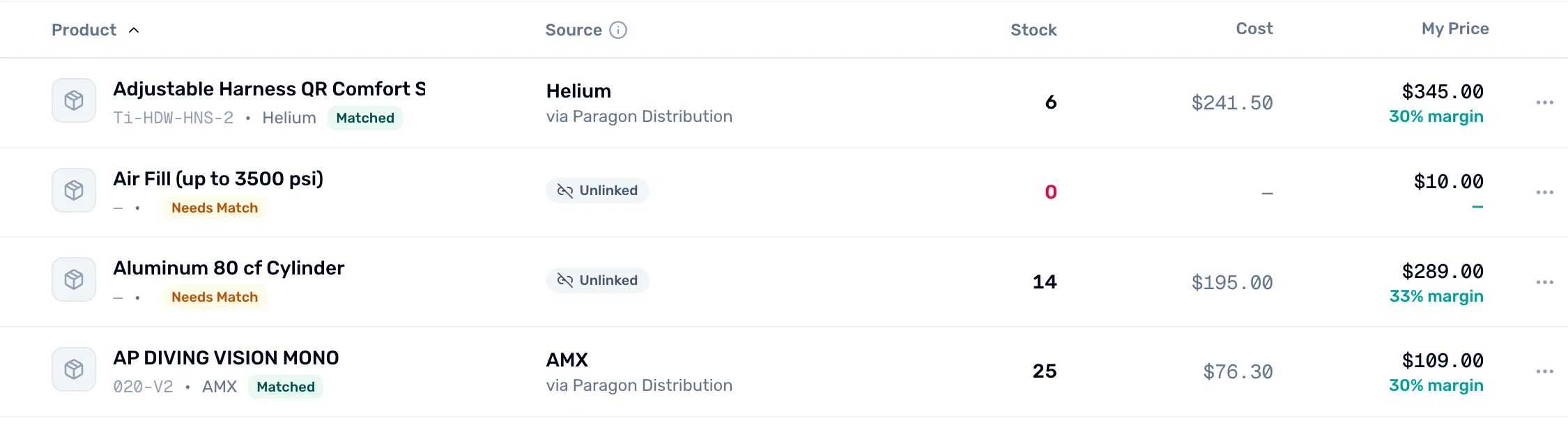
- Matched. Linked to a product in the master catalog.
- Source. The brand and the distributor the match came from.
- Needs Match. Not linked yet. Products you add by hand or import start here.
- Unlinked. Click it to match this product.
To see only the products still waiting, tick Needs Match under Match Status in the filters on the left. A third tag, Not Listed, means you have said the product isn't sold on OneDive (step 4).
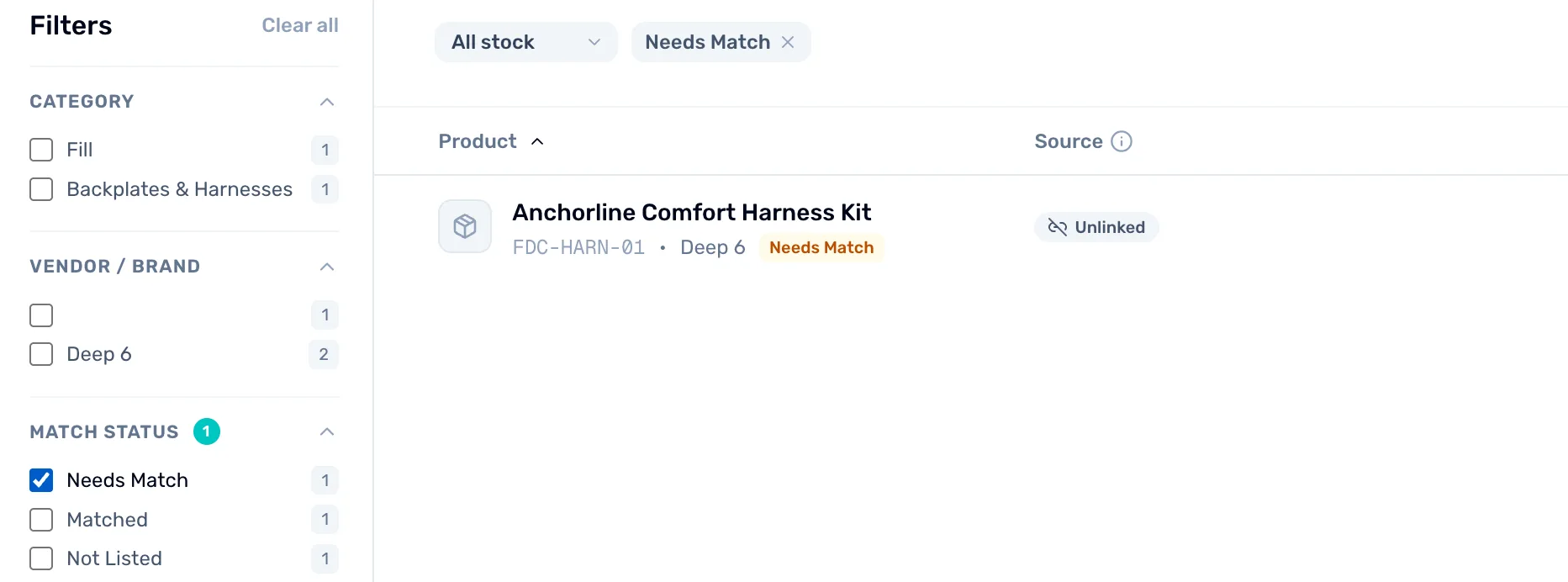
- Match Status. Each tag shows how many of your products carry it.
- Filter chip. Click its × to see every product again.
Search the master catalog
On the product's row, open the … menu and choose Match to catalog…, or click Unlinked.
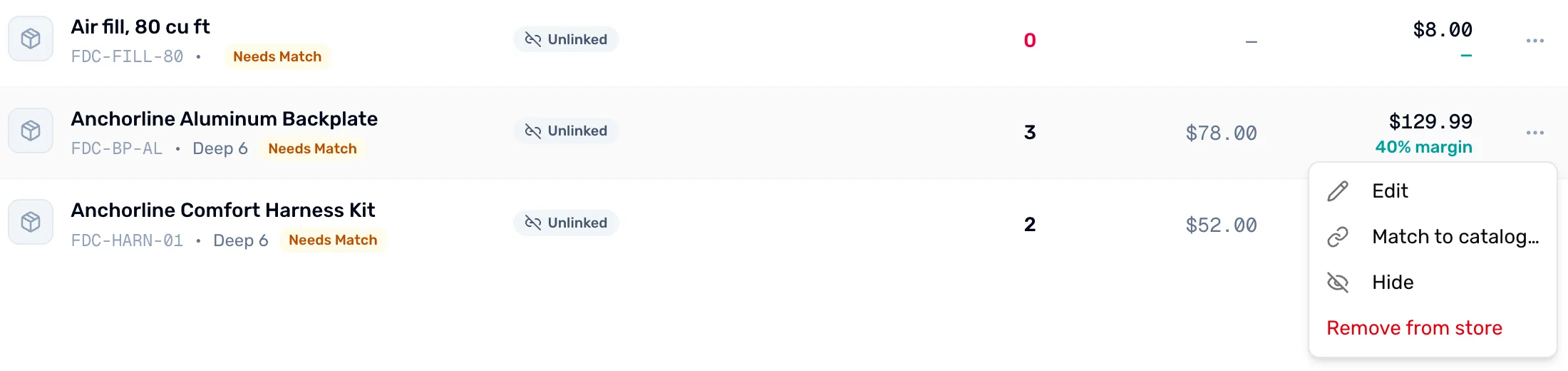
- Match to catalog…. Opens the matching window.
- Unlinked. A shortcut to the same window.
The Match to master catalog window opens with your product's SKU and UPC at the top, to compare against.
Type the product's name, brand, part number or barcode in Search by name or brand… and press Enter. You see up to 10 results, each with its brand, the distributor it comes via, and its MSRP.
If nothing comes up, use fewer words. The search looks for the words together, in the order you type them, so "Anchorline Aluminum" finds the Anchorline Aluminum Backplate but "Anchorline backplate" does not.
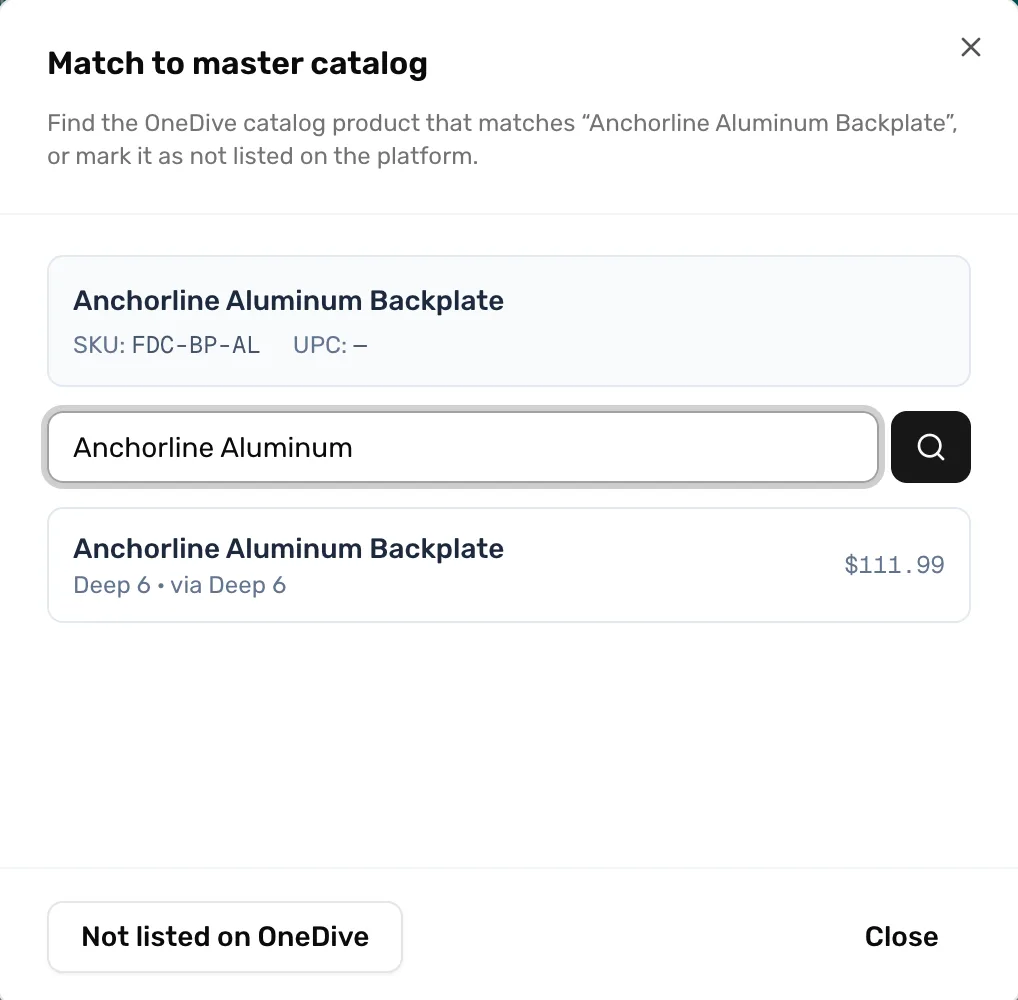
- Your product. Its name, SKU and UPC, to compare against.
- Search. Type, then press Enter.
- A result. The brand, the distributor it comes via, and its MSRP. Click it to match.
- Not listed on OneDive. For a product no distributor sells (step 4).
Pick the right product
Click the result that is the same product. The window closes and a message reads "Linked to" and the product's name. The tag changes to Matched and the source shows the distributor.
Matching changes no price on its own. It only links the two. If your product has no category, My Inventory shows the catalog's category for it. From the next update that distributor makes to that product, its changes reach yours: see Cost, MSRP, MAP and My Price for which are applied for you and which wait for your approval. The first update after a match may ask you to review the distributor's name, description, photos and price for it.
Two messages can come up:
- "that catalog item is already linked to another inventory item": another of your products is already matched to it. Find that product and fix whichever match is wrong.
- "that catalog item isn't available to link": that listing isn't open to your shop right now. Pick another result.
If it isn't in the catalog, mark it Not listed
Some products aren't sold by any distributor on OneDive: air fills, your own branded shirts. In the Match to master catalog window, choose Not listed on OneDive. The tag changes to Not Listed and the product drops out of the Needs Match list. It still sells at the register as normal.
If OneDive is inviting that product's brand onto the platform, the message also offers Request. It takes you to Distributors, where you can ask for the brand.
Change or remove a match
Open Match to catalog… on a matched product at any time:
- To fix a wrong match, search and pick the right product. The old link is replaced.
- To remove a match, choose Not listed on OneDive. The link is removed and the product is yours alone again.
There is no button that puts a product back to Needs Match. Use Not listed on OneDive to unlink it, then match it again later if you need to.
What happens next
- Matched products with a change waiting are counted under Updates Available at the top of My Inventory, and tagged Matched · review update. Click the tag to review the change.
- Distributor changes only reach a matched product while you have an active account with that distributor. Apply to distributors from Distributors.
- Imported from Shopify and see products you didn't expect? See Shopify import found unexpected products.