
What this is for. The import reads every product in your Shopify store, not only the ones on sale today, so it can turn up things you forgot were there. That is fine: you decide what comes into OneDive, one answer per product, and nothing you choose here changes your Shopify store. You keep selling online in Shopify exactly as before.
Nothing here changes Shopify
The import only asks Shopify for permission to read your products. Linking, copying and skipping only change what is in your OneDive inventory. Your Shopify products, prices and stock stay as they are.
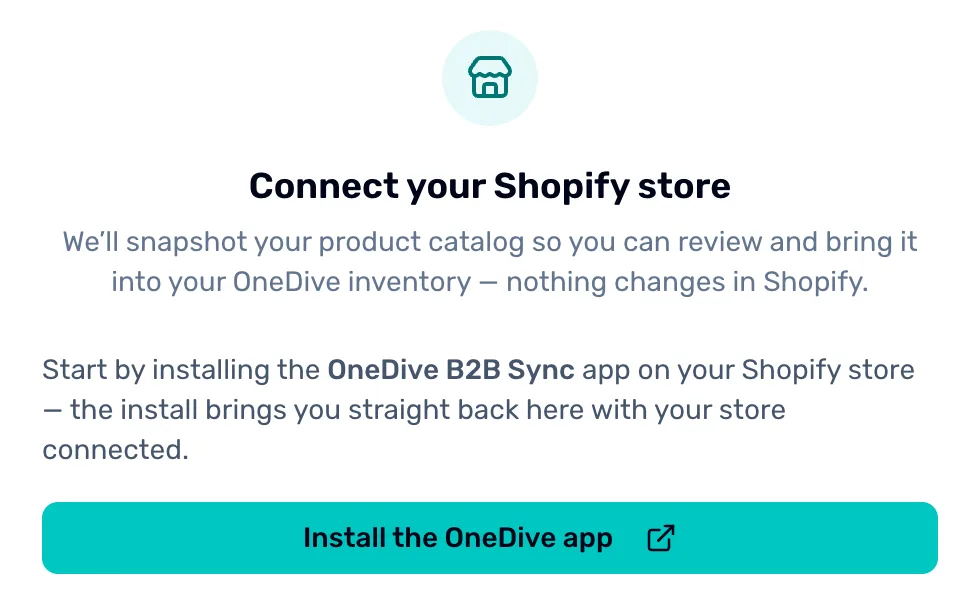
- Connect your Shopify store. What you see before your store is connected. Once it is, this page shows your products instead.
- Install the OneDive app. Installs the OneDive B2B Sync app on your Shopify store, then brings you straight back here.
Why each surprise shows up
Drafts and archived products. The import reads products whatever their status in Shopify, and the list doesn't say which ones are drafts or archived. If you copy one, it comes into OneDive with Listed (off = archived) switched off, so it isn't for sale. Skip the ones you don't want.
Gift cards. Shopify keeps gift cards as products, so they come in too. Copying one makes an ordinary product with the gift card's name and price, not a working gift card. Skip them.
Classes and trips. If you sell classes or trips on Shopify as products, they come in with everything else. Copying one makes a plain product with no dates, seats or students. Skip them, and set them up in Courses and Trips instead.
A product you already have. OneDive looks for one of your products with the same SKU or barcode. If it finds exactly one, the Shopify product is sorted into Already in OneDive, with a line saying which of your products it matches and whether by SKU or by barcode. Previously linked ✓ means you linked or copied it in an earlier import. Link these, so you don't end up with two of the same thing.
The same SKU on more than one of your products. OneDive can't tell which one it is, so the product goes in Needs a look. Choose Review on it, search your inventory on the Link tab, and choose Link to this item on the right one.
One item listed several times. If your Shopify store lists the same thing as separate products, for example one listing per size, each one comes in as its own product. The import doesn't merge them. Copy the one you want and skip the rest.
Sizes and colors. A Shopify product with sizes or colors comes in as one product, with the number of choices in the Variants column. Copying it brings every size and color with it.
Products you skipped last time. Skipping isn't remembered from one import to the next, so they come back. Skip them again.
Removed from Shopify. The product was in your store when OneDive first read it, but not the next time. Nothing is deleted in OneDive because of it.
Sort them out
Open the import
Go to My Inventory › Import from Shopify. From My Inventory it is Import, then From Shopify.
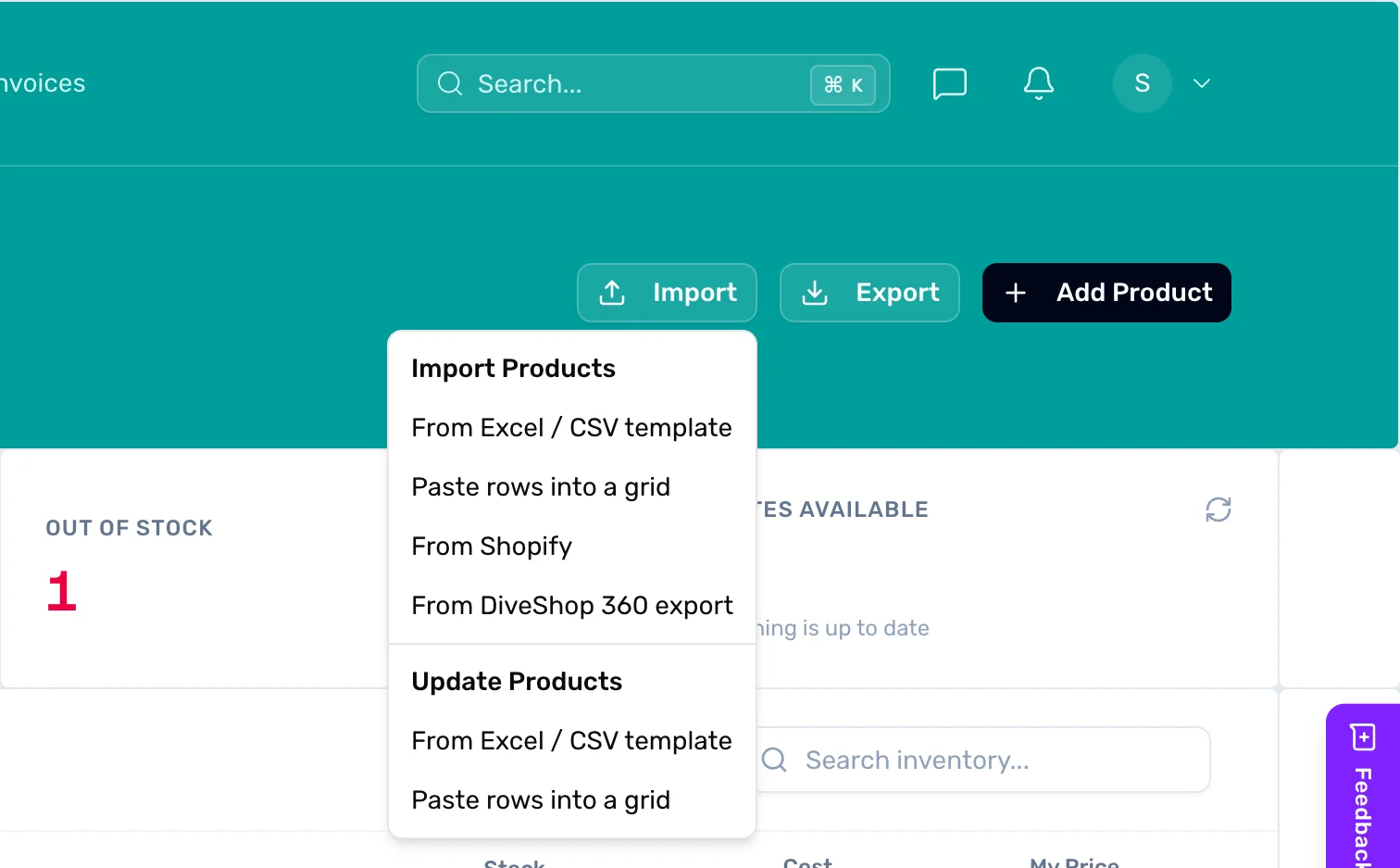
- From Shopify. Opens the Shopify import. Only the owner or a General Manager can run it.
Find the products you don't want
Below the three cards, under Every product, if you want to check or change one, choose the New tab. Type a word like "gift" or "trip" in Search product title… to find them fast.
Skip them
Choose Skip on the row. For many at once, tick them and choose Skip selected. A skipped product moves to the Done tab.
Link or copy the rest
Back at the top, the Link all button on the Already in OneDive card links all of those. The Copy all button on the New to OneDive card copies what is left there, and asks once which category each Shopify product type goes in. Then go through Needs a look one at a time.
What Link, Copy and Skip do
| Choose | What happens in OneDive |
|---|---|
| Link | Joins it to a product you already have. Your product, price and stock stay as they are. |
| Copy | Adds a new product with Shopify's name, SKU, price and pictures. No stock count comes with it. |
| Skip | Leaves it out of OneDive. It comes back in your next import. |
| Undo | Takes back any of the three, while the import is still open. |
What happens next
- Every product you copied is in My Inventory, and your Shopify store is unchanged.
- Next, OneDive matches the new products to your suppliers' catalogs: see Match your products to the master catalog.
- Starting from scratch? Get your products in covers every way to bring products in.