
What this is for. The Cashier screen is where every sale happens. It has three parts: the carts you have open on the left, everything you sell in the middle, and the cart you are working on at the right. Once you know what each part does, a sale is a few taps.
The whole screen
Open it from Cashier in the top bar.
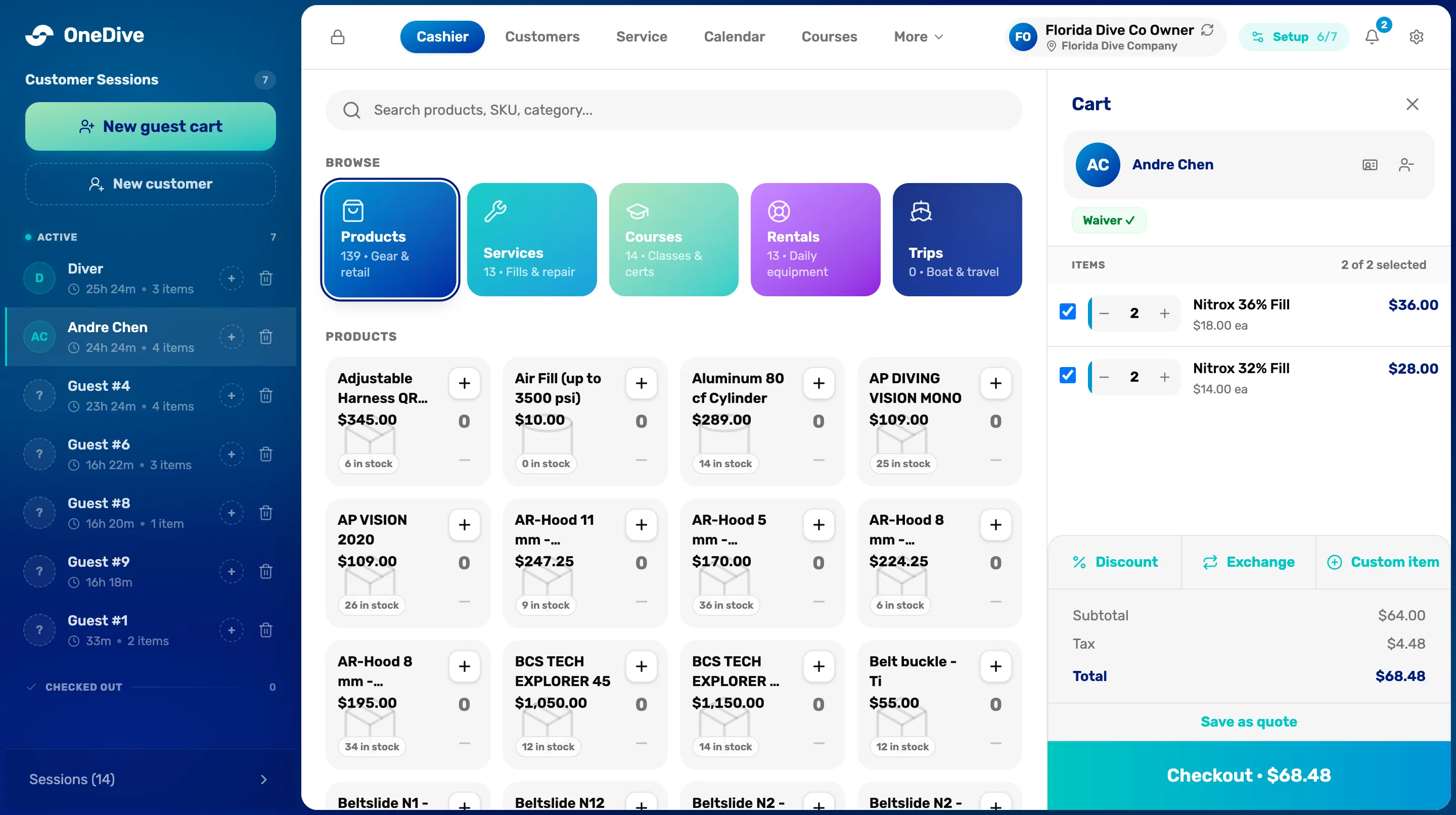
- The lock. Locks the register so the next person signs in with their PIN. It shows only on a device set up as a register, on Plus or Pro.
- Your name. Who is using the register right now. Tap it to switch to someone else with their PIN.
- Setup, the bell and the cog. Setup shows how many setup steps are done and appears only to owners and General Managers until they are all done. The bell holds your notifications. The cog opens Users & Access, Transactions and Commerce Settings, for managers and owners.
- Customer Sessions. Every cart that is open right now, with how many there are. Tap one to work on it.
- New guest cart and New customer. Start a cart for someone you don't need to name, or find or add the customer first. See Guest carts, customer carts and holding a cart.
- Search. Finds anything you sell by its name, SKU or barcode, across all five tiles at once.
- The five tiles. Products, Services, Courses, Rentals and Trips. Each shows how many you have. Trips counts the departures on the day you are looking at.
- A product. Its price, and how many are in stock if you track stock. Tap + to add one. Tap the number to type a quantity. Tap − to take one off.
- The customer. Who this cart is for, and whether they have a waiver on file. A guest cart shows Attach customer here instead.
- The items. Each line in the cart. Only ticked items are paid for at checkout. Unticked items stay in a cart for later.
- Discount, Exchange and Custom item. Take money off the sale, swap something the customer bought before, or add something that isn't in your catalog at any price.
- Save as quote. Saves the ticked items at today's prices for this customer to buy later.
- Checkout. The total with tax. Tap it to take payment.
When something looks different
- The left side is narrow on other pages. The carts list opens fully only on the Cashier screen.
- No Setup button, or no cog. Those show to owners, General Managers and managers only.
- A banner at the top of the middle. On the Free plan the register shows how much of your plan you have used. Every sale still goes through.
- The register says another one is in use. The Free plan includes one register at a time. The screen frees up by itself when the other register goes idle.
- A cart says "Transaction" with a Completed badge. You opened a cart that is already paid. Pick an open cart or start a new one to keep selling.
What happens next
- Ring up your first items: Ring up retail, with sizes and colors.
- Put a name on a sale: Attach a customer and their waiver.
- Take payment and print the receipt: Ring one up and refund it.
Last checked October 16, 2026