
What this is for. Connecting Stripe lets the register charge cards, lets you use a card reader at the counter, and lets divers pay for trips online. The money goes straight into your own Stripe account. OneDive never holds it. This page walks through each screen and what to check at the end. For a quick overview of Stripe and Square, see Get paid.
Open Payment providers
Go to Settings › Payments & Finance › Payment providers. During setup, the Take card payments step shows the same Stripe tile. Point at the Stripe tile and choose Connect.
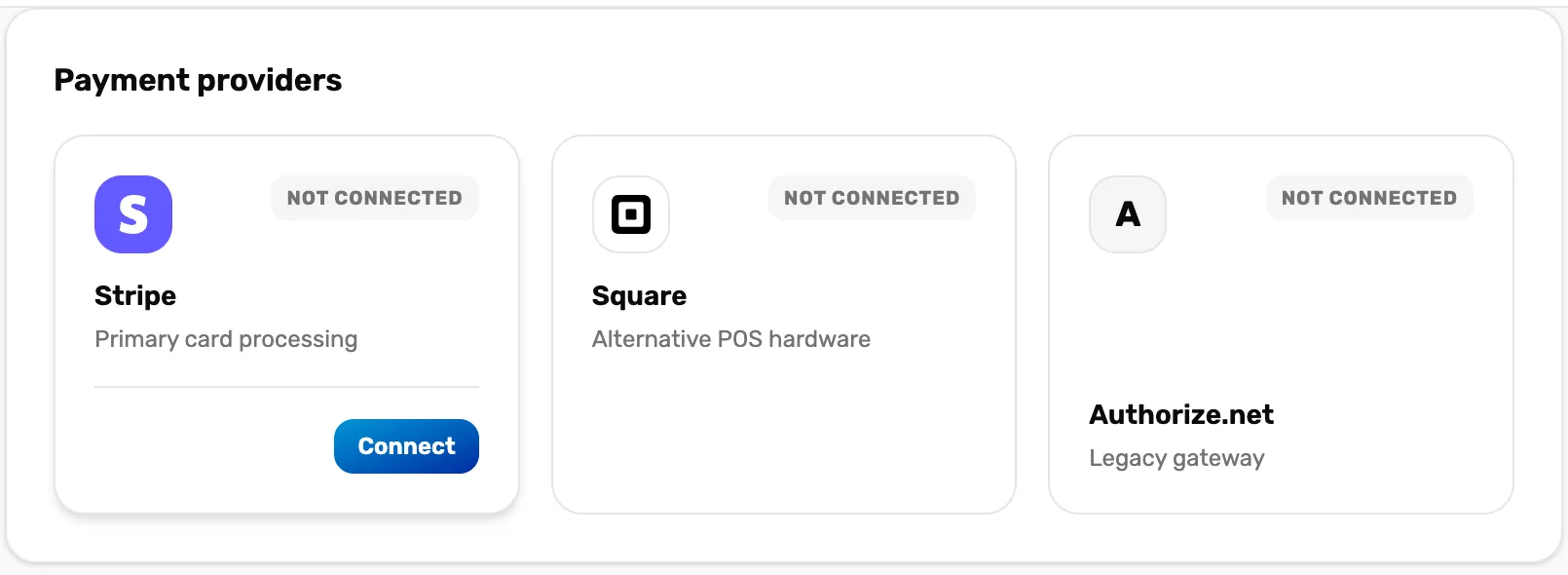
- Not connected. OneDive has no link to a Stripe account yet. The register takes cash and checks only.
- Connect. Shows when you point at the tile. It sends you to Stripe's own page.
Fill in Stripe's form
You are now on Stripe's site. If your shop already has a Stripe account, use the same email and sign in. If not, type your email and Stripe makes a new account.
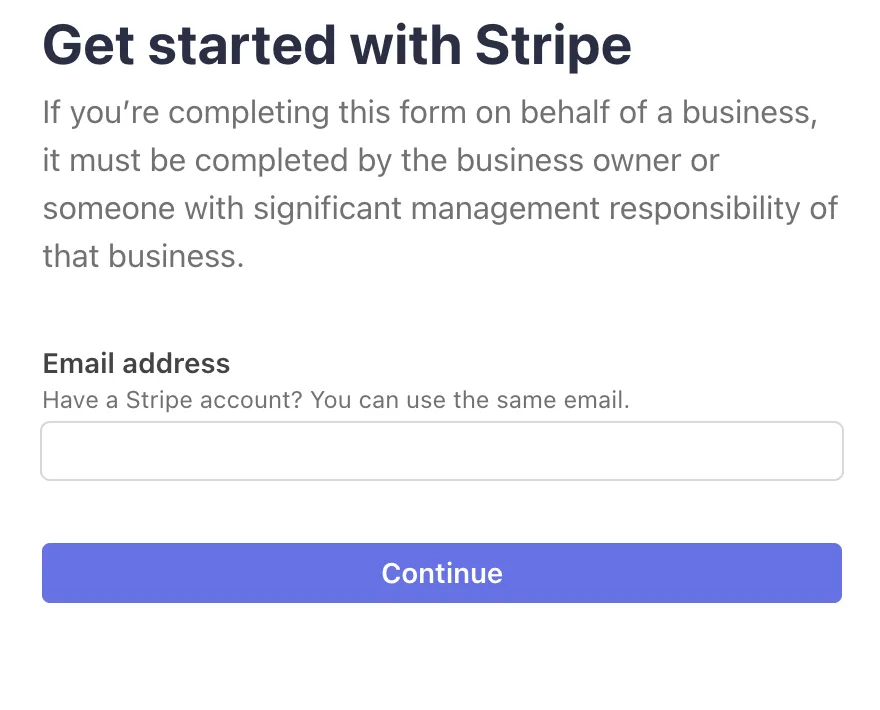
- Email address. Already on Stripe? Use the email you sign in with.
- Continue. Stripe takes it from here.
Stripe asks for your business details, the owner's details and the bank account card sales are paid into. These are Stripe's questions, not OneDive's. When you finish, Stripe sends you back to OneDive.
Back in OneDive: the tile reads Connected
Stripe sends you back to Payments & Finance, which shows Stripe account connected for a few seconds, and the Stripe tile reads Connected. If you started from the setup step, you land back there instead, with no message, and the tile reads Connected.
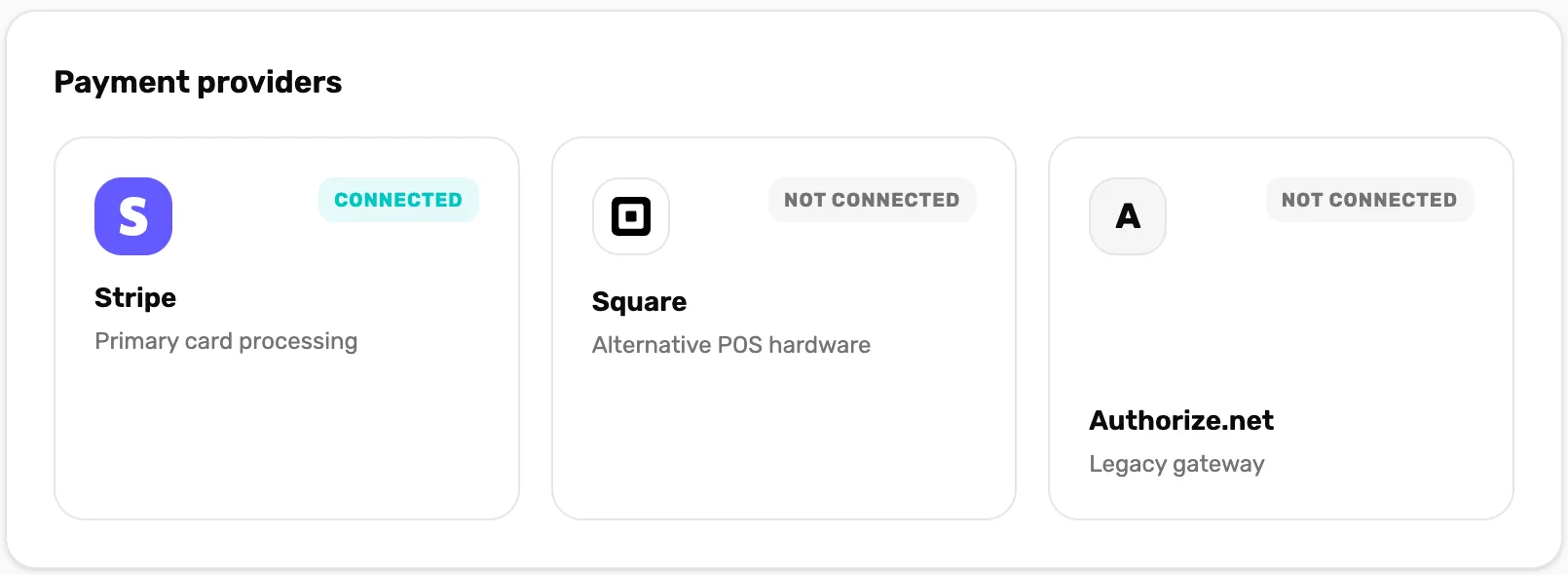
- Connected. OneDive is linked to your Stripe account. It does not yet mean Stripe will take cards. Check that next.
If something went wrong, OneDive tells you instead:
- Connection attempt expired or was invalid — please try again. The connect took too long or was started twice. Choose Connect again.
- Stripe couldn't complete the connection. Please try again. Stripe didn't finish. Choose Connect again. If it keeps happening, contact us.
Check that Charges says Enabled
Point at the Stripe tile and choose Manage.
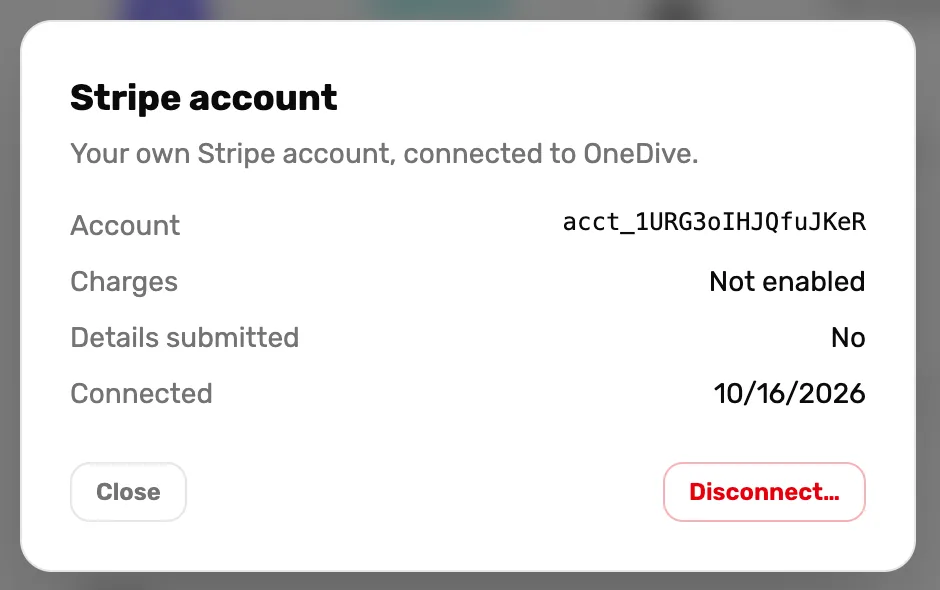
- Charges. Enabled means Stripe will take cards for you. Not enabled means Stripe still needs something.
- Details submitted. No means Stripe's form isn't finished.
- Disconnect…. Unlinks this Stripe account. See the last step.
Not enabled? Sign in to your Stripe dashboard and finish what Stripe asks for. You don't need to do anything in OneDive afterwards: when Stripe turns charges on, OneDive hears about it and Charges changes to Enabled by itself. Open Manage again to check.
Until Charges says Enabled, the register can't charge cards. At checkout, Charge card shows this instead, and nothing is charged:
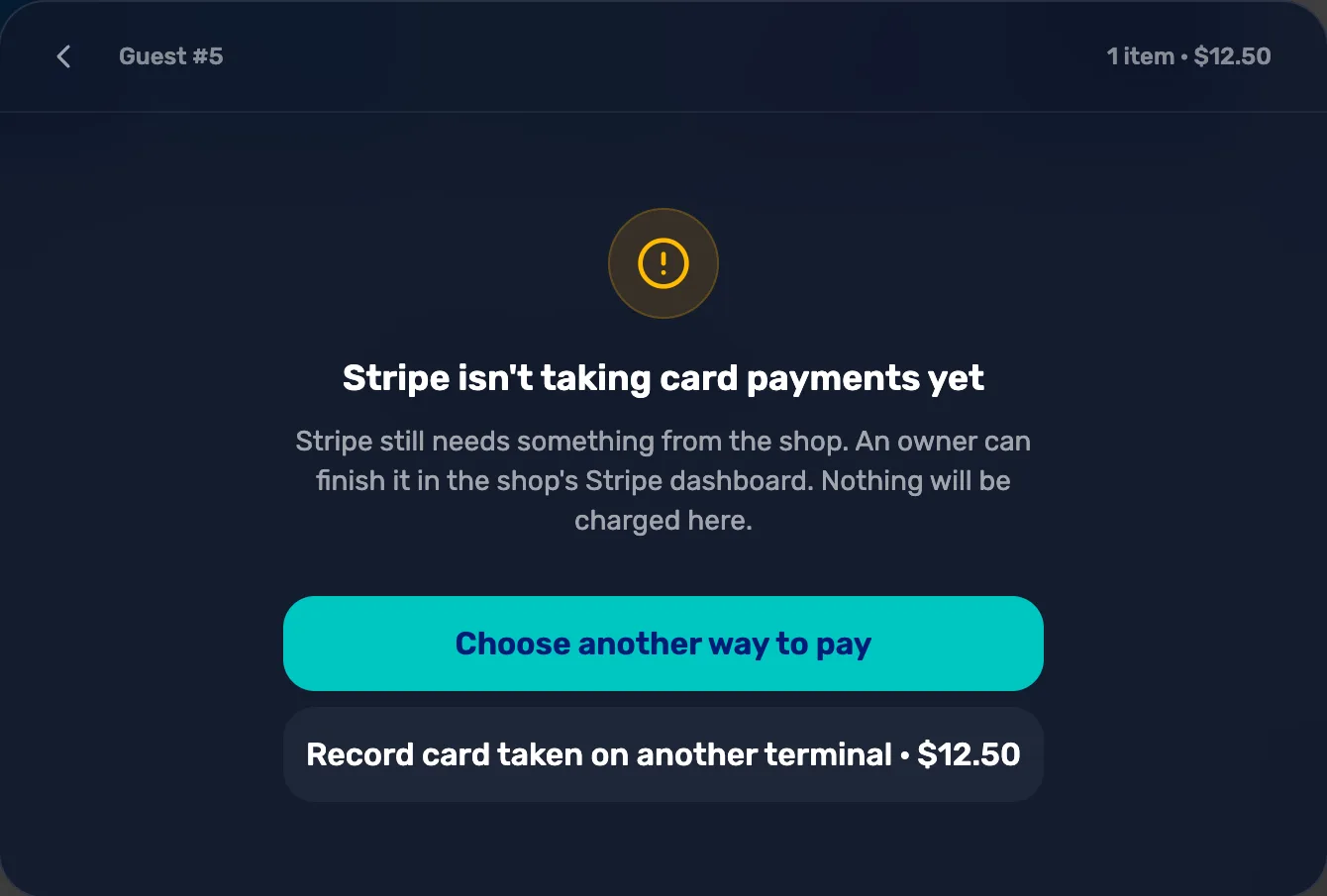
- Stripe isn't taking card payments yet. Stripe still needs something from you. Nothing was charged.
- Choose another way to pay. Back to cash and check.
- Record card taken on another terminal. Only if the customer already paid on a card machine of your own. The sale is recorded as card and nothing is charged here.
Once Stripe is ready
When Charges reads Enabled:
- A Card processor card appears under Payment providers. It reads "This shop charges cards through Stripe." If you connect Square too, this is where you choose which one charges new sales.
- Charge card at the register takes cards typed in on the screen.
- You can add a card reader in Settings › Devices.
- Online trip booking can take divers' payments. It works with Stripe only.
If you ever need to disconnect
Open Manage, choose Disconnect…, then Confirm disconnect. OneDive gives up its access to your Stripe account and the register stops charging cards through Stripe. Your Stripe account itself stays open, with all its history. Only disconnect when you are moving to another Stripe account or to Square.
What happens next
- Card sales are paid into your Stripe account on Stripe's payout schedule.
- On the Free plan, OneDive's platform fee comes out of each card payment. Processing fees and the platform fee explains both fees.