
What this is for. Tap a customer on the Customers page and their details slide in from the right. It is one place for everything your shop knows about them: who they are, what they bought, where they are diving next, what they owe, and what your team wrote down. This page walks through every part, top to bottom and tab by tab.
Find the customer
Go to Customers. Type a name, phone number or email in the search box, or scroll the list, then tap the customer's row.
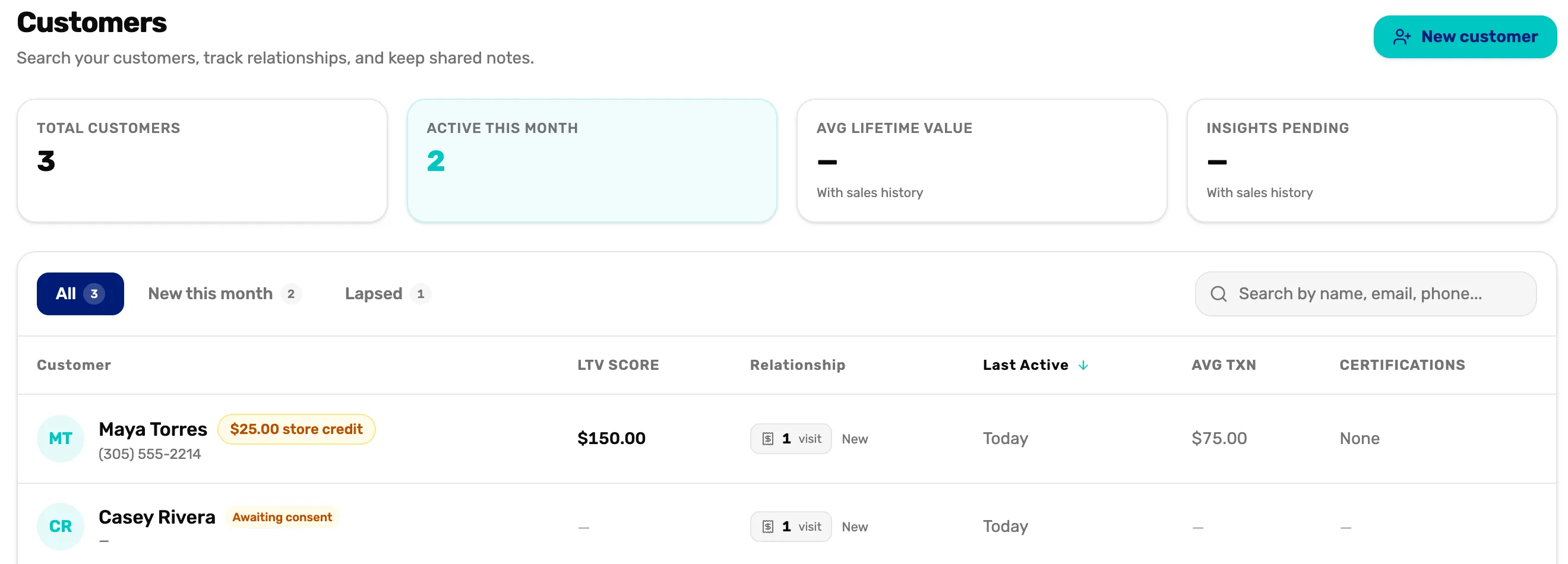
- New customer. Adds someone. See Add a customer.
- All, New this month, Lapsed. All your customers; the ones who became your customer in the last 30 days; and the ones you haven't seen for 90 days or more.
- Search. By name, phone number or email.
- The column headings. Tap Customer, Relationship or Last Active to sort by it. Tap again to flip the order.
- A store credit chip. This customer has store credit to spend.
- Awaiting consent. Part of their profile is private until they agree. See A customer who is already on OneDive.
The columns show what they spent with you in all (LTV Score), how many visits and how long they have been a customer (Relationship), when you last saw them (Last Active), their average sale (Avg Txn) and how many certification cards they have on file (Certifications). A dash means none yet, or hidden.
The top of the drawer and the Overview tab
The top stays the same on every tab. Below it, Overview opens first.
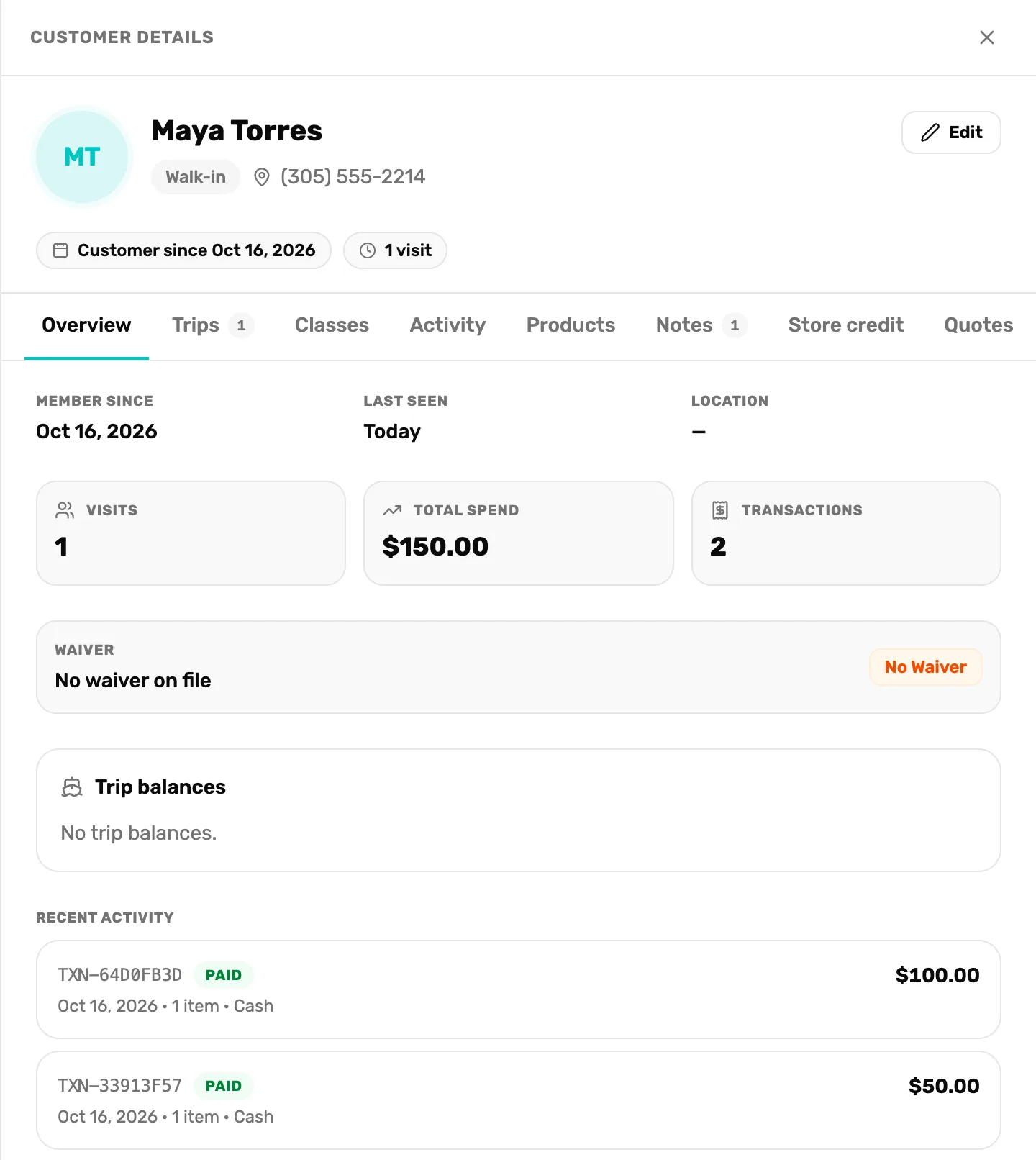
- Their status and contact. Walk-in for a customer you added; OneDive member once they set up their OneDive account. Then their email, or their phone if there is no email.
- Edit. Change their name, phone, email, date of birth or location. A OneDive member's details are theirs to change, so they are read-only here. Edit is greyed out for a customer who hasn't shared their profile with you.
- Customer since and visits. When they became your customer, and how many times they have been added as your customer.
- Member since, Last seen, Location. Location comes from the city and region on their profile.
- Visits, Total spend, Transactions. What they spent with you after refunds, over how many sales.
- Waiver. Waiver ✓ with the date it was signed, Waiver expired, or No Waiver. When the signed copy is on file, View waiver opens it.
- Trip balances. Trip seats they still owe money on, each with Collect. See Collect a trip balance.
- Recent activity. Their five newest sales and refunds. View all goes to the Activity tab.
Trips
Every trip seat this customer has with you: coming up first, soonest at the top, then past ones, newest first. The number on the tab counts their upcoming trips.
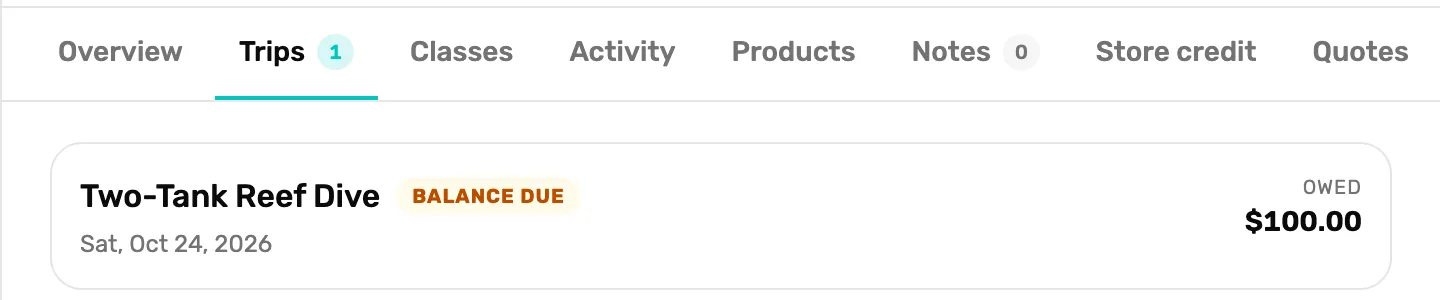
- The trip and its status. Signed up, Balance due, Paid, Attended, No-show or Cancelled. Tap the trip's name to open that departure and its manifest.
- Owed. Shows only when money is still owed on the seat.
Classes
Every class they are enrolled in, with its dates and their progress, such as Enrolled, Attending or Passed. A student waiting for you to schedule a class shows Awaiting a class. Tap a class's name to open it. The number on the tab counts their upcoming classes.
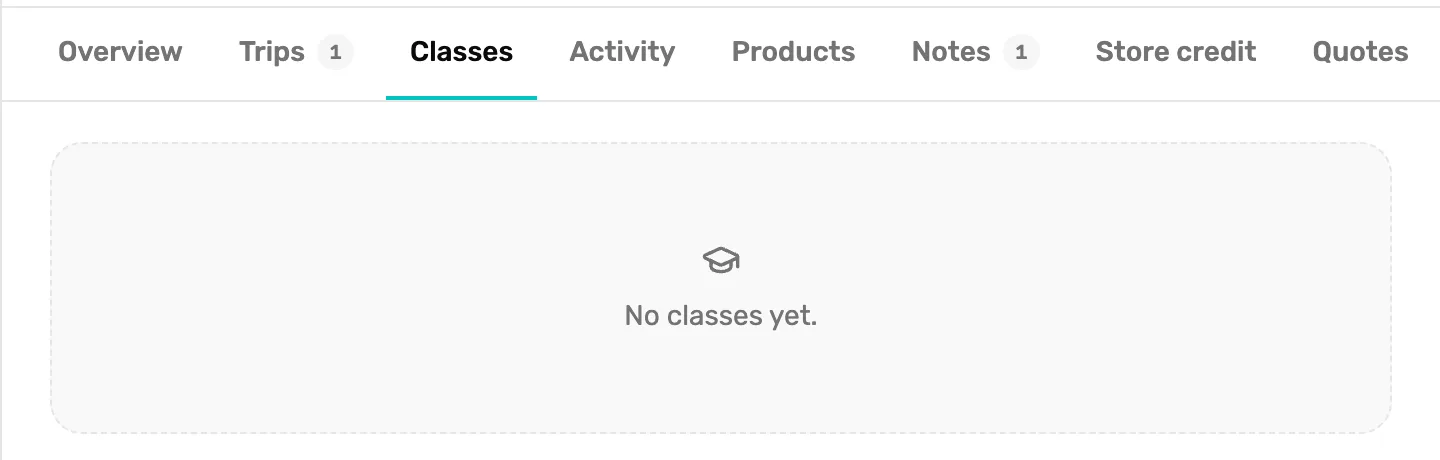
- No classes yet. They haven't been enrolled in a class.
Activity
Every sale and refund for this customer at your shop, newest first, 25 at a time. Show more loads the next 25.
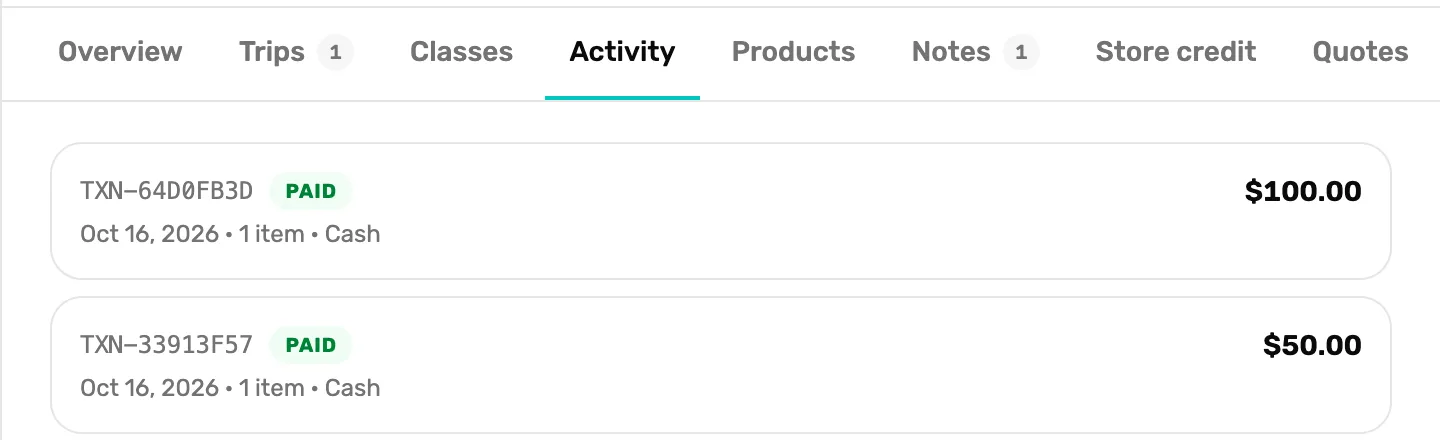
- Receipt number and status. Paid, Refunded or Partially refunded, then the date, how many items and how they paid.
- Amount. The sale's total.
Products and Insights
These two tabs are placeholders for now. Products says Owned products appear here once sales are recorded. and Insights says Insights appear here once purchase history is available. Use Activity for what they bought.
Notes
Notes are for anything the next person on your team should know: sizes, preferences, a repair they asked about. Every note is visible to all staff. The number on the tab counts the notes.
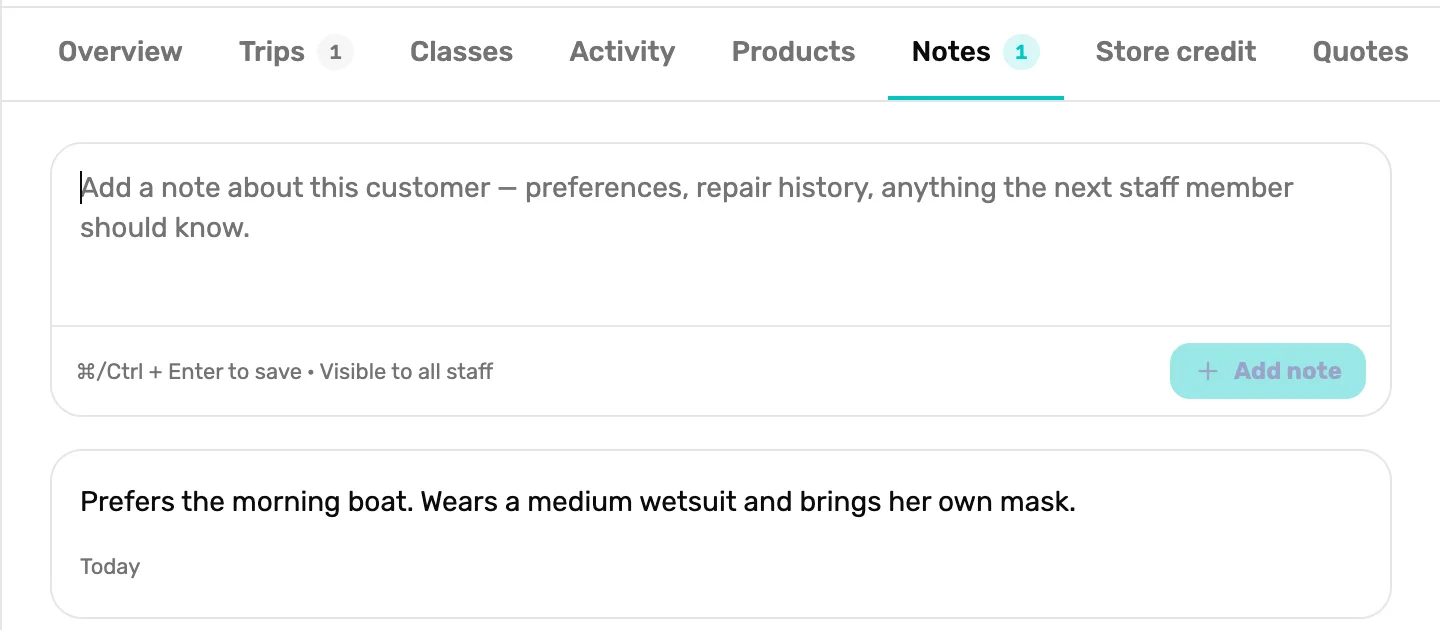
- The note box. Type the note. On a keyboard, Ctrl+Enter (⌘+Enter on a Mac) saves it too.
- Add note. Saves it. It stays grey until you type something.
- A saved note. Newest first, with when it was written. Point at a note to show the bin; tap it, then Delete to remove the note.
For a customer who hasn't shared their profile with you, the note box is hidden and notes can't be deleted.
Store credit
The customer's store credit with your shop. It comes off their next sale at the register.
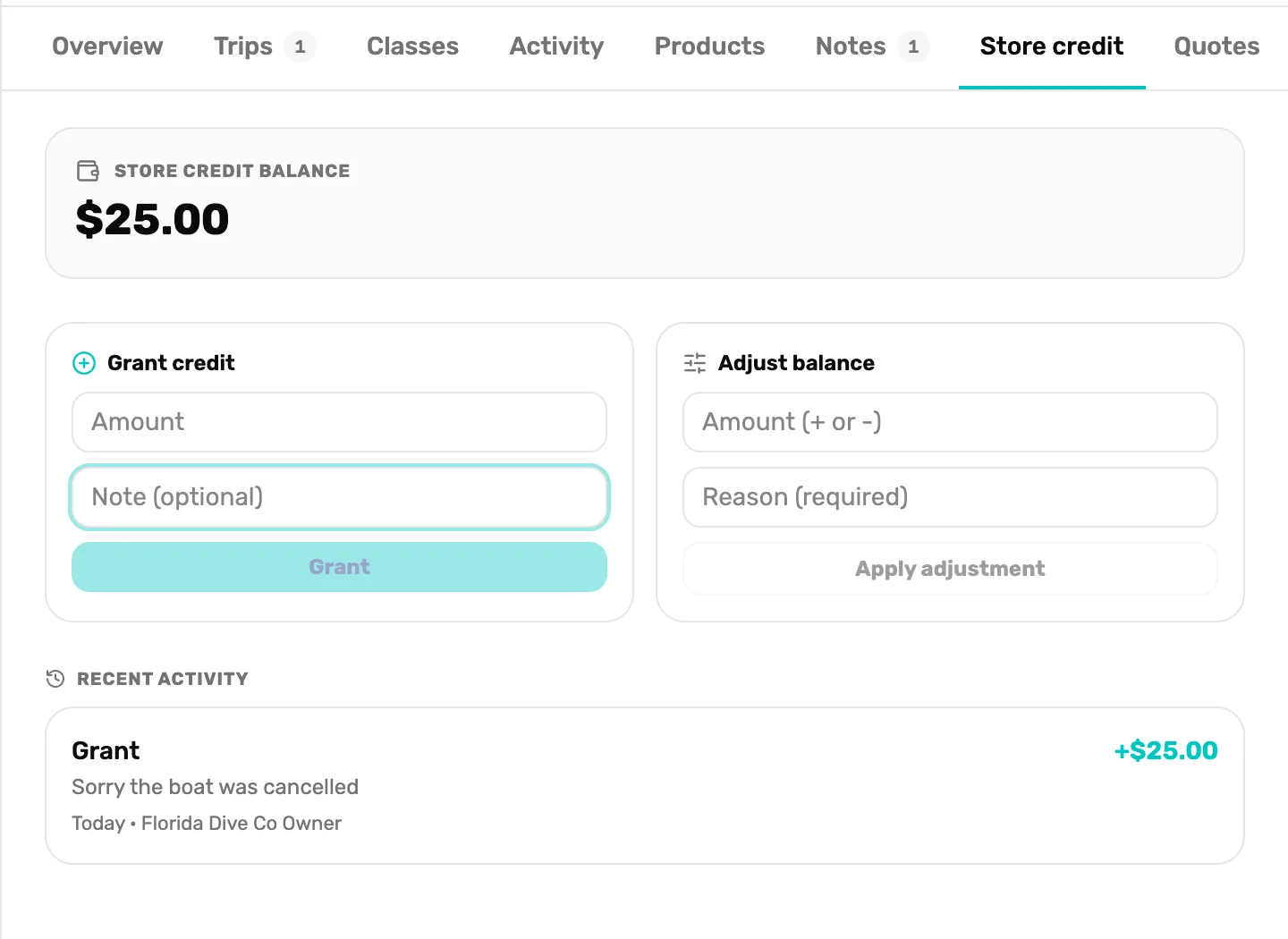
- Store credit balance. What they can spend. If the credit has an end date, it shows under the amount.
- Grant credit. Type an amount and an optional note, tap Grant, then confirm. The amount is added to their balance.
- Adjust balance. Type a plus or minus amount and a reason (required), tap Apply adjustment, then confirm. Use it to correct a mistake.
- Recent activity. Every grant, adjustment and redemption, with the note, when and who.
Quotes
Every quote saved for this customer from the register, with its number, date, total before tax and status: Open, Converted, Voided or Expired. To make one, see Save a cart as a quote.
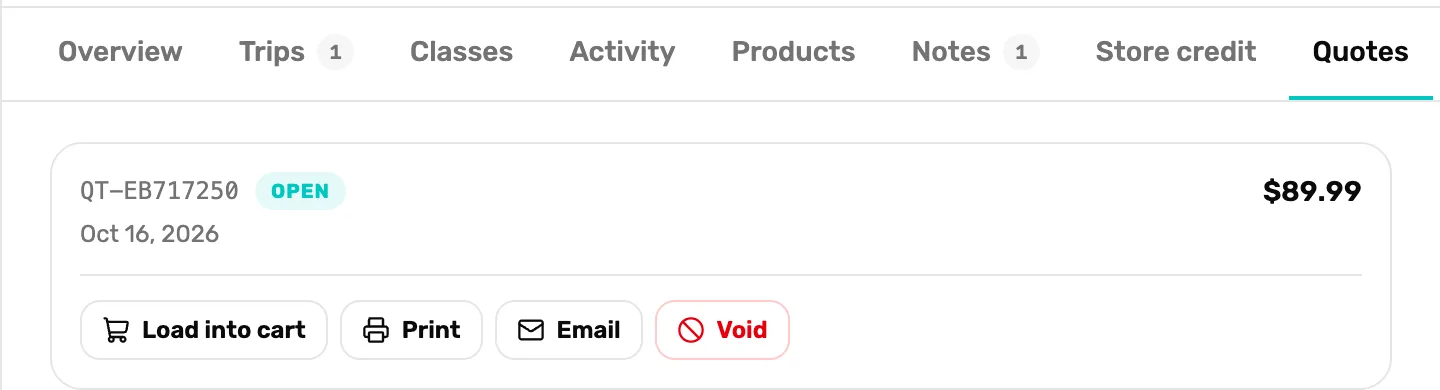
- Open. Still good. Only an open quote has buttons.
- The buttons. Load into cart opens the register with the quote's items. Print opens a printable copy. Email sends it to the customer's email; with no email on file it says No email on file for this customer. Void cancels the quote for good, after you confirm.
Gear
Gear with a serial number that you have serviced for this customer, with when it was last serviced and how many tickets it has had. Tap a piece of gear to open its newest service ticket. It fills in when a service ticket records a serial number.
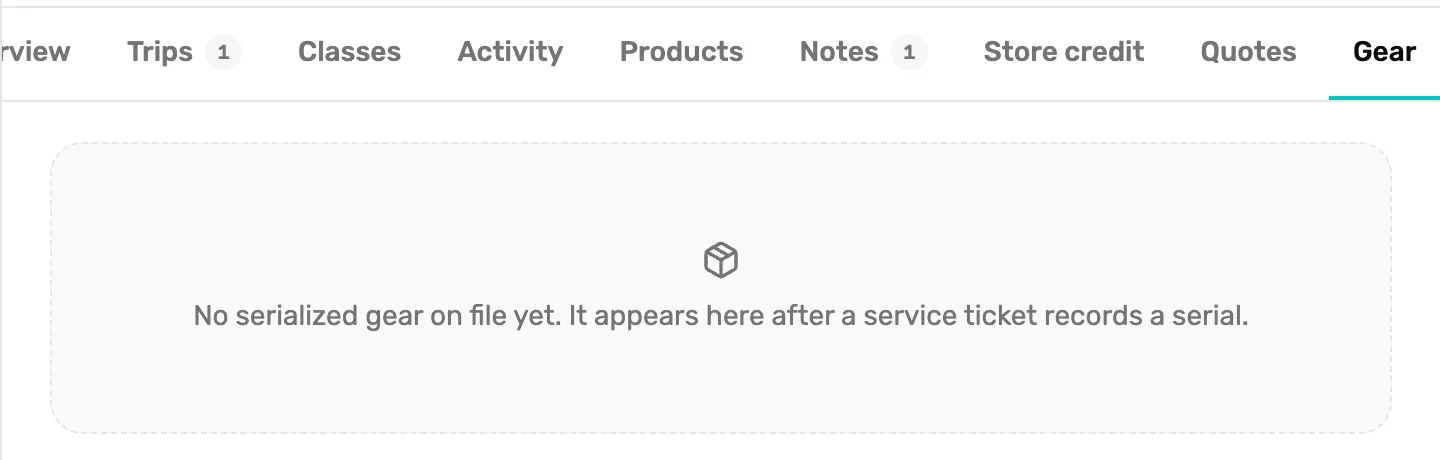
- Empty for now. This customer hasn't had serial-numbered gear serviced yet.
What happens next
- To close the drawer, tap the cross at the top right, tap outside it, or press Esc.
- Owed money on a trip? Collect a trip balance.
- Someone's details hidden? A customer who is already on OneDive.