
What this is for. When you book a trip seat at the register, the diver can pay a deposit now and the rest later. Their customer page keeps track of what they still owe. When they come in to pay, Collect puts the exact balance in a cart for you, so nobody has to work out the number. You end up with the seat marked Paid.
Where a balance comes from
A balance starts when a seat is booked at the register for less than its full price. In the register's Trips tab, tap a departure. Book trip seats opens with Pay now set to the trip's deposit.
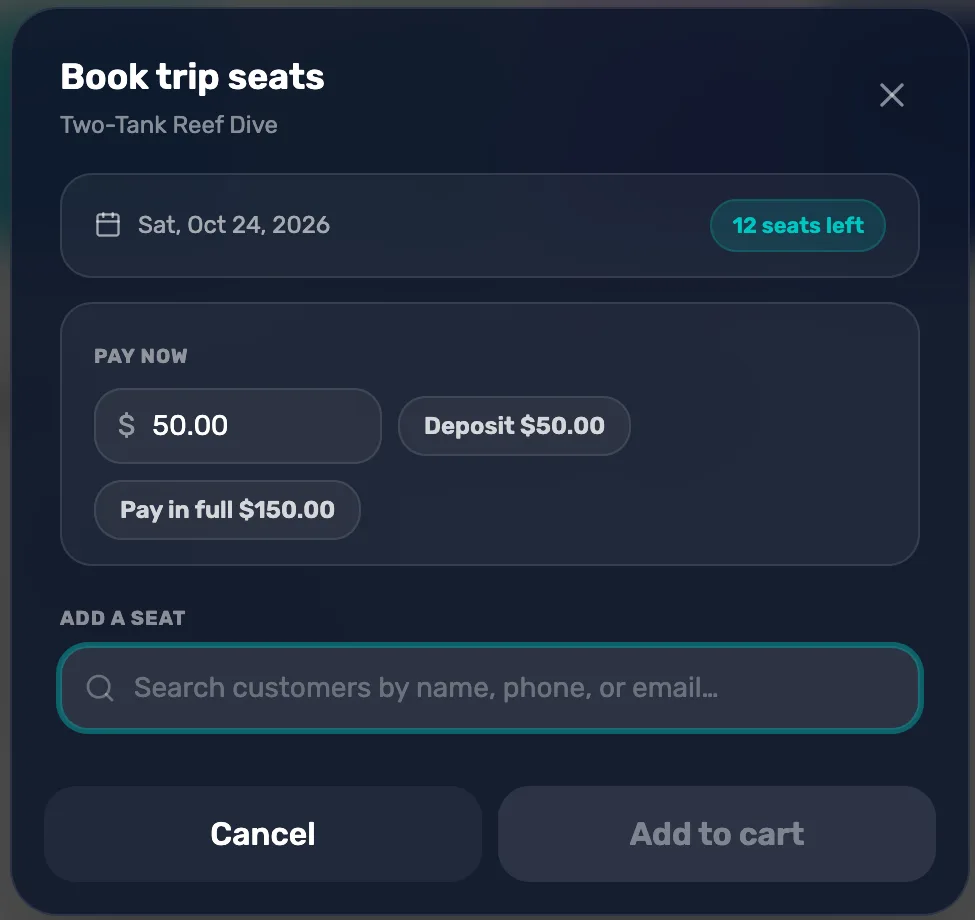
- Pay now. What the diver pays today. It can't be less than the deposit or more than the seat.
- Deposit. Sets Pay now to the deposit you set on the trip.
- Pay in full. Sets Pay now to the whole seat.
- Add a seat. Search for the diver and tap them.
- Add to cart. Turns into Add 1 seat with the amount once a diver is picked.
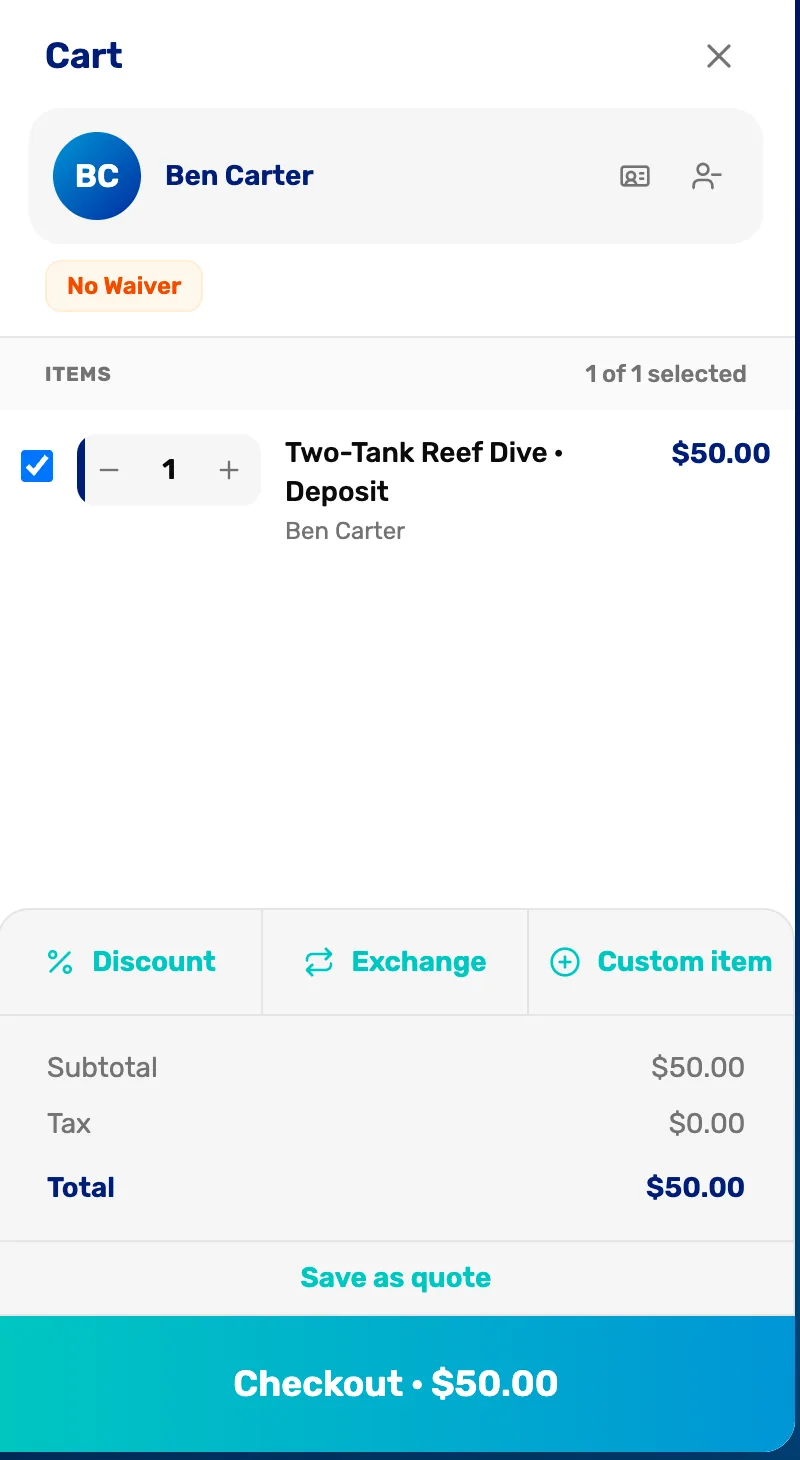
- · Deposit. The seat is in the cart for the deposit only.
- Checkout. Take the deposit as usual. The rest is now the balance.
Open the customer's page
Go to Customers, search for the diver and tap them. Their Overview tab shows Trip balances: every seat they still owe on, what they have paid and what is left.
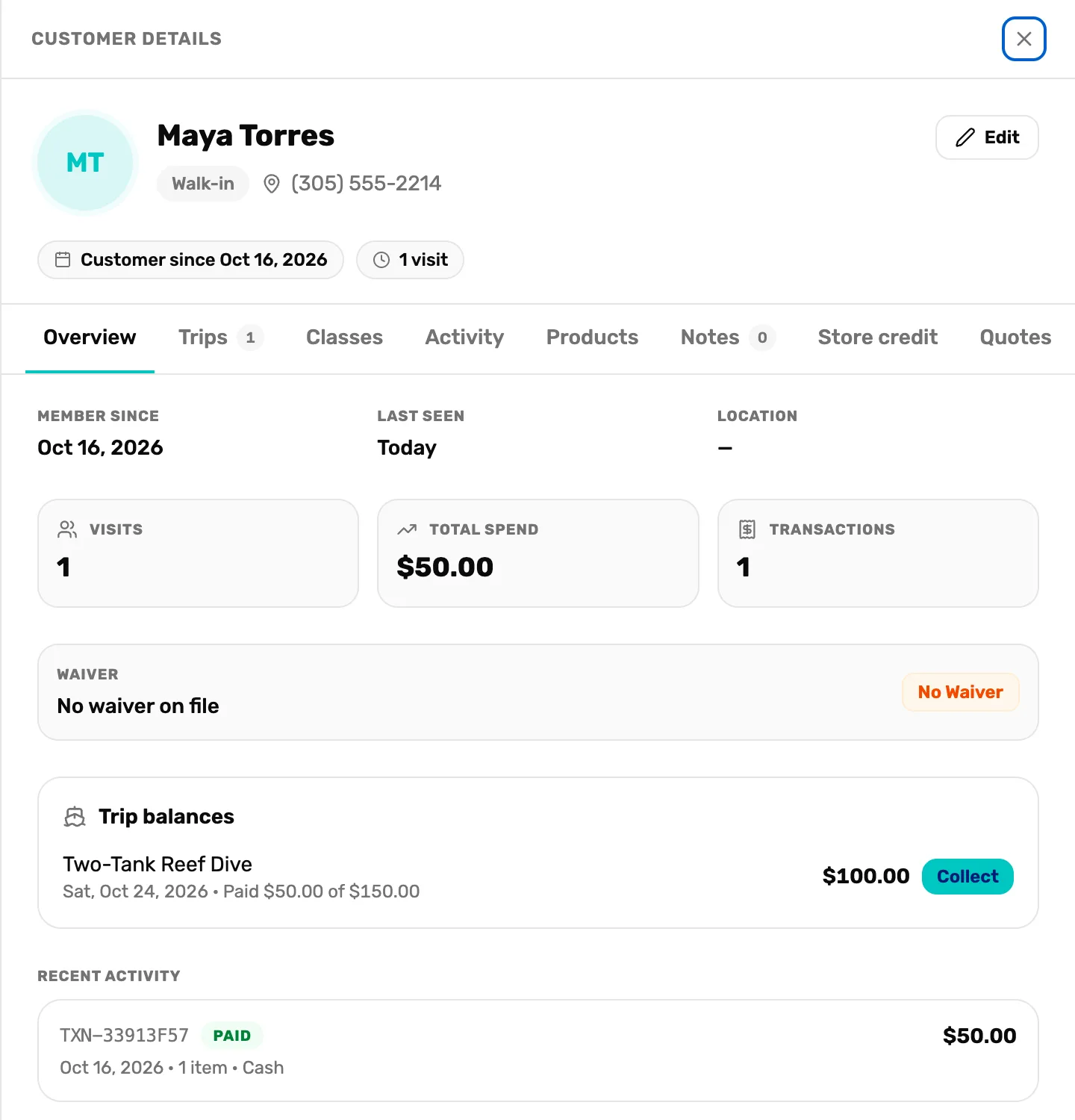
- Trip balances. Says No trip balances. when nothing is owed.
- The seat. The trip, the day it leaves and how much of the seat is paid.
- The balance. What is left to pay.
- Collect. Puts the balance in a cart at the register.
The Trips tab shows the same seat marked Balance due, with what is Owed.
Tap Collect
The button reads Opening… for a moment, then the register opens with a new cart for this customer. The cart holds one line, the trip's name with · Payment after it, for the whole balance.
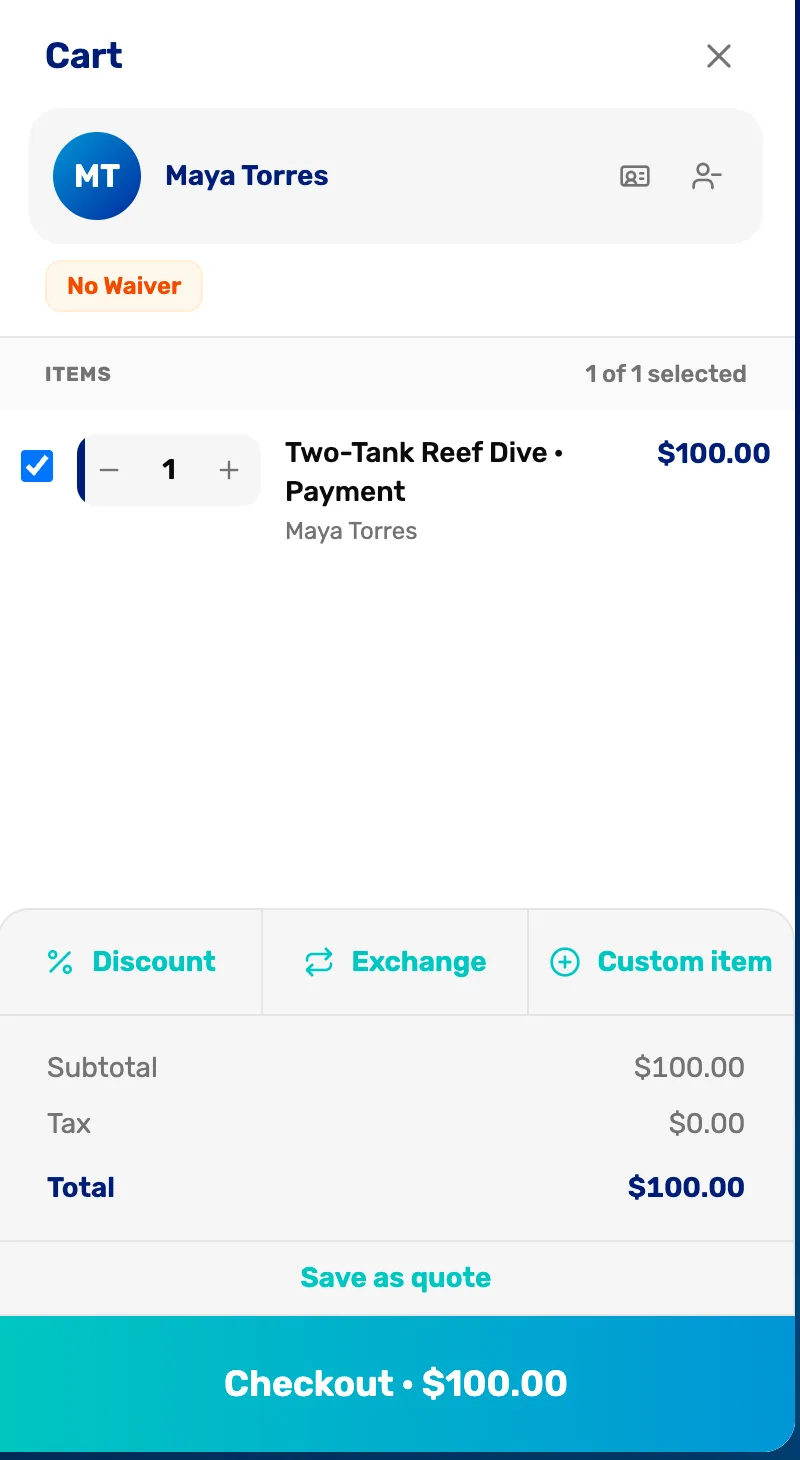
- · Payment. A payment toward the seat they already hold. It doesn't book a second seat.
- Checkout. The balance to take.
Take the payment
Tap Checkout and take the money the way the customer pays. For cash, tap the exact amount, a rounded-up amount, or Custom to type what they hand you.
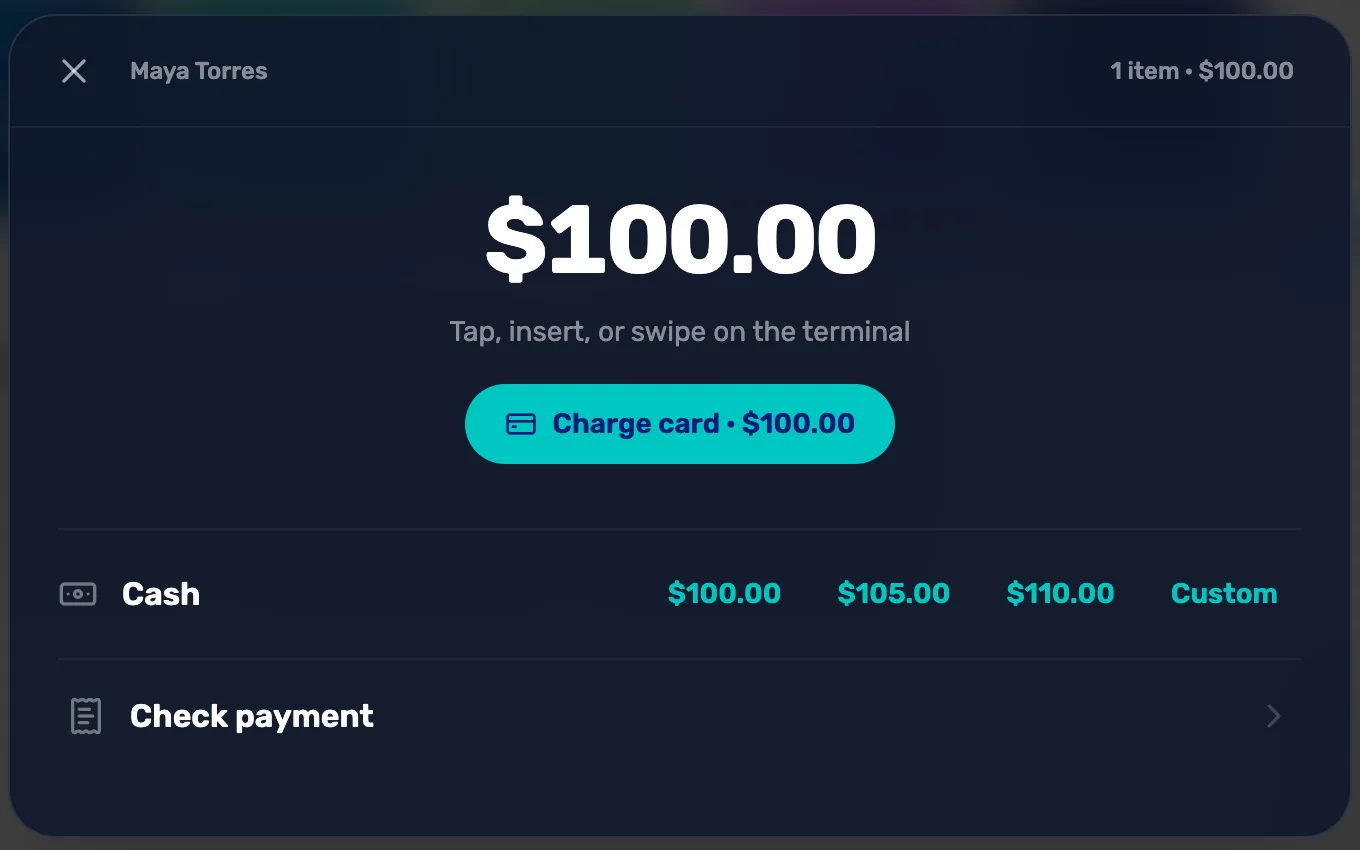
- Charge card. Charges the card on your card reader.
- Cash. Tap the amount they hand you. The register works out the change.
- Check payment. Records a check.
The receipt screen opens. Print, Email or Text the receipt, or tap Done.
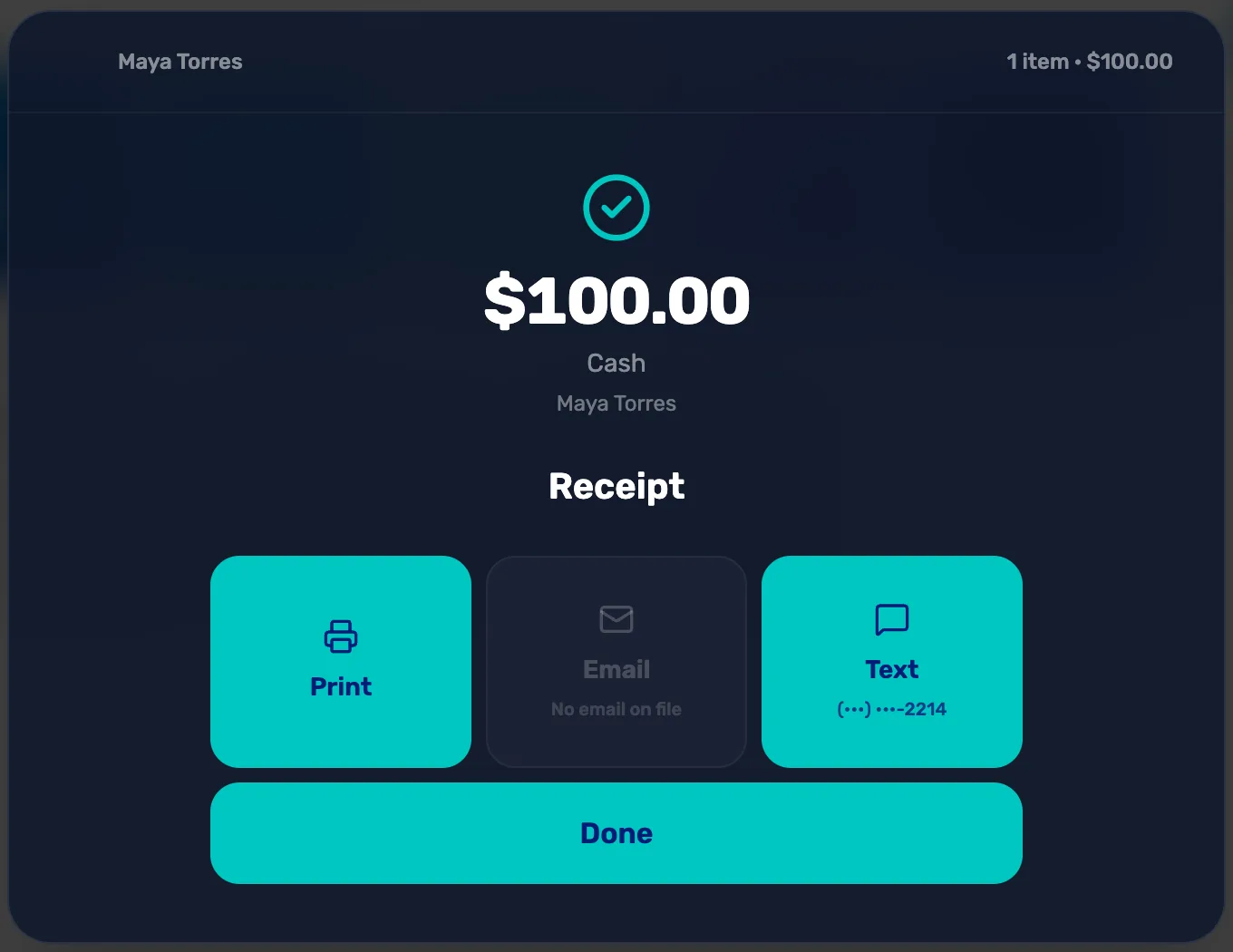
- Email. Grey with No email on file when the customer has only a phone number.
Check that the seat is paid
Open the customer again. Trip balances now says No trip balances., the payment is at the top of Recent activity, and on the Trips tab the seat says Paid.
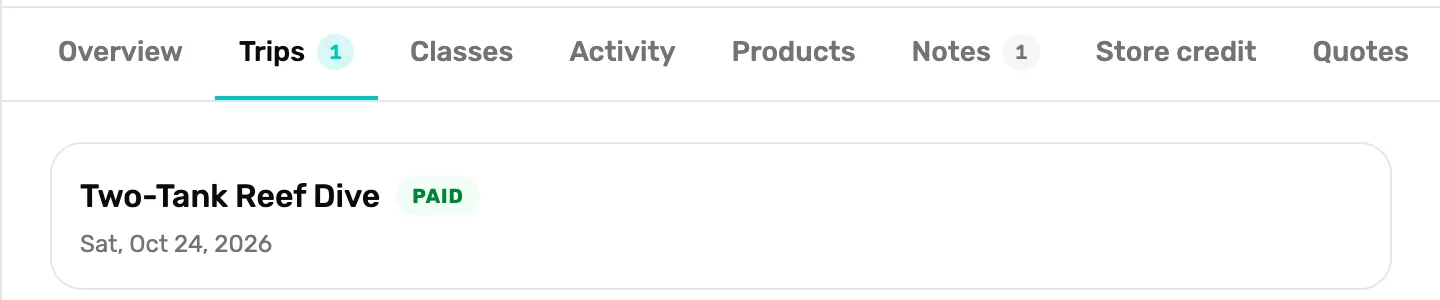
- Paid. Nothing more is owed on this seat.
Take part of the balance
When the diver wants to pay some now and the rest later, start at the register instead.
- Tap New customer, search for the diver and tap them. A cart opens with them on it.
- Open the Trips tab and tap Trip payment, the first tile.
- Tap the seat, type the amount in Amount, and tap Add payment.
- Check out as usual.
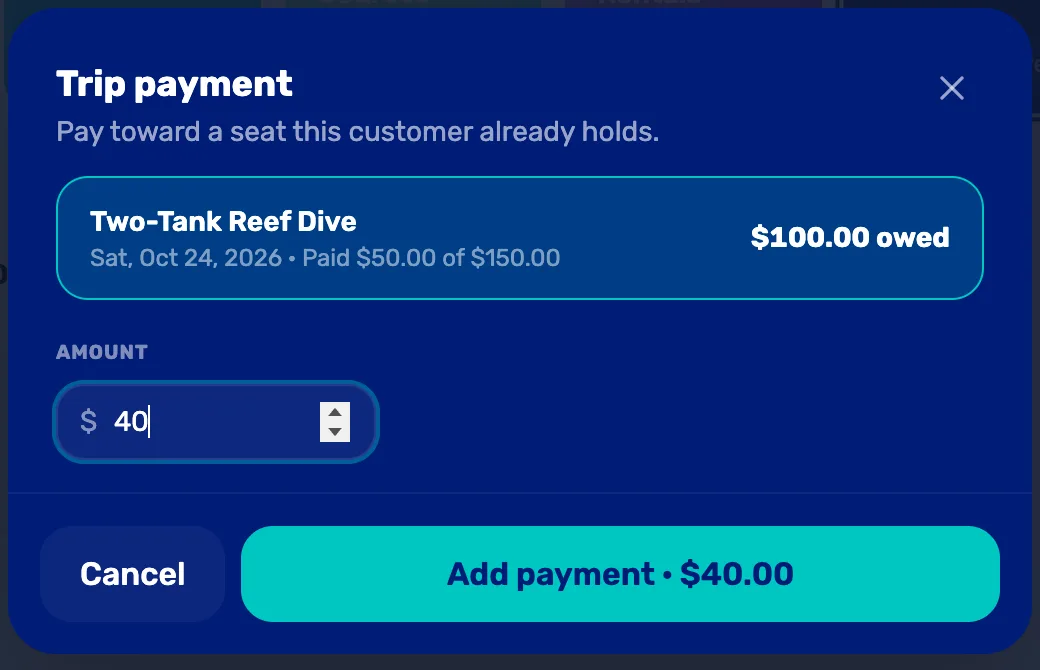
- The seat. Every seat this customer owes on. Tap one to pick it.
- Amount. Starts at the whole balance. Type less to take part. More than is owed says That's more than what's owed.
- Add payment. Adds the payment line to the cart.
The rest stays on their page under Trip balances, ready for next time.

- What's left. Ben paid a $50.00 deposit and then $40.00, so $60.00 is still owed.
If something doesn't work
- This booking is paid in full. Someone already took the balance. Close the customer and open them again to see the latest.
- Could not open the register. Try again. Nothing was charged. Tap Collect again.
- A cancelled seat has no balance to collect. A seat on a cancelled departure doesn't show under Trip balances either.
What happens next
- The payment shows in the customer's Activity tab and in your sales like any other sale.
- For the day of the trip itself, see Run the day of the dive.