
What this is for. A customer brings one thing back from a bigger sale. You find that sale, pick only what came back, and OneDive works out the money for those items, tax and any discount included. The rest of the sale stays paid, and the refund is kept with it in your records.
Open Transactions
Tap the gear at the top right of the register to open Manager tools, then Transactions. Or go straight to Settings › Transactions. Only the owner, a General Manager or a Manager sees the gear.
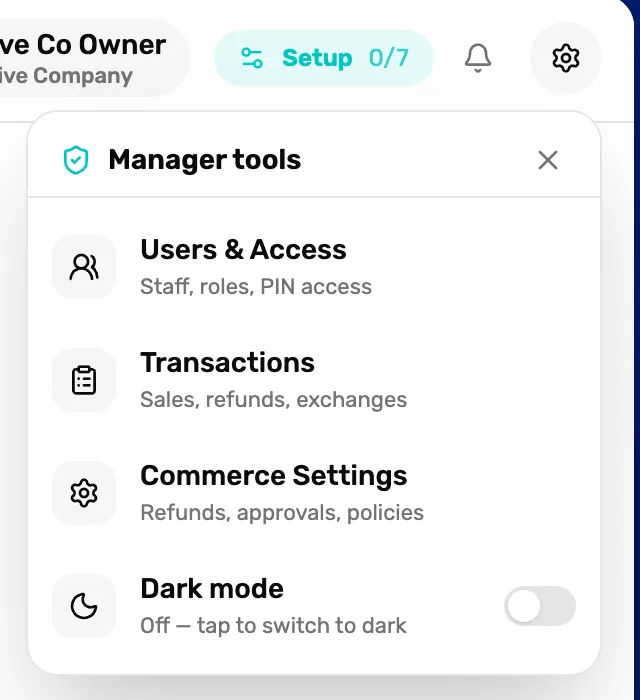
- The gear. Opens Manager tools.
- Transactions. Every sale, refund and exchange your shop has made.
Find the sale
Type in the search box. It finds a sale by its receipt number, the customer's name or the name of an item on it. The list changes as you type.
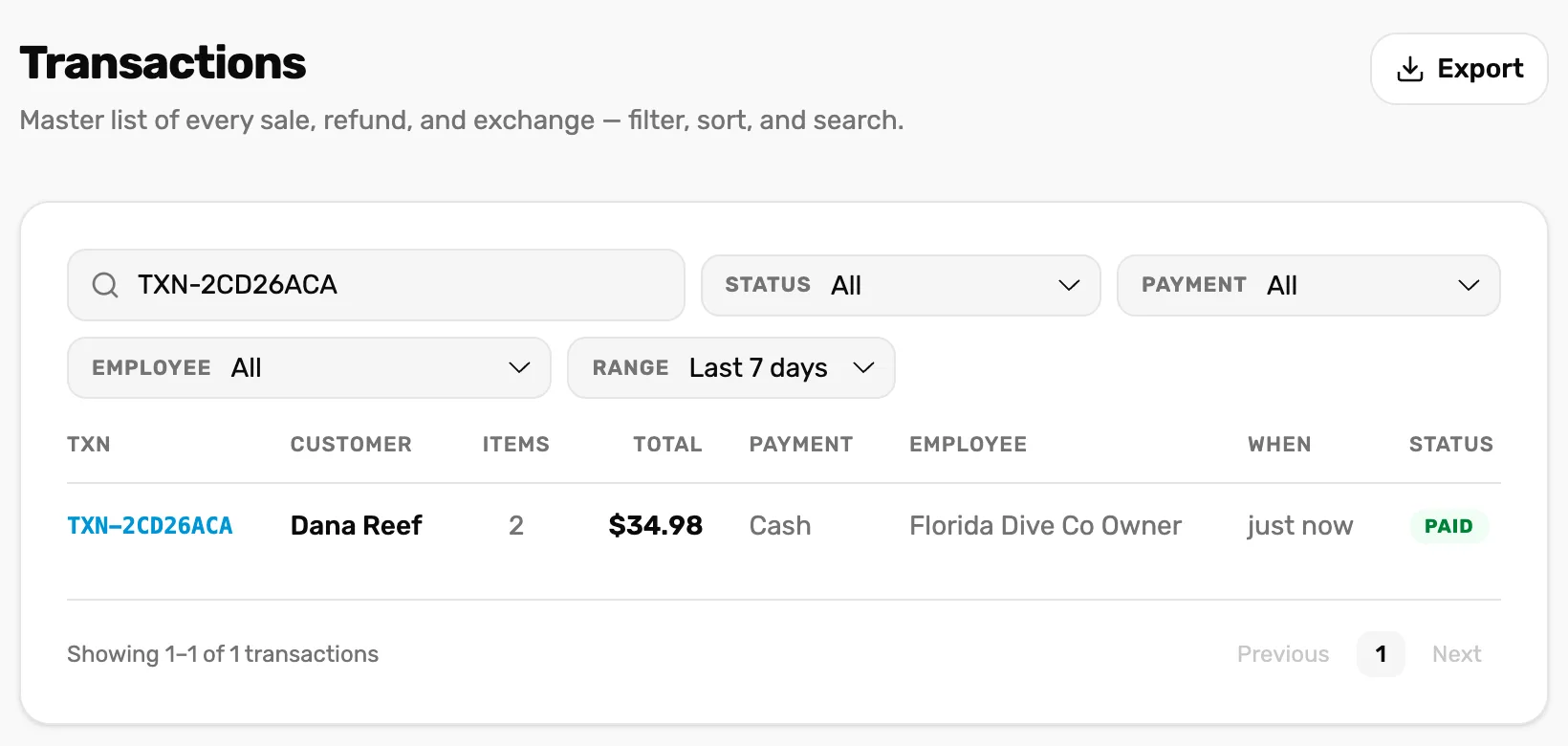
- Search TXN, customer, item... The receipt number is the TXN code on the receipt, like TXN-2CD26ACA. You can leave off "TXN-".
- Status, Payment, Employee. Narrow the list, for example to cash sales by one person.
- Range. Starts on Last 7 days. For an older sale, pick Last 30 days, This month or Custom and set the dates.
- The sale. Tap the row to open it.
Pick what came back
The sale opens on the right in Transaction Details. Under Items, tap + beside each item that came back, once for each one. The button at the bottom counts them: Refund selected (1 item). Tap it.
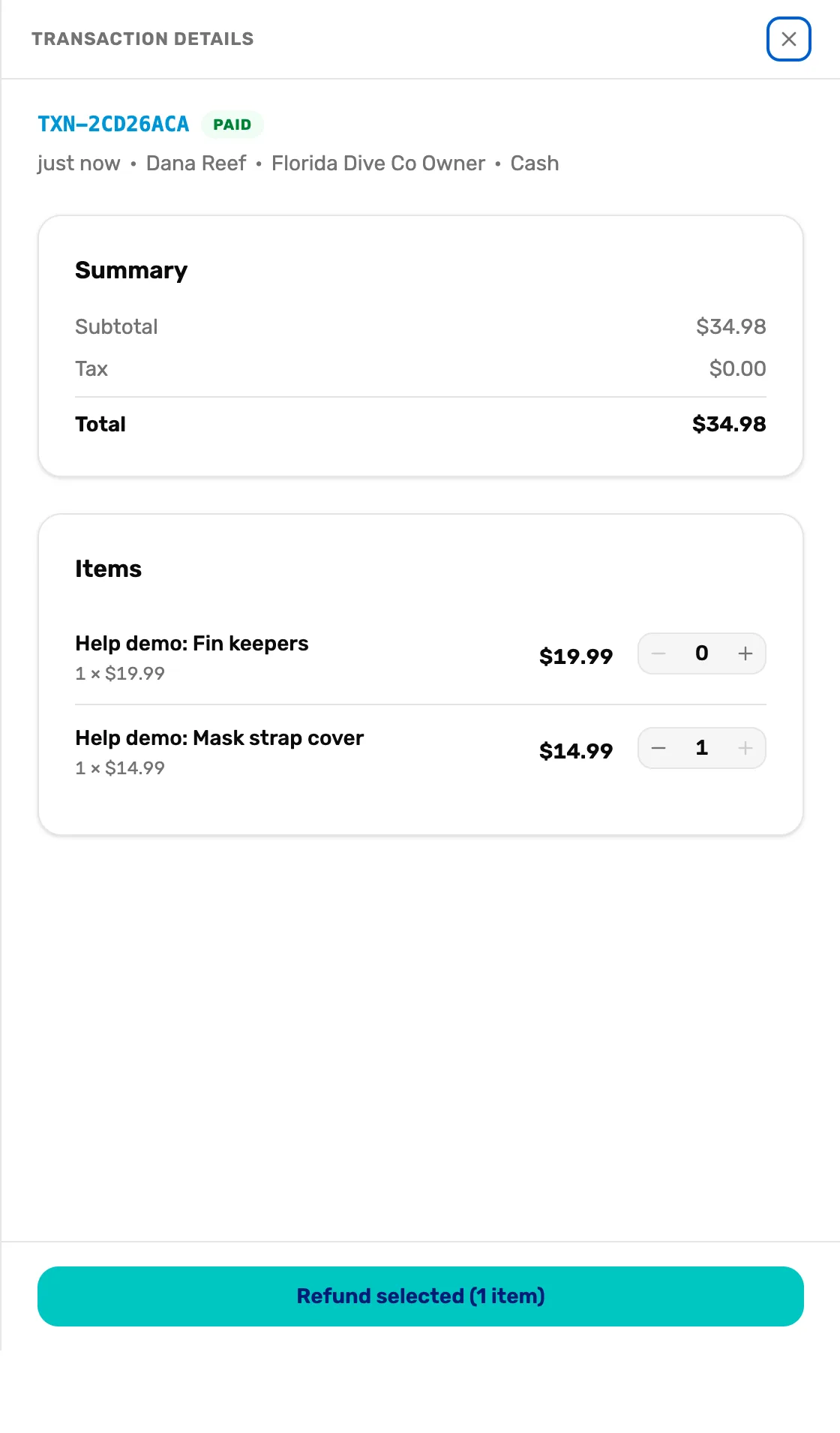
- Summary. What the customer paid: subtotal, any discount, tax and total.
- + and −. How many of this item come back. It stops at what is left to refund.
- Refund selected. Opens the confirm step. Nothing is refunded yet.
If there are no + buttons, the sale can't be refunded here. The box at the top says why: it is outside your return window, it has already been refunded in full, or it is an online trip booking, which you refund from the trip's manifest.
Check the amount and choose how the money goes back
Confirm refund opens under the items. It shows each item and the Refund total, the exact amount that goes back. If the sale had tax, a line under the total says how much of it is tax. Pick how it goes back, then tap Refund. The button shows the amount.
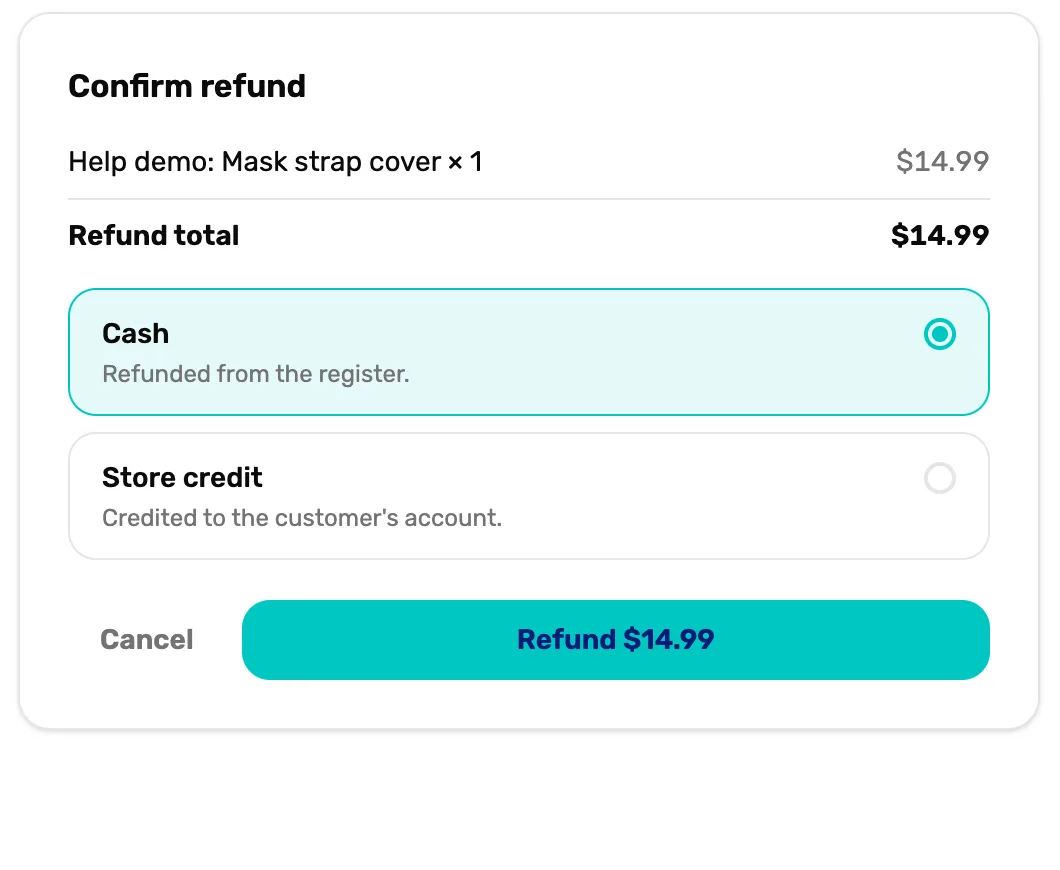
- Refund total. What the customer gets back for these items. A discount on the sale is shared across its items, so this can be less than the price.
- Cash. Hand the refund total back from the drawer.
- Store credit. Adds it to the customer's store credit. Greyed out on a guest sale, with the words "No customer on this sale".
- Refund. Does the refund. Cancel goes back without refunding.
Check the sale
A message confirms it, for example Refunded $14.99 as cash. The sale now reads Partially refunded, or Refunded once every item is back. The refund shows under Refunds with its own TXN number and a minus amount. Tap it to open the refund itself.
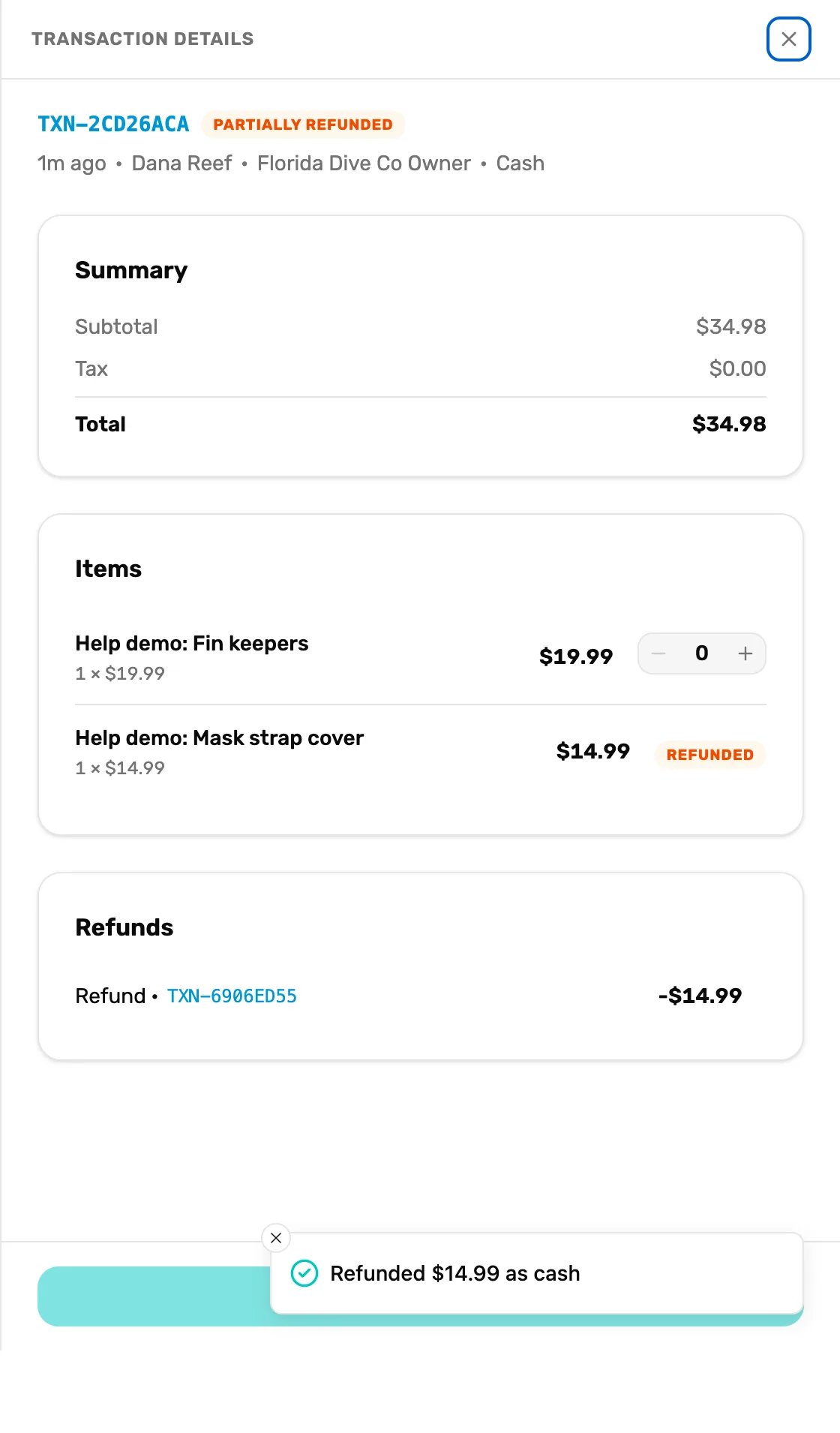
- Partially refunded. Some items came back. Refund more the same way, any time inside your return window.
- Refunded. That item is all back. It has no + any more.
- Refunds. Every refund on this sale. Tap one to see it.
- The message. Says how much went back and how.
Refunded retail items go back into stock by themselves.
A card sale goes back to the card
For a sale charged by card in OneDive, Card is picked for you on the confirm step: "Refunded to the original card. Typically takes 5–10 days to arrive." Tap Refund. The message reads "Refund submitted — card refunds typically take 5–10 days to reach the customer." Until the bank confirms, the refund shows Refund pending.
- Refund another way shows Cash and Store credit, for example when the card was cancelled. Hide other refund methods closes them again and puts you back on Card.
- If the card can't take the refund, a red line says why ("The card refund was declined. Try another method below.") and the other ways open for you.
- A card sale that also used store credit, or a card you recorded from another terminal, can only go back as cash or store credit. See Refund rules.
What happens next
- Swapping one item for another? Use Exchange in the register's cart, with the customer attached. It refunds to store credit and you ring up the new item, which the credit pays for.
- The rules behind every refund, from the return window to tax: Refund rules.
- Export at the top of Transactions downloads the list you are looking at, with the same filters.