
What this is for. Receipts and waivers go to the customer by email or text from OneDive, not from your shop's own inbox. When one doesn't arrive, the cause is almost always one of a few things on this page. First get the customer what they need while they are with you, then fix the cause so it doesn't happen again.
Get them a copy now
- Still on the Receipt screen? Tap Email or Text again. After a send the tile reads Sent ✓, and you can tap it again as often as you need. Print gives them paper.
- Already tapped Done? That receipt can't be emailed or texted again, and there is no resend button anywhere yet. For a service ticket, open the ticket and choose View receipt, then Print. For any other sale, find it in Settings › Transactions and read them the receipt number and total.
- A waiver? Don't wait for the email. In the register, tap the orange No Waiver chip under the customer's name and choose Sign now, so they sign on your screen. That needs SmartWaiver connected. If they sign on paper instead, choose Waiver on file… to record it.
What the Receipt screen told you
The Receipt screen comes up when the payment goes through. The Email and Text tiles use the email and phone on the customer's profile. There is nothing to type here.
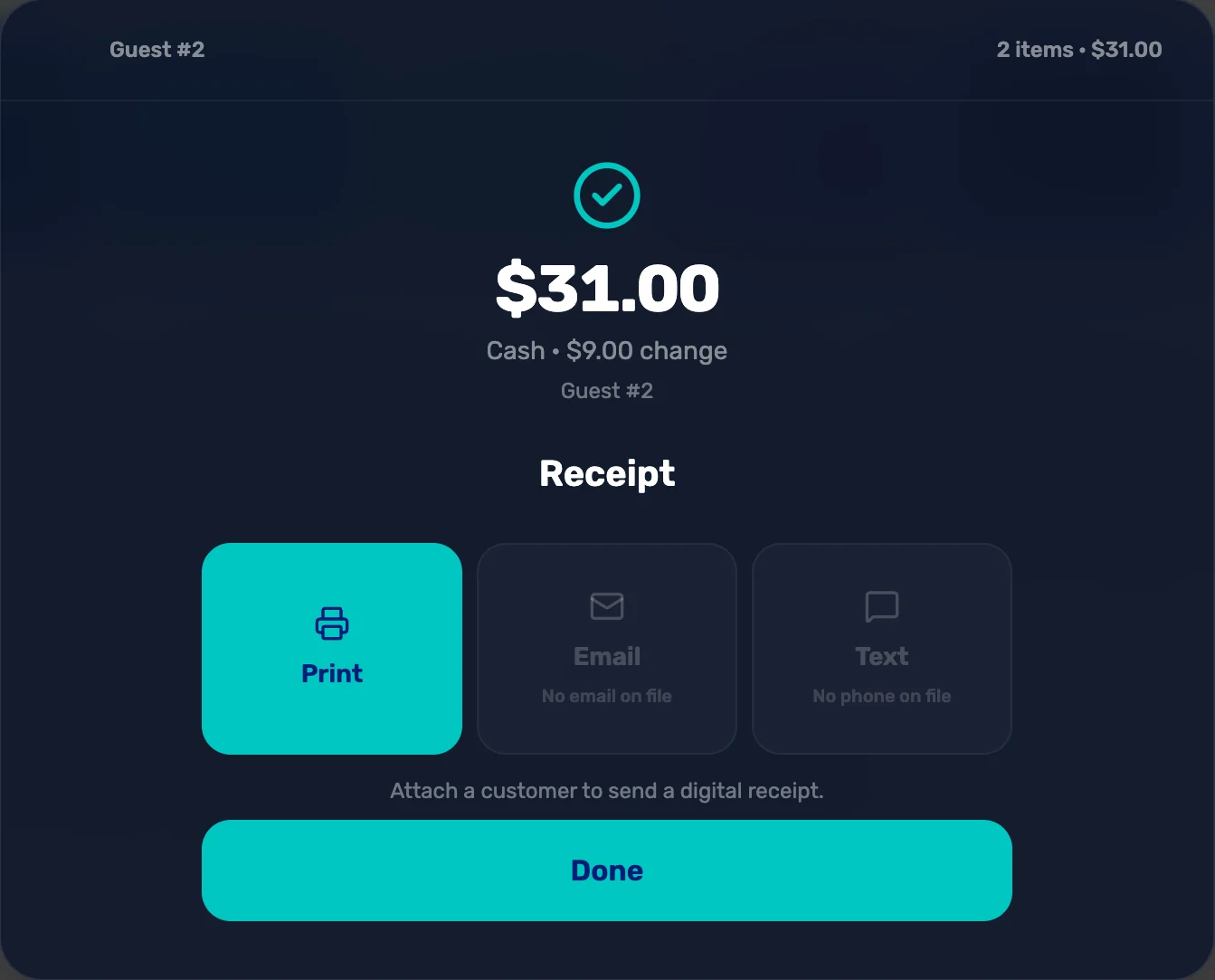
- Email. Sends the receipt to the email on the customer's profile. Greyed out with No email on file when there isn't one.
- Text. Texts it to the phone on the profile. Greyed out with No phone on file when there isn't one.
- Attach a customer to send a digital receipt. The sale has no customer on it. Print is the only choice for this sale.
- Done. Closes the sale. After this, the receipt can't be emailed or texted again.
No customer on the sale. Next time, attach the customer before you tap Checkout. See Attach a customer and their waiver.
No email or phone on their profile. Add it to their profile in Customers so the next receipt can go. For this sale, print it.
They have an email, but the tile still says No email on file. Look the customer up in Customers. If Awaiting consent or Consent revoked shows under their name, your shop doesn't have their consent to contact them, so OneDive won't send them receipts, ticket messages or anything else. Print the receipt.
The screen said Sent ✓, but nothing came
Sent ✓ means OneDive took the receipt and is sending it. It doesn't mean it arrived, and the register is never told if it bounces. Check these with the customer, in this order:
- Spam or junk. Receipts come from noreply@onedive.ai with the subject "Receipt from" and your shop's name. Ask them to search for that, and to mark it as not spam.
- A typo in the email or phone. Open their profile in Customers and read the address back to them. Fix it, and the next receipt goes to the right place. If their contact details can't be edited, the customer has claimed their own OneDive profile: they change it there.
- The address is blocked. When an email to an address bounces, or the person marks one of our emails as spam, OneDive stops sending to that address. The register still shows Sent ✓. If the address is right and nothing ever arrives, ask us to check it and unblock it.
- They once replied STOP to a OneDive text. Their phone carrier now blocks texts from us to that number. They can reply START to that number to get texts again.
The waiver didn't arrive
Waivers go through SmartWaiver, and they go by email only, never by text. You send one from the waiver chip in the cart: tap No Waiver or Waiver expired, then choose Email waiver. If it can't be sent, a message pops up to say why.
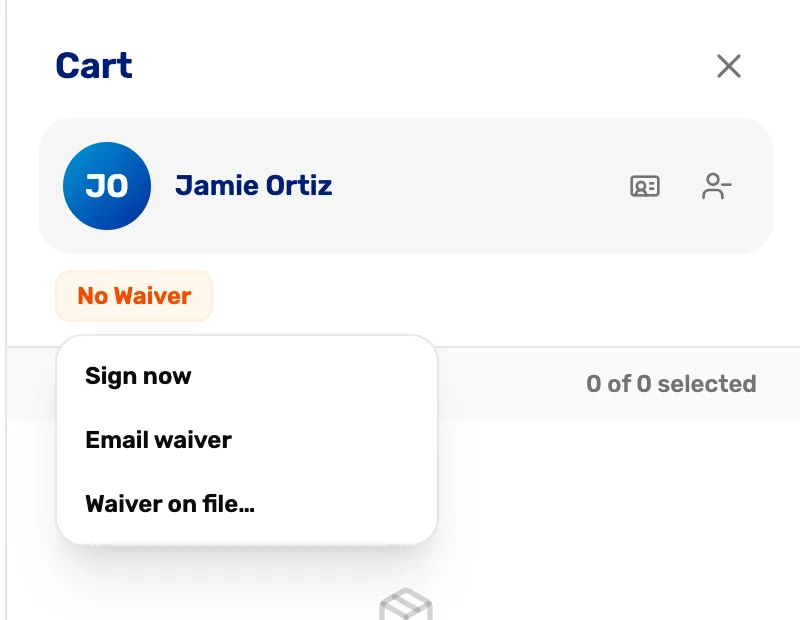
- No Waiver. Tap it for the three choices.
- Sign now. The customer signs on this screen. Needs SmartWaiver.
- Email waiver. Emails them a link to sign. Needs SmartWaiver and an email on the customer.
- Waiver on file… Records a paper waiver. Works without SmartWaiver.
- "SmartWaiver isn't connected yet." The owner or a general manager connects it. See below.
- "No default waiver chosen yet." Pick one under Waiver to send on the SmartWaiver card.
- "SmartWaiver rejected the shop's API key." The owner or a general manager connects it again.
- "This customer has no email on file." Add their email, or choose Sign now.
Connect SmartWaiver. Go to Settings › Integrations and find Waivers. Point at or tap the SmartWaiver card to show Connect, then paste your SmartWaiver API key. You'll find the key in your SmartWaiver account under Settings › Integrations › API.
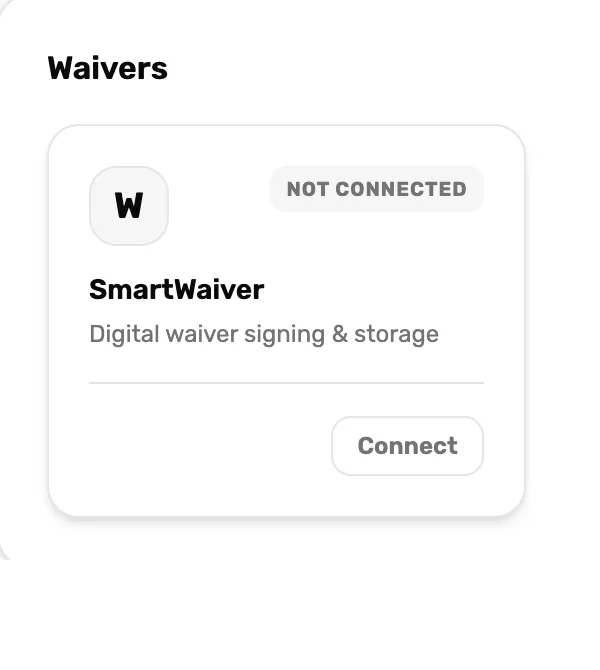
- Not connected. No waiver emails can go until this says Connected.
- Connect. Asks for your SmartWaiver API key. Once connected the button reads Manage, where you pick the Waiver to send.
It said Waiver sent, but nothing came. The email comes from noreply@onedive.ai with the subject "Please sign your waiver for" and your shop's name. The link in it works for 30 days. Spam, typos and blocked addresses work the same way as for receipts, above.
They signed, but the chip still says No Waiver. Signed waivers come in from SmartWaiver about every five minutes, so give it a few minutes. Still nothing? In Settings › Integrations, choose Manage on the SmartWaiver card and look under Needs matching. A waiver signed with a different name or email waits there until you attach it to the right customer.
What happens next
- The customer has their receipt or waiver, and the cause is fixed for next time.
- To get the customer and their waiver right at the start of every sale, see Attach a customer and their waiver.
- To see a customer's waiver and contact details, see The customer drawer, tab by tab.