
What this is for. The Service board shows where every piece of customer gear is, at a glance. A ticket moves left to right as the work happens. The customer hears from you at two moments: when you take the gear in, and when it is ready. When the gear goes home, the ticket leaves the board. This page is the map. To make your first ticket, start with Your first service ticket.
The board
Go to Service. Each card is one ticket, in the column for where the gear is now.
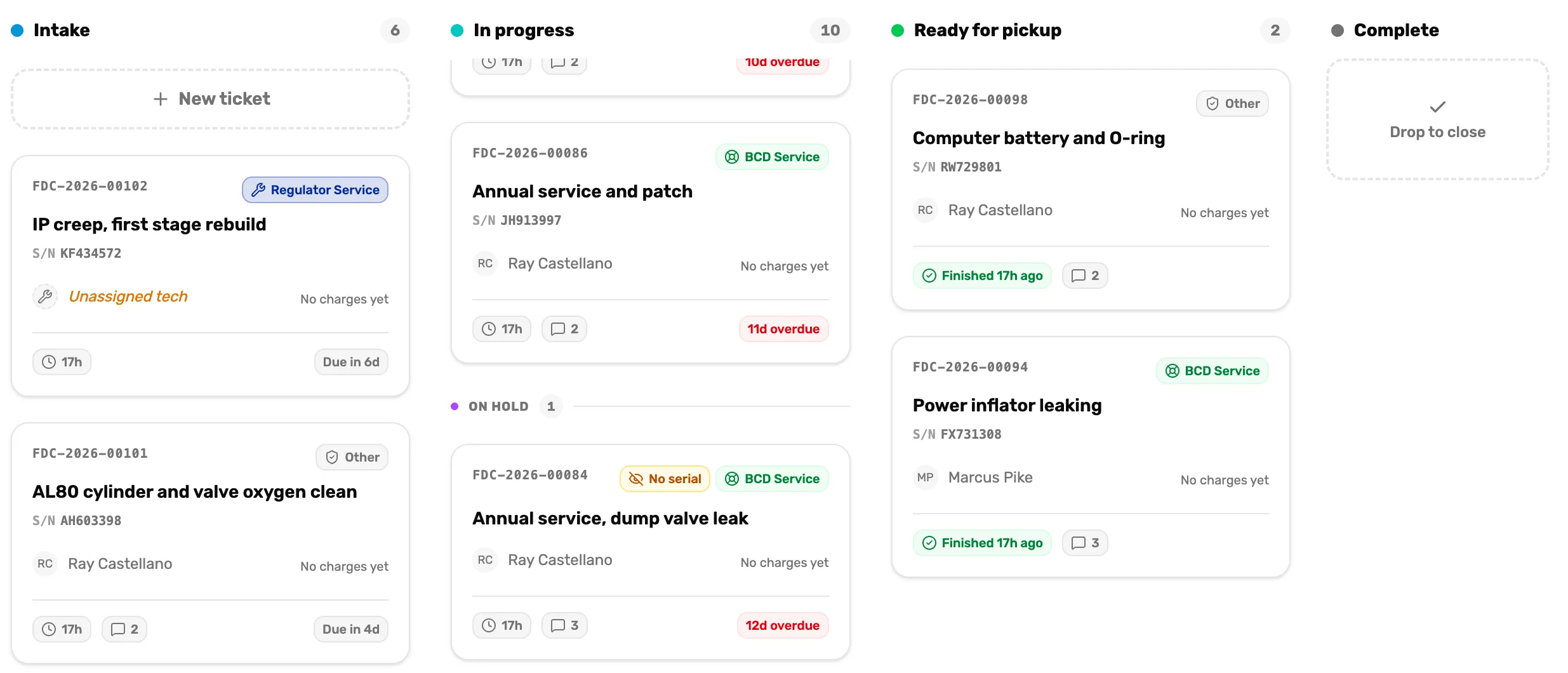
- Intake. Gear that came in and nobody has started yet. Every new ticket lands here.
- In progress. Someone is working on it. The number counts the held tickets too.
- On hold. Paused tickets, kept at the bottom of In progress. Use it while you wait for a part or for the customer to say yes to a price.
- Ready for pickup. The work is done and the gear is waiting for the customer.
- Complete. Not a column. Dropping a card here closes the ticket as picked up.
- The due chip. Days until the pickup date on the ticket, or how many days late it is. Ready cards show how long ago the work finished instead.
Across the top, Types and Assignees narrow the board to some gear types or some people, and Assigned to me shows only your own tickets. Tap any card to open its ticket.
What moves a ticket
Each ticket has buttons at the top that move it one step. Which buttons you see depends on where the ticket is.
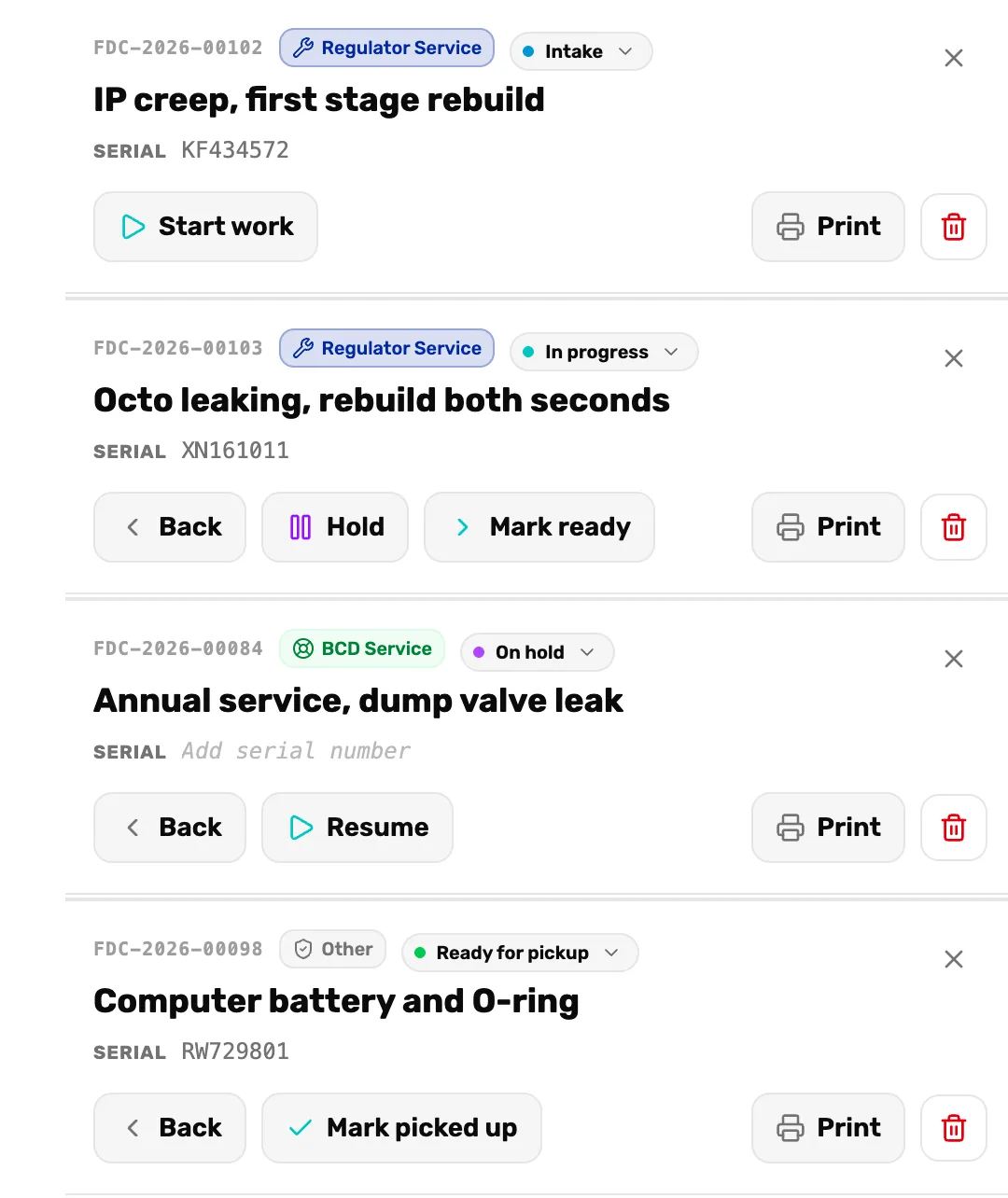
- Where it is now. Tap it to move the ticket to any column, put it on hold, or cancel it.
- The bin (Cancel ticket). Asks why, then closes the ticket as Cancelled. If parts from your stock are on it and not paid, a tick box puts them back on your shelf count.
- Start work. Intake to In progress.
- Hold. Pauses an In progress ticket. It moves under On hold.
- Back. One step back. From In progress or On hold it goes to Intake. From Ready for pickup it goes back to In progress.
- Mark ready. In progress to Ready for pickup. This is the moment the customer is told.
- Resume. On hold back to In progress.
- Mark picked up. Closes the ticket. If money is still owed, OneDive asks you to take payment first.
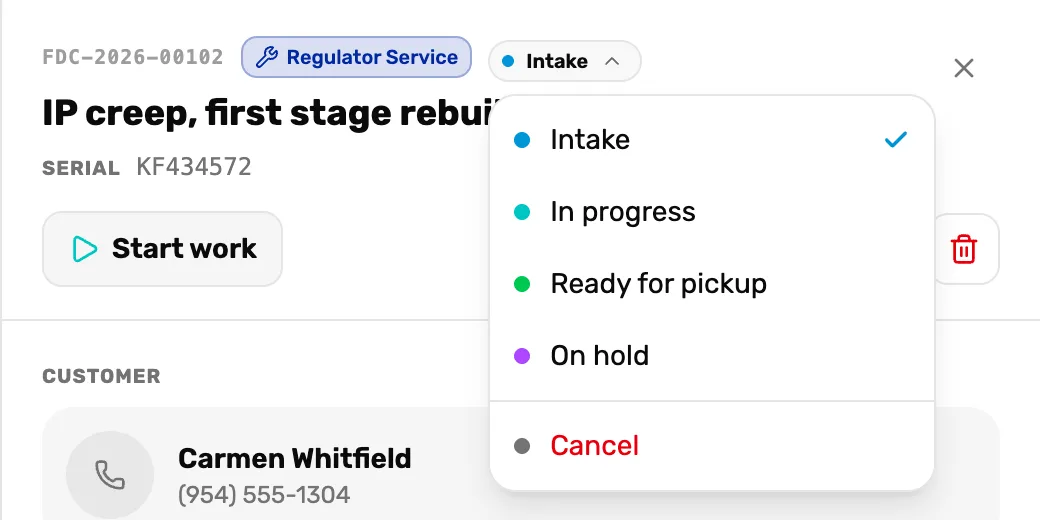
- The status. Opens this menu on any open ticket.
- On hold. The only way to pause a ticket that hasn't started. The Hold button shows on In progress tickets only.
- Cancel. The same as the bin. The reason you type is saved on the ticket.
You can also drag a card from one column to another. If nobody is assigned to the ticket, the person who drags it becomes the assignee.
What the customer is told
OneDive sends the customer two messages, and only these two. Starting work, holding, resuming, cancelling and closing send nothing.
| When | The customer gets |
|---|---|
| The ticket is created | A confirmation of what you took in |
| The ticket moves into Ready for pickup | A message that it is ready |
Each one goes by text to a customer with a phone number, and by email to a customer with an email address. A customer with both gets both. The text is one line, like "Florida Dive Company: your Regulator (ticket FDC-2026-00105) is ready for pickup." The email has the details, plus your pickup note.
You switch each message on or off in Service › Configure services, under Customer messages. Both are on to start with.
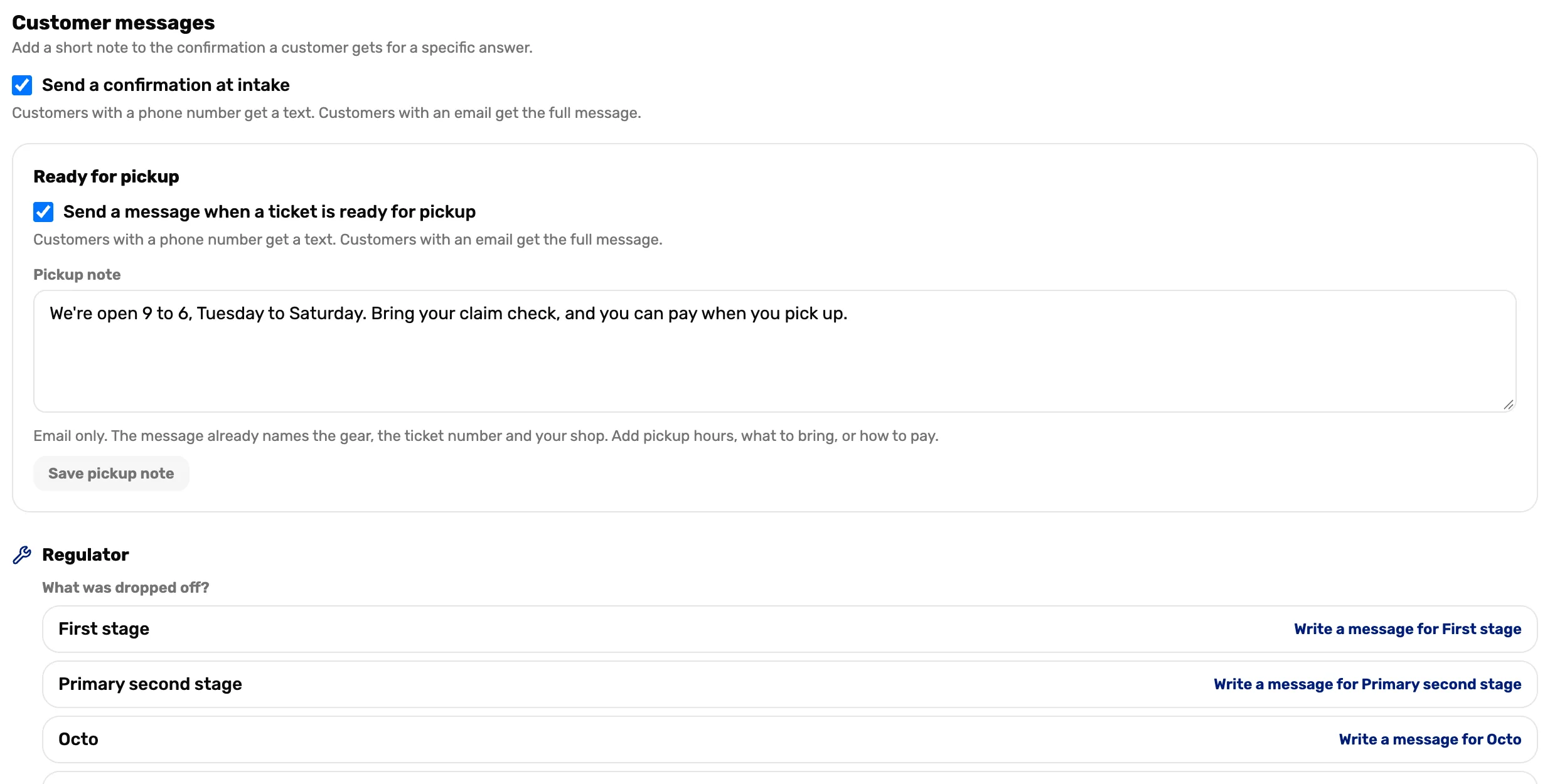
- Send a confirmation at intake. Off means no message when a ticket is created.
- Send a message when a ticket is ready for pickup. Off means no message at Mark ready.
- Pickup note. Your hours, what to bring, how to pay. It goes in the email only.
- Write a message. An extra line in the confirmation, only when that answer was picked at the counter.
Nothing is sent when:
- The customer has no phone number and no email on the ticket or on their profile.
- The customer's profile shows Awaiting consent or Consent revoked. Your shop doesn't have their consent, so OneDive sends them nothing.
- The switch for that message is off.
To check what went out, open the ticket and choose Activity. It lists each send, like "Ready for pickup texted to" and the number. If the customer says they heard nothing, see The customer did not get the receipt or the waiver: the same causes apply.
When a ticket closes
A ticket closes when the gear is picked up or the ticket is cancelled. It leaves the board and goes to Service › Closed tickets.
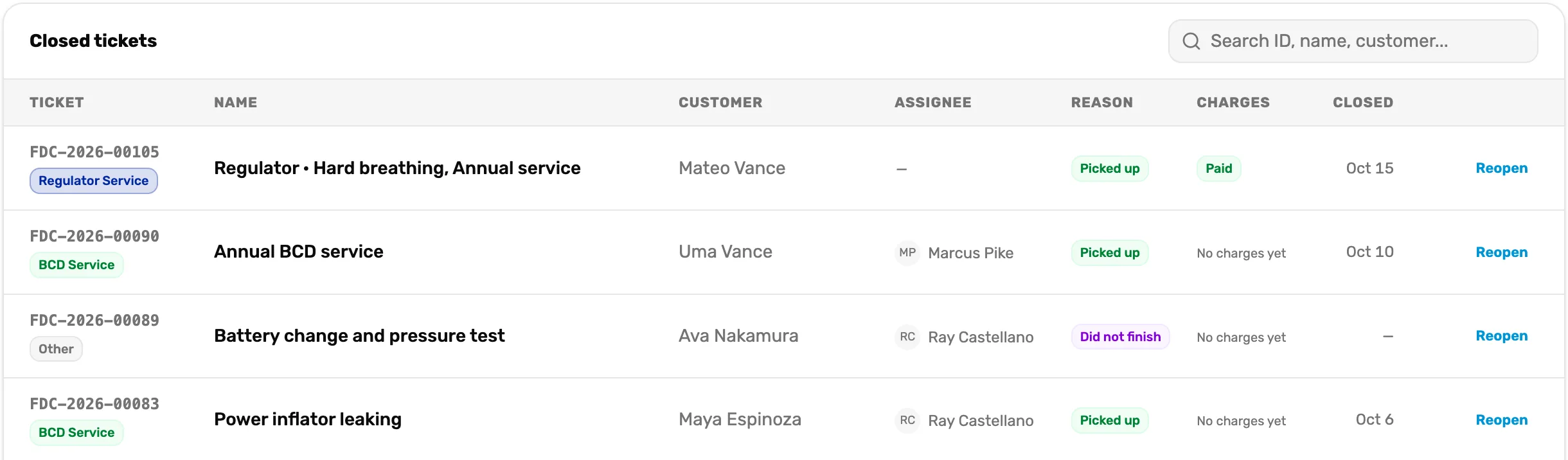
- Search. Finds a ticket by its name or the customer's name. Typing a ticket number doesn't find it yet.
- Reason. Picked up, Cancelled, or Did not finish.
- Charges. Paid, or No charges yet. Only shows when your shop charges on tickets.
- Reopen. Puts the ticket back on the board in Intake, for gear that comes back with a problem.
Ticket numbers
A number like FDC-2026-00105 is your shop's prefix, the year, and the ticket's place in that year's count. The count starts again at 00001 each January. OneDive makes the prefix from your shop's initials. To change it, go to Settings › Business and edit Ticket prefix.
Who can do what
- Anyone on staff can take in gear, move tickets, add work and parts, take payment, close and reopen.
- Anyone on staff can hand gear over without payment, with a reason that is saved with their name.
- The owner or a general manager can configure services: prices, the labor rate, gear types and customer messages.
A manager can run every ticket, but the Configure services button only shows for the owner and general managers.
What happens next
- New to service? Do the three missions in Your first service ticket.
- Taking gear in: Take in gear.
- Charging and handing back: Charge for the work and hand it back.