
What this is for. Your trips and classes, in the calendar you already check on your phone. The calendar feed is a private link that Google Calendar, Outlook or Apple Calendar reads on its own, so you and your crew can see the week ahead without opening OneDive. It only goes one way: what you change in OneDive reaches the calendar app, never the other way round. You end up with a calendar called "Florida Dive Company · OneDive" (your shop's name) beside your own.
Turn on the calendar feed
Go to Settings › Integrations. Under Calendar, find the Calendar feed card. It reads Not connected. Tap Enable at the bottom of the card.
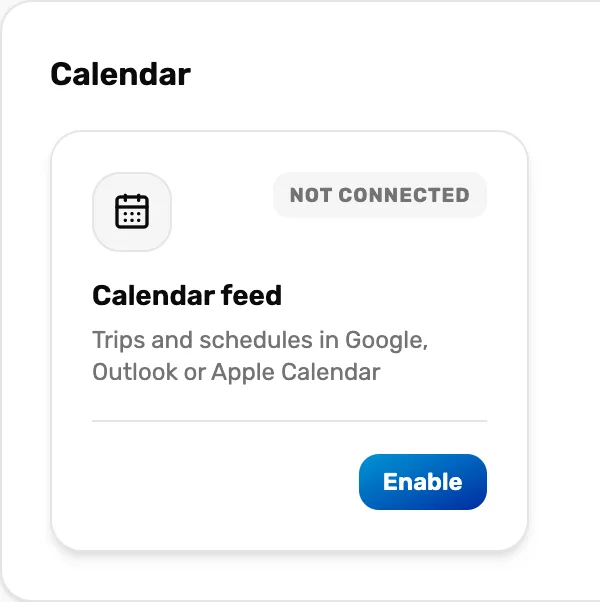
- Not connected. The feed is off. Once it is on, this reads Connected.
- Enable. Makes your shop's private link and opens the feed window. Once the feed is on, the button is Manage.
OneDive says "Calendar feed enabled" and opens the Calendar feed window.
Choose what goes in it
Under Include, three switches decide what the feed carries. Each one saves as soon as you tap it.
- Trips (on to start): every departure, with the crew and how many seats are booked.
- Course sessions (on to start): every class, with the instructor and how many students are enrolled.
- Rental pickups and returns (off to start): each pickup and return, with the customer's name. The window warns "Adds customer names to the feed. Anyone with the link can read them." Turn it on only if you are happy for whoever has the link to see those names.
Service tickets are never in the feed.
Copy the link
Tap Copy beside Feed URL. OneDive says "Link copied". This is the link for Google Calendar and Outlook. Copy webcal link copies the same link in a form that Apple Calendar and classic Outlook open by themselves.
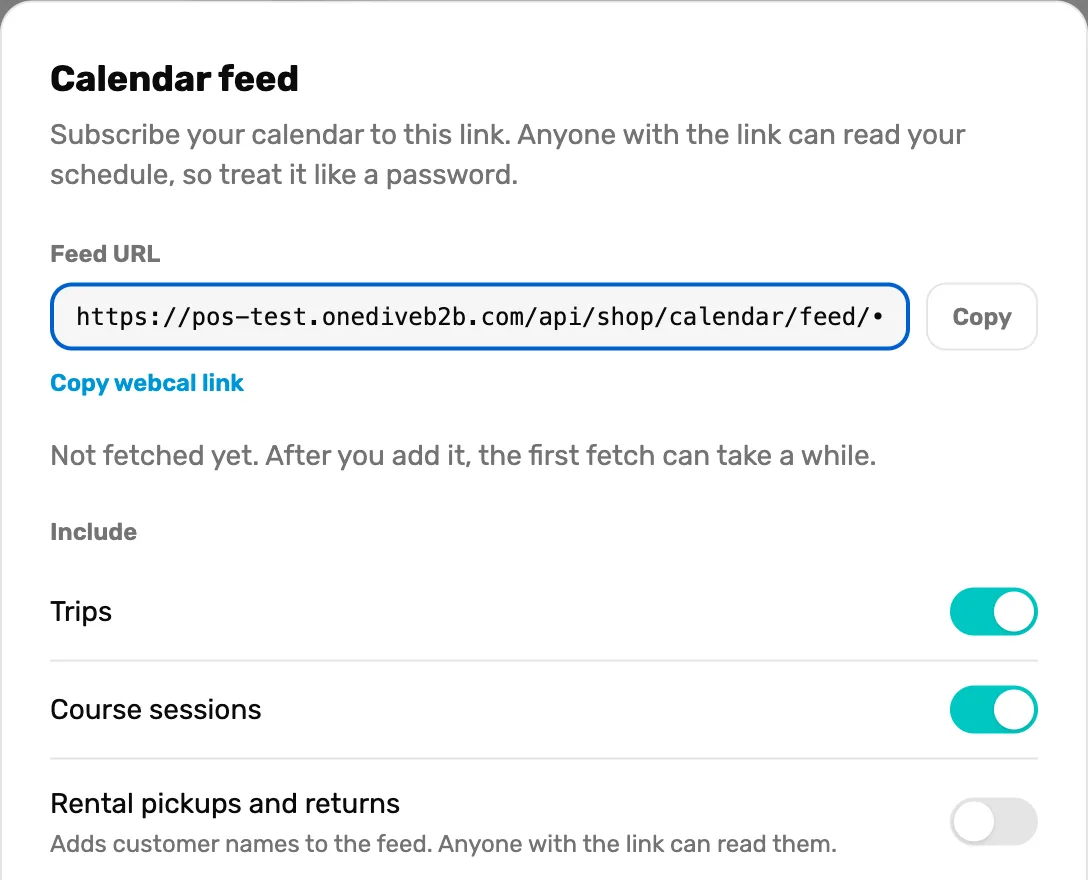
- Feed URL and Copy. Your shop's private link. Copy puts it on the clipboard.
- Copy webcal link. The same link for Apple Calendar.
- The fetched line. Says when a calendar app last read the link.
- Include. What the feed carries. Each switch saves at once.
Add it to Google Calendar
On a computer, open Google Calendar. On the left, beside Other calendars, click + and choose From URL. Paste the link and click Add calendar. The Google Calendar phone app can't add a link, but once you add it on a computer, it shows on your phone too.
Or add it to Outlook or Apple Calendar
- Outlook on the web or the new Outlook: choose Add calendar, then Subscribe from web. Paste the link, give the calendar a name, and choose Import.
- Classic Outlook for Windows: choose Add Calendar, then From Internet, and paste the link.
- Apple Calendar on a Mac: choose File, then New Calendar Subscription, and paste the link. On an iPhone or iPad, open the webcal link and confirm.
The feed window lists these steps too, under Add to your calendar. Tap a calendar's name to open its steps.
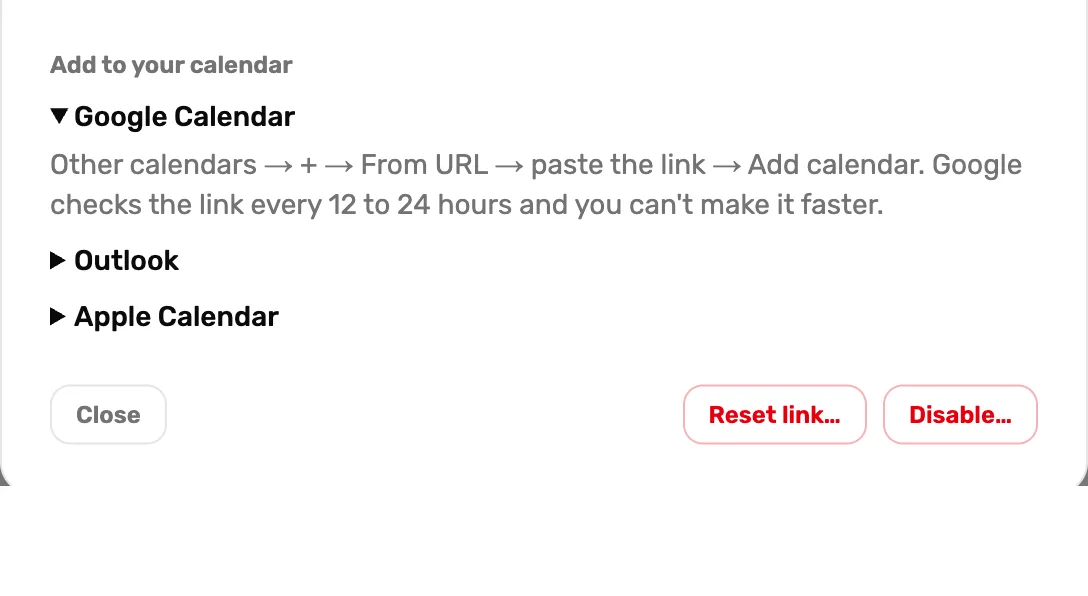
- Add to your calendar. The steps for each app, with how often it refreshes.
- Close. Closes the window. The feed stays on.
- Reset link…. Makes a new link. See below.
- Disable…. Turns the feed off. See below.
Check that it worked
The first time, the calendar app can take a while to read the link. Back in Settings › Integrations, tap Manage on the Calendar feed card. Until the link has been read, the window says "Not fetched yet. After you add it, the first fetch can take a while." After that it names the app and when, like "Google Calendar fetched this 2 hours ago."
How often it updates
Your calendar app decides when to read the link again, not OneDive. A change you make in OneDive shows up after the app's next read:
| App | How often |
|---|---|
| Google Calendar | Every 12 to 24 hours. It can't be made faster. |
| Outlook.com | Roughly every 4 to 24 hours |
| Classic Outlook | Each time it runs Send/Receive |
| Apple Calendar | Every hour to start. Change it under Get Info, Auto-refresh. |
For anything that changed today, check the calendar in OneDive. It is always current.
What each event says
- A trip: the trip's name (and the boat, if it has one), its time and where it leaves from. The notes list the crew and the seats booked, like "8 of 12 booked". A departure with no start time shows as an all-day event.
- A class: the course name, its time and place. The notes list the instructor and the students enrolled, like "4 of 6 enrolled".
- A rental: "Rental pickup" or "Rental return" with the customer's name, as a half-hour event, and how many items.
The feed covers the last 30 days and the next 12 months. Departures made by a repeating schedule go in 60 days ahead. A cancelled trip or class drops off at the app's next read.
Each event also carries a link back to OneDive: a trip event opens that departure's page, with its roster, a class event opens the class, and a rental event opens the calendar.
Reset the link
Do this when someone who had the link leaves, or the link was shared by mistake. In the feed window, tap Reset link…, then Confirm reset. OneDive says "New link ready. Paste it into every calendar that used the old one."
The old link stops working at once, and every calendar using it stops updating until you paste in the new one. Your Include choices stay as they were.
Turn it off
In the feed window, tap Disable…, then Confirm disable. OneDive says "Calendar feed disabled" and the card reads Not connected again. The link stops working, so remove the calendar from Google or Outlook as well, so old events don't linger there.
Turning it on again makes a brand new link. Your Include choices are kept from before.
What happens next
- What the calendar in OneDive shows: The calendar, explained.
- Times look an hour off? Check your shop's zone in Time zone, currency and date format.