
What this is for. The calendar is your shop's day on one screen: the trips going out, the classes running, the rental gear going out and coming back, and the service tickets customers expect back. You never type anything into the calendar itself. It reads what is already booked in OneDive, so it is always up to date, and you can check rental gear out and in right from it.
What shows on the calendar
Four kinds of things, each from its own place in OneDive:
- Trips. Every departure that has a date, from Trips. Cancelled departures don't show.
- Classes. Every class that has a date, from Courses. Cancelled classes don't show.
- Rentals. Gear booked at the register with a pickup date, and gear added to a trip booking. A rental shows from its pickup to its due back time. Once it is checked in, cancelled or marked lost, it leaves the calendar.
- Service tickets. Open tickets that have a pickup date: the day you promised the gear back. A new ticket has no pickup date, so it isn't on the calendar until someone sets Pickup on the ticket in Service.
Calendar is in the bar at the top of the register, and everyone on staff can open it. It opens on today. Day and Month at the top switch views, and each device remembers the view it used last.
Day view
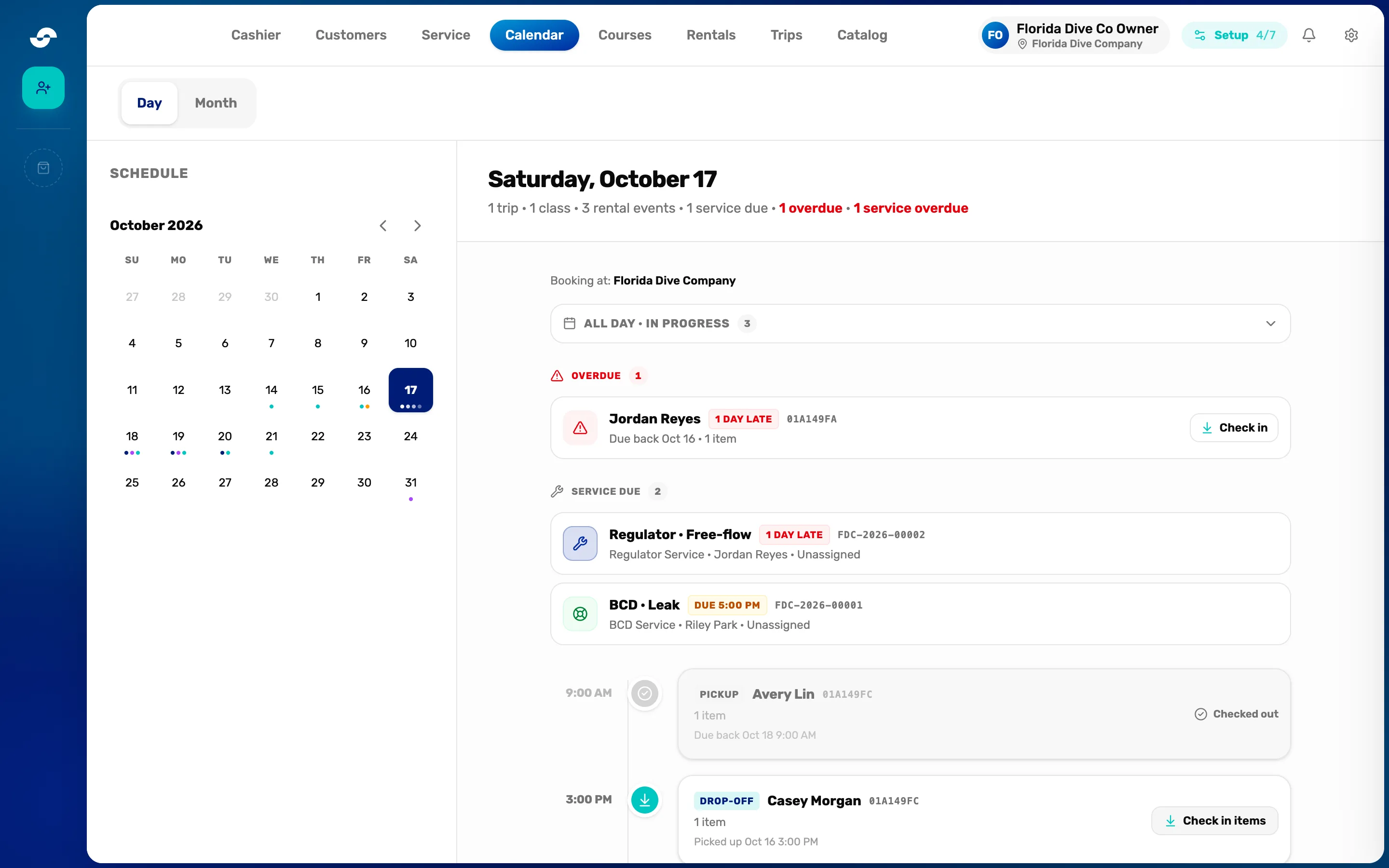
- Day and Month. Switch between one day and the whole month.
- Schedule. This month, with a dot under each day that has something on: dark blue for a trip, purple for a class, teal for a rental, amber for a service ticket due. Tap a day to see it. The arrows change the month.
- The summary. How many trips, classes and rental events (pickups plus drop-offs) the day has, then service tickets due. Anything overdue is in red.
- Booking at. The store you are working in.
Looking at another day? Today at the top right brings you back. Under the summary, the day's list always runs top to bottom like this: the all day row, overdue rentals, service tickets due, then the timeline.
All day · In progress
This row stays closed until you tap it. The number beside it counts what is inside:
- Trips that run that day, with the trip's kind, start and end time, seats booked (like 8/12 booked), where it leaves from, and "Day 2 of 3" on a trip over several days. Tap one to open the departure.
- Classes that run that day, with the course, students enrolled and where. Tap one to open the class.
- Rentals in progress: gear that went out before this day and is due back after it, marked In progress. Tap one to see the rental.
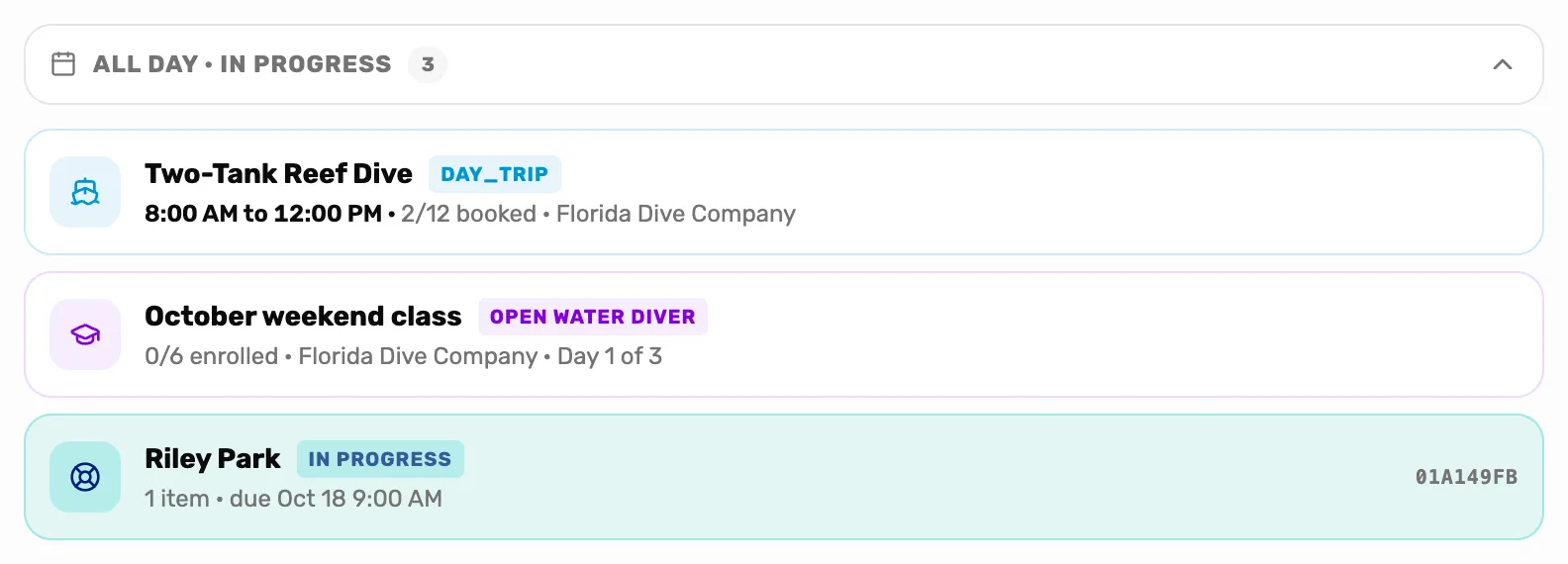
- A trip. Opens the departure: its roster, waivers and payments.
- A class. Opens the class and its students.
- A rental in progress. Opens the rental's details.
Overdue and Service due
Overdue only shows when you are looking at today. It lists every rental that was checked out and is past its due back day, with how many days late it is. Check in on the card checks the gear back in right there.
Service due lists the open tickets whose pickup date is that day. On today it also lists tickets already past their pickup date, marked in red with the days late. A pickup date counts as due at 5:00 PM. Tap a ticket to open it on the service board.
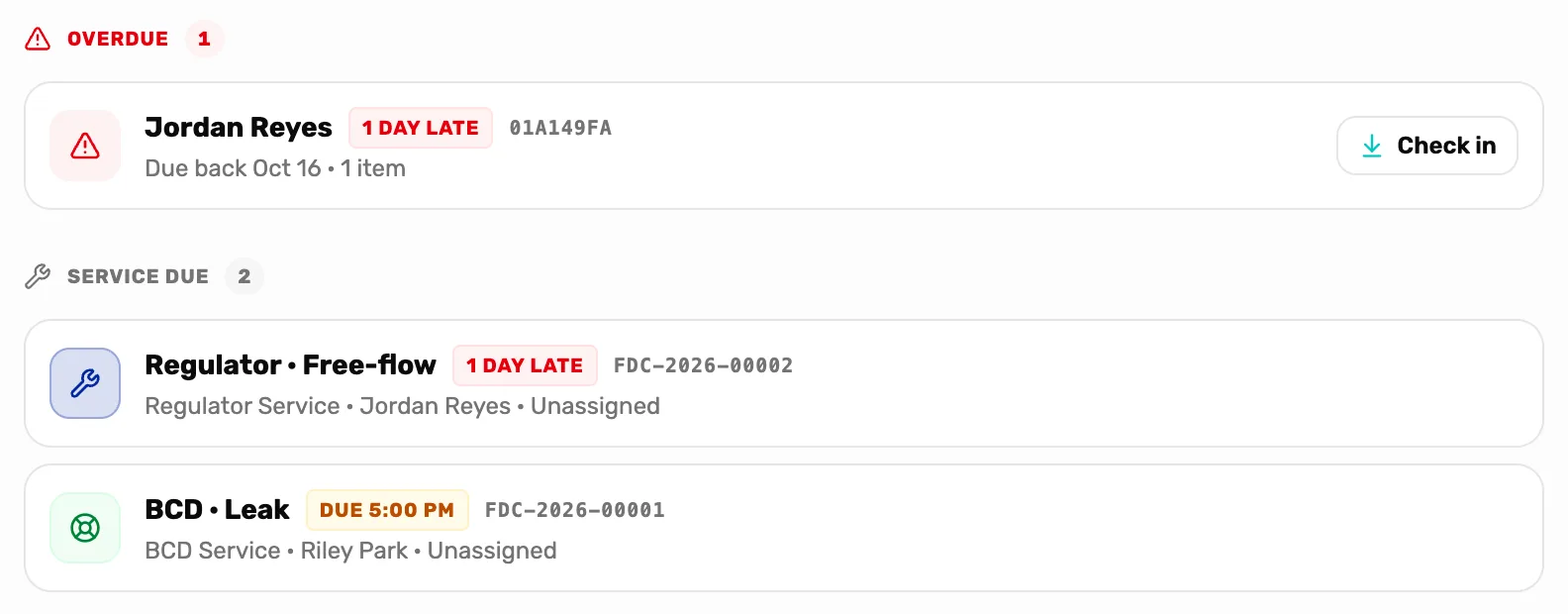
- An overdue rental. How late it is and when it was due. Tap the card to see the rental.
- Check in. The gear is back. It leaves the calendar.
- A service ticket. Its summary, when it is due, its number, the gear, the customer, and who it is assigned to.
The timeline
The day's pickups and drop-offs, in time order, with the time on the left.
- Pickup is gear going out. The card shows the customer, a short reference for the rental, how many items, and when it is due back. Check out items hands it over, and the card then reads Checked out.
- Drop-off is gear coming back. The card shows when it was picked up. Check in items takes it back, and the rental leaves the calendar.
A day with neither says "No pickups or drop-offs scheduled." OneDive confirms each action with "Items checked out" or "Items checked in".
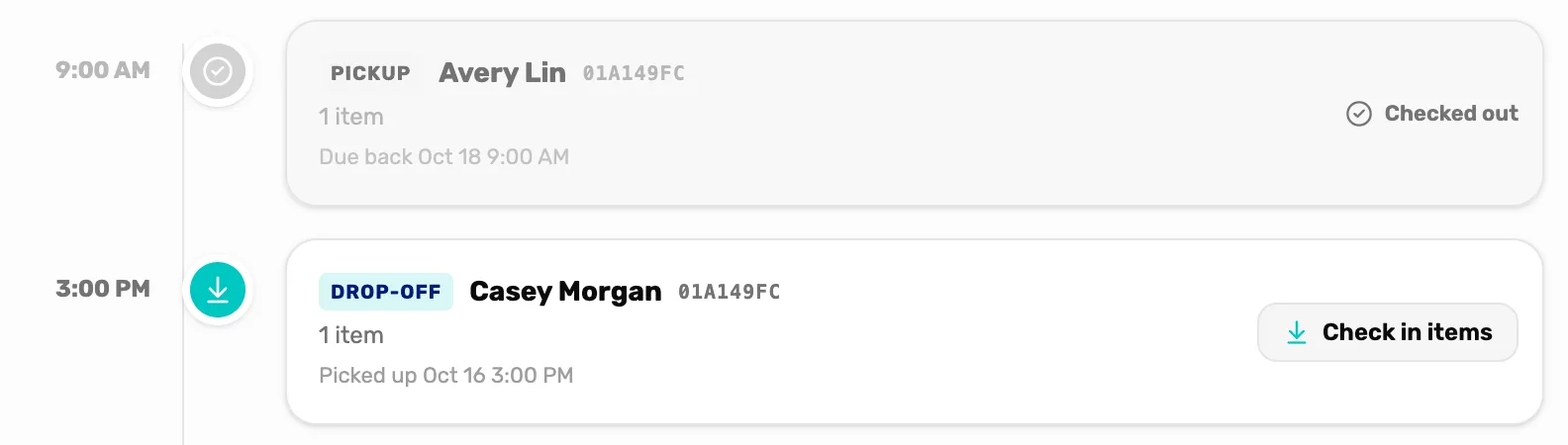
- The time. When the pickup or drop-off is due.
- Pickup, done. Greyed out once the gear has gone out.
- Drop-off. Gear due back today.
- Check in items. Takes the gear back into your fleet.
A rental's details
Tap any rental card to open its details on the right.
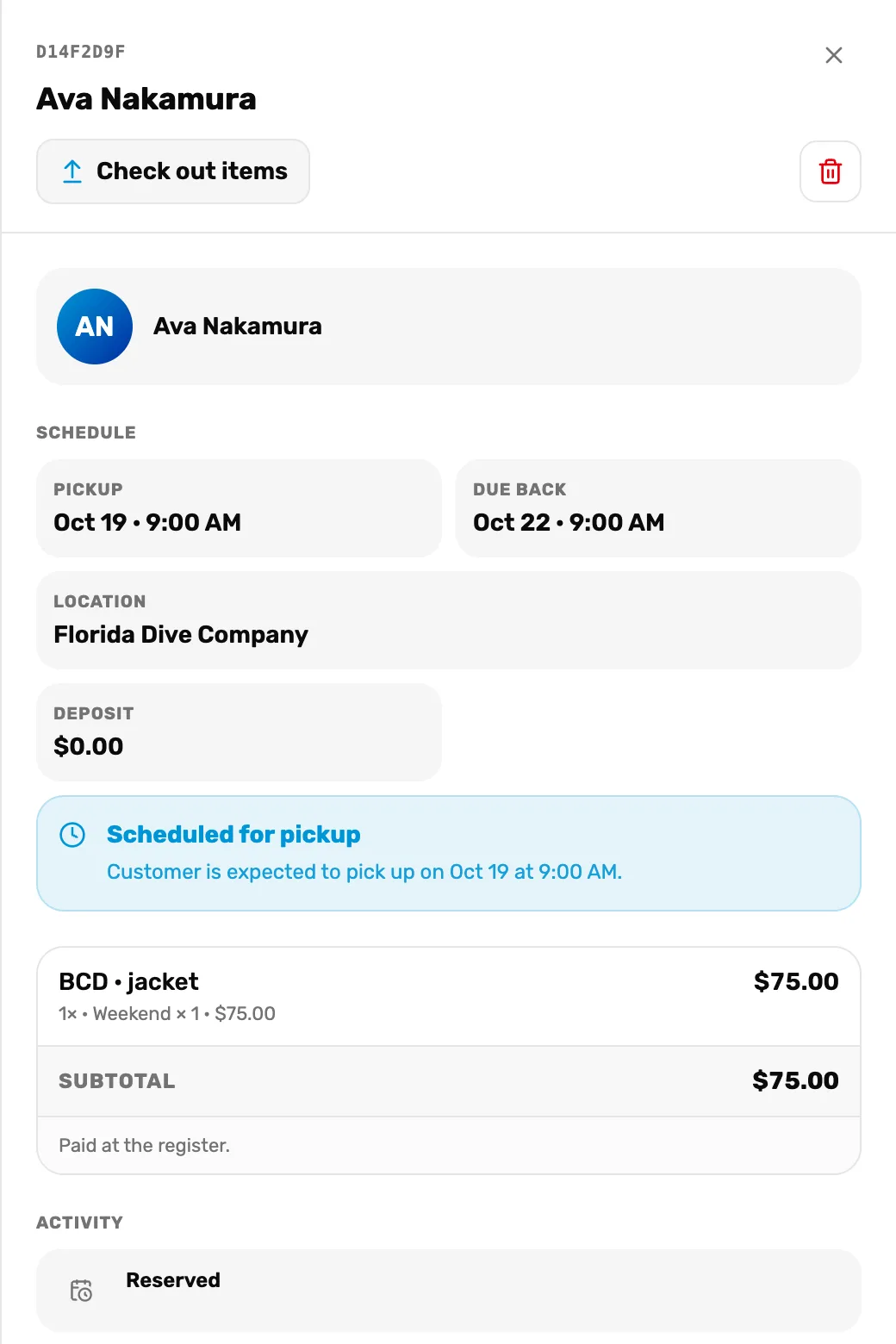
- Check out items or Check in items. Whichever comes next for this rental.
- The bin. Cancels a rental that hasn't been picked up yet. Read the note below first.
- Schedule. Pickup, Due back, the store it was booked at, the deposit, and Returned once it is back.
- Where it stands. Scheduled for pickup, Items picked up, Items are late, or Rental complete.
- The items. Each item with its rate and price. A rental rung up at the register says "Paid at the register." The calendar never takes money.
Gear that came with a trip booking says "Paid with the trip booking." and has no bin. To release it, cancel that seat on the trip's manifest.
Month view
Month shows the whole month as a grid, one box per day. Past days are faded and today is marked Today.
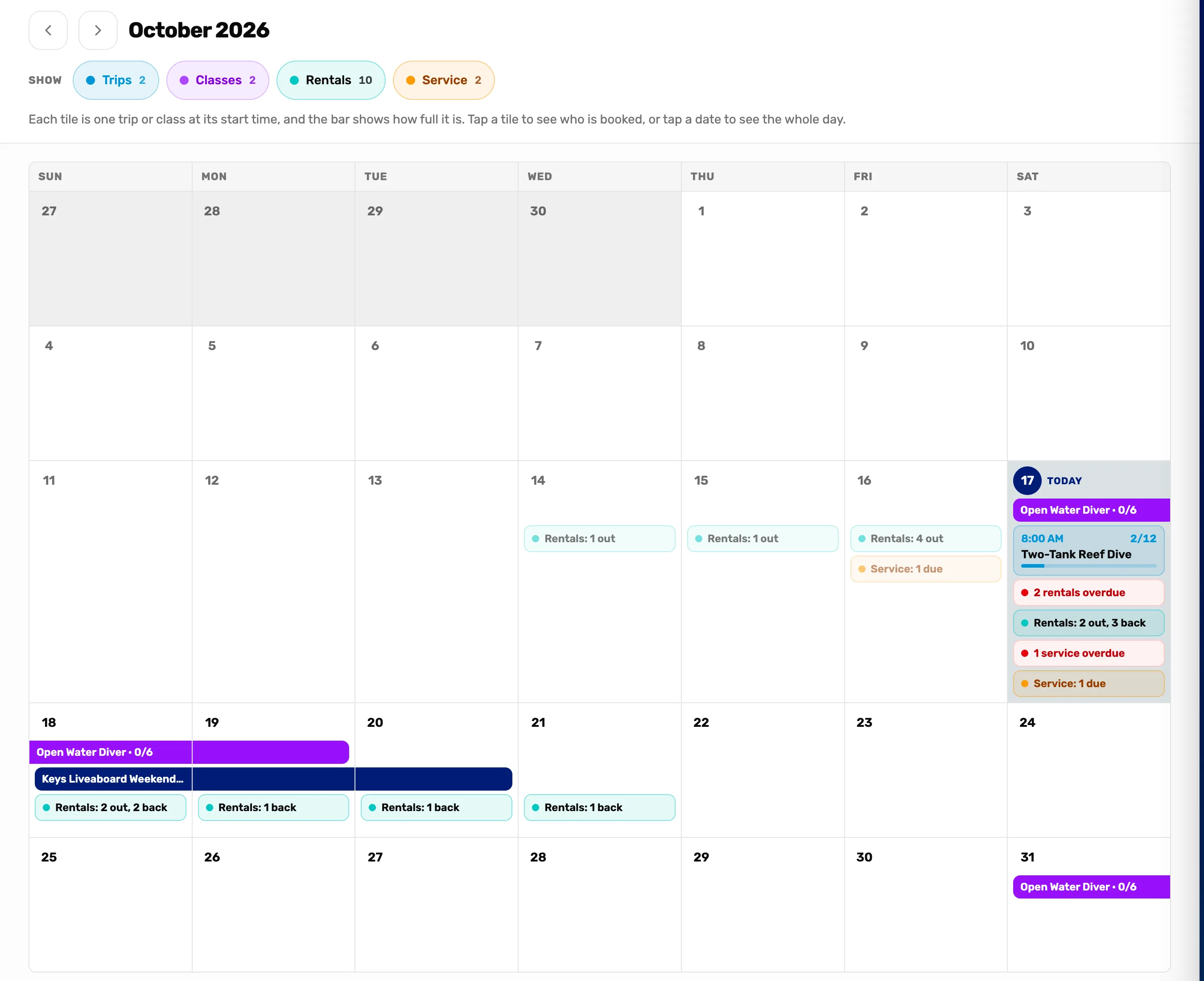
- The arrows. The month before and after. Today appears when you are on another month.
- Show. Trips, Classes, Rentals and Service, each with how many the month has. Tap one to hide it, and again to show it.
- A tile. One trip or class at its start time: the time (or All day), seats taken out of seats, and a bar for how full it is. A tag says Full, 1 left, or Booked for a private trip someone has booked.
- A bar. A trip or class that runs over several days, as one bar across those days.
- The rentals line. That day's rentals going out and coming back. On today, a red line counts the overdue ones.
- The service line. Tickets due that day. On today, a red line counts the overdue ones.
- The date. Tap it to see everything that day.
A day with more than seven tiles shows "+2 more" (or however many). Tap it to see them all.
Tap anything to see more
A panel opens on the right, and the month stays where it is:
- A tile or a bar: how full it is and who is booked or enrolled. Open departure or Open class goes to its page. A departure's page has the full roster, waivers and payments.
- A date: everything that day. Open day view takes you to that day in Day view.
- A rentals line: the day's rentals under Overdue, Going out and Coming back. Tap one to check it out or in.
- A service line: the tickets due that day. Tap one to open it on the service board.
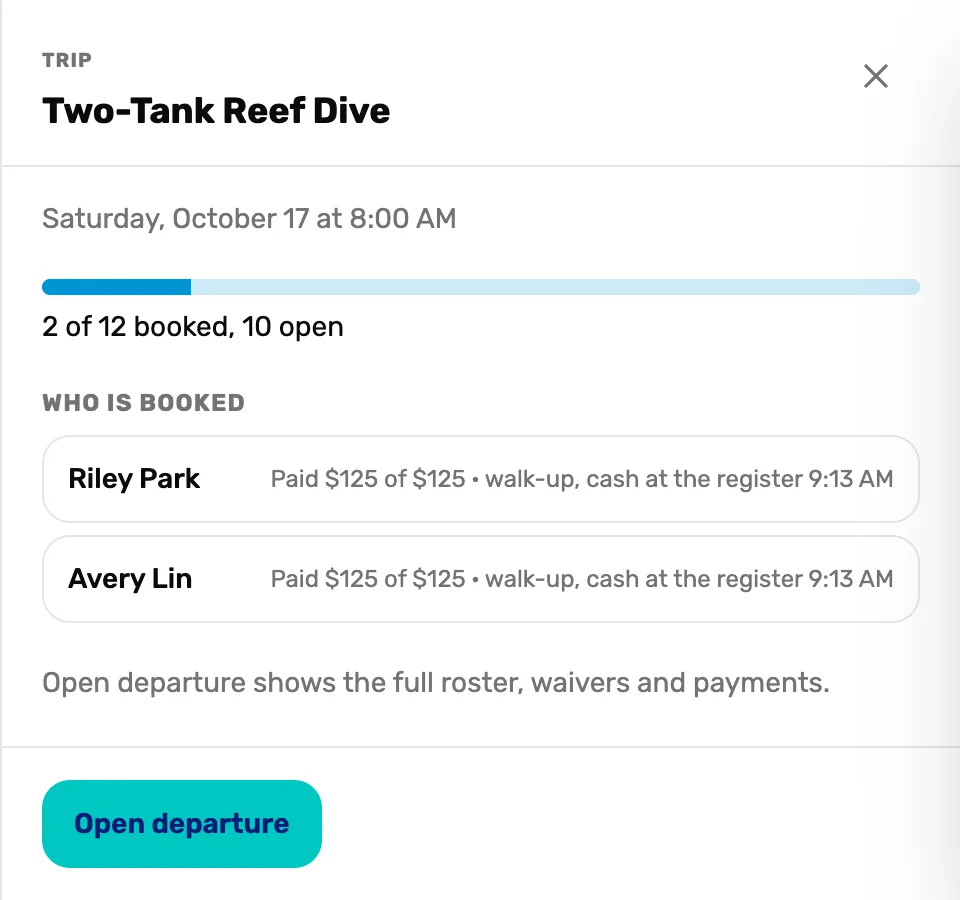
- How full it is. Booked, out of how many, and how many seats are still open.
- Who is booked. Each diver, and what they have paid so far.
- Open departure. The departure page, with everything about it.
On a phone
Day view has arrows to step a day back or forward, and Jump to today. Month view shows a small month with dots on top and the chosen day's list under it.
What happens next
- See the same schedule in your phone's calendar: Put your calendar in Google or Outlook.
- Put trips on it: Add a trip and a departure.
- Put classes on it: Add a course and schedule a class.
- Put service tickets on it by giving them a pickup date: Service tickets explained.