
What this is for. Your shop's time zone is its clock. OneDive uses it to put a 9:00 AM departure at 9:00 AM where your boat is, to show divers the right times when they book online, and to decide which day a late sale or a report belongs to. Set it once, before you schedule anything. This page goes through the card's three fields and what each one really changes today.
Before you start
Go to Settings › Business Settings › Locale & timezone. You may have set these already in Setup.
- The card has one Save changes for all three fields. It stays grey until you change something.
- Nothing is saved until you tap it. If you leave the page first, your change is dropped.
- Only the owner or a General Manager can change them. A Manager sees the three lists greyed out, under "Only the owner or a General Manager can change these settings."
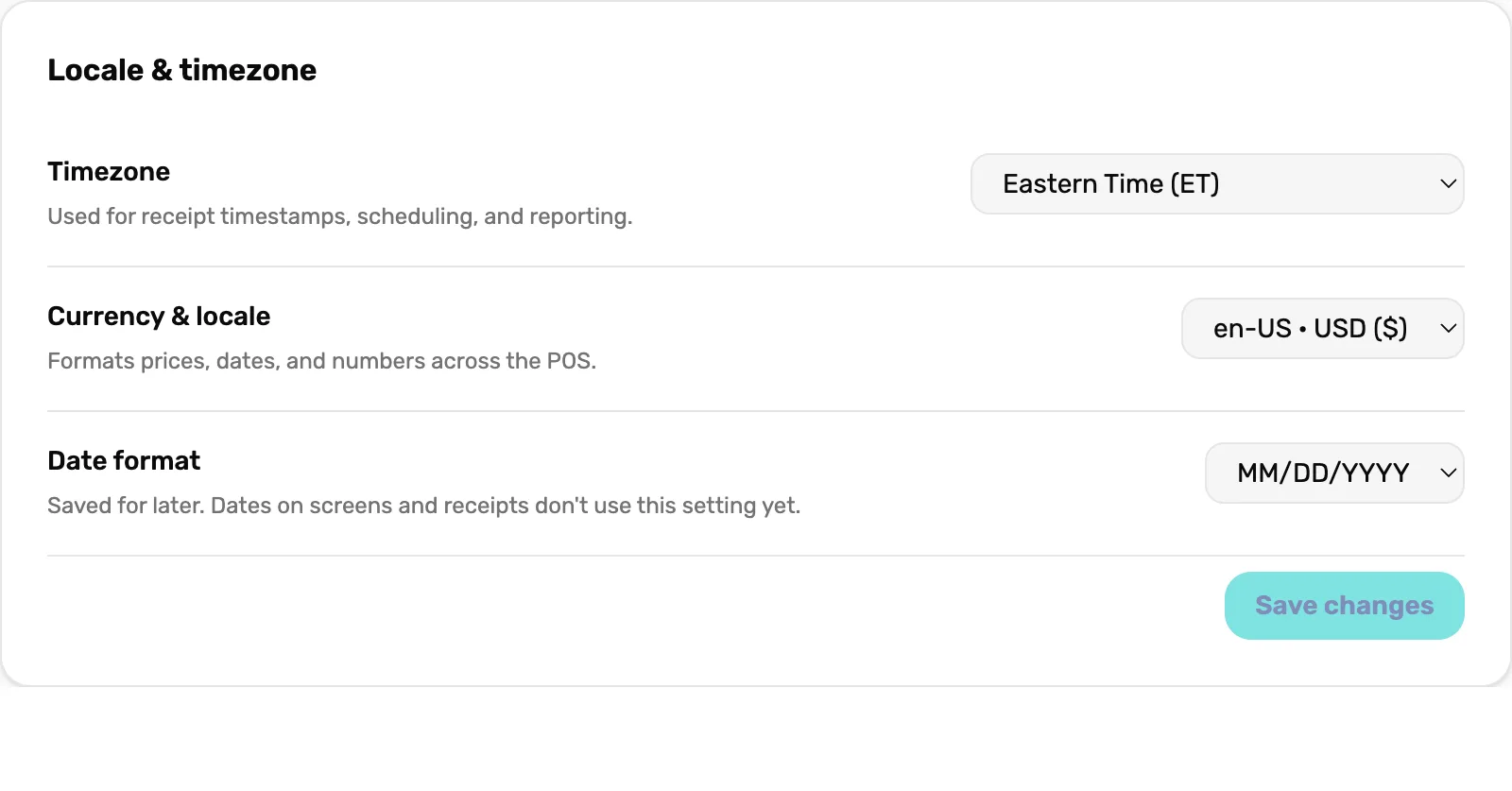
- Timezone. Your shop's clock. The one that matters most.
- Currency & locale. The currency online trip bookings charge in.
- Date format. Not used yet.
- Save changes. Saves all three. Grey until you change something.
Timezone
"Used for receipt timestamps, scheduling, and reporting." Pick the zone your shop is in:
- Pacific Time (PT)
- Mountain Time (MT)
- Arizona Time (no daylight saving)
- Central Time (CT)
- Eastern Time (ET)
- Alaska Time (AKT)
- Hawaii Time (HT)
A new shop starts at Select…, which means no time zone. Daylight saving is handled for you.

- Select…. No time zone yet. Trip times can't be set until you pick one.
What your time zone changes
- Trip times. A departure's start and end time are on your shop's clock. With no time zone, the departure window says "Set your shop's time zone to add a start time." and a departure can only be a whole day. See Add a trip and a departure.
- Online booking. "Your shop's time zone" is on every trip's online checklist, because the times divers pick are on your shop's clock. See Get your shop ready for online booking.
- Closing a slot on a trip's schedule needs it too. Without one, OneDive says "Set the shop's time zone in Settings first."
- Reports. A report's days start and end at midnight on your shop's clock, so a sale at 11:30 PM lands on the right day. With no time zone, days are cut at midnight UTC, which is the afternoon or evening before in the US.
- Trip messages set to go out at a time of day go out at that time on your shop's clock.
- Service ticket numbers. The year in a number like FDC-2026-00001 is your shop's year.
- The calendar lays out every day and time on your shop's clock.
- QuickBooks. The day it posts is your shop's day, and the QuickBooks card asks for a time zone first.
Currency & locale
"Formats prices, dates, and numbers across the POS." The choices are en-US · USD ($), en-CA · CAD ($), en-GB · GBP (£) and en-AU · AUD ($).
What it really changes today: the currency divers are charged in when they book a trip online. With nothing picked, online bookings charge in US dollars.
Date format
"Saved for later. Dates on screens and receipts don't use this setting yet." The choices are MM/DD/YYYY, DD/MM/YYYY and YYYY-MM-DD.
Whichever you pick, OneDive writes dates like "Oct 16" or "Friday, October 16" for now.
What happens next
- The other two cards on this page: Shop profile and branding, field by field.
- Now give your departures start times: Add a trip and a departure.
- See your day on the shop's clock: The calendar, explained.